
Wir stellen SimuLang vor: Playwright für den gesamten Desktop
November 23, 2026
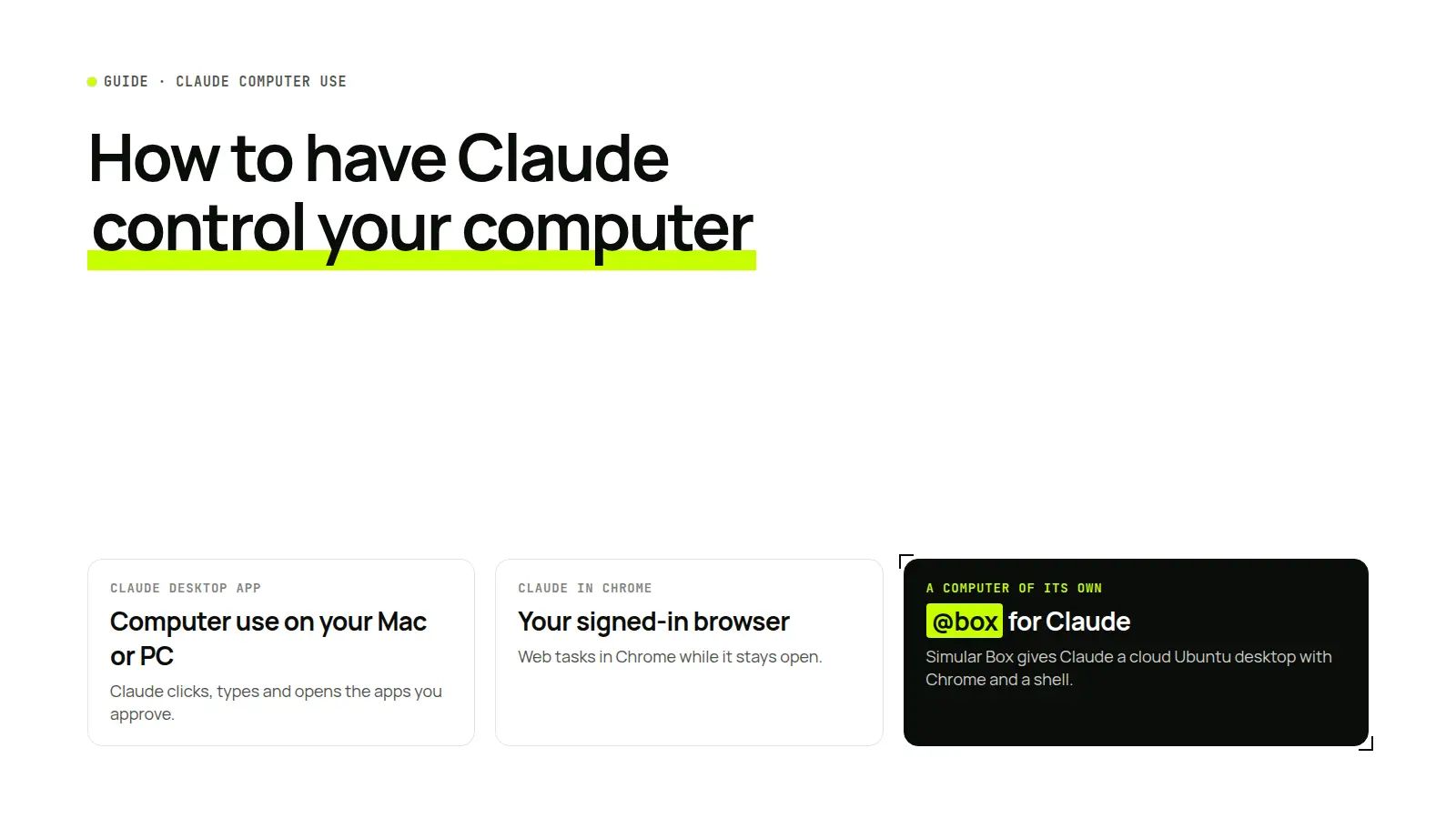
Short answer: To have Claude control your computer, open the Claude desktop app on a Pro, Max or Ultra plan, go to Settings > Capabilities and turn on Enable computer use, then approve each app Claude asks to use. Developers can also turn on computer use in the Claude Code CLI on macOS, use the Claude in Chrome extension for browser tasks, or build with the computer use tool in the Claude API. If you'd rather Claude didn't work on your own machine, connect it to a separate cloud computer such as Simular Box.
What “Claude controls your computer” means
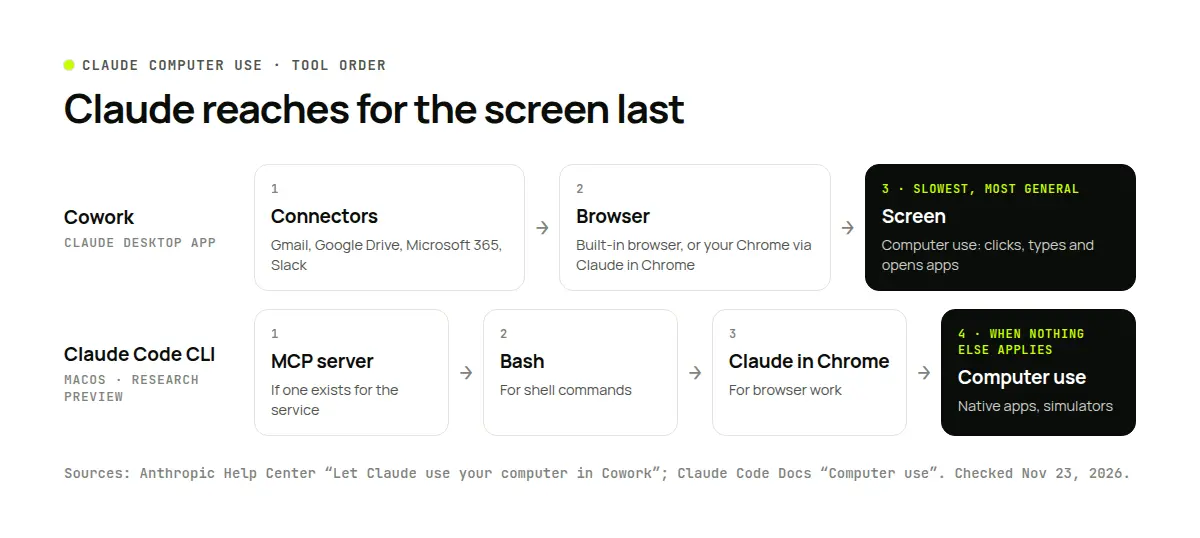
When Claude controls a computer, it looks at the screen, moves the pointer, clicks, types and opens apps to finish a task you describe in plain language. Anthropic calls this computer use. It is the slowest and most general way Claude can act: Claude first tries faster, more precise tools (a connector to the app, a browser tool, or a shell command) and falls back to clicking on screen only when nothing better is available.
That ordering matters for how you set it up. In Cowork, Anthropic's help center lists the order as connectors first (such as Gmail, Google Drive or Slack), then the browser (the one built into the Claude desktop app, or your own Chrome through Claude in Chrome), then screen interaction. In the Claude Code CLI the order is an MCP server for the service, then Bash for shell commands, then Claude in Chrome for browser work, and computer use only when none of those apply. So “having Claude control your computer” is really a choice of how much access to give, and on which machine.
5 ways to have Claude control a computer
There are five practical routes in November 2026. The first four run on the computer you're using; the fifth gives Claude a computer of its own.
| Way | Best for | Where it runs | Plans and platforms | Keeps working when you step away? |
|---|---|---|---|---|
| 1. Computer use in the Claude desktop app | Everyday tasks across your own apps | Your Mac or PC | Pro, Max, Ultra on macOS and Windows; Team and Enterprise in beta (new Claude experience only) | Yes, while your computer is on and awake with the Claude app open |
| 2. Computer use in the Claude Code CLI | Developers testing native apps and GUIs | Your Mac | Pro, Max, Ultra; macOS only; research preview | Interactive sessions only |
| 3. Claude in Chrome | Web tasks in your signed-in browser | Your Chrome browser | Paid plans: Pro, Max, Ultra, Team, Enterprise | Yes, while Chrome is open |
| 4. Computer use tool in the Claude API | Teams building their own agent | An environment you run | Claude API | Depends on where you host it |
| 5. A separate cloud computer (Simular Box) | Long or repeated tasks off your own machine | A Linux desktop in the cloud | Claude apps and Claude Code, through MCP | Yes, the box runs in the cloud |
If you just want Claude to do something on your own Mac or PC today, start with way 1. If you write software, read way 2. If your work is mostly in the browser, way 3 is lighter. If you're building a product, way 4. If you'd rather keep your own computer to yourself, way 5.
Way 1: Turn on computer use in the Claude desktop app
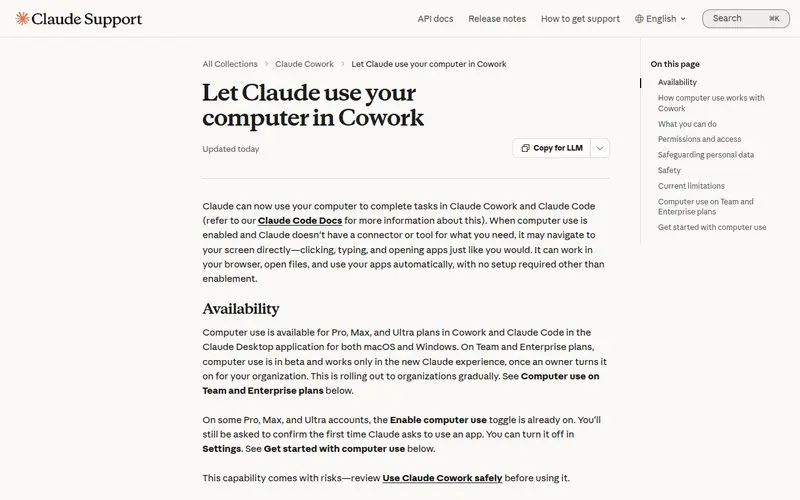
According to Anthropic's help center (checked November 23, 2026), computer use is available on Pro, Max and Ultra plans in chat, Cowork and Claude Code in the Claude desktop app, on both macOS and Windows. On Team and Enterprise plans it is in beta and off until an owner turns it on; there it works only in the new Claude experience, not in tasks started with the “Cowork” option or in Claude Code. On a Mac it needs macOS 14 or later.
How to turn it on
- Install or update the Claude desktop app and sign in.
- Open Settings > Capabilities (if there's no Computer use section there, Settings > System, under This computer) and turn on Enable computer use. On some Pro, Max and Ultra accounts it's already on.
- Start a chat, a Cowork task or a Claude Code session in the desktop app and describe the outcome you want, for example “Export last month's invoices from the accounting app and put them in a folder called March.”
- When Claude needs an app for the first time, it asks for permission. Approve only the apps the task needs.
What Claude can and can't do there
- Per-app approval. Claude asks before using each app; once approved, it can keep using that app for the rest of the session. You can also block apps.
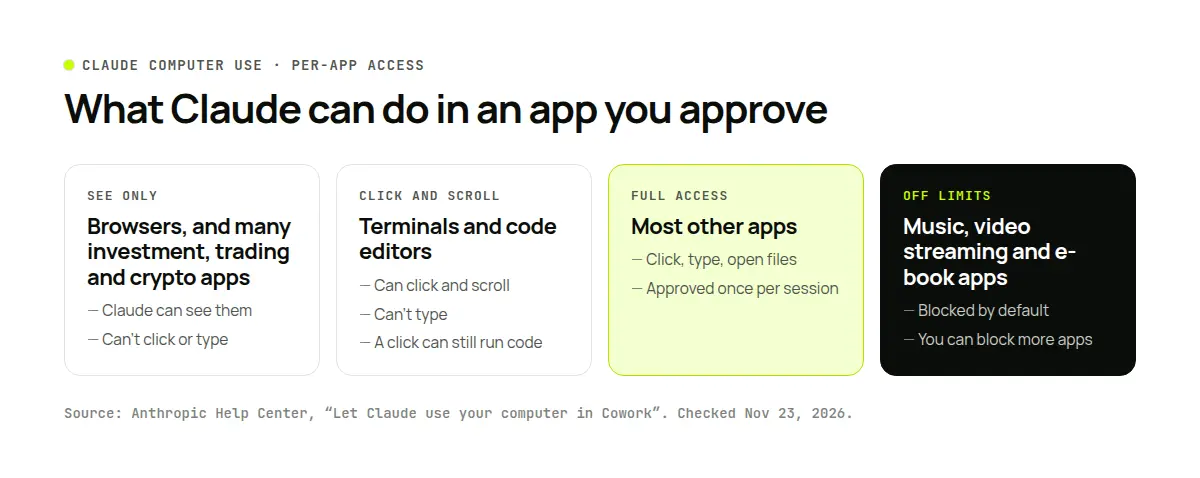
- Different levels of control. In browsers and many investment, trading and crypto apps, Claude can see but can't click or type. In terminals and code editors it can click and scroll but can't type. Most other apps get full access. Some apps, such as music, video streaming and e-book apps, are off limits.
- Not limited to your connected folders. Through the apps you approve, Claude can open, change or delete files outside the folders you connected.
- Background windows on newer Macs. On macOS 15 or later, Claude works in background windows by default, so you can keep using your computer.
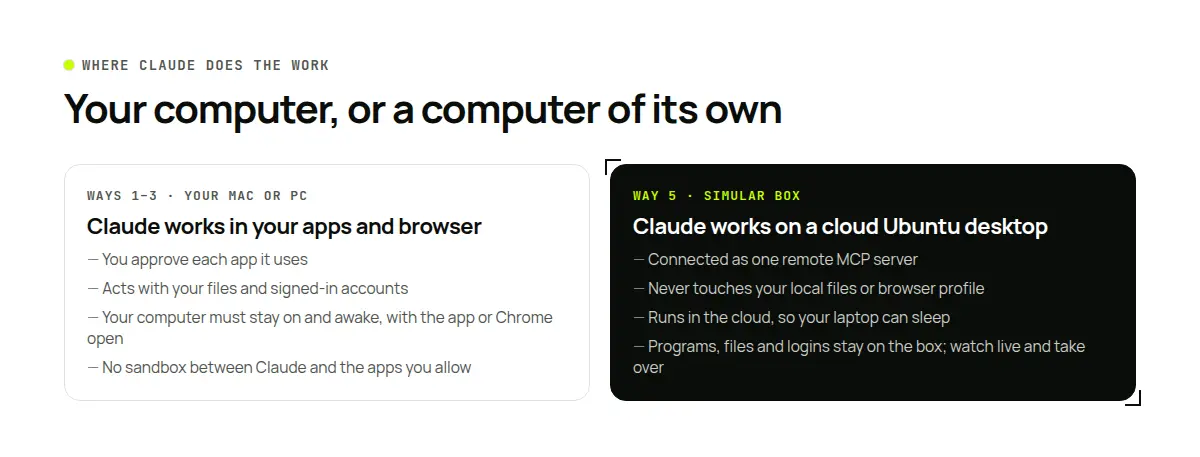
- Your desktop must be active. The computer needs to be on and awake with the Claude desktop app open for the whole task.
Anthropic's help center is direct about the main risk: “Computer use has no sandbox between Claude and your applications.” Claude acts with the same access you have, in the apps you allow. That is the reason the permissions exist, and the reason the safety section below matters.
Way 2: Use computer use in Claude Code
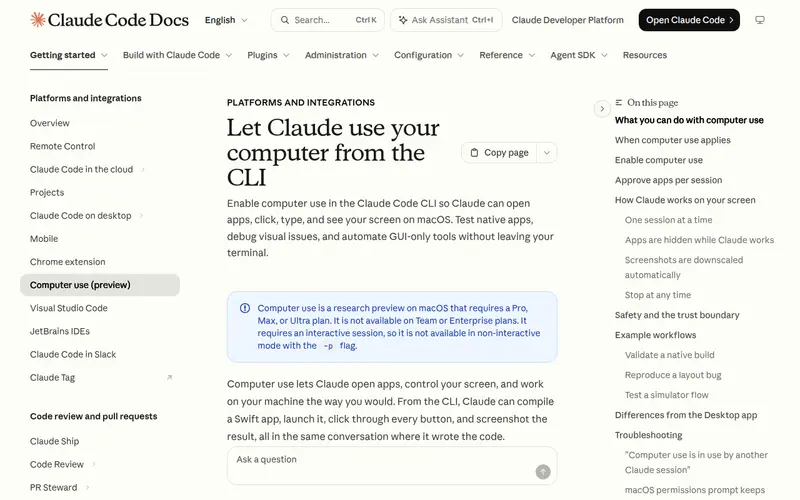
Claude Code, Anthropic's coding agent for the terminal, has its own computer use feature. Per the Claude Code docs (checked November 23, 2026), it is a research preview for macOS only, available on Pro, Max and Ultra plans (not Team or Enterprise), and it works only in interactive sessions, not in non-interactive runs with the -p flag.
How to turn it on
- Start Claude Code in an interactive session.
- Run
/mcp, select the built-in computer-use server and choose Enable. The setting is saved per project. - The first time Claude uses your computer, grant the two macOS permissions it asks for: Accessibility (to click, type and scroll) and Screen Recording (to see the screen).
- Approve the apps Claude asks for in that session, then ask for a GUI task: “Build the app, launch it and click through each tab to make sure nothing crashes.”
Limits to know
- One session at a time. A session takes a lock at its first computer use action and keeps it until the session exits.
- Other apps are hidden while Claude works; your terminal stays visible and is left out of screenshots.
- Stop at any time by pressing Esc anywhere, or Ctrl+C in the terminal.
- Screen control comes last. Claude Code uses an MCP server, Bash or Claude in Chrome first, and reaches for the screen only for things nothing else can reach, such as native apps and simulators.
This route is best for developers who want Claude to test what it just built: a desktop app, an iOS Simulator, a design tool with no API. For web apps, see our guide to Claude Code browser testing.
Way 3: Let Claude drive your browser with Claude in Chrome

A lot of “control my computer” requests are really “control my browser”: fill a form, pull data from a dashboard, update a CMS. For those, Claude in Chrome is lighter than full computer use. It is a Chrome extension that lets Claude read pages, click, type and move between tabs in your own Chrome, with the sites you're already signed in to.
Claude in Chrome is available on paid plans (Pro, Max, Ultra, Team and Enterprise). You can start tasks from its side panel in Chrome, or from Cowork and Claude Code, which hand browser work to Chrome when it's set up. Cowork also has a browser built into the Claude desktop app; you choose which one Cowork uses in Settings. Claude keeps working when you switch tabs, as long as Chrome is open. On Team and Enterprise plans, admins can limit which sites Claude may use with allowlists and blocklists. Because it runs in your real browser, it acts as you on the sites you're signed in to.
If you'd rather Claude used a browser that isn't yours, compare the options in cloud browsers for AI agents and the best AI browser agents.
Way 4: Build with the computer use tool in the Claude API
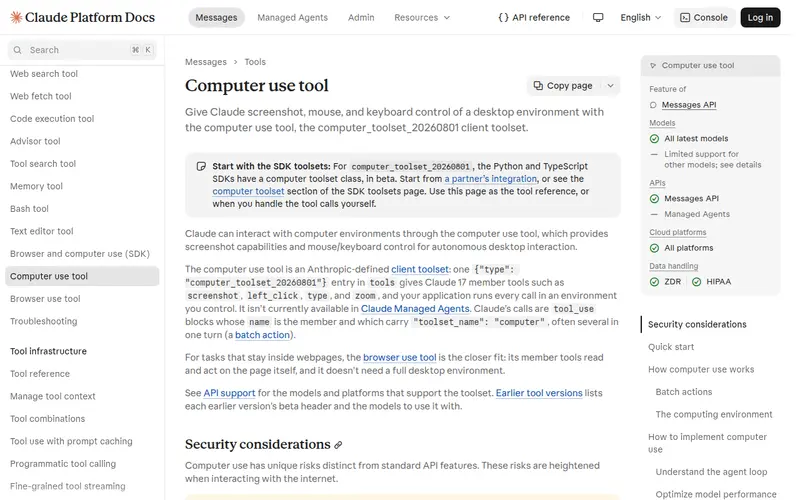
If you're building your own agent or product, the Claude API offers a computer use tool: a client toolset (computer_toolset_20260801) that gives Claude screenshot, mouse and keyboard actions. Claude replies with actions such as screenshot, left_click or type, and your application runs each one in an environment you control and returns the result. Anthropic publishes a reference implementation that runs a Linux desktop inside a Docker container. For tasks that stay inside web pages, Anthropic points to a separate browser use tool.
This route gives you the most control and the most work. You choose the machine, the apps and the network rules, and you build the agent loop, error handling and logging yourself. Anthropic's docs recommend running it in a dedicated virtual machine or container with minimal privileges, keeping sensitive data and logins away from the model, limiting internet access to an allowlist of domains, and asking a person to confirm actions with real-world consequences.
For a wider look at the options, see what is computer use, computer use agents compared and the best computer use MCP servers.
Way 5: Give Claude a computer of its own with Simular Box
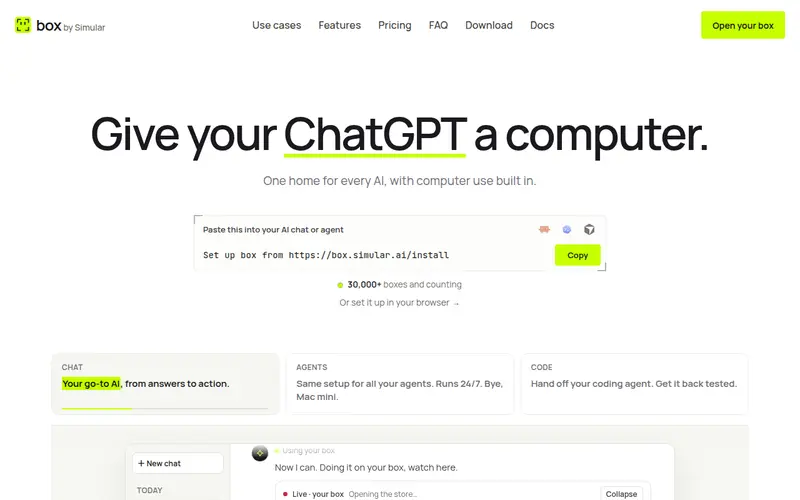
The first three ways all share one trade-off: Claude works on your computer, with your apps, files and accounts, and only while you leave the machine awake. If that's a problem, give Claude a separate computer instead.
Simular Box (box by Simular) is a cloud computer for AI agents. Each box is a Linux desktop with Chrome, a shell and files, served to your agent as one remote MCP server. Through it, Claude can run commands, browse, look at the screen, click and type, on a machine that isn't yours.
How it fits with Claude:
- Claude apps. Add box as a custom connector in Claude on the web or in the desktop app, then turn it on in a chat. The steps are in the box docs.
- Claude Code. box is available as a custom plugin from Simular's own plugin marketplace (it is not an Anthropic official plugin). Your Claude Code session stays on your computer; the work happens on the box.
- Other agents, same box. ChatGPT has box as an official plugin: search for box by Simular in Plugins and install it in one click. Codex, Cursor and other MCP clients connect too. Every agent you connect works on the same box with the same files and sign-ins, taking turns rather than acting at the same moment. OpenClaw support is coming soon.
What changes compared with ways 1 to 3:
- Your computer stays yours. Claude never touches your local apps, files or browser profile, so there are no per-app permissions to manage on your own machine.
- Your laptop can sleep. The box runs in the cloud. On the Medium plan the box never sleeps; on other plans it sleeps when idle and wakes when an agent connects.
- State stays on the box. Files, installed apps and signed-in browser sessions stay on the box between sessions, so a job Claude starts today can continue tomorrow.
- You can watch and step in. A live view shows the box's screen. When a task needs you (a sign-in, a two-factor code, a captcha), the agent hands over, you do that step, and it continues. The box's agent never enters payment details.
- Keys stay out of the chat. API keys can be stored as stand-ins on the box, so the real value never appears in the conversation (how secrets work).
Pricing (box.simular.ai, checked November 23, 2026): the Free plan starts you with 5,000 credits ($5), valid for 90 days, on a 2 vCPU / 4 GB box. S is $19/month for one Linux box (4 vCPU / 8 GB) that sleeps when idle, with 5,000 credits a month. M is $39/month for one Linux box (4 vCPU / 8 GB) that never sleeps, with 10,000 credits a month.
For a longer walkthrough of this route, read how to give Claude or ChatGPT a computer and Claude Code remote.
Which way should you choose?
- You want Claude to tidy files, fill a spreadsheet or move data between your own apps, now: way 1, computer use in the desktop app.
- You're a developer and want Claude to check a native app or simulator it just built: way 2, Claude Code computer use (macOS).
- The task lives in websites you're already signed in to: way 3, Claude in Chrome.
- You're building a product with computer use inside it: way 4, the API tool on infrastructure you host.
- The task is long, repeats every day, needs to run while your laptop is closed, or you don't want an agent on your own machine: way 5, a cloud computer such as Simular Box. Other cloud computers for agents are compared in cloud computers for AI agents.
Many people combine them: Claude in Chrome for quick web edits on their laptop, and a box for the overnight data pull that would otherwise keep the laptop awake.
Is it safe to let Claude control your computer?
It can be, if you treat it like giving a capable assistant your keyboard. Computer use acts with your access, in the apps you allow, so the risk is not that Claude escapes a sandbox; there isn't one between Claude and your apps on your own machine.
Practical rules:
- Allow the fewest apps the task needs. Deny banking, password managers and admin tools unless the task truly needs them.
- Watch the first runs. Stay at the screen until you trust how Claude handles a task. Press Esc (Claude Code) or stop the task in the app if it goes off track.
- Be careful with untrusted content. Web pages, emails and documents can contain text written to steer an AI agent (prompt injection). Don't let Claude act on instructions it finds in content.
- Keep secrets out of prompts. Don't paste passwords or API keys into the chat; sign in yourself when a step needs it.
- Separate high-risk work. For long unattended jobs or anything you don't want near your personal files, use a separate computer: a dedicated machine, a VM you manage, or a cloud computer. We cover the trade-offs in do AI agents need a virtual machine?
FAQ: how to have Claude control your computer
Can Claude control my computer?
Yes. In the Claude desktop app on Pro, Max and Ultra plans, turn on Enable computer use in Settings and Claude can see your screen, click, type and open the apps you approve. On Team and Enterprise plans it's in beta and works in the new Claude experience once an owner turns it on.
How do I turn on Claude computer use?
In the desktop app, open Settings > Capabilities (or Settings > System, under This computer) and turn on Enable computer use. In the Claude Code CLI on macOS, run /mcp, enable the computer-use server, then grant Accessibility and Screen Recording permissions when asked.
Does Claude computer use work on Windows?
Computer use in the Claude desktop app works on macOS and Windows. Computer use in Claude Code is macOS only (research preview, checked November 23, 2026).
Can Claude control my computer while I'm away?
Yes, as long as the computer stays on and awake with the Claude desktop app open. If you want work to continue with your laptop closed, connect Claude to a cloud computer such as Simular Box, which runs in the cloud.
Is Claude computer use free?
In the desktop app it's part of the Pro, Max and Ultra plans (and Team and Enterprise in beta); it isn't listed for the Free plan. The API computer use tool is used through your Claude API account. Simular Box has a Free plan that starts with 5,000 credits ($5).
What's the difference between Claude in Chrome and computer use?
Claude in Chrome works inside your Chrome browser and acts on web pages directly. Computer use controls the whole screen, including desktop apps, by clicking and typing. Claude uses the browser tool first when the task is on the web.
Is it safe to let Claude control my computer?
Computer use has no sandbox between Claude and the apps you allow, so grant the fewest apps needed, watch early runs, and keep secrets out of the chat. For unattended work, a separate computer keeps your own machine out of reach.
Can Claude Code control a computer in the cloud?
Yes. Connect Claude Code to a cloud computer through MCP, for example the Simular Box plugin, and Claude Code runs commands, browses and uses a desktop on the box while your session stays on your computer.
Sources
- Anthropic Help Center, “Let Claude use your computer in Cowork” (support.claude.com/en/articles/14128542), checked November 23, 2026
- Claude Code Docs, “Let Claude use your computer from the CLI” (code.claude.com/docs/en/computer-use), checked November 23, 2026
- Claude Platform Docs, “Computer use tool” (platform.claude.com/docs/en/agents-and-tools/tool-use/computer-use-tool), checked November 23, 2026
- Anthropic Help Center, “Get started with Claude in Chrome” (support.claude.com/en/articles/12012173), checked November 23, 2026
- box by Simular: MCP server docs, Secrets, and pricing on box.simular.ai, checked November 23, 2026
Autonome Computer zu bauen bedeutet nicht, Menschen zu ersetzen. Es bedeutet Zusammenarbeit.
Befreie deine Hände vom Computer. Laden Sie Simular noch heute kostenlos herunter.
