
什么是“机器人秘书”?一种能够操控多个自主运行计算机的计算机代理程序。
November 23, 2026
Short answer: A browser sandbox is the set of restrictions that keeps the code in a web page from reaching your computer, your files and other websites. It works in two layers: web platform rules such as the same-origin policy, and an operating-system-level process sandbox. In Chrome, the code that handles web pages runs in sandboxed renderer processes that can freely use only CPU and memory, and Site Isolation puts every site in its own process. “Browser sandbox” also names tools that give you a whole isolated browser, from Windows Sandbox and remote browser isolation for security teams to cloud browsers and cloud computers that AI agents use to browse.
Key takeaways
- Every modern browser is built on the idea of a sandbox: web code runs freely inside a boundary and can't make a mess outside it.
- The web layer (same-origin policy, CORS, Content Security Policy, the iframe
sandboxattribute) decides what pages may read and do to each other. - The process layer (Chromium's sandbox plus Site Isolation) decides what the code handling a page may do to your machine and to other sites, even if that code is compromised.
- The sandbox is not a perfect shield. It doesn't stop phishing, and anything acting inside your signed-in browser acts as you.
- That last point is why AI agents should browse in a browser of their own: a separate profile, a cloud browser, or a cloud computer.
What is a browser sandbox?
A web page is code from a stranger. Every time you open a link, your browser downloads JavaScript, images, fonts and media from a server you don't control and runs them on your machine. Google's web.dev guide puts it this way: modern web browsers are built on the idea of a sandbox, a security mechanism that runs an application in a restricted environment. Like a playground sandbox, code is free to do what it wants inside the boundary without making a mess elsewhere. The guide calls the browser sandbox the key feature that makes browsing frictionless by making it safer to run arbitrary code.
The same guide is clear about its limits. Sandbox features are not a perfect shield: browsers can have vulnerabilities, and attackers keep trying to bypass the sandbox, as with the Spectre attack. And a site can loosen the rules on purpose with Cross-Origin Resource Sharing (CORS); done carelessly, that can expose a resource to everyone on the web, “essentially undoing the sandbox”.
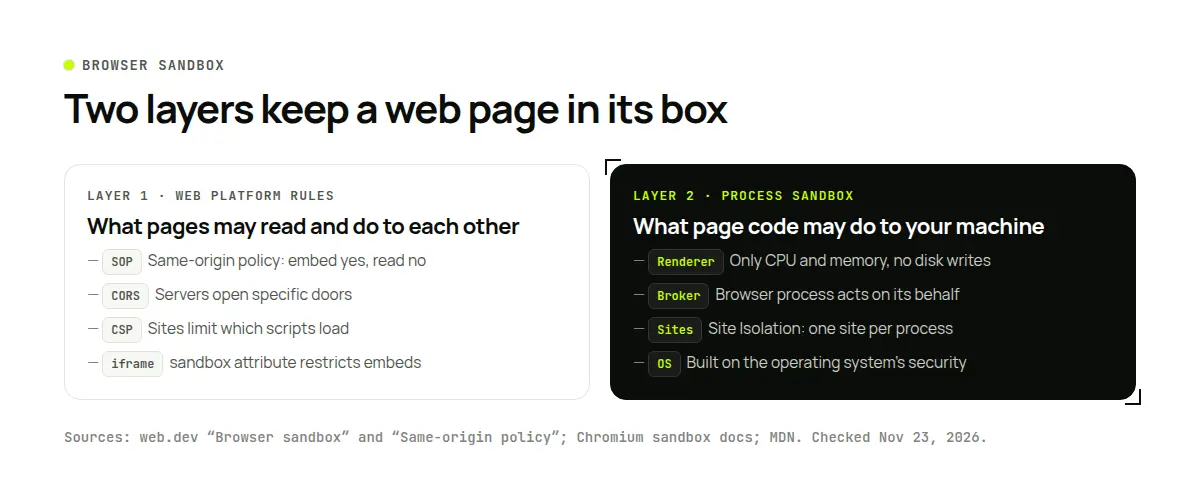
In practice, a browser sandbox has two layers that work together:
- The web platform's rules, enforced by the browser for every page: what one origin may read from another, what an embedded frame may do, and which scripts a page may load.
- The process sandbox, enforced with the operating system's help: what the code that renders pages may do to your files, devices and other programs, even if an attacker takes it over.
Why browsers need a sandbox
Browsers are huge programs that parse untrusted input all day, so bugs are inevitable. The Chromium team says so plainly in its Site Isolation documentation: it assumes determined attackers will find a way to compromise a renderer process, the part of the browser that runs web content. It cites 10 potentially exploitable bugs in renderer components in Chrome M69, 5 in M70, 13 in M71, 13 in M72 and 15 in M73, a volume that held steady despite years of investment in fuzzing and bug bounties.
The documentation names three kinds of threat the sandbox and Site Isolation are designed for:
- Compromised renderer processes, where a bug lets a page run arbitrary code inside the renderer.
- Universal cross-site scripting (UXSS) bugs, which let an attacker bypass the same-origin policy inside the renderer without fully controlling it.
- Side-channel attacks such as Spectre, which can make it possible to read memory in the renderer process even without a bug in Chrome.
The answer is defense in depth: rules that stop pages from reading each other, plus walls that contain the damage when those rules fail.
Layer 1: the web platform's rules
The same-origin policy
The same-origin policy is the browser's core rule for pages. web.dev defines it as a security feature that restricts how documents and scripts on one origin can interact with resources on another origin. Without it, a compromised script on one site could expose everything in your browser.
An origin is the scheme (such as HTTPS), the host and the port. Two URLs are same-origin only when all three match: http://www.example.com/foo and http://www.example.com/bar are the same origin, but https://www.example.com/bar is not, because the scheme differs.
The general rule: embedding a cross-origin resource is usually allowed, reading it is blocked.
| Resource | Embedding from another origin | Reading it with JavaScript |
|---|---|---|
| iframes | Usually allowed (subject to X-Frame-Options) | Blocked: a script can't read the framed document |
| Images | Allowed | Blocked: binary image data can't be read |
| CSS | Allowed with a link element or @import (the right Content-Type may be required) | n/a |
| Scripts | Allowed | Some APIs, such as cross-origin fetch requests, may be blocked |
| Forms | A form can submit data to another origin | n/a |
| Video and audio | Allowed | n/a |
CORS: the controlled exception
Sometimes a site needs another origin to read its data, for example an API used by a separate front end. Cross-Origin Resource Sharing lets the server say which origins may read a resource. It's the main way sites deliberately open a door in the same-origin wall, which is why web.dev warns that a careless CORS setup can undo the sandbox.
Content Security Policy
A Content Security Policy (CSP) is a set of instructions a website sends to the browser that restricts what the site's own code may do. According to MDN, its primary use is to control which resources, especially JavaScript, a page may load, as a defense against cross-site scripting (XSS). It can also restrict embedding to defend against clickjacking, upgrade insecure requests to HTTPS, and require Trusted Types.
The iframe sandbox attribute
When a page embeds content it doesn't fully trust, such as an ad, a widget or user-generated HTML, the sandbox attribute on an <iframe> applies extra restrictions. Left empty, it applies all of them; each token lifts one:
| Token | What it allows |
|---|---|
| allow-scripts | Running scripts (but not opening pop-ups) |
| allow-forms | Submitting forms |
| allow-popups | Opening pop-ups, for example with window.open() or target="_blank" |
| allow-popups-to-escape-sandbox | Opening new windows without carrying the sandbox restrictions over |
| allow-same-origin | Treating the content as its real origin; without it, the frame gets a special origin that always fails the same-origin policy |
| allow-downloads | Downloading files |
| allow-modals | Opening alert, confirm, print and prompt dialogs |
| allow-top-navigation | Navigating the top-level page |
One warning from MDN is worth repeating: when the embedded document has the same origin as the page, combining allow-scripts and allow-same-origin lets the embedded document remove the sandbox attribute, making it no more secure than not using the sandbox at all.
Layer 2: the process sandbox in Chrome
The web rules above are enforced by code, and code has bugs. The process sandbox is the wall behind them. Chromium, the open-source project behind Chrome, documents its design publicly.
Sandboxed processes
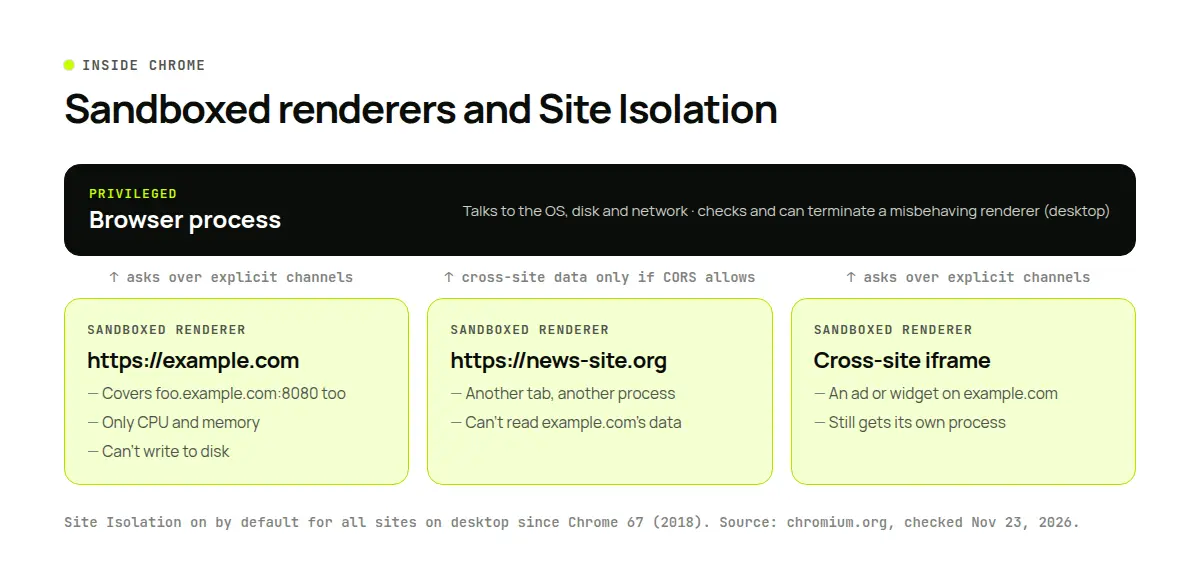
Chromium's sandbox FAQ describes the sandbox as a library for creating processes that run in a very restrictive environment: the only resources they can freely use are CPU cycles and memory. A sandboxed process can't write to disk or display its own windows; exactly what it may do is set by an explicit policy. Chromium's renderers, the processes that run web pages, are sandboxed processes.
How does a renderer get anything done? Certain communication channels are explicitly opened for it, and a more privileged process, usually the browser process, performs actions on its behalf. A bug in a renderer therefore can't install persistent malware in your account or read arbitrary files from your machine, because the sandbox forbids those actions.
The design rests on three principles from Chromium's sandbox documentation:
- Use the operating system's security. The sandbox relies on OS-provided protections, so its exact guarantees depend on the operating system; Windows, Linux and macOS each have their own implementation.
- Least privilege, for both the sandboxed code and the code that controls it. The sandbox works even if the user can't become an administrator.
- Assume the sandboxed code is malicious. For threat modeling, Chromium treats it as compromised almost as soon as it starts handling outside input.
The FAQ also names the main limit: the sandbox can't protect against bugs in system components such as the operating system kernel it runs on.
Site Isolation
The sandbox isolates web content from your system. Site Isolation isolates websites from each other. It ensures pages from different websites always go into different processes, each running in a sandbox, so a malicious site has a much harder time stealing data from other sites even if it breaks some rules in its own process. In Chrome's implementation:
- Cross-site documents always get a different process, whether the navigation is in the same tab, a new tab, or an iframe.
- Cross-site data such as HTML, XML, JSON and PDF files isn't delivered to a page's process unless the server allows it with CORS.
- The browser process can detect and terminate a misbehaving renderer (on desktop platforms).
Chrome defines a site as the scheme plus the registered domain name, ignoring subdomains, port and path: https://foo.example.com:8080 belongs to the site https://example.com. That's broader than an origin, so pages that share a site across subdomains keep working.
Site Isolation was enabled by default for all sites in Chrome 67 on Windows, Mac, Linux and Chrome OS in 2018, to help defend against attacks such as Spectre. It has a cost: Chromium reported about 10 to 13% more memory use on desktop in Chrome 67 when isolating all sites with many tabs open. On Android, only a subset of sites is isolated to reduce overhead; Chrome 77 measured about 3 to 5% overhead when isolating sites users log into.
What the browser sandbox doesn't protect against
The sandbox is strong engineering, but it answers a narrow question: can this page's code reach things it shouldn't? It doesn't answer whether you, or something acting for you, should trust the page.
- It isn't a perfect shield. Browsers have bugs, and side channels like Spectre can leak data without any bug.
- Sites can loosen it. A careless CORS policy or a misused iframe
sandboxcan undo the protection. - Kernel bugs are out of scope. Chromium's sandbox can't protect against bugs in the operating system it relies on.
- Phishing needs no escape. A fake login page simply asks for your password.
- Your signed-in sessions are inside the boundary. Anything acting in your browser profile acts with your cookies and accounts.
The last two points matter most once an AI agent starts browsing for you.
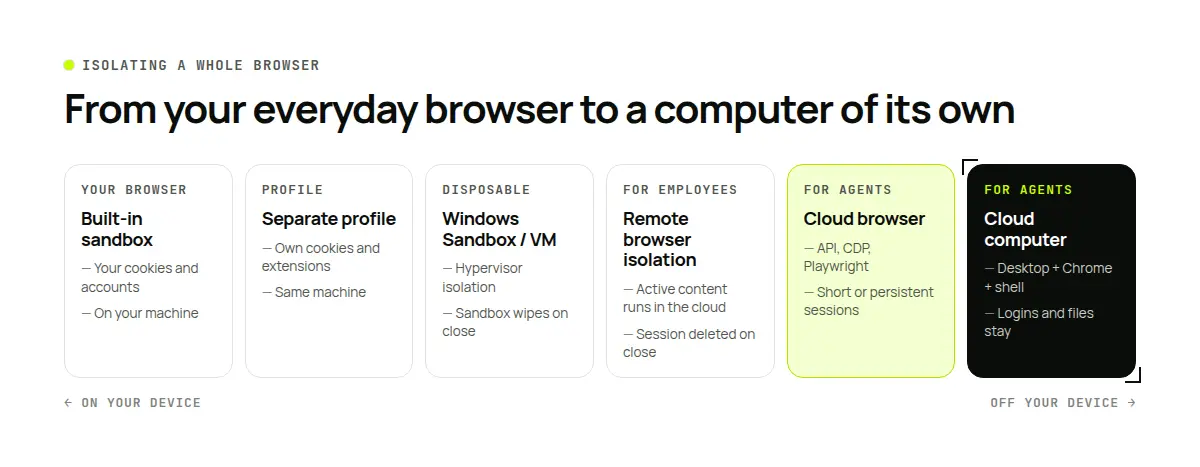
Ways to get a fully isolated browser
When the built-in sandbox isn't enough separation, you can isolate the whole browser.
| Option | What it isolates | Keeps state? | Best for |
|---|---|---|---|
| A separate browser profile | Cookies, history and extensions from your main profile | Yes | Separating work, personal and testing |
| Windows Sandbox | A disposable Windows desktop on your PC, isolated by the Microsoft hypervisor | No, deleted when you close it | Visiting an unfamiliar site or opening an untrusted file once |
| A virtual machine | A whole guest OS with its own browser | Yes | Security research, testing |
| Remote browser isolation (RBI) | Active web content runs remotely, not on the user's device | Session deleted when the isolated browser closes | Companies protecting employees from web threats |
| Cloud browser for AI agents | A browser on remote infrastructure, controlled through an API | Disposable or persistent, depending on the product | Agents, scraping, testing at scale |
| Cloud computer for AI agents | A full remote desktop with a browser and a shell | Yes | Agents that need logins, desktop apps and long-running work |
Windows Sandbox
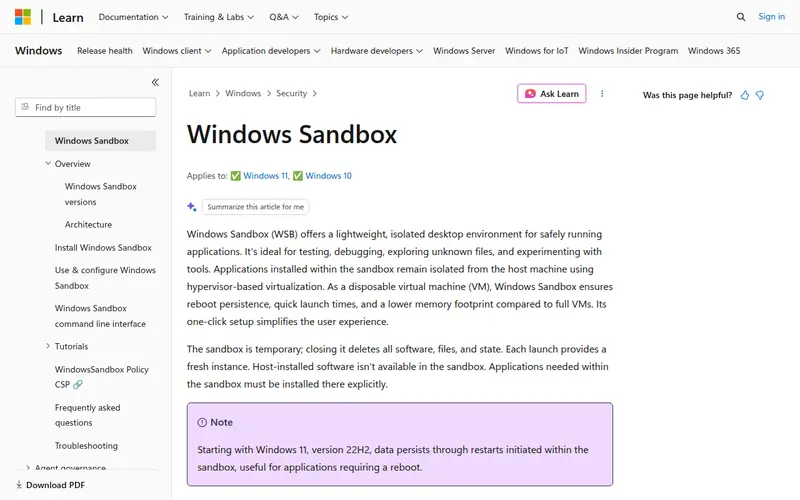
Windows Sandbox is a lightweight, isolated desktop built into Windows 10 and 11 (Pro, Enterprise, Pro Education/SE and Education; not Home). Microsoft lists secure web browsing as a use: visiting unfamiliar or potentially dangerous sites without risking malware on the host. It uses hardware-based virtualization, with the Microsoft hypervisor running a separate kernel, and it's disposable: closing it deletes all software, files and state, and every launch is as clean as a fresh install. Two details to know: networking is on by default (Microsoft notes that this can expose untrusted apps to your internal network, and it can be turned off in a configuration file), and only one instance can run at a time.
Remote browser isolation
Remote browser isolation moves the risky part of browsing off the device. In Cloudflare's description of its Browser Isolation product, active web content such as JavaScript runs in a secure isolated browser in the cloud instead of on the user's device, which protects users from zero-day attacks and malware. It can also block user input on risky sites to reduce phishing, every tab is isolated automatically, and the session is deleted when the user closes the isolated browser. RBI is built for protecting people at work, not for giving an AI agent a browser to drive.
Why AI agents need a different kind of browser sandbox
An AI agent that browses for you changes the threat model. The built-in sandbox still protects your operating system, but the agent works inside the boundary, with your cookies and accounts, and it reads every page as possible instructions.
Anthropic's computer use documentation describes the risk directly: in some circumstances Claude may follow commands found in content even when they conflict with your instructions, for example instructions on web pages or in images. This is called prompt injection, and it needs no sandbox escape at all. A page only has to convince the agent.
Anthropic's recommended precautions for computer use map neatly onto browsing:
- Use a dedicated virtual machine or container with minimal privileges.
- Don't give the model access to sensitive data such as account logins.
- Limit internet access to an allowlist of domains.
- Ask a human to confirm decisions with real-world consequences, such as accepting cookies, completing financial transactions or agreeing to terms of service.
Point 1 is the key one: give the agent a browser that isn't yours. Your options range from a separate profile, to a disposable cloud browser, to a full cloud computer the agent keeps.
If you use Claude, there are two built-in middle grounds. Claude in Chrome runs in your real Chrome, and on Team and Enterprise plans admins can restrict which sites it may use with allowlists and blocklists. Cowork in the Claude desktop app also has its own built-in browser, separate from your Chrome. Both still run on your own computer.
Sandboxed browsers for AI agents
Here are three different ways to give an agent its own isolated browser, from a disposable session to a persistent computer. More platforms are compared, with pricing, in cloud browsers for AI agents and Browserbase alternatives.
1. Firecrawl Browser Sandbox
Firecrawl launched Browser Sandbox on February 17, 2026 to give agents a secure, fully managed browser with no local Chromium installs or driver issues. Each session runs in an isolated sandbox, disposable or persistent, with the agent-browser CLI and Playwright pre-installed. Agents can run Python, JavaScript or bash against the session, watch it in a live view (including an interactive one users can click in), or connect their own Playwright over CDP.
- Best for: agents and apps that need many short, isolated browsing sessions driven by code.
- Pricing at launch: up to 20 concurrent sessions and 2 credits per browser minute (Firecrawl changelog, February 17, 2026).
2. Cloudflare Browser Run
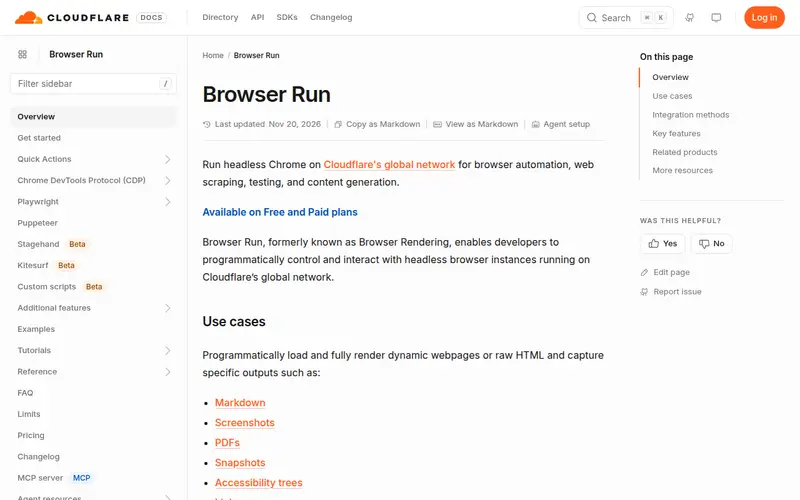
Browser Run (formerly Browser Rendering) runs headless Chrome on Cloudflare's global network. It offers stateless Quick Actions (screenshots, PDFs, Markdown, scraping, crawling) and Browser Sessions you control with Puppeteer, Playwright, CDP or Stagehand. For AI agent browsing, Cloudflare points to Playwright MCP or CDP with MCP clients.
- Best for: high-volume, short browser jobs close to your users, and teams already on Cloudflare Workers.
- Pricing (checked November 23, 2026): Workers Free includes 10 minutes of browser time a day and 3 concurrent browsers. Workers Paid includes 10 browser hours a month, then $0.09 an hour, and 10 concurrent browsers (averaged monthly), then $2.00 per additional browser. Browser timeout is 60 seconds by default.
3. Simular Box: a persistent browser on a cloud computer
Some agent work isn't a one-off scrape. It's “check the ad dashboard every morning”, “update the CMS after each release” or “keep researching this until tomorrow”. That needs a browser that stays signed in, plus somewhere to keep files and run commands. A cloud computer gives the agent a whole machine instead of a single browser.
Simular Box (box by Simular) is a cloud computer for AI agents: each box is a cloud Ubuntu desktop with Chrome and a shell, added to your AI as one remote MCP server. Your agent can open pages, read them, click and type in the box's Chrome, and also run commands and use desktop apps on the same machine.
- Separate from your own browser: the agent uses the box's Chrome, not your personal profile, so your own cookies and sessions are never in reach.
- Logins stay on the box: logins live in the box's Chrome and stay, with your programs and files, while the box sleeps. The agents you connect can use the pages you're signed in to, so connect only agents you trust.
- You do the sensitive steps: watch the desktop live and take control for a sign-in or a two-factor code, then hand it back. The box's own agent never enters payment details; it hands that step to you.
- API keys stay hidden: a key you add as a secret is used by commands on the box while your AI only sees a stand-in (how secrets work).
- Works with the agents you use: Claude, ChatGPT (an official plugin: search for box by Simular in Plugins and install it in one click), Codex, Cursor and other MCP clients share the same box and take turns.
- Pricing (box.simular.ai, checked November 23, 2026): Free plan with 5,000 credits ($5) to start; S $19/month; M $39/month (never sleeps).
| Firecrawl Browser Sandbox | Cloudflare Browser Run | Simular Box | |
|---|---|---|---|
| What you get | An isolated browser session | Headless Chrome on Cloudflare's network | A cloud Ubuntu desktop with Chrome and a shell |
| How the agent drives it | agent-browser CLI, Playwright, CDP; Python, JavaScript or bash | Quick Actions API, Puppeteer, Playwright, CDP, Stagehand; Playwright MCP | One remote MCP server (browser, GUI, shell and file tools) |
| State | Disposable or persistent sessions | Short sessions (60-second default timeout) | Programs, files and logins stay while the box sleeps |
| A person can step in | Interactive live view | n/a | Live view and take control |
| Pricing | Credits per browser minute | Browser hours + concurrent browsers | Free credits, then $19 or $39 a month |
| Best for | Many short agent browsing tasks | High-volume headless jobs | Repeated, signed-in, long-running agent work |
How to set up a safe browser for an AI agent
- Give the agent its own browser. Never your everyday profile. A cloud browser or cloud computer keeps the agent off your machine entirely.
- Sign in only where the task needs it, and do the sign-in yourself. On a box, take control in the live view, sign in, and hand back.
- Keep secrets out of the prompt. Use stand-ins (such as box secrets) or a password manager flow; never paste passwords or keys into the chat.
- Allowlist where you can. Restrict the domains the agent's browser may reach, or the sites Claude in Chrome may act on.
- Keep a human on consequential steps: payments, sending messages, accepting terms, deleting data.
- Treat page text as data. Tell the agent, in its instructions, not to follow instructions found on pages, and review its first runs.
How to choose a browser sandbox for an AI agent
- One-off pages at volume (scraping, checks across thousands of URLs): a disposable cloud browser such as Firecrawl Browser Sandbox or Cloudflare Browser Run.
- Repeated tasks on sites that need a login: a persistent browser on a cloud computer, so you sign in once and the agent reuses the session.
- Tasks that mix web, desktop and shell (download a report, process it, upload the result): a cloud computer, since a browser-only sandbox can't run the rest.
- Testing your own web app: a headless browser in CI, or a cloud browser for parallel runs; see Claude Code browser testing.
- Protecting employees rather than agents: remote browser isolation from a security vendor.
For a broader look at agent browsers, read the best AI browser agents, Browser MCP options and Chrome DevTools MCP.
FAQ: browser sandbox
What is a browser sandbox?
A browser sandbox is the set of restrictions that keeps web page code from reaching your operating system, files and other sites. It combines web rules like the same-origin policy with an OS-level process sandbox around the code that renders pages.
How does the Chrome sandbox work?
Chrome runs web content in sandboxed renderer processes that can freely use only CPU and memory and can't write to disk. When a renderer needs something more, the privileged browser process does it on its behalf through explicit channels.
What is Site Isolation in Chrome?
Site Isolation puts pages from different sites, including cross-site iframes, into different sandboxed processes and keeps cross-site data out of a page's process unless CORS allows it. Chrome turned it on by default for all sites on desktop in Chrome 67 (2018).
Is a browser sandbox enough to stay safe online?
No. Google's web.dev guide notes that sandbox features aren't a perfect shield and that careless CORS can undo them. The sandbox also can't stop phishing pages or actions taken in your signed-in sessions. Keep the browser updated and be careful with logins.
What does the iframe sandbox attribute do?
The sandbox attribute applies extra restrictions to embedded content, blocking scripts, forms, pop-ups, downloads and same-origin access unless you add tokens such as allow-scripts back. Avoid combining allow-scripts with allow-same-origin for same-origin content.
What is a sandboxed browser?
A sandboxed browser runs isolated from your main system or profile: in a separate profile, Windows Sandbox, a virtual machine, a remote browser isolation service, a cloud browser, or a cloud computer.
What's the difference between a browser sandbox and remote browser isolation?
The browser sandbox runs pages on your computer in restricted processes. Remote browser isolation runs active web content in an isolated browser in the cloud instead of on your device, and deletes the session when you close it.
What is a browser sandbox for AI agents?
An isolated browser, usually in the cloud, that an AI agent controls through an API or MCP instead of your personal browser. Firecrawl Browser Sandbox and Cloudflare Browser Run offer short-lived sessions; a cloud computer such as Simular Box keeps logins and files for repeated work.
Sources
- web.dev, “Browser sandbox”, Mariko Kosaka (last updated November 5, 2018), and “Same-origin policy”, checked November 23, 2026
- Chromium docs, “Sandbox” design document and “Sandbox FAQ” (chromium.googlesource.com), checked November 23, 2026
- The Chromium Projects, “Site Isolation” (chromium.org), checked November 23, 2026
- MDN Web Docs, “Content Security Policy (CSP)” and the
<iframe>element, checked November 23, 2026 - Microsoft Learn, “Windows Sandbox”, checked November 23, 2026
- Cloudflare docs, “Remote browser isolation” and Browser Run overview, limits and pricing, checked November 23, 2026
- Firecrawl, “Introducing Browser Sandbox” changelog (February 17, 2026) and Browser Sandbox docs, checked November 23, 2026
- Claude Platform Docs, “Computer use tool” (security considerations); Anthropic Help Center, “Get started with Claude in Chrome”, checked November 23, 2026
- box by Simular pricing and FAQ (box.simular.ai) and Secrets docs, checked November 23, 2026
