How to Unhide Rows in Google Sheets: A Practical Guide

Master hidden rows in Google Sheets while an AI computer agent quietly maintains views at scale for your team, so no critical data stays buried.
Advanced computer use agent
Production-grade reliability
Transparent Execution

Why Google Sheets Need AI

Hidden rows feel harmless—until the quarter‑end report is off, a lead list is missing 20% of prospects, or a client asks why the numbers don’t match their CRM. In Google Sheets, rows disappear for all kinds of reasons: filters, grouping, manual hiding, or scripts someone set up months ago and forgot about. Knowing how to unhide rows is basic spreadsheet literacy, but it’s also about data trust. If your team can’t reliably see all the rows that matter, every forecast, campaign report, or operations dashboard is quietly compromised.That’s why it’s worth delegating the unglamorous work to an AI agent. Instead of sales reps and marketers hunting for tiny gray arrows and filter icons, an AI computer agent can patrol your Google Sheets, surface hidden rows, log what changed, and keep every view complete—so humans stay focused on strategy, not spreadsheet detective work.

How to Unhide Rows in Google Sheets: A Practical Guide

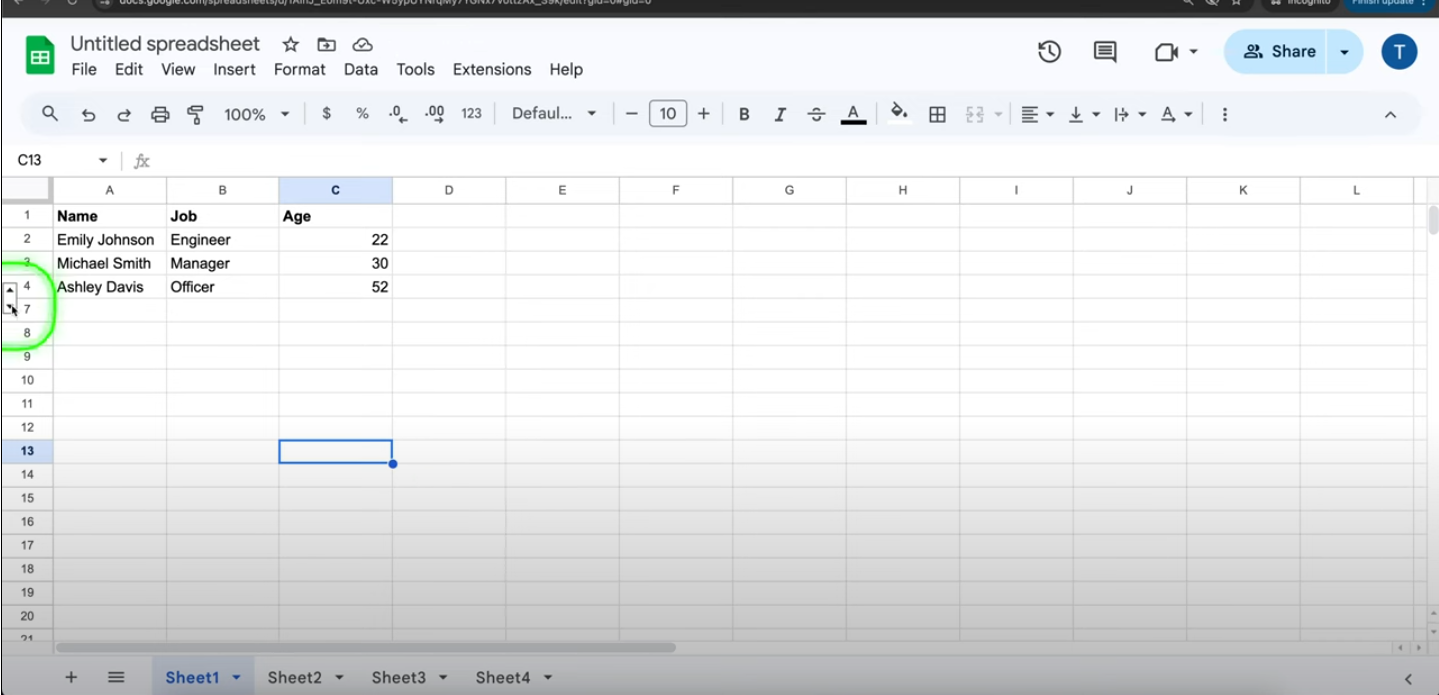
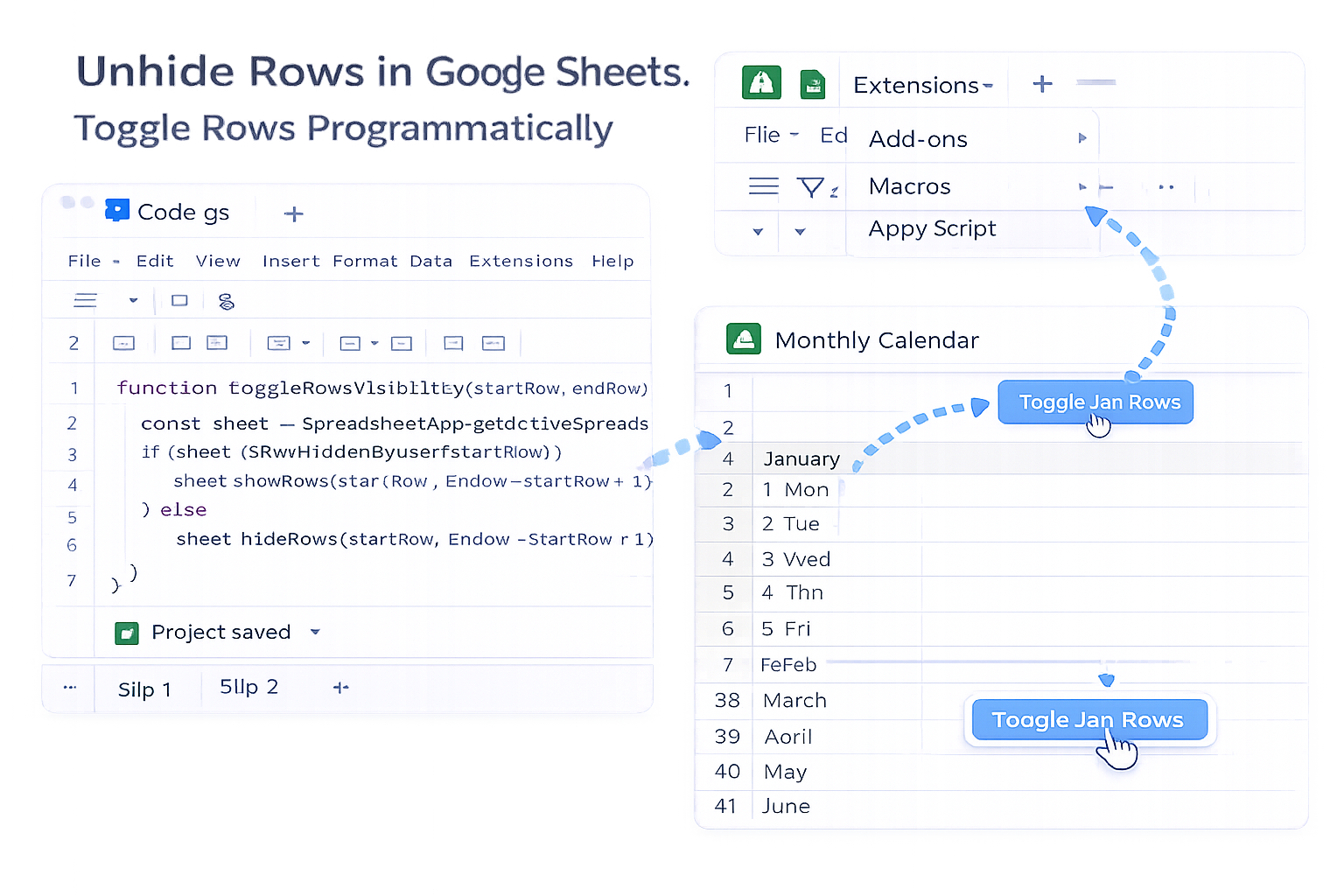
### The Real Reason Hidden Rows Hurt Your BusinessIt’s 8:45 a.m. Your client is on Zoom, waiting for an updated campaign report. You open the Google Sheet and your conversion numbers look strangely low. You double‑check formulas, refresh Looker Studio, even blame the tracking pixel—until you notice it: row numbers jumping from 72 to 89. Half the campaign rows are simply hidden.If that sounds familiar, you’re not alone. Hidden rows are great for keeping spreadsheets tidy, but they quietly break dashboards, reports, and hand‑offs. The good news: unhiding rows is simple, and with an AI agent like Simular you can automate the boring parts at scale.Below are the top ways to unhide rows in Google Sheets—from quick manual fixes to fully automated AI workflows.---## 1. Manually Unhide Rows with Arrow IndicatorsGoogle Sheets shows hidden rows as a gap in numbering (e.g., 5 jumps to 9) with small up/down arrows next to the gap.**Steps:**1. Open your sheet and look at the row numbers on the left.2. Find where the sequence skips (e.g., 5 → 9). You should see two tiny arrows beside the numbers.3. Click the arrow icon or the gray bar between the row numbers.4. The hidden rows instantly reappear.**Best for:** One‑off fixes when you already know roughly where the missing data lives.**Pros:**- Very fast for small sheets.- No menus or shortcuts to remember.**Cons:**- Easy to miss in large, busy spreadsheets.- You must scroll and hunt manually for every hidden gap.---## 2. Unhide Rows via Right‑Click MenuWhen you suspect several hidden sections, the right‑click method is more systematic.**Steps:**1. Click the row number *above* the hidden range (e.g., row 5).2. Hold **Shift** and click the row *below* the hidden range (e.g., row 9). This selects the full range, including hidden rows.3. Right‑click anywhere in the selected row numbers.4. Choose **“Unhide rows”** from the context menu.To unhide everything at once:1. Press **Ctrl + A** (Cmd + A on Mac) to select the entire sheet.2. Right‑click any row number.3. Click **“Unhide rows”**.**Pros:**- Works well for multiple hidden clusters.- Still fully mouse‑driven; no need to remember shortcuts.**Cons:**- Requires careful selection of the surrounding rows.- Still a manual chore if you do this across many tabs or files.---## 3. Use Keyboard Shortcuts (Power‑User Speed)If you live in spreadsheets all day, shortcuts save minutes that add up quickly.**Steps:**1. Select the range of rows that contains hidden rows (use click + Shift‑click, or **Ctrl/Cmd + A**).2. Press **Ctrl + Shift + 9** (Windows/ChromeOS) or **Cmd + Shift + 9** (Mac).3. All hidden rows in the selection are restored.**Pros:**- Fastest manual method.- Ideal for analysts and operations folks working in Sheets daily.**Cons:**- Easy to forget the shortcut.- Still requires you to know *where* to look.---## 4. Unhide Grouped Rows (Plus/Minus Controls)Many teams use **grouping** so they can collapse sections (e.g., per‑client or per‑month blocks).**Steps:**1. Look to the far left or top of your sheet for **plus (+) and minus (–) icons** or numbered outline levels.2. Hover over the icons to see which row range is grouped.3. Click the **+** icon to expand (unhide) the grouped rows.4. Click **–** to collapse again when you’re done.**Pros:**- Keeps large sheets tidy without deleting data.- Great for recurring, structured reports.**Cons:**- Easy to forget a section is grouped and collapsed.- New collaborators often don’t realize grouping is even there.---## 5. Fix Hidden Rows Caused by FiltersSometimes your rows aren’t “hidden,” they’re filtered out.**Steps:**1. Look at the header row: if you see small **filter icons** (funnels), a filter is active.2. Go to **Data → Turn off filter** to instantly show everything, *or* click the filter icon in a specific column.3. In the filter menu, make sure **“Select all”** is checked, or clear any conditions that exclude rows.**Pros:**- Restores visibility without changing structure.- Essential when reviewing someone else’s filtered view.**Cons:**- Easy to misinterpret as missing data rather than just filtered.- Multiple collaborators can leave conflicting filter states.---## 6. Use Apps Script to Toggle Rows ProgrammaticallyIf you routinely show/hide the same ranges (e.g., months in a calendar sheet), simple Apps Script can help.**Example Script:**```javascriptfunction toggleRowsVisibility(startRow, endRow) { const sheet = SpreadsheetApp.getActiveSpreadsheet().getActiveSheet(); if (sheet.isRowHiddenByUser(startRow)) { sheet.showRows(startRow, endRow - startRow + 1); } else { sheet.hideRows(startRow, endRow - startRow + 1); }}```**How to use it:**1. In your sheet, click **Extensions → Apps Script**.2. Paste the function above and save.3. Run it with specific row ranges (e.g., 2–37) or wire it to buttons.**Pros:**- Repeatable and less error‑prone than manual clicking.- Good for structured, recurring workflows.**Cons:**- Requires light scripting knowledge.- Still bound to a single spreadsheet; doesn’t scale across tools or tabs.---## 7. Automate Unhiding at Scale with a Simular AI Computer AgentManual methods work—until you’re juggling dozens of Sheets, multiple clients, and a stack of tabs in Chrome. This is where an **AI computer agent** shines.With **Simular Pro**, you can:- Let an agent open your browser and navigate Google Sheets like a human.- Scan for skipped row numbers, grouped sections, and active filters.- Automatically unhide rows and log every action it takes.- Trigger runs via webhook—from your CRM, reporting pipeline, or a daily cron.**Example workflow for a marketing agency:**1. At 3 a.m., Simular’s agent opens each client’s performance Sheet.2. It checks for hidden rows, collapsed groups, or filters hiding recent campaigns.3. The agent unhides rows, refreshes filter states, and saves a clean version.4. Your morning dashboards, exports, or screenshots always include all rows—no last‑minute surprises on calls.**Pros:**- Scales across multiple spreadsheets, tabs, and even apps.- Production‑grade reliability: thousands of steps, transparent logs.- Frees humans from hunting for tiny arrows in the UI.**Cons:**- Requires initial setup and onboarding of the agent.- Best suited for teams that live in Google Sheets and other SaaS tools every day.---### When to Let an AI Agent Take OverIf you:- Manage many Sheets across clients, brands, or departments.- Rely on complete, accurate rows for billing, commissions, or forecasts.- Find your team routinely fixing “missing” data that was just hidden.…then it’s time to delegate this to an AI agent. You keep the strategic brain; Simular handles the clicks.Once configured, your Simular AI computer agent becomes the quiet spreadsheet guardian in the background—making sure every row that should be visible, is visible, every single time.


Automating Google Sheets Row Unhiding with AI

Train Your Simular Agent
Install Simular Pro, log into Google Sheets, and record a sample run where the agent finds skipped row numbers, opens filters, and chooses “Unhide rows” so it learns your exact workflow.
Test and Verify Behavior
Replay the Simular workflow on new Google Sheets samples, watching its transparent action log. Verify it unhides grouped, filtered, and manually hidden rows, then refine prompts until runs are fully reliable.
Delegate and Scale Tasks
Connect Simular’s agent to your pipelines via webhook, letting it scan and unhide rows in Google Sheets across clients and teams on a schedule, so every report stays complete without manual effort.

FAQS