How to build a Google Sheets multi-project status guide

Use Google Sheets and Excel with an AI computer agent to centralize multiple project status reports, update KPIs in real time, and keep every initiative on track.
Advanced computer use agent
Production-grade reliability
Transparent Execution

Why Google Sheets, Excel + AI

When you’re running more than one campaign, launch, or client project, the real enemy isn’t complexity—it’s fragmentation. Tasks live in Slack, budgets in email, deadlines in someone’s head. A multiple project status report template pulls everything into one view: owners, milestones, risks, and KPIs across every initiative. That single source of truth makes standups faster, executive updates sharper, and prioritization far less emotional. Using a structured template in Google Sheets or Excel also means you can standardize how every team reports, compare projects apples-to-apples, and spot risk trends early instead of reacting late.Story: imagine your Fridays without copy‑pasting updates. An AI computer agent quietly signs into your tools, pulls the latest metrics, updates each row in your multi‑project tracker, highlights slipping milestones, and even drafts a short summary. You open the sheet, skim the red flags, make two key decisions, and move on. No chasing people, no late-night spreadsheet surgery—just clear project truth, updated for you.

How to build a Google Sheets multi-project status guide

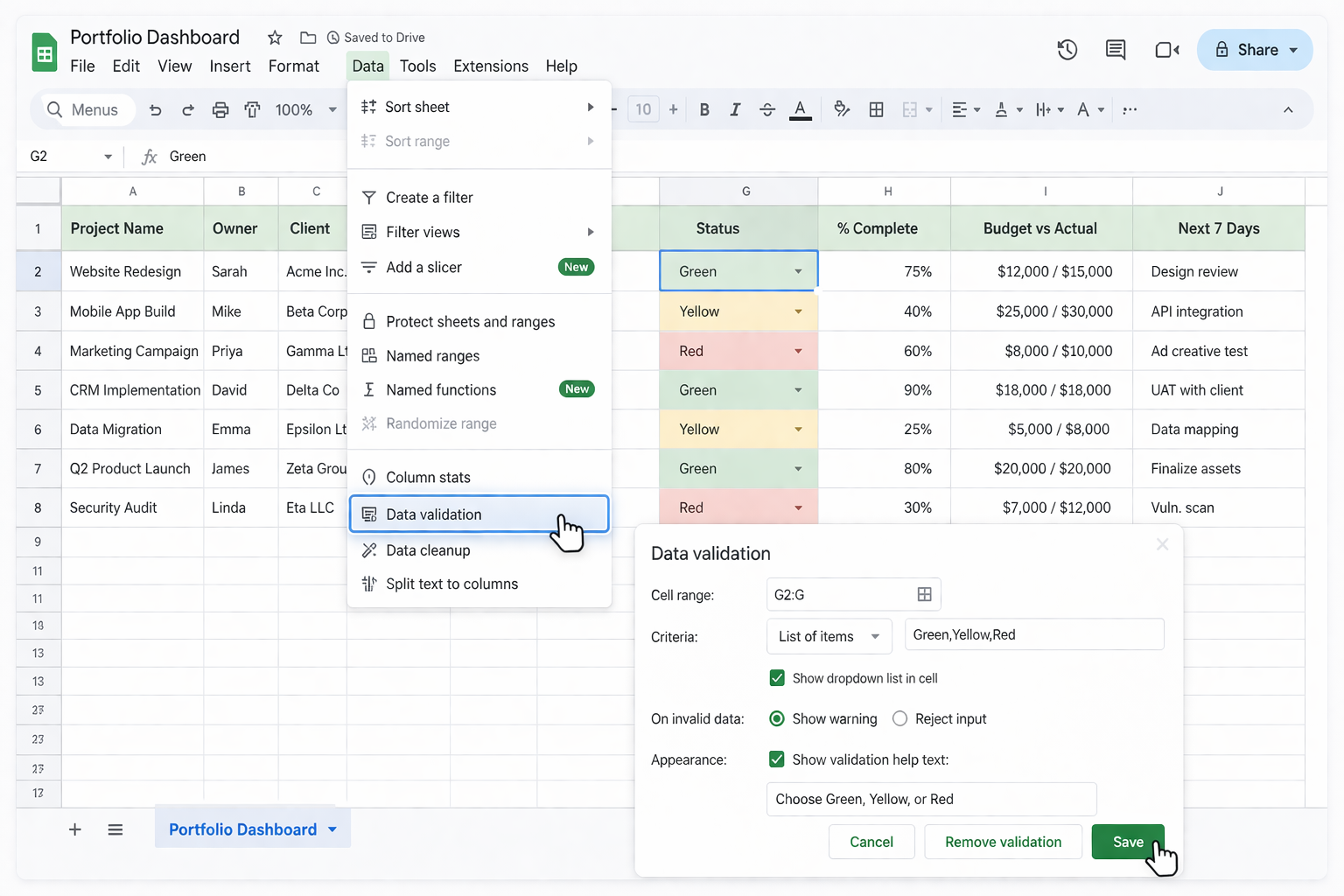
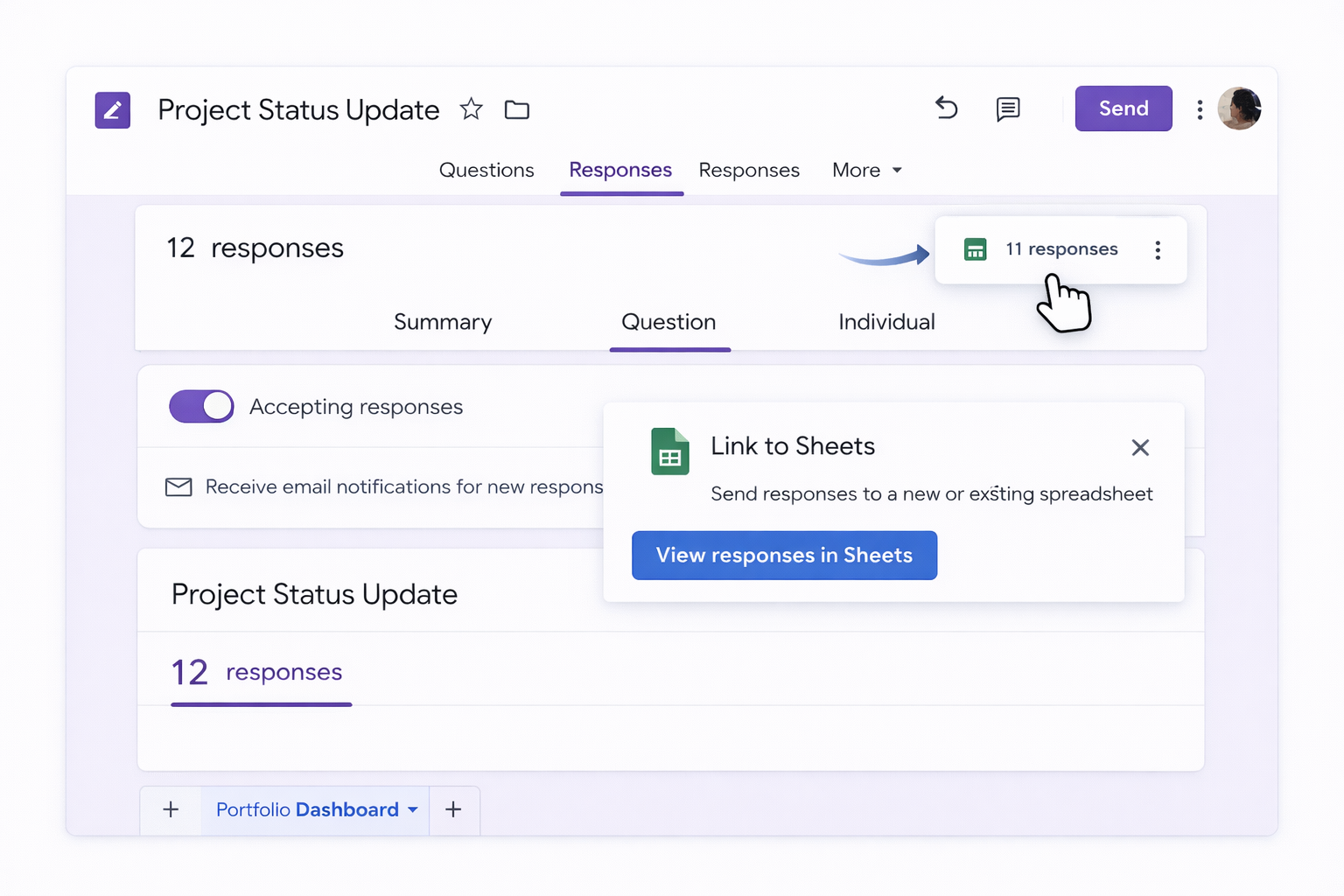
### 1. Manual ways to manage multiple project status reports**Method 1: Build a basic multi-project grid in Google Sheets**1. Go to the Google Sheets home page and click **Blank** or a project template (see Google’s template help: https://support.google.com/docs/answer/6049100).2. Create a tab named `Portfolio Dashboard`.3. Set up columns such as: Project Name, Owner, Client, Stage, Start Date, End Date, Status (Green/Yellow/Red), % Complete, Budget vs Actual, Risks, Next 7 Days.4. For each project, add one row. Use **Data → Data validation** on the Status column to restrict values to Green/Yellow/Red.5. Use **Format → Conditional formatting** (docs: https://support.google.com/docs/answer/78413) to color the status cell based on the value.6. Share the sheet with your team and ask owners to update their rows before your weekly review.Pros: Free, simple, flexible. Cons: Updates are manual, easy to forget, and error‑prone as you add more projects.**Method 2: One tab per project + one roll‑up tab in Google Sheets**1. Create a separate tab for each project: `P1_Website`, `P2_Ads`, `P3_Product`, etc.2. In each tab, use a simple layout with fixed cells for key data (e.g., B2 = Overall Status, B3 = Next Milestone, B4 = Risk, etc.).3. In your `Portfolio Dashboard` tab, use cell references like `='P1_Website'!B2` to pull each project’s status into a central table.4. Add summary formulas: - Count active projects: `=COUNTA(A2:A)` - Count red projects: `=COUNTIF(StatusRange,"Red")`Pros: Each PM can own their tab; the dashboard stays read‑only. Cons: Still manual; references break if people rename tabs or move cells.**Method 3: Use Excel’s project tracker templates**1. Open Excel and search templates: **File → New → Search for “project tracker” or “project status”** (see Microsoft’s planner/tracker page: https://excel.cloud.microsoft/search/planner-tracker/).2. Pick a template with fields for Project, Owner, Start/End Date, Status, and Progress.3. Duplicate the template sheet per project, then build a summary sheet that uses formulas like `=AVERAGE()` or `=COUNTIF()` to aggregate across sheets.4. Save to OneDrive or SharePoint so the file can be shared and edited by your team.Pros: Professional layouts and charts out of the box. Cons: Version chaos if people download the file; manual entry remains the bottleneck.**Method 4: Weekly status email collection → Sheets/Excel**1. Ask each project owner to email a short update every Thursday using a fixed structure (Status, Wins, Risks, Next Week).2. On Friday, copy those into your Google Sheet or Excel tracker.3. Update your summary fields, charts, and any executive slide decks.Pros: Easy to start culturally. Cons: 100% manual and the first thing to break when you get busy.**Method 5: Manual dashboard charts**1. Once your Sheet or workbook has consistent columns, select your data range.2. In Google Sheets, click **Insert → Chart** to create bar charts for projects by status or a Gantt‑style stacked bar for timelines (chart help: https://support.google.com/docs/answer/63824). In Excel, use **Insert → Charts** for similar visuals.3. Manually refresh data and charts before every meeting.Pros: Great for leadership updates. Cons: You still rely on humans to keep the data current.---### 2. No-code automation with standard tools**Method 6: Use Google Sheets + Google Forms for standardized inputs**1. Create a **Google Form** that mirrors your key fields: Project, Owner, Status, % Complete, Risk, Next Week’s Focus.2. Under the form’s **Responses** tab, click the Sheets icon to link responses to a Google Sheet (help: https://support.google.com/docs/answer/2917686).3. Use this responses sheet as your raw data. Build a second tab `Dashboard` with `=UNIQUE()` to list all projects and `=FILTER()` or `=MAXIFS()` formulas to pull the latest response for each.4. Share the Form link with project owners and set a calendar reminder for them to submit weekly.Pros: No one edits the main sheet directly; data is structured. Cons: Owners must remember to submit; still semi‑manual.**Method 7: Automate inputs with Google Apps Script**1. Open your Google Sheet, go to **Extensions → Apps Script**.2. Write a script that, for example, pulls data from another sheet or a CSV in Google Drive and updates your master status table on a schedule (time‑based triggers: https://developers.google.com/apps-script/guides/triggers).3. Use triggers to run daily/weekly so the dashboard stays live.Pros: Powerful and free; can automate from many Google sources. Cons: Requires scripting skills; maintenance burden when layouts change.**Method 8: Use Excel’s templates with Power Query**1. Store project data in individual Excel files or sheets (per project or per team).2. In a master Excel file, use **Data → Get Data → From Workbook** to connect to each project file (Power Query help: https://support.microsoft.com/excel-power-query).3. Combine the queries into a single table and load it into a dashboard sheet with PivotTables and charts.4. Click **Refresh All** before each review to pull the latest updates.Pros: Scales well if you’re already a Microsoft shop. Cons: Owners still maintain their own files; refreshes are manual unless you script them.---### 3. Scaling with AI computer agents (Simular) Manual and no-code tricks work—until you’re juggling dozens of clients or launches. That’s where an AI computer agent like Simular Pro becomes your operations teammate.**Method 9: Simular agent as your cross-tool updater**Story: Every Thursday night, instead of you opening 12 tabs, your Simular agent does it.1. Configure your Simular Pro agent with the login steps for your CRM, project tool, and both your Google Sheets and Excel portfolio trackers.2. Give it a clear workflow: for each active project, open the relevant system, read the latest metrics (tasks completed, spend, conversions, burn‑down), then write those into the correct row/columns in your multi‑project template.3. Let it run in a test mode first; review the actions (Simular’s transparent execution lets you inspect every click and keystroke).4. Once you trust it, schedule it via webhook or cron from your existing pipeline so it runs automatically before your weekly standup.Pros: Truly hands‑off updating across desktop, browser, Sheets, and Excel; production‑grade reliability over thousands of steps. Cons: Requires an initial setup and a short period of observation to tune instructions.**Method 10: Simular agent generating executive summaries**1. After your agent updates the raw numbers in Google Sheets/Excel, set a second Simular workflow: open the portfolio tab, read all project statuses, and draft a 1–2 paragraph narrative summary plus bullet‑point risks.2. Have the agent paste that summary into a dedicated "Exec Summary" cell range or a connected Google Doc/Word file.3. Optionally, have it build or update a PowerPoint/Slides deck using your existing templates, copying key charts and metrics.Pros: Leaders get story plus numbers without extra work from you. Cons: You’ll want a quick human review for tone and key messaging early on.**Method 11: Simular agent as continuous project watchdog**1. Define rules like “Any project that turns Red or misses its expected completion date should be flagged.”2. Schedule the agent to scan your Google Sheets or Excel tracker daily.3. When it finds an issue, it can send an email or Slack message with the project name, issue, and suggested next steps.Pros: Early warning system without you staring at dashboards. Cons: You must keep the rules simple and adjust as your portfolio evolves.

Scale multi-project reports with AI agents

Onboard your Simular agent
Install Simular Pro, log it into your Google Sheets and Excel environments, and record one ideal run of updating your multiple project status template for the agent to imitate.
Test and refine behaviors
Use Simular Pro’s transparent execution to replay every action, verify cell updates in the multi-project template, tweak prompts and safeguards, then rerun until the agent is consistently accurate.
Delegate and scale updates
Connect Simular Pro via webhook or your scheduling system so it refreshes Google Sheets and Excel project status reports on a schedule, freeing your team from repetitive weekly maintenance.

FAQS