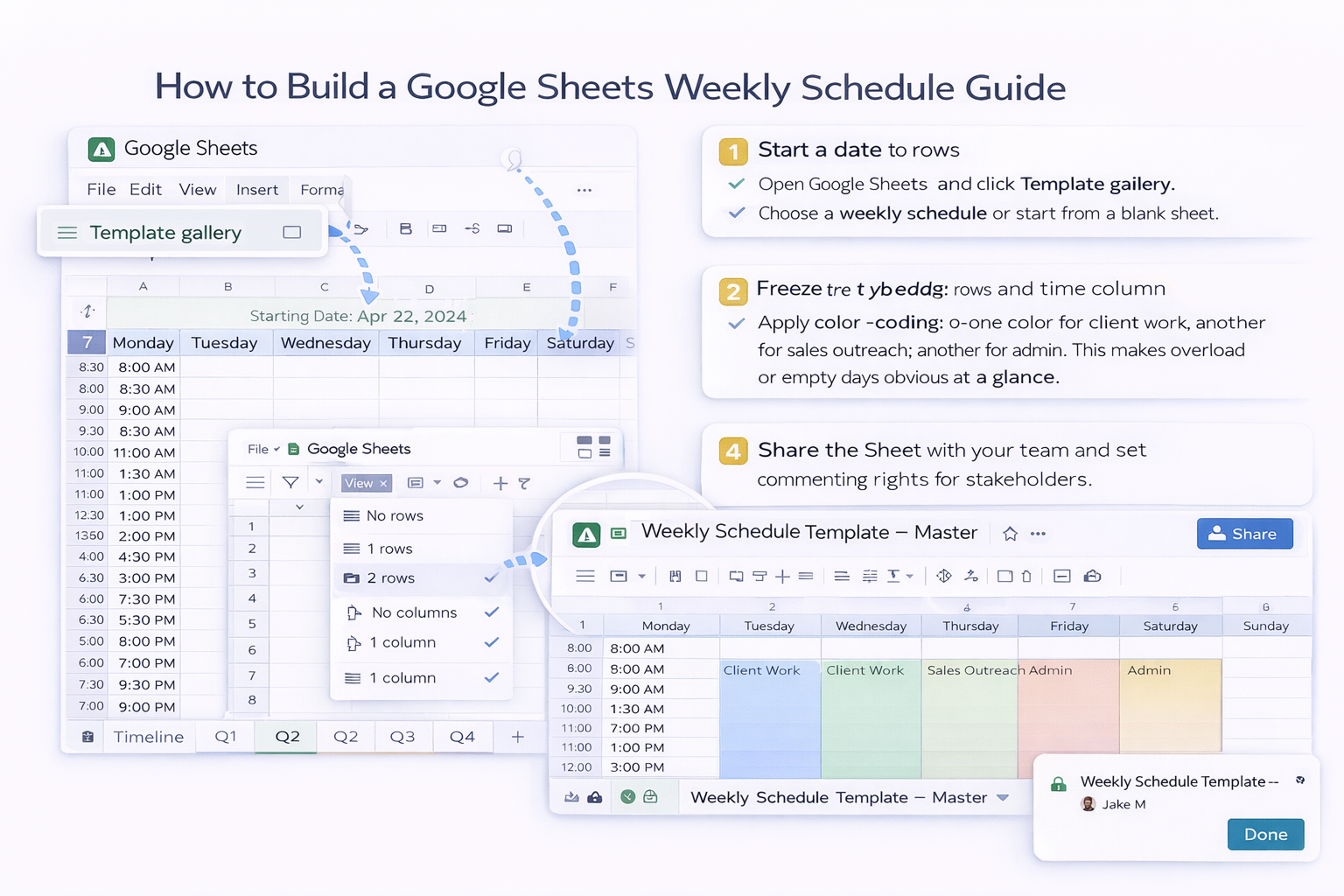
How to Build a Google Sheets Weekly Schedule Guide

Use a Google Sheets weekly schedule template with an AI computer agent to auto-fill shifts, rebalance workloads, and keep your team aligned in minutes.
Advanced computer use agent
Production-grade reliability
Transparent Execution

Why Google Sheets Weekly Plans

A Google Sheets weekly schedule template is the kind of simple tool that quietly holds your entire operation together. Instead of juggling calendars, sticky notes, and half-finished docs, you get one clear grid that shows the whole week at a glance: who is working, which campaigns are in flight, which clients need attention. It is cloud-based, free, and familiar to almost everyone on your team, so you can roll it out fast without training. Color-coding, filters, and comments turn that grid into a living control center for your business, whether you run a boutique agency, a sales pod, or a scrappy service team.Delegating that same Google Sheets weekly schedule template to an AI computer agent is where the real leverage appears. The agent can open Sheets, copy last week, pull shifts from your CRM or calendar, fill in tasks, highlight conflicts, and save a polished schedule. You stay in charge of priorities and rules, while the agent handles the clicking, typing, and repetitive checks at scale.

How to Build a Google Sheets Weekly Schedule Guide

Every busy week starts the same way: too many commitments, not enough hours, and a blank grid staring back at you. A Google Sheets weekly schedule template is the simplest way to turn that chaos into a clear plan. Once it is working, a Simular AI computer agent can take over the grunt work so you never rebuild the same schedule twice.## 1. Manual: Build Your Weekly Schedule Template From ScratchIf you are just starting out, build a clean master template in Google Sheets.Step-by-step:1. Open Google Sheets and click 'Template gallery'. Choose a weekly schedule or start from a blank sheet.2. In row 2, add the starting date of your week (for example, the Monday you want to begin with).3. In row 3, label columns for each day: Monday through Sunday.4. In column A, list your working hours in 30- or 60-minute blocks: 8:00, 8:30, 9:00 and so on until closing.5. Freeze the top header rows and the time column so days and times stay visible as you scroll (View → Freeze).6. Add simple color-coding: one color for client work, another for sales outreach, another for admin. This makes overload or empty days obvious at a glance.7. Save it as 'Weekly Schedule Template – Master' and protect the structure (Tools → Protect sheet) so formulas and labels do not get broken later.Pros:- 100% free and fully customizable.- Everyone understands it immediately.- Works anywhere you can open a browser.Cons:- You still fill it manually every week.- Easy to make mistakes when you are rushing.- No automatic sync with your other tools.## 2. Semi-Manual: Make the Template Smarter With FormulasBefore you bring in an AI agent, let Google Sheets do more of the routine thinking.Ideas to upgrade your template:- Use SUM and COUNTIF to total hours per person, per client, or per project automatically at the bottom of each column.- Add data validation drop-downs for task types (sales call, onboarding, production, support) so you are not retyping the same labels.- Add conditional formatting to flag overtime or conflicts. For example, highlight any day where total scheduled hours exceed a target, or any cell that overlaps another assignment for the same person.- Create a 'Rules' tab that lists business hours, max hours per rep, and priority clients. This becomes the logic your future AI agent can follow.Pros:- Less manual math and fewer errors.- Clearer picture of workload and costs.Cons:- The grid still needs to be filled by hand.- Complex formulas can break if someone edits the layout.## 3. Automated: Let a Simular AI Computer Agent Maintain the ScheduleOnce your weekly schedule template is stable, you can hand off the repetitive work to a Simular AI computer agent. Simular Pro is an advanced computer use agent that can operate directly in your browser and desktop, just like a human.What the agent can do each week:- Open your browser and navigate to the Google Sheets weekly schedule template.- Duplicate last week’s tab and rename it with the new start date.- Pull bookings from your calendar, CRM, or project boards by clicking through the apps on your behalf.- Type or paste shifts and tasks into the right cells, respecting working hours from your 'Rules' tab.- Apply your usual color-coding and ensure formulas still calculate correctly.- Share or export the schedule when it is ready.Because Simular focuses on production-grade reliability, you can design workflows with hundreds or thousands of actions without them silently failing. Transparent execution means every action is visible and replayable, so you know exactly what the agent did in Sheets.Pros:- Saves hours every week for founders, schedulers, and managers.- Consistent, repeatable schedules with fewer mistakes.- You keep strategic control; the agent just executes.Cons:- Requires an initial setup and a few test runs.- You still review edge cases or last-minute changes.## 4. Hybrid: You Plan, the Agent Fills in the DetailsMost teams find a sweet spot between full manual and full automation.A practical hybrid workflow:- You sketch priorities for the week in a simple 'Planning' tab: key clients, campaigns, and must-do tasks.- You mark who is available and any time-off or blackout dates.- The Simular AI agent reads that plan, opens Google Sheets, and spreads the work across days and team members, copies recurring tasks from last week, and avoids conflicts based on your rules.- When the agent is finished, you do a quick review pass, tweak a few cells, and publish the schedule.Over time you can extend this: have the agent post the final schedule to Slack, update status fields in your CRM, or email a link to clients who need visibility. Your Google Sheets weekly schedule template stays the source of truth; the agent becomes the pair of hands that maintains it for you.## 5. When to Move Fully to AutomationA good rule of thumb: once you find yourself building the same weekly schedule more than three times, it is time to teach an AI agent to do it. If you run an agency, sales team, or service business, that usually happens fast.By capturing your best manual process in a stable Google Sheets template and then handing it to a Simular AI computer agent, you turn scheduling from a recurring chore into a quiet background process that simply delivers a ready-to-review plan each week.


How AI Scales Google Sheets Weekly Schedules Fast

Onboard Simular to Sheets
Install Simular Pro, open your Google Sheets weekly schedule template, and record a clean 'golden run' where you set dates, copy last week, and fill example shifts the way you want.
Test and Refine the Agent
Run the Simular AI agent on a copy of your Google Sheets weekly schedule template. Compare every update, tighten prompts and steps, and repeat until the schedule builds correctly on the first try.
Delegate and Scale Schedules
Once the Simular AI agent reliably updates your Google Sheets weekly schedule template, schedule it on a weekly cadence so it handles recurring shifts while you just review and approve.

FAQS