How to Turn LinkedIn into a Scalable Email Finder Guide

Turn Linkedin into an email engine with an AI computer agent that searches profiles, captures contacts, and fills your CRM while you focus on outreach.
Advanced computer use agent
Production-grade reliability
Transparent Execution

Why Linkedin + AI Agents

If you sell to humans, Linkedin is where they already are. Every job change, promotion, and company move turns into fresh intent data and up-to-date contact info. A Linkedin email finder lets you convert that living graph into clean, verified inbox-ready leads instead of guesswork. When you hand this workflow to an AI agent, it can open Linkedin, apply filters, visit profiles, trigger enrichment, and log results for hours without getting tired, freeing you to write messages, not copy names.

How to Turn LinkedIn into a Scalable Email Finder Guide

The Real Problem With LinkedIn Email Finding

Every founder, consultant, or SDR has lived this scene: you open LinkedIn “for 20 minutes” to find a few decision‑makers… and two hours later you’re still clicking profiles, guessing emails, and wrestling with a half‑broken CSV export.

LinkedIn is a goldmine, but email finding is the pickaxe work. Let’s walk through how to do it well manually, then how to turn most of it over to an AI computer agent so you can operate at true scale.

1. Manual LinkedIn Email Finding (The Baseline)

1.1 Define Your Ideal Prospect

Before you touch a keyboard, be specific:

  • Role: e.g. Head of Marketing, VP Sales
  • Company: industry, size, geography
  • Triggers: hiring, funding, tech stack, content topics

This clarity keeps your searches tight and your list high‑intent.
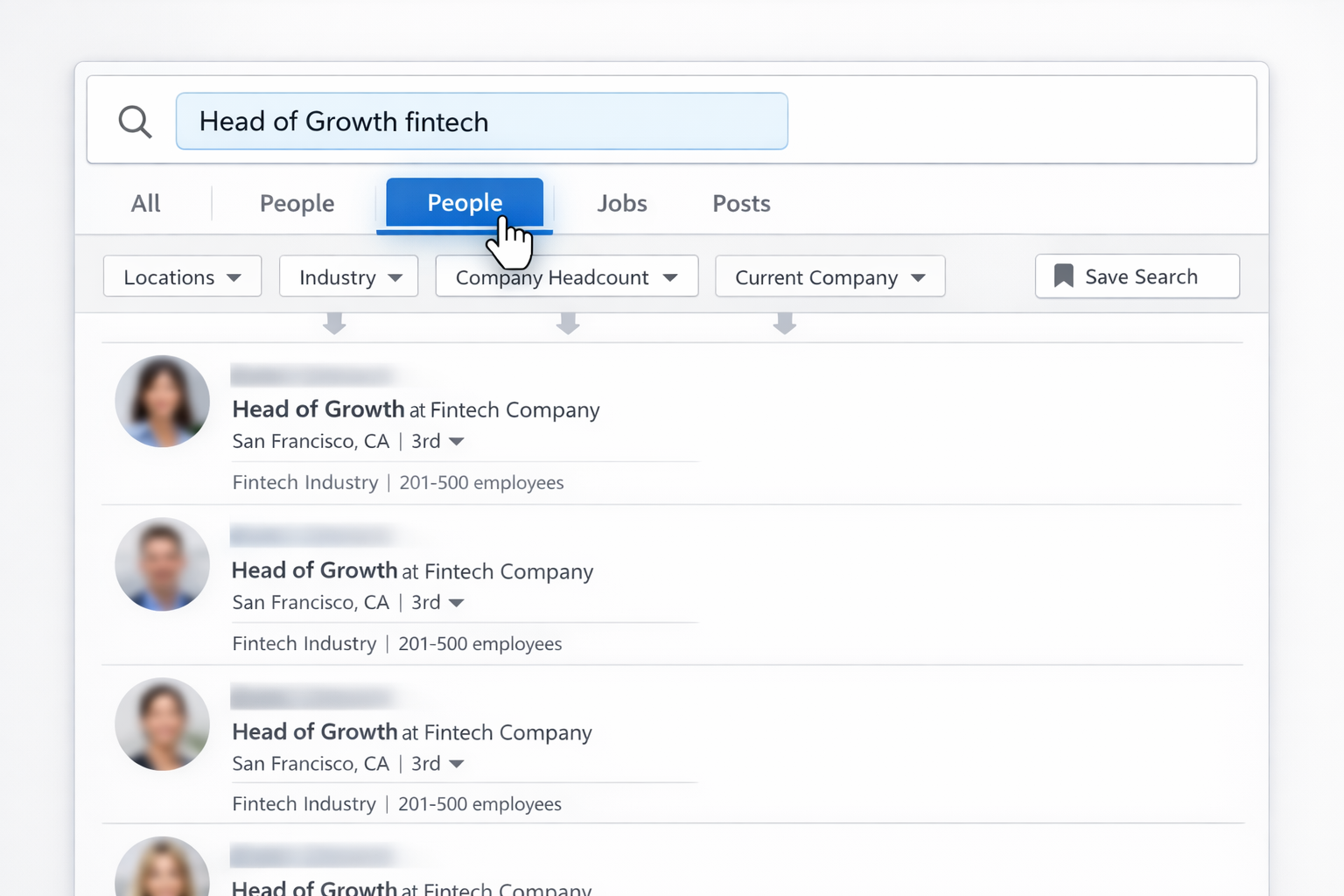
1.2 Use LinkedIn Search Filters

  1. Go to Linkedin and open the search bar.
  2. Type a role plus niche (e.g. "Head of Growth fintech").
  3. Click People.
  4. Use filters: Locations, Industry, Company headcount, Current company, etc.
  5. Save the search if you have Sales Navigator or Recruiter.

Now you have a focused list of profiles instead of random people.

1.3 Capture Emails Manually

There are three main manual paths:

A. Check Contact Info
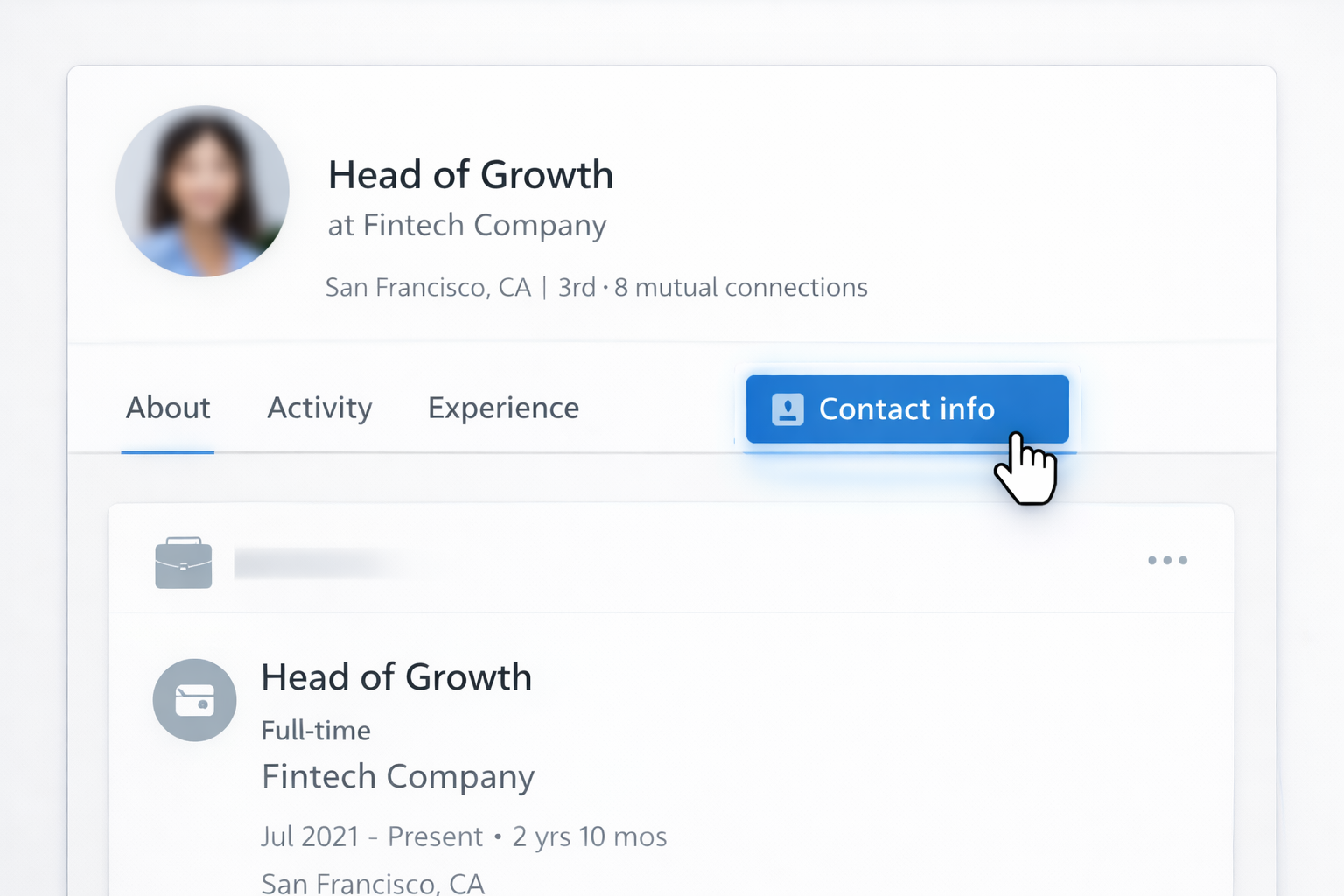
  1. Open a profile.
  2. Click Contact info.
  3. If a business email is visible, copy it to your sheet or CRM.

Pros: 100% accurate, fully consent‑based.
Cons: Very low volume; most people hide emails.

B. Pattern Guessing With Company Domains

  1. Visit the company website from the LinkedIn profile.
  2. Find their email format (e.g. press@, careers@, or from team pages).
  3. Use that pattern: first.last@company.com, flast@company.com, etc.
  4. Verify the guessed email in an email verification tool.

Pros: Cheap, works when you know the domain.
Cons: Time‑consuming, error‑prone, can hurt deliverability if you skip verification.

C. Use Single‑Lookup Email Finder Tools
Tools like Mailmeteor, Skrapp, Snov.io, GetProspect and others let you paste a LinkedIn URL or a name + company and return a likely verified business email.

  1. Copy the LinkedIn profile URL.
  2. Paste it into the email finder.
  3. Copy the result plus validation status into your sheet.

Pros: Faster and more accurate than guessing.
Cons: Still one‑by‑one work; you’re the glue between tabs.

2. Semi‑Automated: Browser Extensions & Bulk Lookups

Once you’re tired of copying and pasting, extensions are the next step.
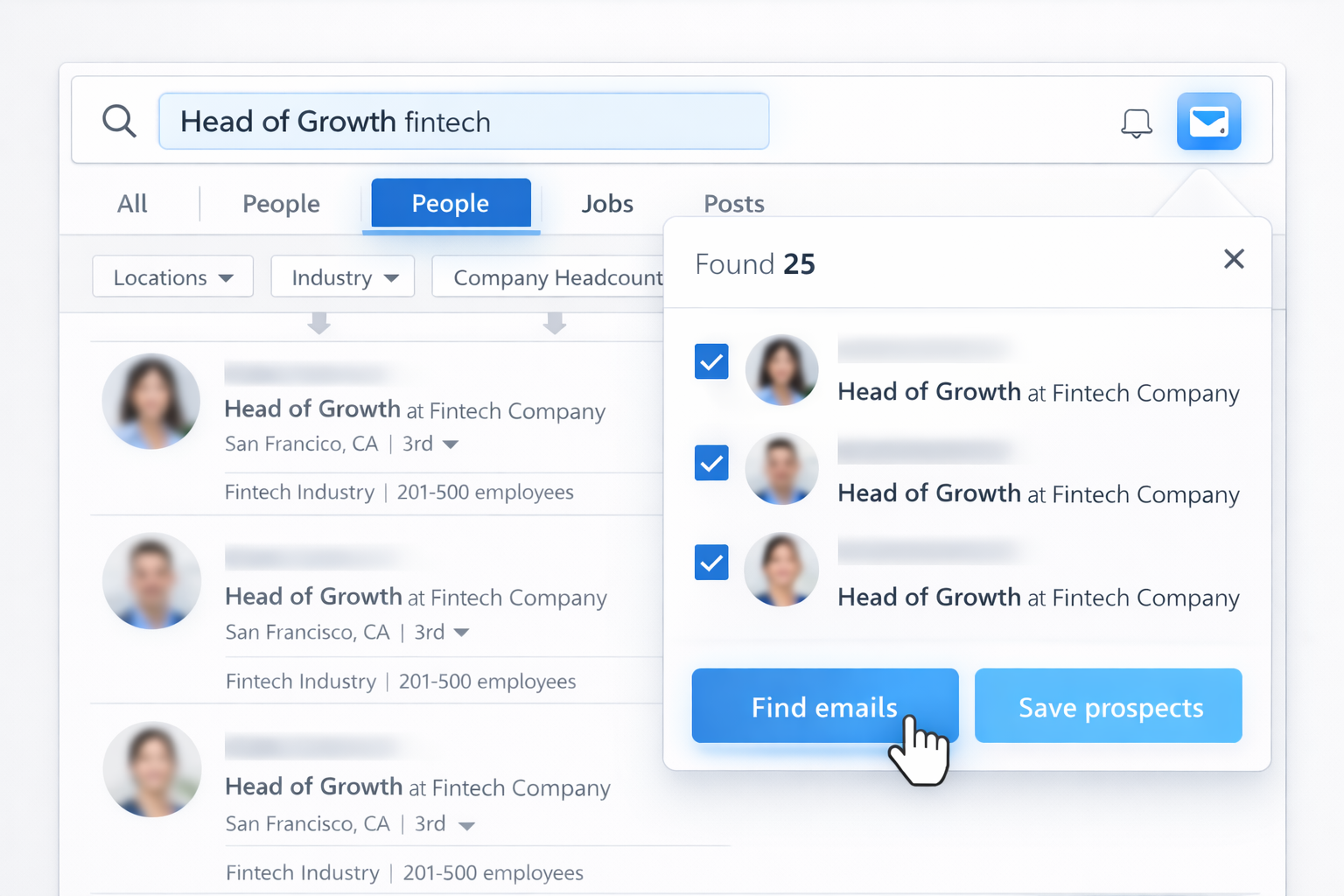
2.1 Chrome Extensions On LinkedIn

Many email finder tools offer a browser extension that sits on top of LinkedIn:

  1. Install the extension from the Chrome Web Store.
  2. Open a LinkedIn search or Sales Navigator list.
  3. Click the extension icon.
  4. Select all visible profiles (e.g. first 25 results).
  5. Click Find emails or Save prospects.
  6. Export the list as CSV or sync directly to your CRM.

Pros: Huge speed boost over pure manual work; some verification built in.
Cons: You’re still orchestrating every run: opening pages, clicking buttons, exporting, uploading.

2.2 Bulk Enrichment From CSV

If you already have names, roles, and companies from another source:

  1. Export that list as CSV.
  2. Upload it into your email finder’s bulk enrichment.
  3. Map columns (first name, last name, company, domain).
  4. Run enrichment and download your enriched file.

Pros: Great when LinkedIn is only part of your data pipeline.
Cons: Still multiple tools, manual file shuffling, and no real‑time refresh.

3. Fully Automated: Let an AI Computer Agent Drive

Manual and semi‑automated flows are fine for 100 contacts a week. They break when you need thousands of fresh, verified prospects every month, across segments and markets. That’s where an AI computer agent such as Simular Pro becomes your always‑on SDR assistant.

3.1 What an AI Agent Can Do on Your Desktop

Simular’s computer‑use agent operates like a tireless teammate sitting at your Mac:

  • Opens Linkedin, Sales Navigator, and your tools in the browser.
  • Applies your saved search filters for each ICP.
  • Scrolls results and opens profiles when needed.
  • Clicks your preferred email finder extension.
  • Copies names, roles, companies, and verified emails.
  • Pastes them directly into Google Sheets, Excel, or your CRM.
  • Calls webhooks or APIs to trigger sequences in your outbound platform.

3.2 Designing the Workflow

You define the playbook once:

  1. Goal: e.g. "Find 300 Heads of Marketing in US SaaS companies (51–500 employees) with verified emails each week."
  2. Steps:
    • Open Sales Navigator search.
    • Filter by geography, industry, headcount, seniority.
    • For each page: run the email finder extension, capture results.
    • Verify emails (if needed) with your preferred tool.
    • Append rows to a master Google Sheet.
  3. Constraints: respect daily limit of profiles, avoid rapid‑fire scrolling, follow LinkedIn and email compliance.

You run the workflow once with the agent watching and then refine its script.

3.3 Pros And Cons Of AI‑Driven Automation

Pros

  • Massive scale: thousands of profiles, millions of steps without fatigue.
  • Consistency: same filters, formats, and validation rules every time.
  • Transparency: with Simular, every step is visible and editable—no mysterious black box scraping.
  • Integration: webhook outputs drop your lists straight into production systems.

Cons

  • You must design a clear, compliant workflow upfront.
  • First runs need supervision to catch edge cases (weird profile layouts, captchas, 2FA prompts).
  • Requires a Mac (for Simular Pro today) and some basic process thinking.

4. When Should You Hand It To an AI Agent?

Rule of thumb: if you’re spending more than 2–3 hours a week doing the same LinkedIn prospecting routine, you’re a good candidate for delegation.

  • Solo founder or consultant? Let the agent maintain a rolling list while you deliver work.
  • Agency or sales team? Centralize list building into one automated pipeline instead of each rep running their own ad‑hoc searches.
  • RevOps or marketing? Use the agent for recurring list refreshes before campaigns.

Once the AI computer agent is trained, your job shifts from "clicking" to "deciding": who to target, what to say, and which offers to test next.

How to Scale Linkedin Email Finder with Agents Now

Onboard Your Agent
Start by recording a clean Linkedin prospecting flow once inside Simular Pro. The AI computer agent watches every click, search filter, and export so it can replay the workflow on demand.
Test and Refine Runs
Use short Linkedin lists to trial the Simular AI agent. Review its transparent action log, tweak prompts and filters, and rerun until the emails, fields, and CSV exports match your ideal standard.
Scale and Delegate
Once your Linkedin flow is stable, schedule the Simular AI agent to run searches, collect fresh emails, and update sheets or your CRM automatically, turning prospecting into a background process you simply review.

FAQS