How to Control Line Breaks in Google Sheets Cells Easily

Use an AI computer agent to fix line returns in Google Sheets at scale, clean messy text, and keep sales, ops, and marketing reports easy to read daily.
Advanced computer use agent
Production-grade reliability
Transparent Execution

Why Google Sheets Line Breaks

If you live in Google Sheets, you’ve felt the pain of ugly text: prospect notes crammed into one line, addresses spilling over columns, campaign briefs you can’t skim. Line returns look like a tiny formatting detail, but they decide whether your sheet reads like a clean dashboard or a wall of noise. When every row is a customer, a deal, or an invoice, controlled line breaks turn chaos into a story your team can actually act on.This is exactly where delegation to an AI computer agent becomes powerful. Instead of you hunting for CHAR(10), wrapping text, or fixing every pasted export, the agent can learn your preferred layout and apply it across thousands of cells. It can standardize line returns, replace them when needed, and keep Sheets readable as data streams in from CRMs, forms, and inboxes—freeing you to focus on decisions, not formatting.

How to Control Line Breaks in Google Sheets Cells Easily

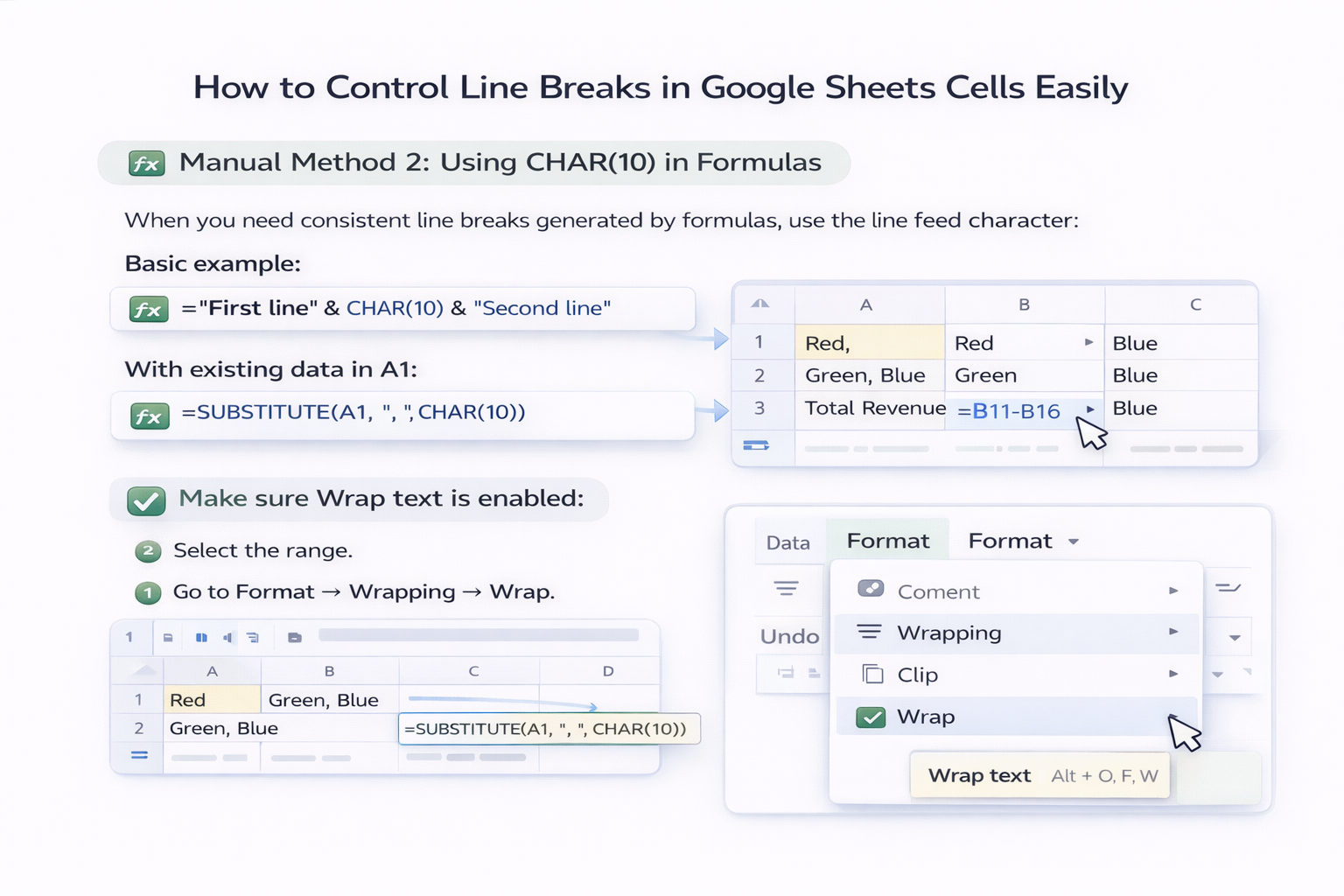
If you’re a founder, operator, or marketer, Google Sheets is probably your unofficial CRM, analytics hub, and scratchpad. And yet one of the most annoying problems is tiny: getting text to break onto a new line exactly where you want it.Below are the most useful ways to handle “returns” (line breaks) in Google Sheets—first manually, then how to scale it using an AI computer agent like Simular.## Manual Method 1: Keyboard Line Breaks in a Cell**Desktop (Web):**- Click into the cell and place your cursor where you want the new line.- Press **Alt + Enter** (Windows/ChromeOS) or **Ctrl + ⌘ + Enter** (Mac, depending on keyboard layout).- Sheets inserts a line feed inside the cell while keeping all text in one cell.**Pros:**- Perfect for quick edits.- Full visual control over where the text wraps.**Cons:**- Painful for large datasets.- Easy to forget which shortcut works on which device.## Manual Method 2: Using CHAR(10) in FormulasWhen you need consistent line breaks generated by formulas, use the line feed character:- Basic example: - `="First line" & CHAR(10) & "Second line"`- With existing data in A1: - `=SUBSTITUTE(A1, ", ", CHAR(10))` to turn commas into line breaks.Make sure **Wrap text** is enabled:- Select the range.- Go to **Format → Wrapping → Wrap**.**Pros:**- Great for templated text like outreach scripts, address blocks, or summaries.- Reproducible and easy to audit.**Cons:**- Requires comfort with formulas.- Still manual when cleaning messy imports from tools that use different line break characters.## Manual Method 3: Cleaning Line Breaks (SUBSTITUTE)Some exports bring in hidden returns you want to remove or convert.- To replace line breaks with commas: - `=SUBSTITUTE(A1, CHAR(10), ", ")`- For tougher cases with both carriage return and line feed: - `=SUBSTITUTE(SUBSTITUTE(A1, CHAR(13) & CHAR(10), ", "), CHAR(10), ", ")`**Pros:**- Essential for cleaning CRM or form exports.- Makes data usable in CSVs, email tools, or reporting dashboards.**Cons:**- Still a one-off task unless you wire it into every new sheet.- Easy to forget which CHAR code you used last time.## Scaling With an AI Computer Agent (Simular)Once you understand the manual methods, you can hand them off to an AI computer agent so you never touch them again.### 1. Teach the Agent Your Ideal LayoutWith Simular Pro, the agent can operate your desktop and browser like a human:- You create a “golden” Google Sheet that shows exactly how line breaks should look—e.g., multi-line addresses, bullet-style prospect notes, cleaned-up imports.- You demonstrate a few runs: opening the Sheet, enabling Wrap text, applying SUBSTITUTE or CHAR(10) formulas, copying values back, and saving.- Because Simular agents work across the full desktop, they can navigate your browser, Sheets UI, and even your downloads and uploads, step by step.The agent observes and turns this into a repeatable workflow.### 2. Automate High-Volume CleanupOnce the behavior is captured, you can:- Point the agent at new Sheets with raw exports.- Ask it to standardize line breaks in specific columns (e.g., Notes, Address, Description).- Have it paste cleaned data back as values so formulas don’t clutter your sheet.With Simular’s production-grade reliability, the same workflow can run through **thousands or millions of steps** without you babysitting every click.### 3. Connect to Your Existing PipelinesBecause Simular integrates via simple webhooks:- Your CRM, form tool, or data pipeline can trigger the agent whenever a new Google Sheet or CSV is created.- The AI agent opens the new file, cleans line returns according to your rules, and updates your master Sheet or dashboard.This turns “remember to fix formatting” into an automatic part of your stack.## Pros and Cons of Automating With an AI Agent**Pros:**- **Massive time savings:** No more manually reformatting every weekly export.- **Consistency:** Every sheet follows the same rules for line breaks, making reports easier to scan and share.- **Full-computer control:** The agent doesn’t just run formulas; it controls the browser UI, uploads, downloads, and cross-app workflows.- **Transparency:** With Simular, every step is visible and modifiable—no black-box scripts.**Cons:**- **Initial setup:** You invest time upfront to define and demonstrate your ideal workflow.- **Overkill for tiny tasks:** If you only fix a single cell once a month, shortcuts may be enough.The pattern is simple: learn the manual tricks once, then let an AI computer agent take over the repetition so your team can focus on revenue, not returns.


Scale Line Breaks in Google Sheets With AI Agents Now

Train Simular for breaks
Start by recording how you clean and add line returns in Google Sheets: enabling Wrap, using CHAR(10), and fixing imports. Simular’s AI computer agent learns this workflow end to end.
Test and refine agent
Run Simular on sample Google Sheets, watch each transparent action, and tweak steps or formulas. Iterate until the AI agent reliably formats returns correctly on the first pass.
Delegate and scale tasks
Once reliable, trigger Simular from webhooks or schedules so the AI agent auto-formats line returns in new Google Sheets, handles large datasets, and keeps every report clean at scale.

FAQS