Oops! Something went wrong while submitting the form.
Most summarizers read the caption track and hand you one paragraph. Sai asks what you actually need — plain transcript, timestamped transcript, key points, scene descriptions, or shareable clips — then keeps the video in memory so you can switch formats without starting over.

The recording is a real session. The sheet on the right is what it produced.
Sai opens each profile, pulls the signal, and writes the row, live, in a real browser.
Eight columns, sorted by score, with a source link behind every claim.
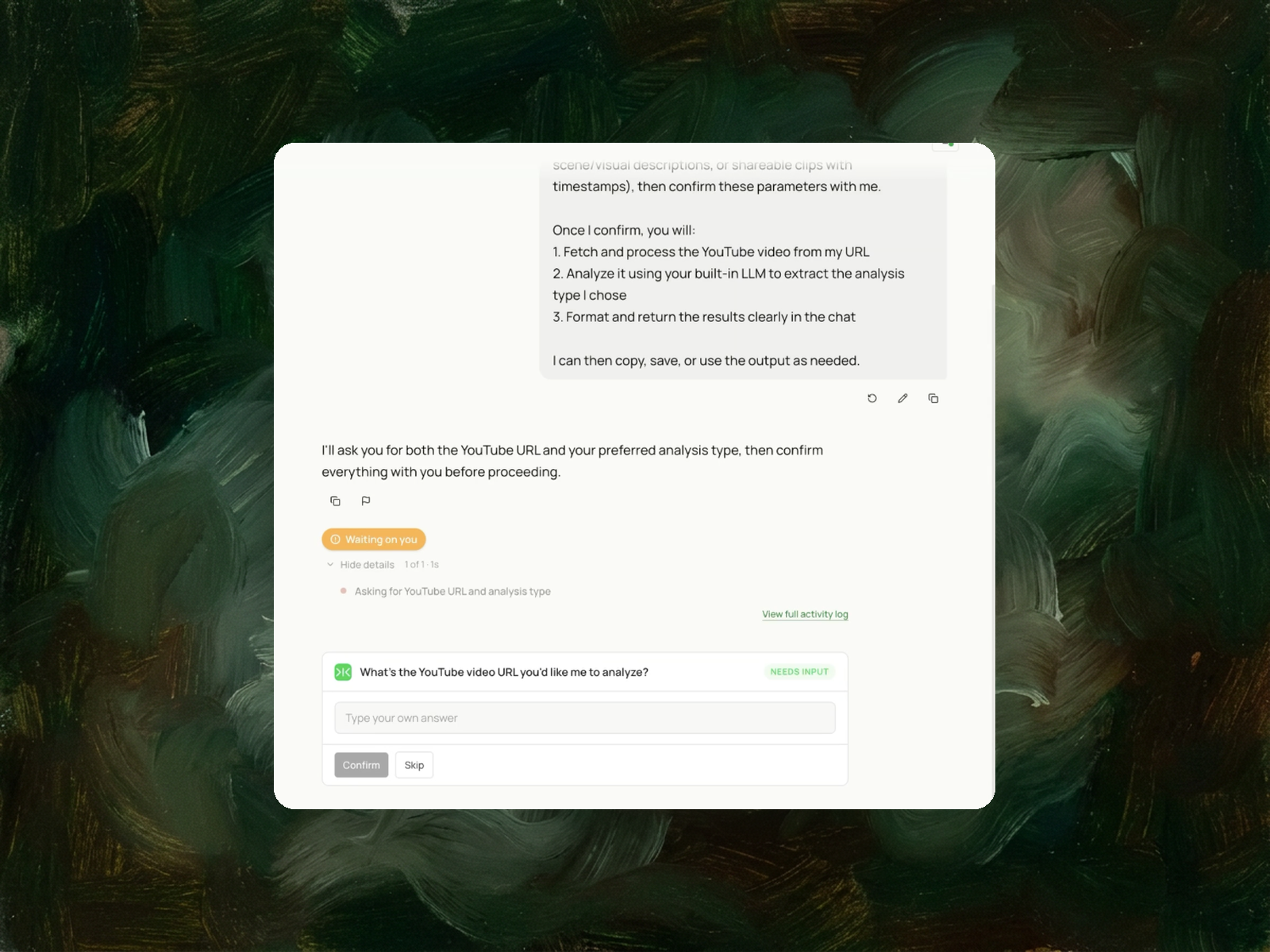
A YouTube URL. Sai asks which type of analysis you want before it starts.
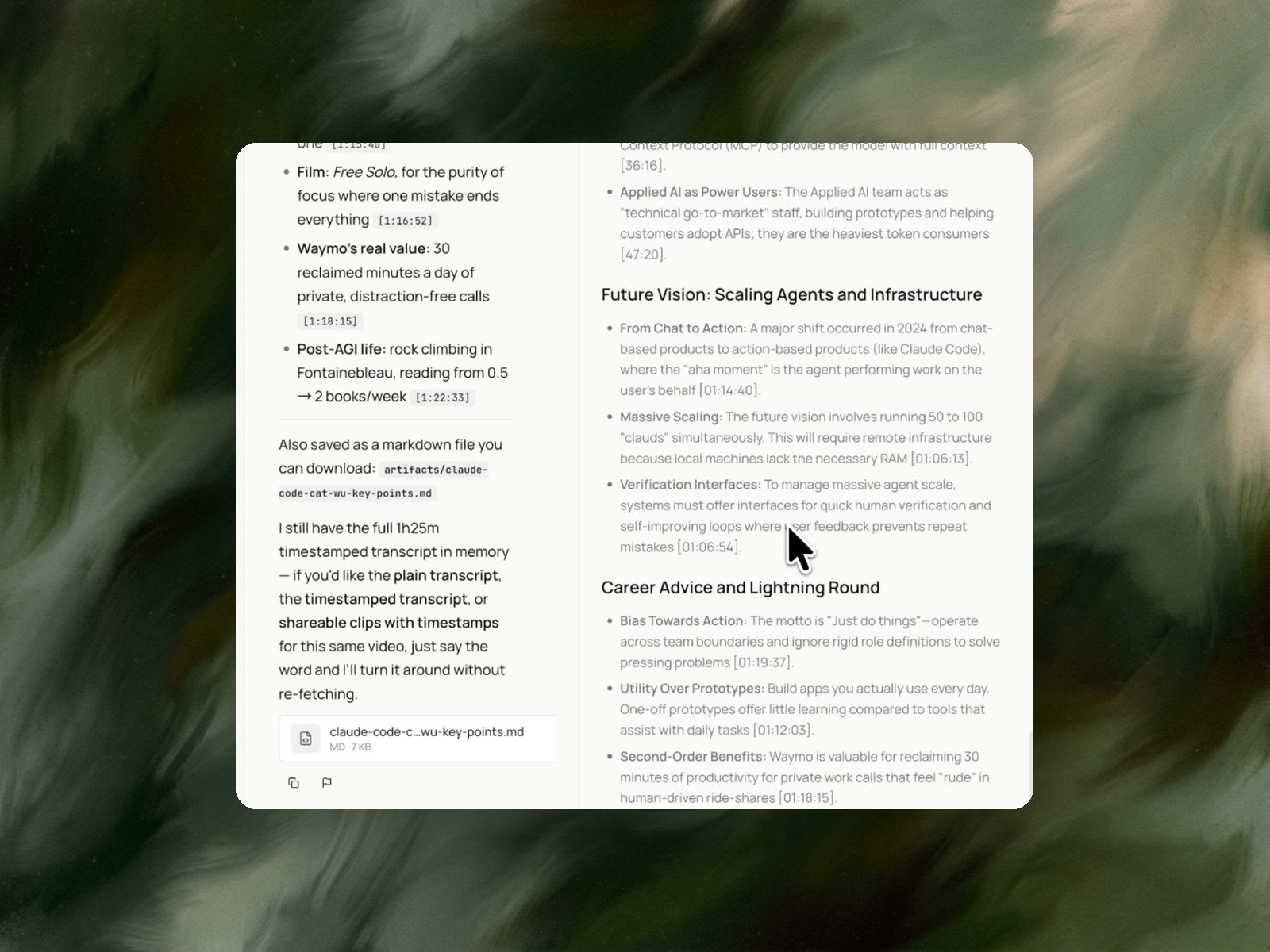
Your chosen output in the chat and as a downloadable markdown file — with timestamps you can click back to, and the transcript held in memory so you can ask for another format without re-processing.
A single pass covers the whole video — the run in the screenshot handled a 1 hour 25 minute talk. Asking for a different format afterwards is near-instant, since the transcript stays in memory.
Point it at a channel or playlist you follow and run it weekly to keep notes on new uploads.
A YouTube video summarizer converts a video into text a reader can scan: a condensed summary, a transcript, or a set of notes tied to points in the timeline. Most tools do this by pulling YouTube's existing caption track and passing it to a language model, which produces one summary paragraph per video.
That method has a fixed boundary. Captions record speech only. Anything conveyed visually — a chart on a slide, a code editor, a product UI walkthrough, a whiteboard, an on-screen figure the speaker refers to as "this number here" — leaves no trace in the caption file and therefore no trace in the summary. Videos where the visual channel carries the information, such as tutorials, demos, lectures, and conference talks, are the ones a caption-based summary degrades most.
A summarizer that works from the video itself rather than the caption track can describe what appears on screen, tag each point with the timestamp it came from, and return a transcript that can be checked against the source. The output format also matters: a summary, a plain transcript, a timestamped transcript, and a set of clip references serve different tasks, and a tool that returns only one of them forces manual work for the others.
Researchers and analysts extracting evidence from recorded talks and earnings calls; content marketers turning webinars, podcasts, and conference sessions into written assets; engineers and students working through tutorial and lecture footage; and sales or customer teams reviewing recorded demos. The shared situation: the video contains a small number of passages that matter, and locating them by scrubbing the timeline is the cost being avoided.
A caption-based extension remains the faster option for a captioned talking-head video where a single paragraph is sufficient. The difference appears on videos where captions are absent, auto-generated and inaccurate, or silent about what is on screen.
The task starts by asking what the video is and what output is needed, rather than assuming a format. It confirms the parameters, then works through the video and returns the requested artifact.
Five output types are available, and more than one can be requested in a single run:
A video summary is rarely the end of the task. Three continuations are common.
Turning recorded material into published content: a timestamped transcript and a key-points set are the raw input for a written piece, and the AI newsletter generator template assembles that material into an issue. Where the output feeds an ongoing publishing schedule, the content calendar generator sequences it against dates.
Preparing for a conversation: recorded demos, earnings calls, and conference talks given by a prospect are evidence about that account, and the meeting prep template for sales calls consolidates that kind of material into a brief before the call.
Tracking sources over time: when the videos come from a specific set of channels or competitors, competitor monitoring watches the sources, and this template processes each new video as it appears.
Where the video's subject matter is being used for search or content planning, the terms it uses are a vocabulary source — the SEO seed keyword template converts that vocabulary into a keyword set.
Provide the video URL and specify the output needed — a summary, a plain transcript, a timestamped transcript, key points, or scene descriptions. This template confirms those parameters first, then works through the video and returns the requested artifact, with timestamps attached to each point.
Yes. Caption-based tools require a caption track and fail when one is absent or disabled. This template works from the video itself, so it handles videos with no captions and videos whose auto-generated captions are inaccurate.
A transcript is the full text of what is said, reproduced in order. A summary is a condensed account of what the video covers. A transcript supports quoting and searching; a summary supports deciding whether to watch. Both are available from a single run, as is a timestamped transcript that combines full text with navigation.
Yes. Scene and visual descriptions cover slides, interfaces, diagrams, and demonstrated actions — content that exists only in the visual channel and is absent from any caption track.
Yes. Delivery destination is one of the confirmed parameters, so the transcript or notes can be written to a file or a sheet rather than returned as chat text.
The task is written around a single video URL. For a recurring set of sources, running it per video and scheduling the run is the supported pattern.