How to Track Instagram Ad Costs in Google Sheets Guide

Automate Instagram ad cost tracking from Ads Manager into Google Sheets with an AI computer agent that clicks, copies, and calculates while you focus ROI.
Advanced computer use agent
Production-grade reliability
Transparent Execution

Why Instagram + Sheets AI

Every serious marketer eventually hits the same wall: you know Instagram ads are working, but you can’t clearly see which campaigns deserve more budget and which should be killed. An ad cost calculator built around your own numbers changes that. By pulling spend, impressions, clicks, and revenue into one place, you can see CPC, CPM, CPA, ROAS, and true profit per campaign in minutes instead of guessing.Delegating this calculator to an AI computer agent means it logs into Instagram Ads Manager, exports fresh performance data, updates your Google Sheets model, and flags anomalies every day without you touching a keyboard. Instead of burning an hour building pivot tables and checking formulas, you wake up to a ready-made dashboard and a short summary of what changed, so you can decide where to scale or cut spend. That’s how agencies, sales teams, and founders turn a spreadsheet into a daily growth engine.

How to Track Instagram Ad Costs in Google Sheets Guide

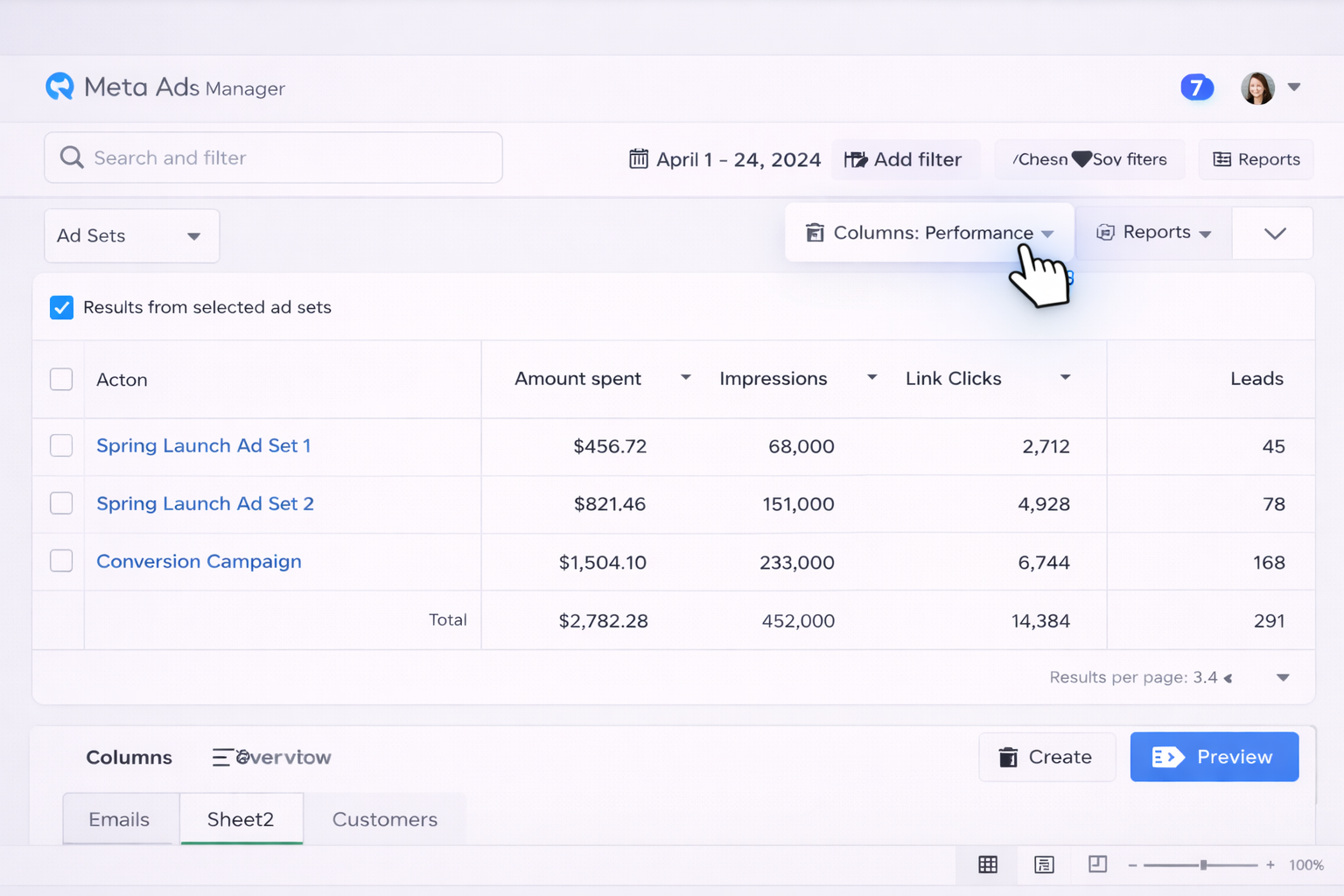
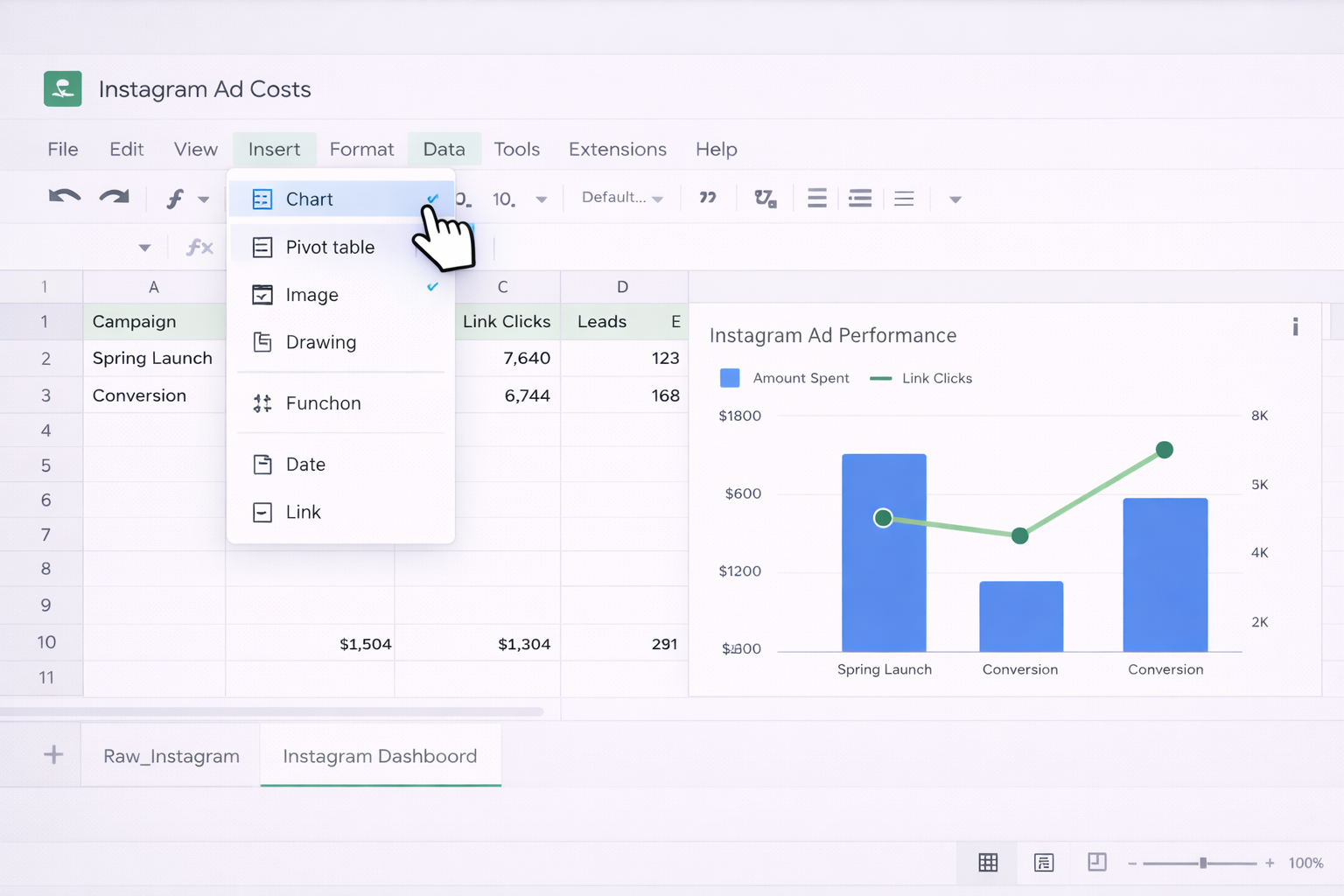
### OverviewIf you run Instagram ads, you live and die by your numbers. But manually checking Ads Manager, exporting CSVs, and rebuilding the same report in Google Sheets is a productivity tax on every marketer, founder, and agency. Let’s walk through three levels of Instagram ad cost calculation:1) traditional manual workflows,2) no-code automations,3) fully delegated, at-scale workflows powered by an AI agent.Throughout, your two anchors are Instagram Ads Manager and Google Sheets.---### 1. Manual ways to calculate Instagram ad costs#### Method 1: Use Instagram (Meta) Ads Manager reports1. Go to Instagram Ads Manager (via Meta Ads Manager).2. Follow Meta’s official guide to Ads Manager views: https://www.facebook.com/business/help/14384177197869143. Choose the date range and select the campaigns or ad sets you care about.4. Click the columns selector and add metrics you need: - Amount spent - Impressions - Link clicks - Purchases / Leads (if you have conversions set up)5. Export the table as CSV.6. Open the file and use a basic calculator to compute: - CPC = Amount Spent ÷ Link Clicks - CPM = Amount Spent ÷ (Impressions / 1000) - ROAS = Purchase Conversion Value ÷ Amount SpentThis is simple but painful to repeat daily or across many accounts.#### Method 2: Build a custom cost calculator in Google Sheets1. Open a new Sheet: https://docs.google.com/spreadsheets2. Review Google Sheets functions: https://support.google.com/docs/answer/30931973. In row 1, add headers: - A1: Date - B1: Campaign Name - C1: Spend - D1: Impressions - E1: Clicks - F1: Conversions - G1: Revenue - H1: CPC - I1: CPM - J1: CPA - K1: ROAS4. Paste the exported Ads Manager data into columns A–G.5. In H2 enter `=C2/E2` for CPC and copy down.6. In I2 enter `=C2/(D2/1000)` for CPM and copy down.7. In J2 enter `=C2/F2` for CPA and copy down.8. In K2 enter `=G2/C2` for ROAS and copy down.You now have a living calculator but still must export and paste every time.#### Method 3: Create a forecasting tab1. Add a new tab called `Forecast`.2. In `Forecast!B2`, reference historical averages from your data tab using `=AVERAGE(Data!H:H)` for CPC, etc.3. Add input cells: - Monthly Budget - Expected CPC - Expected Conversion Rate - Average Order Value4. Use formulas to forecast: - Clicks = Budget ÷ CPC - Leads = Clicks × Conversion Rate - Revenue = Leads × AOV - ROAS = Revenue ÷ BudgetThis mimics classic calculators but is still entirely manual.---### 2. No-code methods with automation tools#### Method 4: Sync Instagram ad data into Google Sheets via integrationsNo-code platforms (such as popular automation tools) can pipe Instagram/Meta Ads data directly into Sheets.1. In Google Sheets, create a dedicated tab, e.g., `Raw_Instagram`.2. In your automation tool, choose the trigger/app for "Facebook Ads" or "Meta Ads" (this includes Instagram placements).3. Connect your ad account following Meta’s permissions flow (guided from their Business Help Center: https://www.facebook.com/business/help/instagram).4. Set the automation to run daily or hourly.5. Map fields into the Sheet: - Date - Campaign / Ad Set / Ad Name - Spend, Impressions, Clicks, Purchases, Purchase Value6. In Sheets, build formulas (as in Method 2) on a separate `Metrics` tab that references `Raw_Instagram` using `=QUERY` or `=SUMIFS`.Now your calculator updates automatically whenever the automation runs.#### Method 5: Use Google Sheets functions for light analyticsWith live data arriving, you can:- Use `=QUERY(Raw_Instagram!A:K,"select B,sum(C),sum(D),sum(E),sum(G) group by B",1)` to aggregate by campaign.- Build dashboard charts via **Insert → Chart**.- Share the Sheet with stakeholders using Google’s sharing options: https://support.google.com/docs/answer/9331169This turns your Sheet into a lightweight BI tool for Instagram costs, with no code.---### 3. At-scale automation with an AI agentManual and no-code flows save time, but they still require you to design and maintain the logic. An AI agent can watch your screen, navigate Ads Manager, update Google Sheets, and even narrate what changed.#### Method 6: Let an AI agent run the entire workflowImagine your AI computer agent doing this every morning:1. Open your browser and log into Meta Ads Manager for your Instagram account.2. Apply saved filters (brand, country, funnel stage).3. Export yesterday’s data and download the CSV.4. Open Google Sheets, drop the file into a `raw_imports` folder, or paste fresh metrics into the `Raw_Instagram` tab.5. Refresh formulas and pivot sheets.6. Write a short summary in a "Daily Notes" cell like: "Story ads CPC rose 18%; recommend pausing lowest-ROAS ad sets." **Pros:**- Fully hands-off once designed.- Works across multiple ad accounts and clients.- Adapts if Meta or Google slightly change UI; it can visually understand the screen.**Cons:**- Requires an initial "golden run" to demonstrate the ideal workflow.- You must review early runs to ensure data is mapped correctly.#### Method 7: AI agent as always-on analystBeyond just updating costs, your AI agent can:- Scan for campaigns where CPC or CPM exceeds thresholds.- Highlight rows where ROAS drops below your target.- Add comments in Google Sheets tagging teammates with recommendations.Because an advanced agent can operate across your entire desktop environment, it behaves like a junior analyst who never sleeps—collecting, calculating, and interpreting Instagram cost data for you.The result: instead of spending your mornings exporting, cleaning, and calculating, you review one Sheet, read one narrative, and make faster budget decisions at scale.

Scale Instagram Ad Cost Tracking with AI Agents

Train Simular agent
Install Simular Pro, then show it your exact Instagram Ads Manager view and Google Sheets model. Record one polished run so the agent learns every click and formula it must repeat.
Test Simular IG calc
Run the Simular AI agent on a test day, compare its Instagram metrics and Google Sheets calculations to your manual version, and tweak prompts or steps until everything matches.
Scale with Simular
Schedule the Simular AI agent to refresh Instagram ad costs in Google Sheets daily, pipe alerts into Slack or email, and let it scale reporting across brands and client accounts.

FAQS