
Oops! Something went wrong while submitting the form.

.png)
.svg)
If you run a business, an agency, or a sales team, you probably live in Google Sheets. XLOOKUP is the quiet superpower that keeps those sheets from turning into chaos. Instead of nesting VLOOKUPs, copying ranges, or manually hunting through tabs, XLOOKUP lets you point to a clean lookup range and a result range and pull back exactly what you need: prices, owner, status, territory, discount tier, customer health score, you name it.
It works vertically or horizontally, tolerates imperfect matches, and can return multiple columns at once. That means cleaner models, fewer brittle formulas, and far less fire-drill debugging when someone inserts a column in the middle of your data.
When you hand these repetitive XLOOKUP tasks to an AI computer agent, things get even better. The agent can create and adjust ranges, copy formulas across hundreds of rows, reconcile IDs between multiple Google Sheets files, and fix broken lookups after structure changes. You keep the brainwork—defining what matters—while the agent does the clicking, testing, and formula wiring at machine speed.
If your day starts with coffee and a Google Sheets tab, XLOOKUP is probably one of your best friends—or your next big unlock. Let’s walk through how to use it manually, then how to scale the same logic with an AI computer agent so you never have to babysit formulas again.
Goal: Look up a value (like a client ID) and return a related value (like MRR).
Step-by-step:
=XLOOKUP(A2, Sheet2!A2:A1000, Sheet2!C2:C1000)A2 is your search_key (e.g., client ID).Sheet2!A2:A1000 is the lookup_range.Sheet2!C2:C1000 is the result_range.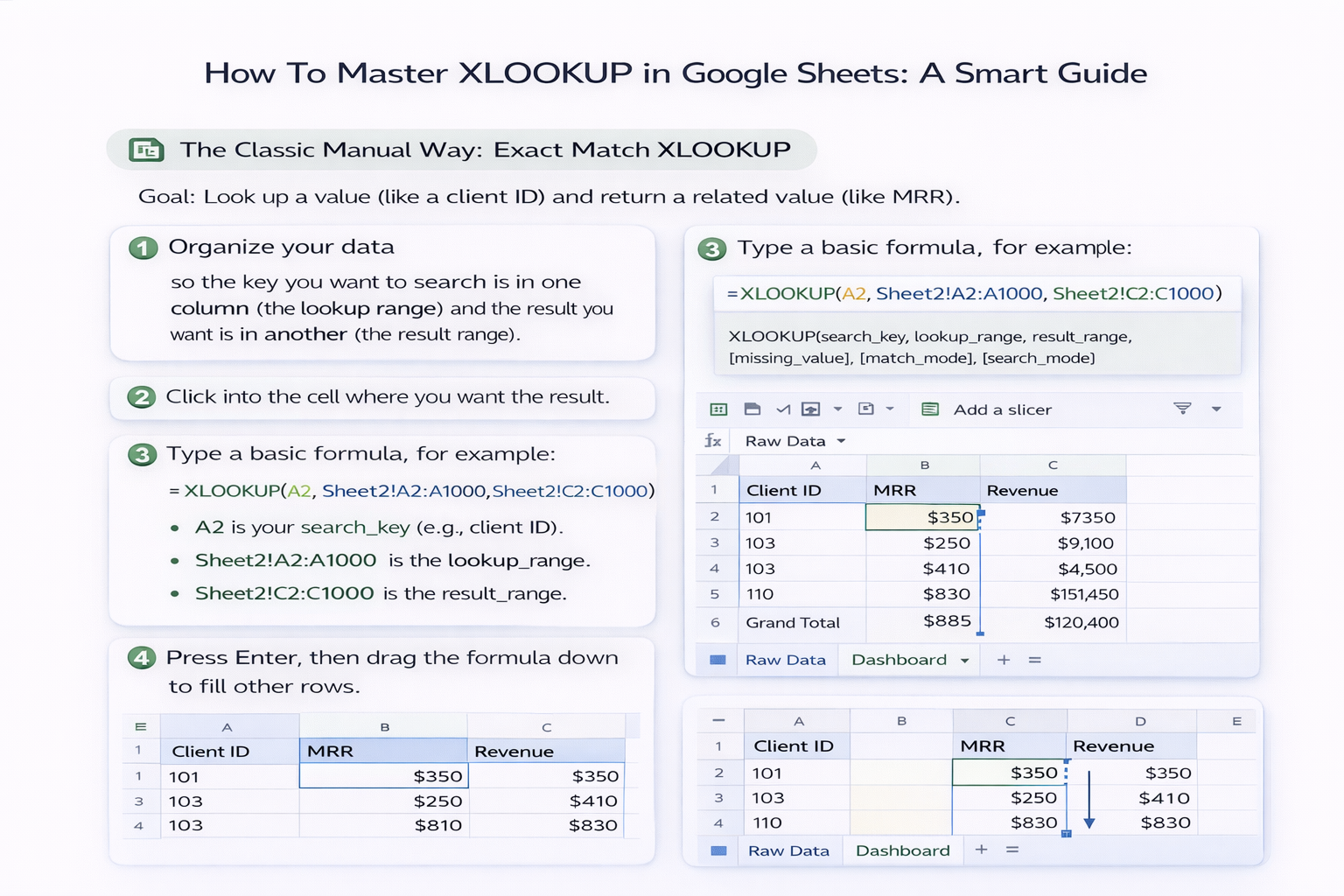
Pros: Simple, transparent, great for small to medium data.
Cons: Easy to break when ranges change; copying formulas across thousands of rows is tedious.
XLOOKUP can gracefully handle missing data so your dashboards don’t shout #N/A at every corner.
Example: =XLOOKUP(A2, Sheet2!A:A, Sheet2!C:C, "Not Found")
Here, the fourth argument is the missing_value. Instead of an error, you get a friendly label you can filter on.
Use this pattern when:
Pros: Cleaner reporting and fewer support pings about “broken” sheets.
Cons: Still manual; you’re responsible for every new column, every new tab, every new data dump.
Real businesses rarely keep everything on one tab. XLOOKUP thrives when your data is spread across different sheets.
Cross-sheet example: =XLOOKUP(A2, Metrics!A:A, Metrics!D:D)
Horizontal example: =XLOOKUP("Q4", B1:Z1, B2:Z2)
You can:
Pros: Flexible layout; no need to reorder tables.
Cons: As the workbook grows, so does the cognitive load of tracking where everything lives.
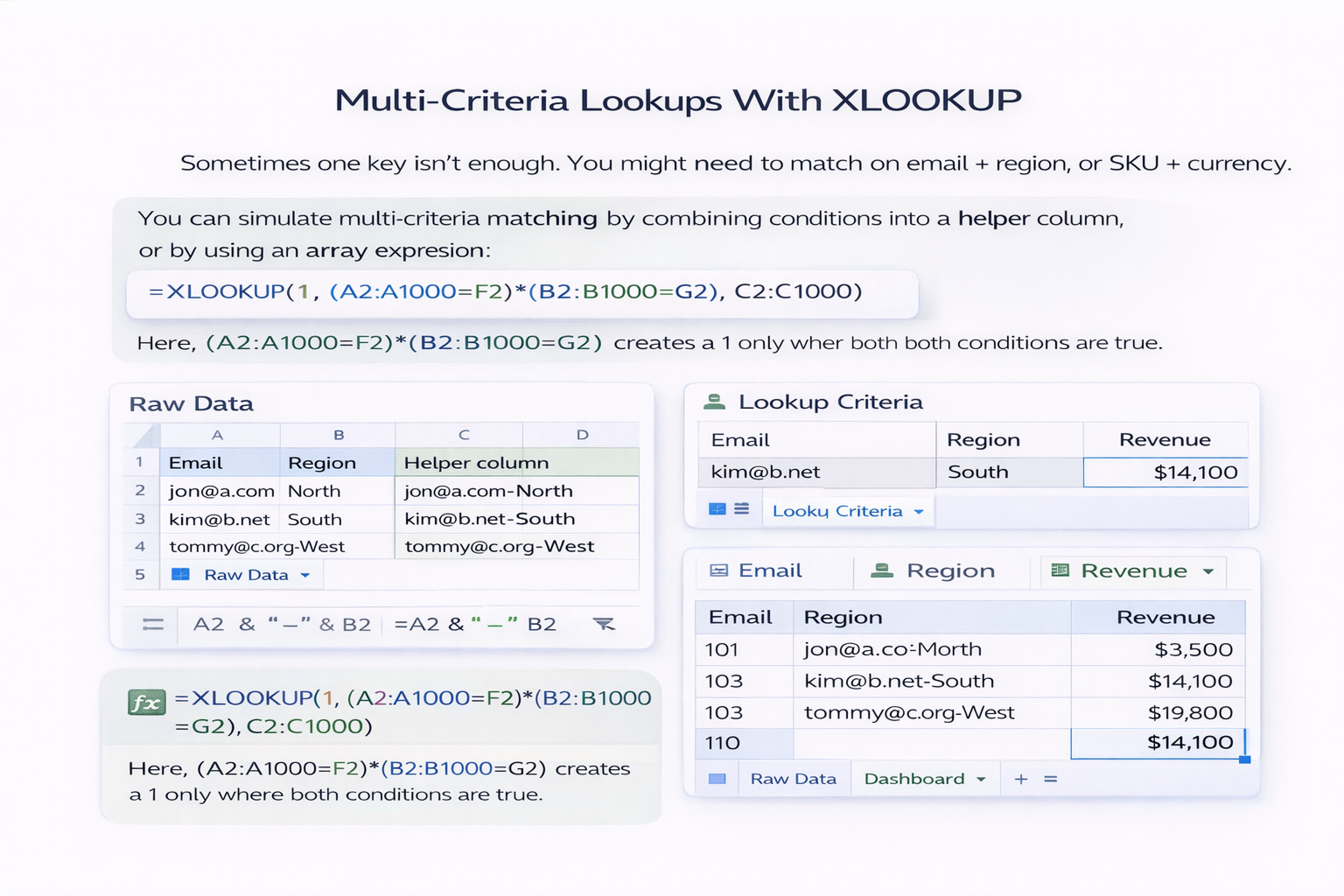
Sometimes one key isn’t enough. You might need to match on email + region, or SKU + currency.
You can simulate multi-criteria matching by combining conditions into a helper column, or by using an array expression:
=XLOOKUP(1, (A2:A1000=F2)*(B2:B1000=G2), C2:C1000)
Here, (A2:A1000=F2)*(B2:B1000=G2) creates a 1 only where both conditions are true.
Pros: Powerful, avoids tangled INDEX/MATCH stacks.
Cons: Easy to mis-type, hard for non-technical teammates to maintain.
Manual XLOOKUP is fine when:
It breaks down when:
This is exactly where an AI computer agent shines.
Instead of you hopping between tabs, an AI agent running on your desktop can:
You describe the intent once: “Match customer_id in this sheet to the MRR column in that sheet and populate MRR in column G.” The agent does the clicking, typing, and verifying.
Pros:
Cons:
The sweet spot for most knowledge workers is hybrid:
Over time, you stop being the “spreadsheet person” everyone Slacks at 10 p.m. The agent becomes the one who extends ranges, rewires formulas after a column is inserted, and keeps your Google Sheets XLOOKUP universe humming while you focus on strategy, not syntax.

