COUNTIF is the quiet workhorse of spreadsheets. In a single line, it answers questions every business owner and marketer cares about: How many leads are qualified? How many orders missed SLA? Which campaigns beat a certain ROAS? In Google Sheets and Excel, COUNTIF turns messy tables into simple counts filtered by text, numbers, dates, or wildcards. It’s fast, flexible, and far more transparent than exporting data into a black‑box tool.But as your business scales, writing and maintaining dozens of COUNTIF and COUNTIFS formulas becomes a hidden tax. An AI agent can open your sheets and workbooks, apply consistent criteria across tabs, validate the logic, and refresh reports on a schedule, so you keep the clarity of COUNTIF without spending hours in the grid.
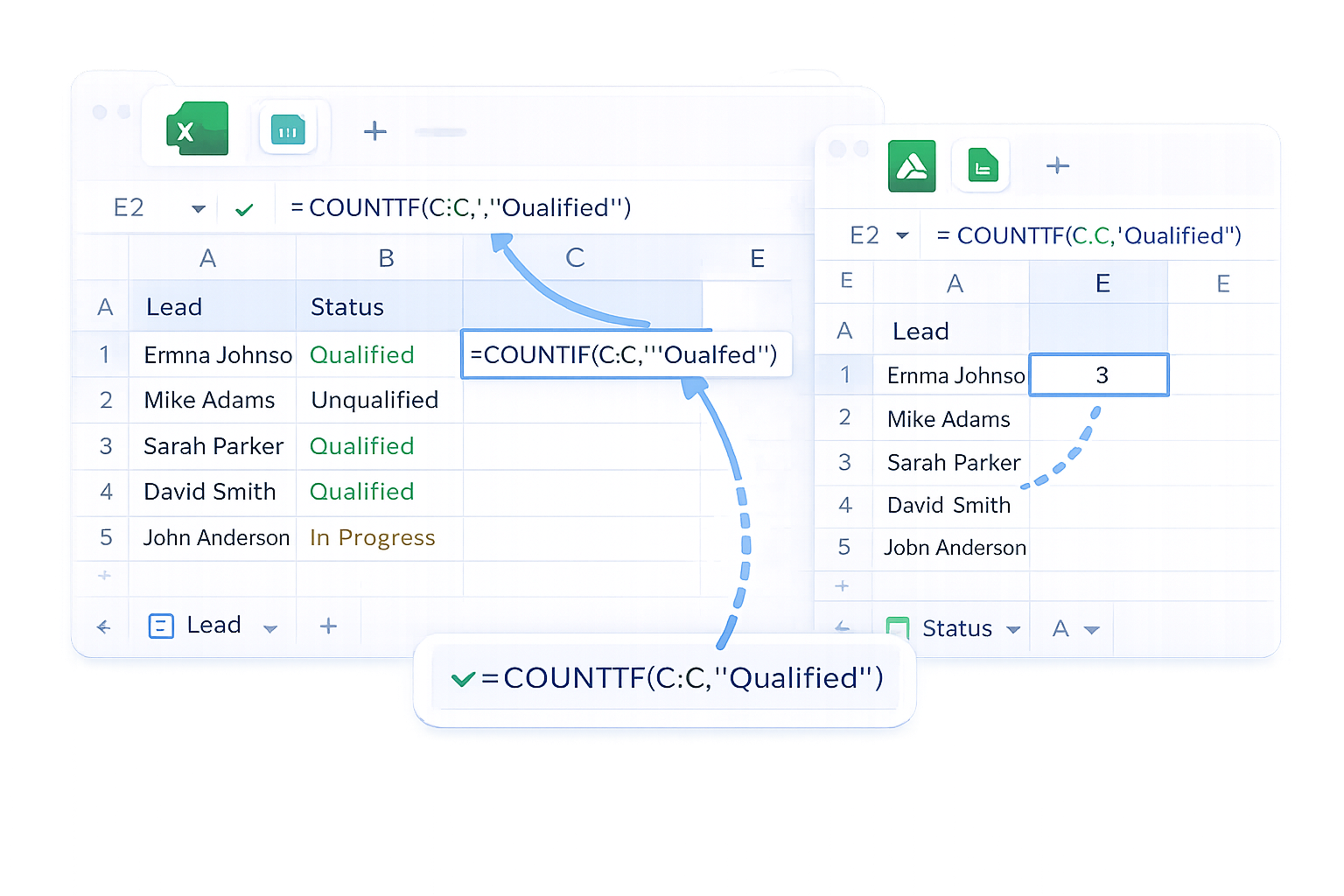
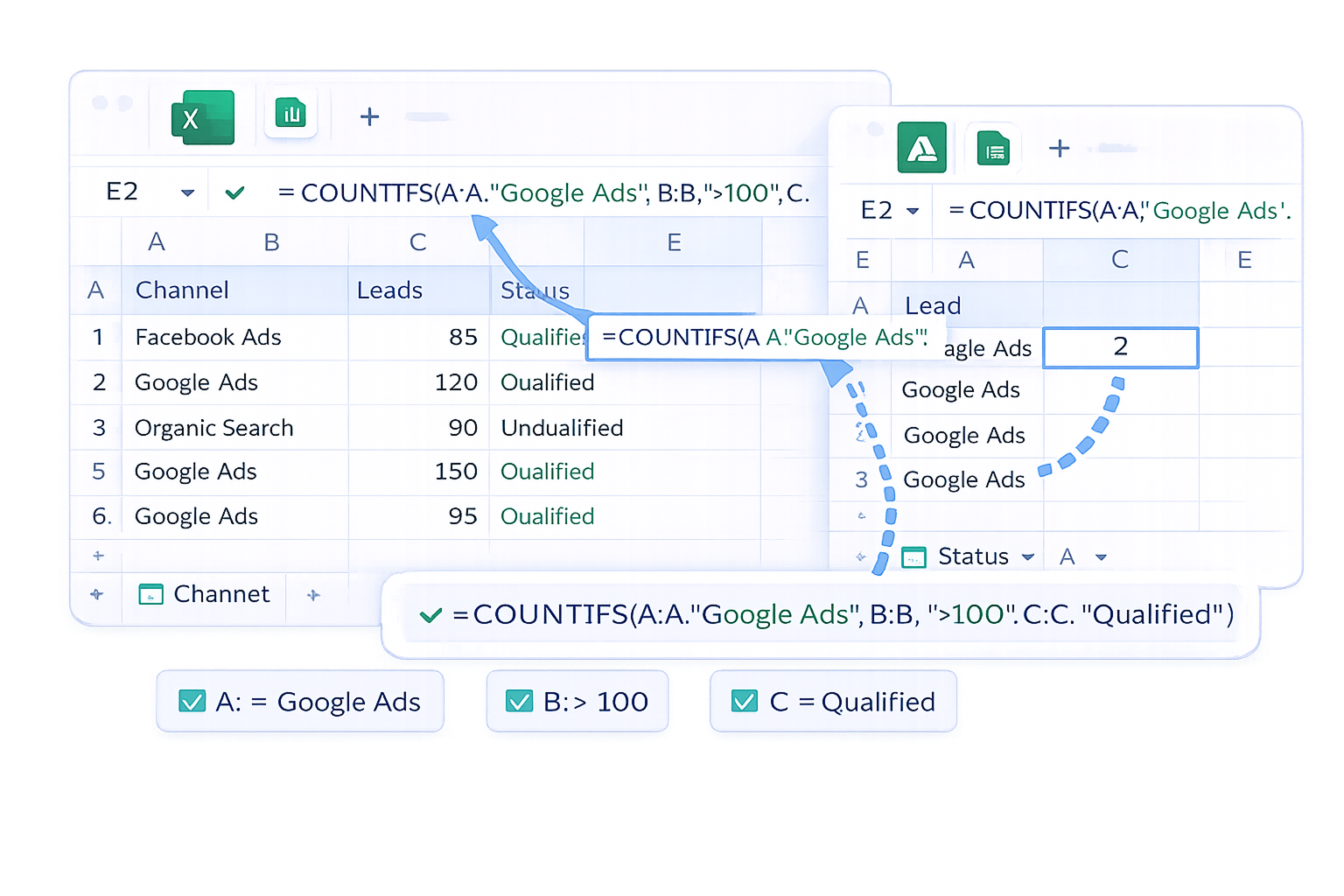
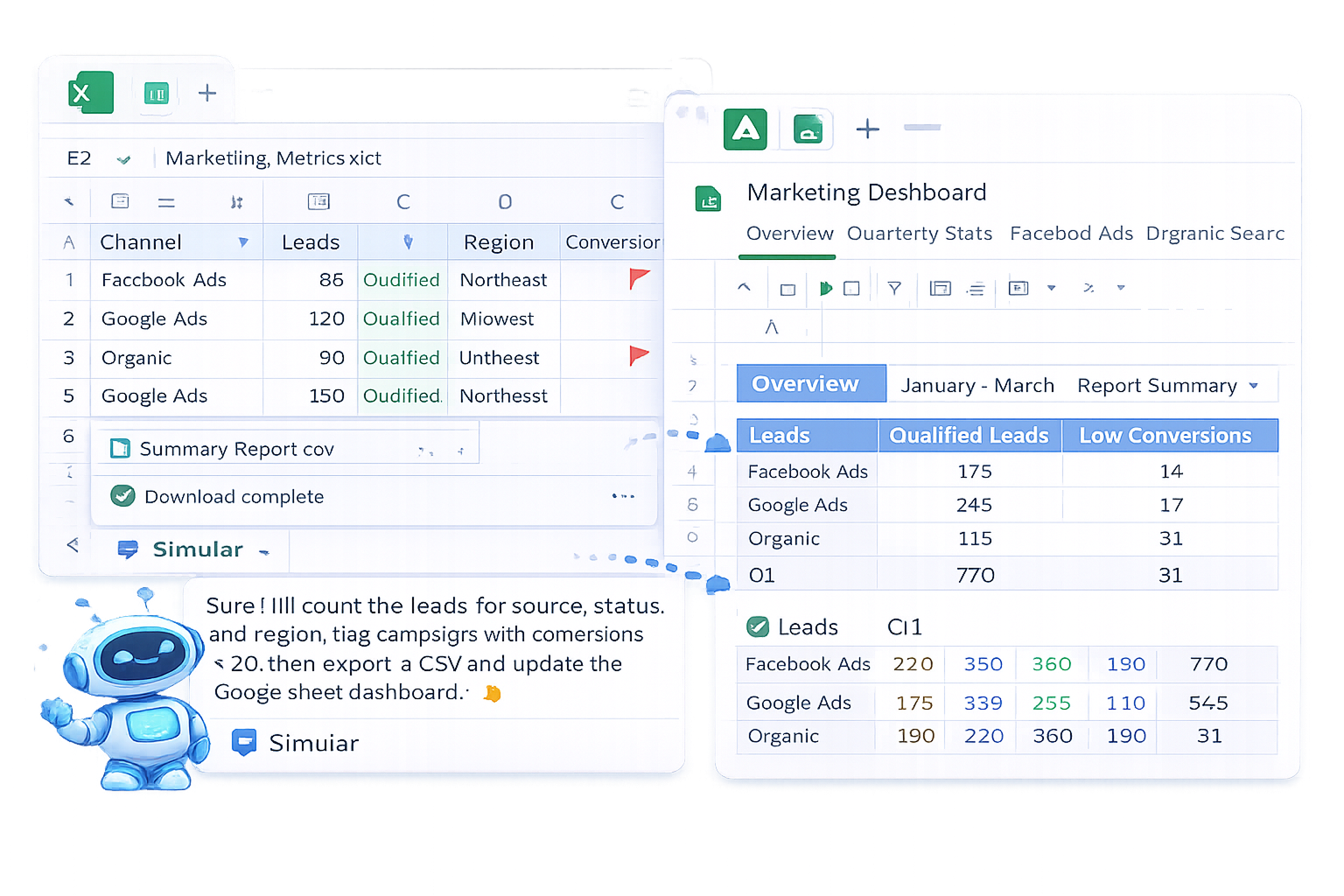
## The Hidden Power of COUNTIFIf you run a business, agency, or sales team, you live in spreadsheets. Every day you answer questions like:- How many leads came from Google Ads this week?- How many invoices are overdue?- How many support tickets are still open?In both Google Sheets and Excel, the COUNTIF function is your shortest path to these answers:`=COUNTIF(range, criteria)`It counts how many cells in a range match a condition. Simple, but incredibly powerful.This guide walks through:1. Manual ways to use COUNTIF step by step.2. How to scale those workflows with an AI computer agent from Simular so you stop living in your spreadsheets.---## 1. Manual COUNTIF in Excel and Google Sheets### 1.1 Basic COUNTIF (equals a value)**Scenario:** You want to count how many leads are labeled "Qualified" in column C.**Steps (Excel and Sheets):**1. Select a blank cell for the result, e.g., `E2`.2. Type: `=COUNTIF(C:C,"Qualified")`3. Press Enter.You now see how many rows contain "Qualified" in column C.**Pros:**- Very fast for simple questions.- Easy to audit: one formula, clear logic.**Cons:**- You must remember exact labels and spelling.- You’ll quickly end up with many similar formulas across tabs.### 1.2 COUNTIF with numbers and comparisons**Scenario:** A marketer wants to count campaigns with more than 100 conversions in column B.**Steps:**1. Click a result cell, e.g., `F2`.2. Enter: `=COUNTIF(B:B,">100")`3. Press Enter.**Pros:**- Great for thresholds: deals over $5,000, NPS above 8, etc.**Cons:**- Criteria must be wrapped in quotes when you use `>`, `<`, `>=`, `<=`.- Easy to mistype criteria across multiple reports.### 1.3 COUNTIF with wildcards (contains text)**Scenario:** Your agency tracks channels in column D (`Facebook Ads`, `Google Ads`, `Organic`, etc.) and you want all "Ads" channels.**Steps:**1. Choose a cell, say `G2`.2. Enter: `=COUNTIF(D:D,"*Ads*")`3. Press Enter.`*` matches any characters, so this counts every row where the text contains "Ads".**Pros:**- Perfect when naming isn’t fully standardized.**Cons:**- Too‑broad wildcards can count more rows than you expect.### 1.4 COUNTIF with criteria in another cell**Scenario:** A founder wants a flexible dashboard where the threshold can change.**Steps:**1. Put your threshold in `H1`, e.g., `100`.2. In `H2`, enter: `=COUNTIF(B:B,">"&H1)`3. Change `H1` and watch `H2` update automatically.**Pros:**- Non‑technical teammates can adjust rules without touching formulas.**Cons:**- Still requires you to design and maintain the structure.### 1.5 COUNTIFS for more complex filtersCOUNTIF handles **one** condition. For multi‑criteria, use `COUNTIFS`:`=COUNTIFS(A:A,"Google Ads",B:B,">100",C:C,"Qualified")`This counts rows where:- Column A is `Google Ads`- Column B is greater than 100- Column C equals `Qualified`**Pros:**- Express rich business logic directly in a cell.**Cons:**- Long formulas get fragile.- Harder for new teammates to read and safely edit.---## 2. The Pain of Doing This at ScaleFor a single sheet, COUNTIF is magical. But for a real business you might have:- 12 monthly tabs per year.- Multiple product lines and regions.- Separate files for marketing, sales, finance, and ops.Soon you’re:- Copy‑pasting the same formulas across dozens of workbooks.- Fixing broken references when someone renames a sheet.- Manually opening files every Monday to refresh the same counts.This is exactly the kind of repetitive, structured work an AI computer agent is built to handle.---## 3. Automating COUNTIF With a Simular AI Computer AgentSimular builds autonomous computer agents that behave like a power user at your keyboard:- They can open Excel on your desktop *and* Google Sheets in the browser.- Navigate menus, select ranges, and type formulas.- Run workflows with thousands of steps reliably.Here’s how a Simular agent can take over your COUNTIF routine.### 3.1 Define the workflow onceYou describe the process in natural language, for example:- Open `Marketing_Metrics.xlsx`.- For each monthly tab, insert or update COUNTIF and COUNTIFS formulas that: - Count leads by source, status, and region. - Flag campaigns with conversions `< 20`.- Save the file and export a summary CSV.- Open the master Google Sheet dashboard and paste updated totals.### 3.2 Let the agent executeThe Simular agent will:- Launch Excel or your browser.- Navigate to the correct worksheet or tab.- Select ranges and enter the exact COUNTIF logic you specified.- Copy results into summary tables or other tools.Because Simular Pro emphasizes **transparent execution**, you see every step: which cells were selected, which formulas were typed, and where data was pasted.**Pros of using a Simular AI agent:**- **Massive time savings:** no more weekly manual refresh.- **Consistency:** the agent never forgets a segment or mis‑types a condition.- **Scalability:** easily add new sheets, regions, or criteria.**Cons / Considerations:**- Initial setup time to specify your workflow clearly.- You’ll want a quick review loop the first few runs to confirm everything matches your expectations.---## 4. Blending Manual and Agent‑Driven COUNTIFYou don’t have to choose between being a spreadsheet wizard and using AI agents. A pragmatic pattern looks like this:1. **Prototype manually.** Build your first COUNTIF/COUNTIFS formulas in one sheet until the logic feels right.2. **Document the rules.** Write them in plain language: which columns, what criteria, which outputs.3. **Hand it to the agent.** Have a Simular AI computer agent reproduce those rules across all your Excel workbooks and Google Sheets dashboards.4. **Stay in control.** You still own the logic; the agent just does the clicking, typing, and copying.That’s the sweet spot: you keep the clarity and transparency of COUNTIF, while the machine handles the grind.
In Excel or Google Sheets, pick a result cell, e.g., B1. Type =COUNTIF(A:A,"Apple") and press Enter. This counts how many cells in column A exactly contain the text Apple. You can swap A:A for a smaller range like A2:A100, and Apple for any label such as Qualified, Paid, or Closed Won, matching your business data.
To count numbers above a threshold, select a result cell and type a formula like =COUNTIF(B:B,">100"). B:B is the range to scan, and ">100" is the criterion: values greater than 100. You can replace 100 with another number, or point to a cell like ">"&F1 so non‑technical teammates adjust the threshold without touching the formula.
COUNTIF supports one condition. For multiple conditions, use COUNTIFS. Example: =COUNTIFS(A:A,"Google Ads",B:B,">100",C:C,"Qualified"). This counts rows where column A is Google Ads, column B is over 100, and column C is Qualified. Keep ranges aligned in size, and add more range/criteria pairs as your business logic grows.
If COUNTIF returns a value you do not expect, check that the range is correct, criteria text is spelled exactly, and numbers with operators are in quotes (">100"). Look for hidden spaces in cells and ensure the workbook you reference is open. Test on a small range you can count manually; once it matches, expand the range to your full dataset.
First, design and test your COUNTIF or COUNTIFS formulas manually in one sheet. Then configure a Simular AI computer agent to open Excel or Google Sheets, duplicate those formulas across all relevant tabs, refresh source data, and paste results into summary dashboards. Review the first few automated runs, then schedule the agent to execute daily or weekly so reports stay up to date without manual effort.