How to Build Travel Expenses in Google Sheets & Excel

Design travel expense formats in Google Sheets and Excel, then let an AI computer agent read receipts, fill rows, and reconcile totals while your team just reviews.
Advanced computer use agent
Production-grade reliability
Transparent Execution

Why Sheets, Excel & AI

Travel expenses are sneaky. A coffee here, a rideshare there, and suddenly your quarterly budget is wobbling. A clear travel expense format in Google Sheets or Excel turns chaos into a timeline: who traveled, why, when, and how every dollar was spent. It standardizes categories like flights, hotels, meals, and mileage so finance can approve faster and leaders can spot trends—costly cities, over-budget teams, or vendors to renegotiate with.This is where an AI agent becomes your quiet operations partner. Instead of humans chasing receipts and copying totals into spreadsheets, an AI agent can open inboxes, read PDFs and images, extract amounts, and update Google Sheets or Excel automatically. It enforces your rules, flags out-of-policy items, and hands you a clean, consistent travel log—no late-night data entry, no guessing what that mystery charge was.

How to Build Travel Expenses in Google Sheets & Excel

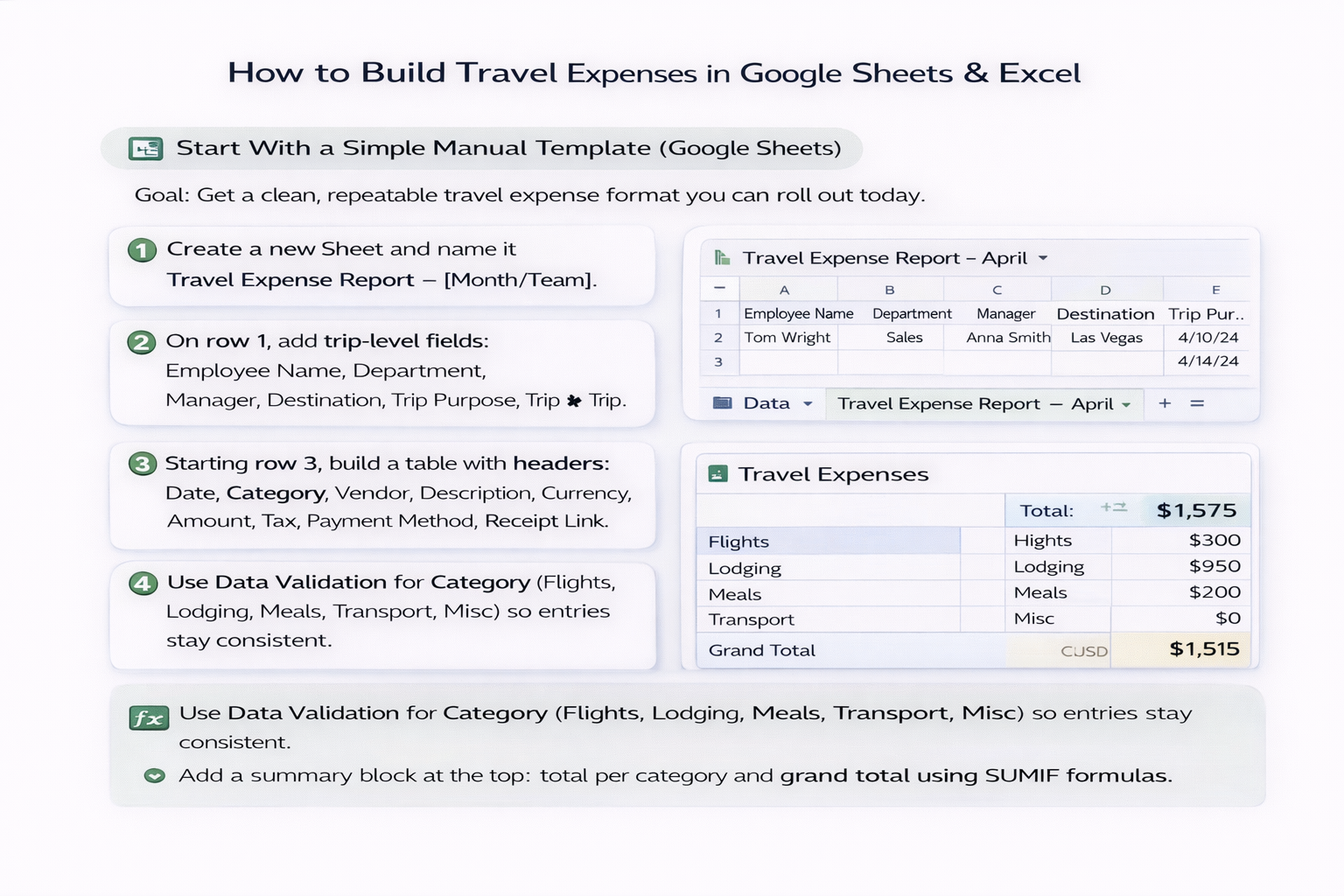
### The Real Problem With Travel ExpensesIf you run a business, agency, or sales team, you already know the pattern: trips fuel revenue, but tracking the costs drags everyone down. Reps land a deal and then spend an hour wrestling with spreadsheets. Your ops lead chases missing receipts. Finance manually checks every line.The good news: you don’t need to rip out Google Sheets or Excel. You just need a better format—and an AI agent to live in it.---### 1. Start With a Simple Manual Template (Google Sheets)**Goal:** Get a clean, repeatable travel expense format you can roll out today.**Steps:**1. **Create a new Sheet** and name it `Travel Expense Report – [Month/Team]`.2. On row 1, add trip-level fields: `Employee Name`, `Department`, `Manager`, `Destination`, `Trip Purpose`, `Trip Start`, `Trip End`.3. Starting row 3, build a table with headers: `Date`, `Category`, `Vendor`, `Description`, `Currency`, `Amount`, `Tax`, `Payment Method`, `Receipt Link`, `Policy Status`.4. Use **Data Validation** for `Category` (Flights, Lodging, Meals, Transport, Misc) so entries stay consistent.5. Add a summary block at the top: total per category and grand total using `SUMIF` formulas.**Pros (Manual):**- Fast to launch and easy for everyone to understand.- Lives where teams already work.**Cons (Manual):**- Still relies on humans to type, copy, and remember rules.---### 2. Mirror the Format in Excel for FinanceSome teams live in Sheets; finance lives in Excel. That’s fine.**Steps:**1. Export your Google Sheet as `.xlsx` and open it in Excel.2. Rebuild any data validation lists under **Data → Data Validation**.3. Add an extra sheet `Summary` with pivot tables: - Expenses by employee and trip. - Expenses by category and month.4. Protect formula cells so end users don’t accidentally break totals.**Pros:**- Excel is great for heavier analysis and audit packs.- Pivots and charts help leadership see trends.**Cons:**- Still manual data entry.- Version control gets messy if people email files around.---### 3. Define Your Operating Rules Before AutomationBefore you bring in an AI agent, make the rules explicit. Think like a playbook the agent will follow.Write down:- **Allowed categories** and examples.- **Per-diem limits** for meals and incidentals.- **What requires a receipt** and what doesn’t.- **Currencies** you expect and how to convert.- **Approval logic:** who signs off based on trip cost or role.This turns a fuzzy, human-only process into something an AI agent can execute repeatably.---### 4. Manual Workflow: Baseline Before AIRun the process once the old-fashioned way—but with your new format.1. Employees paste card transactions or receipts into the Sheet/Excel file.2. They attach receipt links (from Drive, Dropbox, or email).3. A manager checks: - Are all days covered? - Any category missing (no lodging, but a five-day trip)? - Are amounts within policy?4. Finance downloads the sheet, runs pivots, and posts to the ledger.Notice where time disappears: hunting emails, opening PDFs, typing totals, and matching them to dates and categories. Those are your automation targets.---### 5. Bring in an AI Agent to Handle the RepetitionNow imagine a Simular-style AI computer agent sitting at a virtual desk.You give it instructions like:- “Every Friday, read travel emails in this inbox.”- “Open attached receipts, extract date, merchant, currency, total, and tax.”- “Match them to the right traveler and trip based on subject lines or booking IDs.”- “Update our Google Sheet or Excel file in the exact format we defined.”Because it operates across the desktop and browser, the agent can:- Log into booking portals and download invoices.- Read email and chat threads.- Open PDFs or images and copy the right numbers into your template.- Populate the `Policy Status` column using your rules.**Pros (AI Agent):**- Massive time savings once set up.- Far fewer missed receipts or mis-typed amounts.- Runs on a schedule, not when someone has spare time.**Cons:**- Needs a bit of upfront configuration and testing.- You still own the rules—the agent just executes them.---### 6. Hybrid Flow: Humans Review, Agent ExecutesThe sweet spot for most teams is hybrid:1. **Agent gathers and enters data**: receipts, emails, invoices.2. **Agent applies basic checks**: missing days, over-per-diem, unknown merchant.3. **Humans review exceptions only**: - Out-of-policy items are highlighted. - Trips with large variances get a quick second look.Your team shifts from “data entry” to “decision-making.” The travel expense format in Sheets or Excel stays the same—only now it fills itself.---### 7. Scaling the Format Across Teams and MonthsOnce the process runs smoothly for one team:- **Clone the template** for each team or business unit, adjusting categories where needed.- Have the AI agent route different trips to different Sheets or Excel workbooks based on department or region.- Use a master “control” Sheet or Excel file where the agent rolls up monthly totals for leadership.Because the agent can reliably execute thousands or even millions of small actions—opening files, copying data, reconciling totals—you can scale your travel expense process without hiring another coordinator.---### 8. When You Know It’s WorkingYou’ll feel the shift when:- Reps stop complaining about expense reports.- Finance closes travel accruals faster.- Leaders get clean dashboards, not rough guesses.That’s the moment your travel expense format stops being a chore and becomes a quiet engine for better decisions—powered by a spreadsheet front-end and an AI agent doing the heavy lifting in the background.

How to Scale Travel Expense Formats With AI Agents

Train Simular for TE
Record one ideal run: open emails, read receipts, then have Simular’s AI agent populate your Google Sheets and Excel templates. Save this as the baseline workflow it will repeat.
Test Simular TE Runs
Run Simular Pro on a few past trips, watching each desktop and browser action. Compare its Google Sheets or Excel output to your manual reports, then tweak rules until they match.
Scale TE via Simular
Once Simular’s AI agent is accurate, schedule it to process every new trip: pull receipts, fill templates, flag issues, and update Sheets or Excel so your team only approves and analyzes.

FAQS