How to Download YouTube Videos: Creator Workflow Guide

Learn practical ways to save YouTube videos for legal offline use, then let an AI computer agent handle repeat downloads, naming, and file organization.
Advanced computer use agent
Production-grade reliability
Transparent Execution

Why AI for YouTube Saves

If you run a business, agency, or content team, you probably live on YouTube: sales calls to study, competitor breakdowns, client webinars, ads to swipe-file. Downloading the right videos (within YouTube’s rules and licenses) lets you watch offline, clip highlights, and reuse insights in decks or campaigns. But hunting links, picking formats, and filing videos is pure busywork. An AI agent can sit in that loop for you: it reads your brief, grabs approved YouTube videos, applies your naming rules, files them by client or funnel stage, and reports back. You keep the strategy brainwork; the agent owns the clicks.

How to Download YouTube Videos: Creator Workflow Guide

Let's walk through the main ways to download YouTube videos for work, from one-off saves to fully automated AI workflows.

Important: Always respect copyright and YouTube's terms. Focus on your own uploads, licensed content, or videos clearly allowed for download.
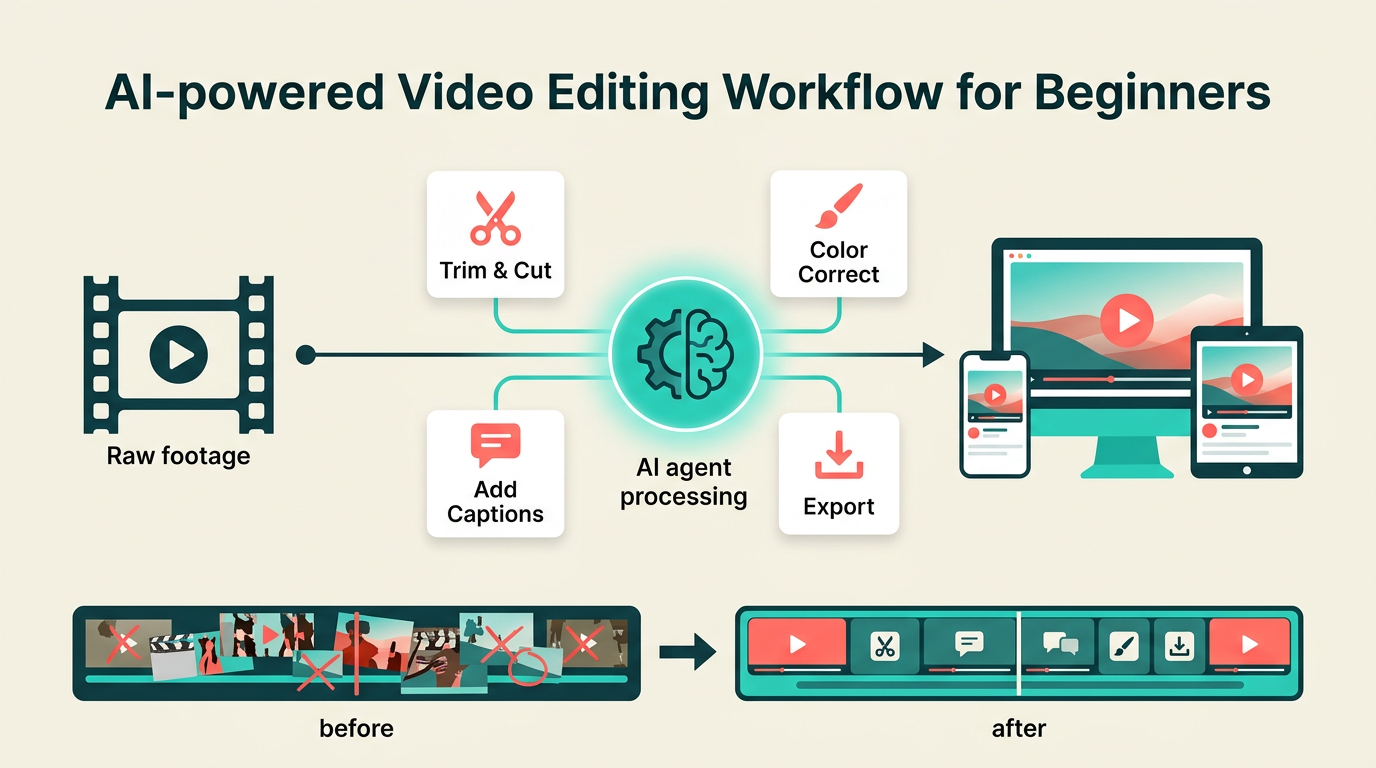
Download Methods

1) Built-in YouTube Options (Safest)

Options:

  • YouTube Premium lets you save videos for offline viewing inside the YouTube or YouTube Music app
  • In YouTube Studio, you can download the original files for videos you uploaded
Pros:
  • 100% compliant
  • Simple
  • No extra tools needed
Cons:
  • Limited to your content or in-app offline viewing
2) Manual Browser-Based Tools

Many professionals paste a YouTube URL into a reputable online downloader to save a single tutorial or ad inspiration as MP4.

Pros:
  • Fast for occasional downloads
  • No installation needed
Cons:
  • Ad-heavy sites
  • Privacy concerns
  • Fragile uptime
  • Usually poor for batch work
3) Desktop or Command-Line Tools

Dedicated video download apps or CLIs can queue multiple YouTube links, choose quality, and save to a chosen folder.
Pros:
  • Better reliability
  • Batch support
  • Flexible formats
Cons:
  • Setup time
  • Learning curve
  • You must self-manage compliance
4) AI Computer Agent for Repeat Workflows

This is where the game changes for agencies and teams. Instead of a human doing the work:

What the AI agent does:

  • Reads a brief: a list of approved YouTube URLs or a spreadsheet of training links
  • Opens the browser and uses your chosen legal downloader or your own tools
  • Selects the right quality
  • Renames files and tags by client or campaign
  • Moves them into cloud folders or a DAM
  • Logs everything in a tracking sheet so sales, marketing, or ops can see what's ready
Pros:
  • Massive time savings
  • Consistent naming
  • Fewer mistakes
  • Easy to run daily or weekly
Cons:
  • Needs initial setup and clear rules
  • You still own legal responsibility

The Bottom Line

When you only need one video, manual is fine.

But if your team touches YouTube every day, an AI agent turns a tedious chore into a background workflow that quietly keeps your content library organized and ready for action.

Scale YouTube Downloads With an AI Workflow Agent!

Onboard your Simular agent
Create a Simular AI computer agent and show it how your team works with YouTube: example URLs, which downloader or internal tool to use, target folders, and naming rules.
Test and refine the flow
Give the Simular AI agent a short list of YouTube videos, then watch its first run. Tighten prompts, fix edge cases like shorts vs long-form, and confirm files land in the right places.
Scale delegation and automate
Once the Simular AI agent reliably handles YouTube downloads, connect it to your CRM, sheets, or task system so it auto-grabs new links, downloads them in batches, and updates your content library.

FAQS