If you sell, teach, or pitch for a living, YouTube is your secret weapon: live product demos, testimonials, explainers, all embedded right inside PowerPoint so your audience sees and feels the story instead of squinting at bullet lists. But hunting links, pasting URLs, resizing frames, testing playback across dozens of decks? That’s busywork. An AI computer agent can follow your exact rules—brand layout, slide structure, timing—and do the mechanical YouTube-to-PowerPoint work at scale while you stay focused on the narrative and strategy.
There are two main approaches: manual methods for one-off presentations, and automated workflows powered by an AI agent for recurring tasks.
Steps:
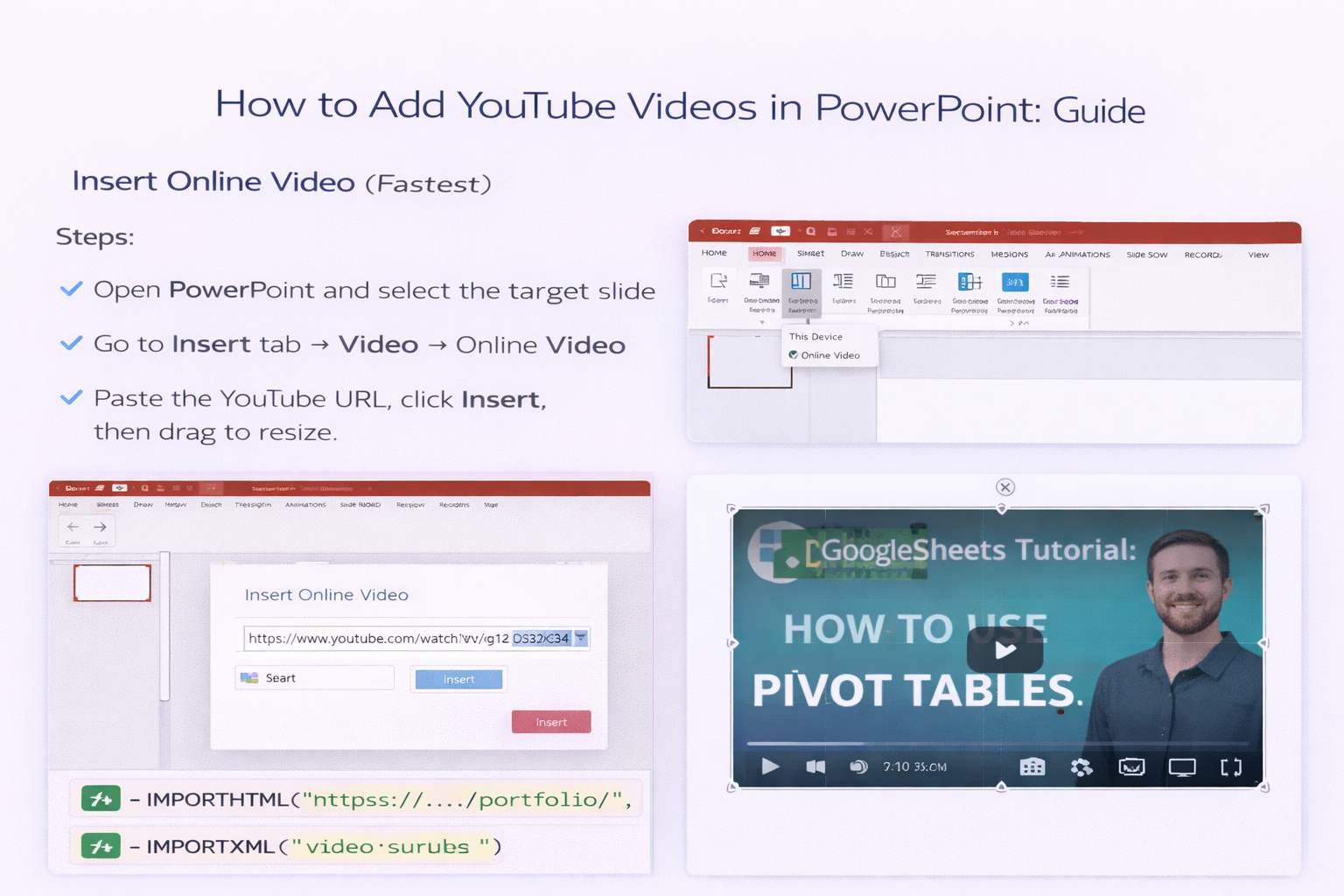
Pros:
Cons:
Steps:
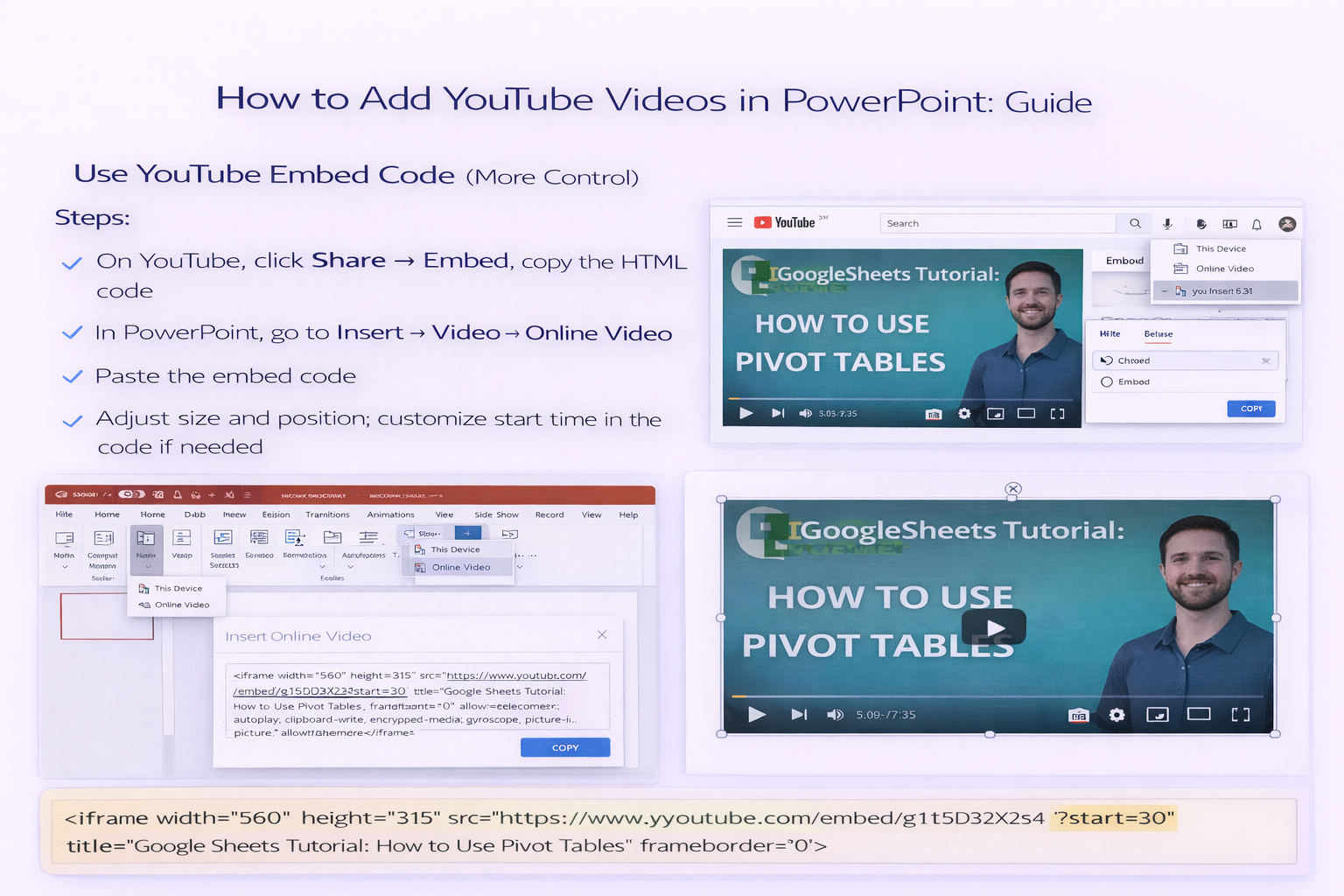
Pros:
Cons:
Steps:
Pros:
Cons:
Best for: Routinely adding YouTube clips to dozens of PowerPoint decks—client pitches, webinar follow-ups, or sales enablement.
What it does:
Pros:
Cons:

Generally you can embed any publicly available YouTube video via Insert → Video → Online Video, but you should respect copyright and usage rights. For client or training decks, favor your own channel’s videos or clips where you have permission. Always test playback in Slide Show mode to ensure the network, audio, and aspect ratio behave as expected before presenting.
First, confirm you have an active internet connection; online videos stream from YouTube. Next, open Slide Show mode and click directly on the video. If it still fails, double‑check the URL, ensure the video is public, and try re‑embedding it. Some corporate networks block YouTube, so test on the same Wi‑Fi and device you’ll use for the real presentation.
If you’re inserting via URL, select the embedded video, open the Playback tab, and set Start to Automatically (in supported desktop versions). For more precise control, use the YouTube embed code, add parameters like autoplay=1 and a specific start time, then paste that as Online Video. Always rehearse the slide to confirm animations and audio begin when you expect.
Create a simple layout rule: for example, 16:9 video centered on the right, with a text box on the left. Apply this manually once, then turn it into a template slide. You can duplicate that slide for each new video. With an AI agent like Simular, you can encode these rules—position, size, and margins—so the agent inserts every new YouTube video into the exact same frame automatically.
Instead of assistants or designers repeatedly pasting links, an AI computer agent can read a list of YouTube URLs, open the right PowerPoint template, and insert each video onto the correct slide. It can rename files by client or campaign, store them in shared folders, and even log what it changed. This removes the repetitive grunt work so marketers and sales teams stay focused on messaging and results.