

Oops! Something went wrong while submitting the form.



.svg)
MATCH is the quiet workhorse behind many smart spreadsheets. Instead of returning a value, it tells you *where* that value lives in a list or table. That position becomes the key that other formulas use: INDEX to pull prices, regions, owners; SUM or OFFSET to aggregate the right slice of data; or validation checks to flag mismatches. In both Excel and Google Sheets, MATCH supports exact, approximate, and wildcard searches, making it ideal for messy real-world lists of products, contacts, or transactions. When your business logic depends on “find the right row, then do X,” MATCH is usually step one.
Now imagine never touching those formulas again. An AI computer agent watches your Google Sheets and Excel workbooks, learns your matching patterns, and then takes over: building INDEX+MATCH formulas, testing 0 vs 1 match_type, handling #N/A errors, and updating ranges as your lists grow. Instead of hunting through columns yourself, you just describe the outcome—“match these new orders to our master SKU list”—and the agent drives the spreadsheet for you.
If you run a sales team, agency, or operations-heavy business, you already live inside spreadsheets. MATCH is one of those functions that quietly runs half your reports. But most teams either underuse it or bury it in fragile formulas that break whenever someone inserts a new column.
In this guide, we’ll walk through three layers of mastery:
These are the building blocks your team should understand before you automate anything.
1. Basic exact MATCH for IDs (Excel and Sheets)
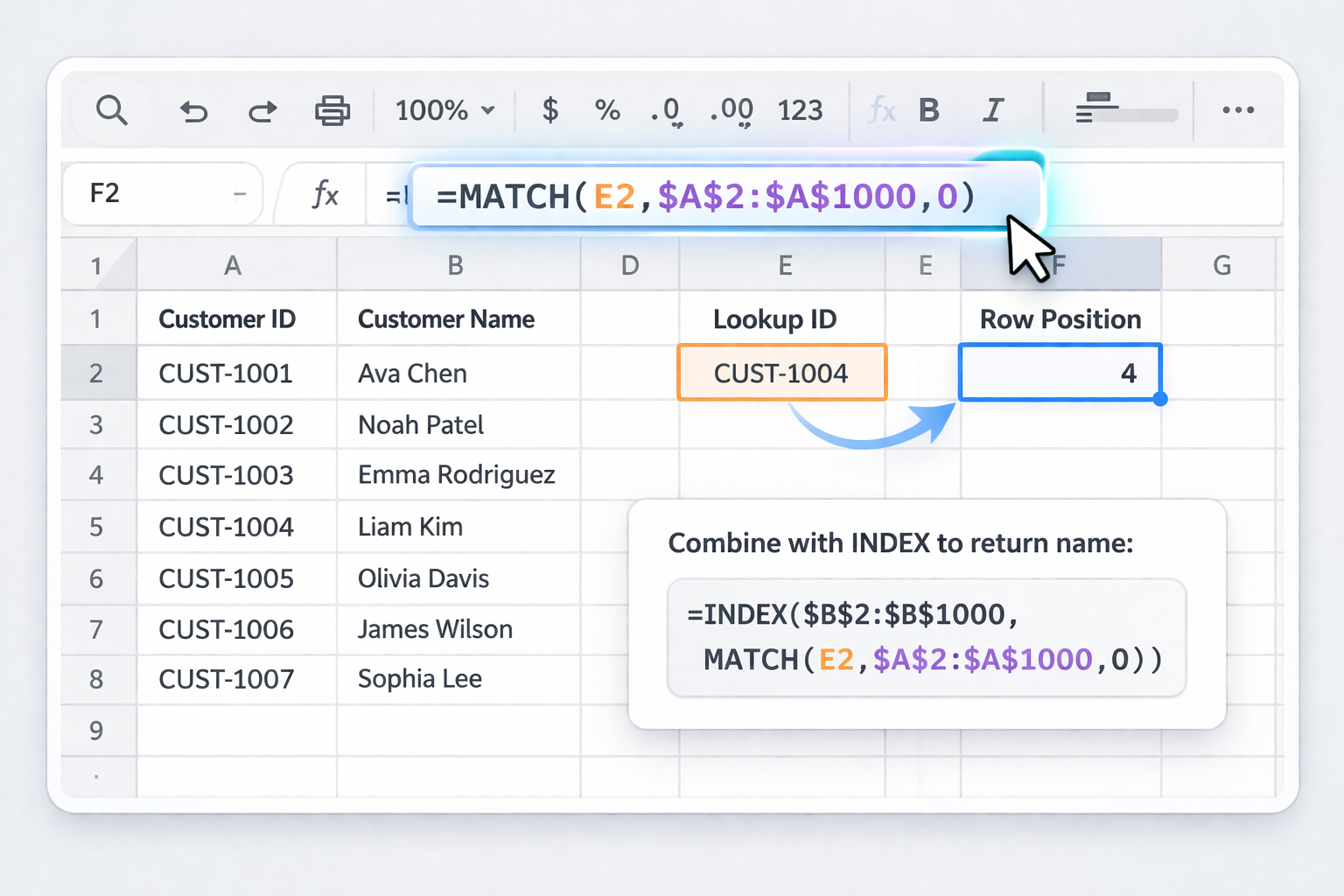
Goal: Find the row position of a customer ID in a master list.
E2.=MATCH(E2,$A$2:$A$1000,0)=MATCH(E2,$A$2:$A$1000,0)=INDEX($B$2:$B$1000, MATCH(E2,$A$2:$A$1000,0)) to get, say, the customer name.
Official docs:
2. Approximate MATCH for pricing tiers or bands
Great for volume-based discounts or commission tiers.
A2:A10, discount % in B2:B10.E2, use:=MATCH(E2,$A$2:$A$10,1)E2.=INDEX($B$2:$B$10, MATCH(E2,$A$2:$A$10,1))
3. Wildcard MATCH for messy text lists
For lead lists where company names are inconsistent.
A2:A500."*Acme*".=MATCH("*Acme*",$A$2:$A$500,0)
4. Two‑way lookup with INDEX+MATCH (rows and columns)
Useful for revenue by region and month.
A2:A10, months across B1:M1, data in B2:M10.P1, month in P2.=MATCH(P1,$A$2:$A$10,0)=MATCH(P2,$B$1:$M$1,0)=INDEX($B$2:$M$10, MATCH(P1,$A$2:$A$10,0), MATCH(P2,$B$1:$M$1,0))Train your team to always specify match_type (0, 1 or -1) explicitly to avoid silent errors.
Once the basics are in place, you can reduce manual formula work using built-in automation.
A. Use named ranges and templates
Instead of hard‑coding ranges, define named ranges like Leads_IDs or SKU_List. In Excel (Formulas > Name Manager) and in Sheets (Data > Named ranges), configure names that auto-expand as you add rows.
Then use:
=INDEX(Leads_Name, MATCH(E2,Leads_IDs,0))=INDEX(SKU_Price, MATCH(F2,SKU_IDs,0))Pros: fewer broken formulas when tables grow. Cons: someone still has to build and copy templates.
B. Google Sheets + Apps Script helper functions
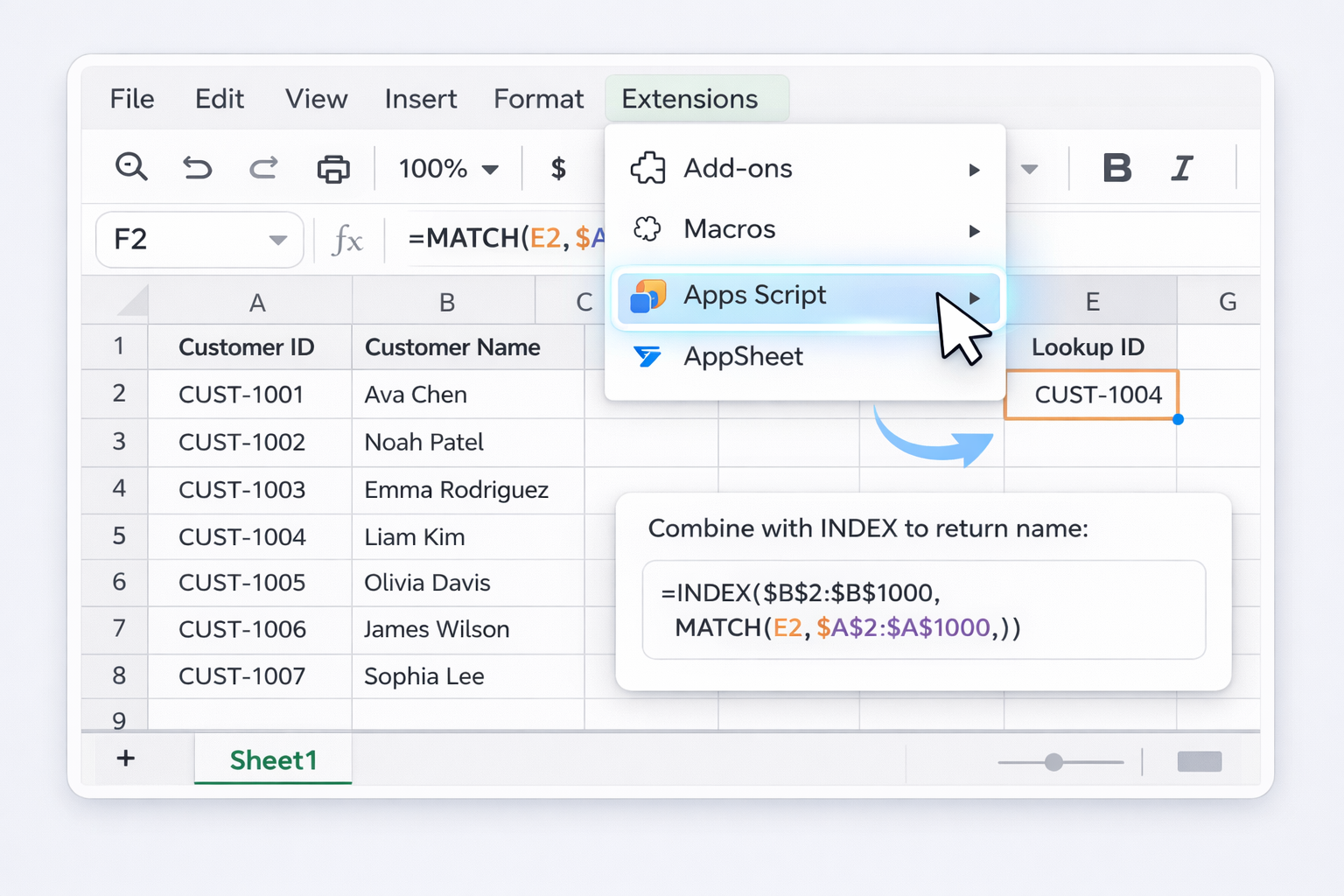
For recurring tasks—like matching weekly CSV exports to a master list—create a custom function in Apps Script that wraps MATCH.
function MATCH_ID(id, range) {
  return SpreadsheetApp.getActive()
    .getRange(range)
    .createTextFinder(id)
    .matchEntireCell(true)
    .findNext()
    .getRow();
}
=MATCH_ID(E2, "A2:A1000") in your sheet.Pros: hides complexity from non‑technical users. Cons: requires light scripting to set up.
C. Power Query in Excel for fuzzy matching
When names or SKUs aren’t exact, MATCH alone struggles. Power Query can pre‑clean data.
Official docs:
Pros: powerful for messy data. Cons: more steps, steeper learning curve for non‑analysts.
At some point, your challenge stops being “how do I write this one MATCH?” and becomes “how do I keep 50 workbooks and 200 MATCH-based reports accurate without my ops lead burning out?” This is where an AI computer agent like Simular becomes a force multiplier.
Method 1: Agent-driven spreadsheet building
You describe the outcome:
The Simular agent:
Pros: non‑technical team members can get complex MATCH setups by describing them in plain language. Cons: you still need a clear data model and access permissions configured.
Method 2: Scheduled reconciliation across Excel and Sheets
For agencies and revenue teams, daily reconciliation is brutal. A Simular Pro agent can:
Because Simular is built as a general computer-use agent, it doesn’t just call APIs—it literally drives Excel and Google Sheets like a power user, but on autopilot.
Pros: cross‑tool consistency, fewer manual checks. Cons: requires thoughtful onboarding (what sheets, what ranges, what counts as a mismatch).
Method 3: Massive backfills and data cleaning
When you inherit a chaotic stack of spreadsheets, an AI agent can:
Pros: turns a multi‑week clean‑up into an overnight job. Cons: you must review the first few runs carefully to ensure the matching rules and ranges are exactly what you intend.
If you invest a couple of hours documenting how you currently use MATCH, you can then hand that "playbook" to an AI agent and let it scale your spreadsheet muscle across every workbook in your business.
