Oops! Something went wrong while submitting the form.

.png)
.svg)
If you run a sales team, agency, or SaaS business, you live inside spreadsheets. Revenue targets, ad spend, churn, CAC—everything sits in rows and columns. But totals alone are blunt; you need to know how wildly those numbers swing. That’s what variance gives you in Google Sheets.
With functions like VAR, VAR.S and VAR.P (see Google’s help doc: https://support.google.com/docs/answer/3094063), Sheets lets you quantify how spread out your results are around the mean. High variance in CAC? Your campaigns are unstable. Low variance in expansion revenue? Your upsell motion is reliably repeatable. Pair variance with STDEV, AVERAGE and simple charts and you suddenly have a narrative: which channels are predictable, which markets are noisy, and where to double down.
For operators, variance becomes a sanity check on every forecast. Instead of arguing opinions in your next pipeline review, you can point to a simple VAR(A2:A100) and show, mathematically, how risky a plan really is.
Now imagine you never had to touch those formulas again. An AI agent lives in your Google Sheets workspace, opening the right files, inserting =VAR.S or =VAR.P across new cohorts, color-coding high-variance regions, and logging weekly trend notes for you. While it grinds through hundreds of tabs and ranges, you stay focused on the story behind the numbers—why Q3 enterprise is so volatile, why paid search is suddenly stable—and make the calls that actually move the business forward.
Before you automate anything, you need to be fluent in the basics. Google Sheets gives you several built‑in variance functions. The core reference from Google is here: https://support.google.com/docs/answer/3094063
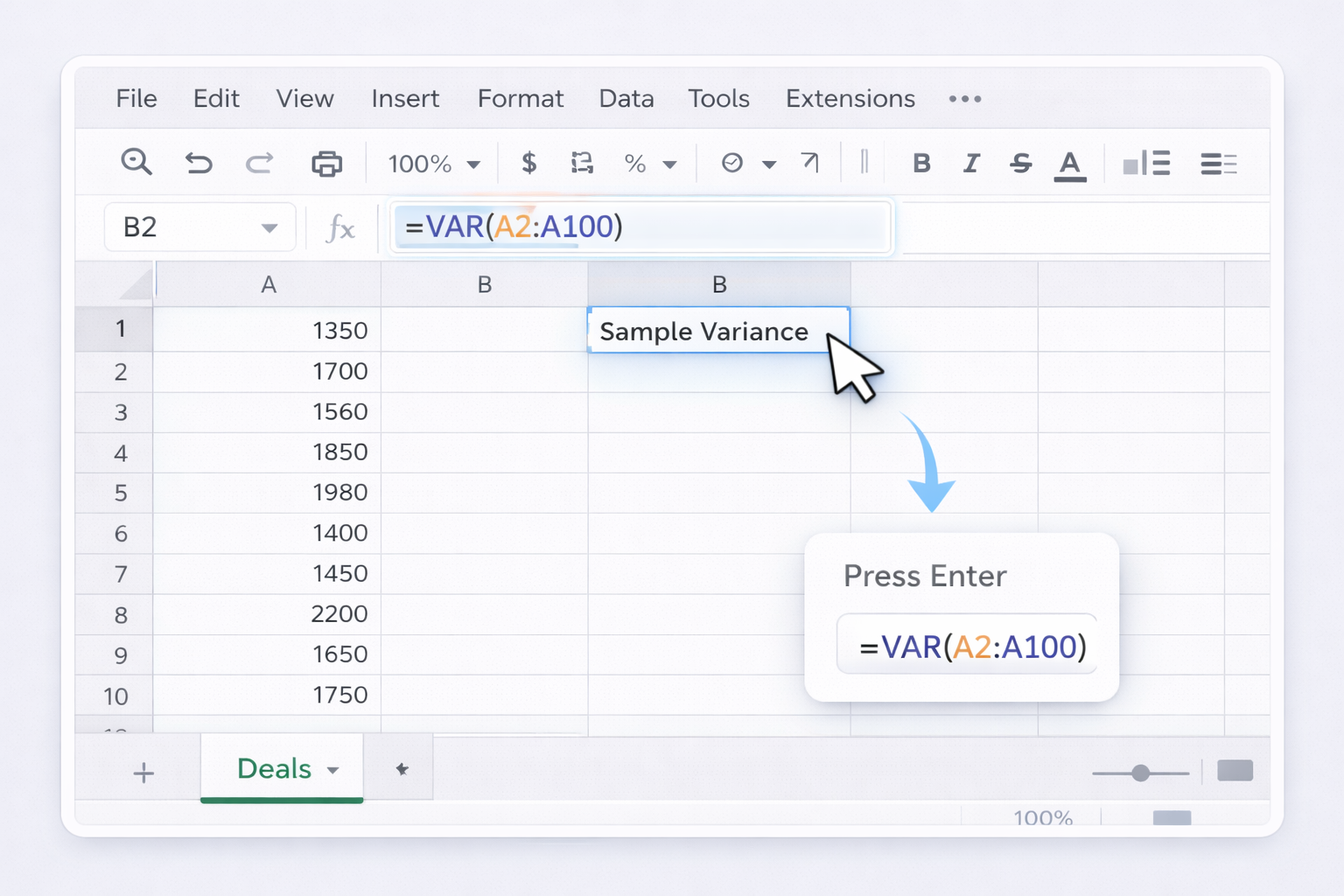
If you have a sample of data (e.g., last month’s deals), use VAR or VAR.S:
A2:A100.B2.=VAR(A2:A100)=VAR.S(A2:A100)n-1.Use this when you’re analyzing a subset of a larger population—like leads from just one campaign.
When your data represents the entire population (e.g., all invoices this year), use VARP or VAR.P:
B2.=VARP(A2:A100)=VAR.P(A2:A100)n instead of n-1, slightly reducing the variance.
To really understand what’s happening under the hood:
B2, calculate the mean:=AVERAGE(A2:A100)C2, compute each deviation:=A2 - $B$2D2, square that deviation:=C2^2E2, compute:=SUM(D2:D100)/(COUNT(A2:A100)-1)You’ve just replicated VAR.S manually. This transparency is powerful when you’re explaining the math to a non‑technical stakeholder.
VAR accepts multiple ranges:
=VAR(A2:A50, C2:C50, E2:E50)
Just remember Google’s note: VAR works across arguments as one combined sample; it does not return a separate variance per column.
=STDEV(A2:A100) (or STDEV.S) to get the standard deviation.This turns raw variance into a visual risk radar for your metrics.
Manual steps are fine for a single sheet. But business owners and agencies quickly drown in 20+ client tabs and weekly refreshes. No‑code tools can orchestrate the boring parts while you still stay inside Google Sheets.
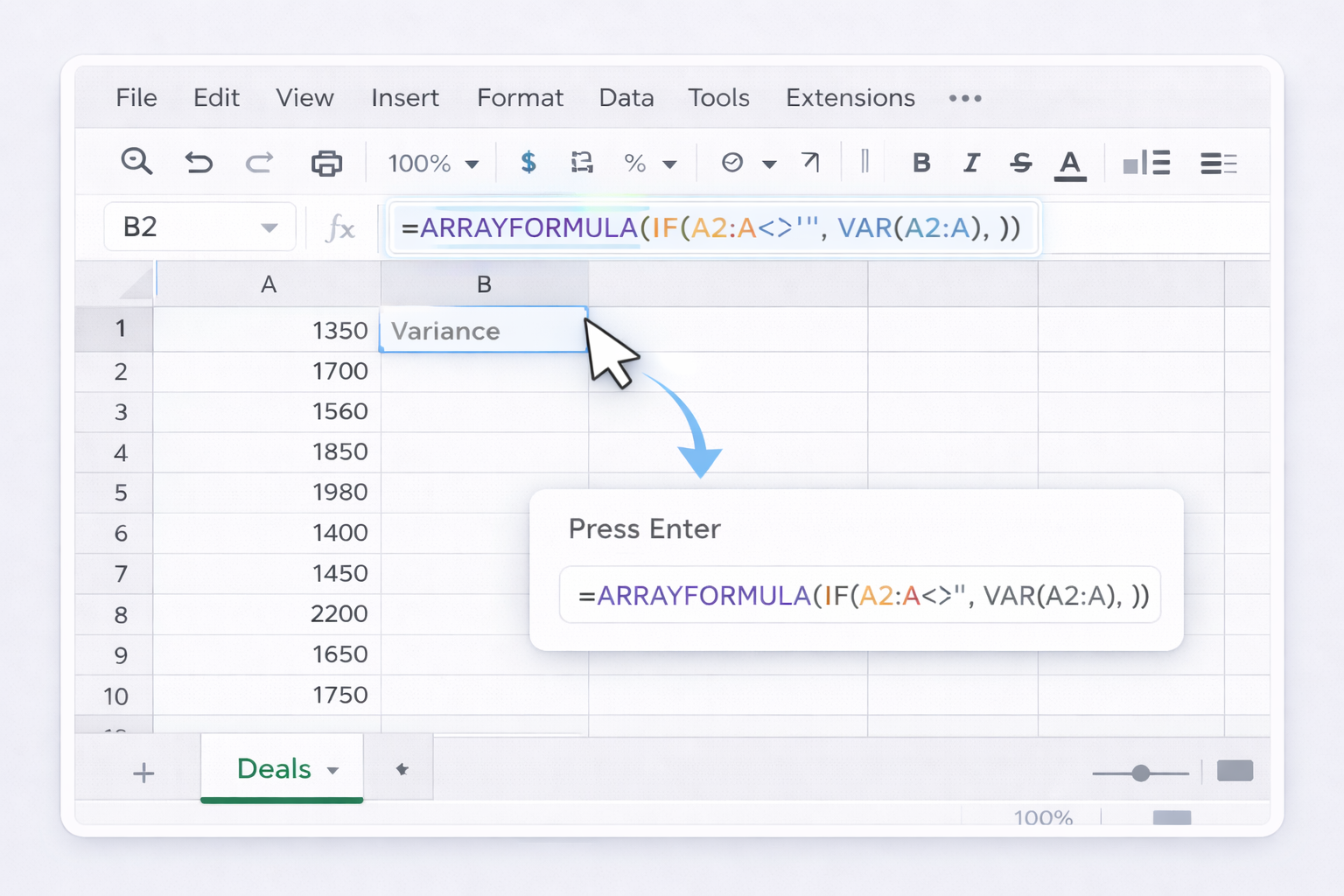
Instead of dragging formulas every week, let Sheets handle new rows automatically.
B1, label it Variance.B2, enter:=ARRAYFORMULA(IF(A2:A<>"", VAR(A2:A), ))For many real‑world cases, you’ll structure data differently (e.g., one row per month). But the idea is consistent: ARRAYFORMULA applies your logic to entire ranges, recalculating as new data arrives.
Google’s guide to ARRAYFORMULA: https://support.google.com/docs/answer/3093275
If your data comes from BigQuery or other sources:
VAR() or VARP() formulas on the imported range.This is ideal for recurring KPI variance across marketing channels or sales regions.
Tools like Zapier, Make, or Coefficient can:
For example, a Zap could run daily, append yesterday’s ad spend and conversions into A2:B, and your existing =VAR.S(B2:B) instantly reflects the new volatility of CPA. No extra clicks from you.
Once you start tracking variance across dozens of metrics, tabs, and clients, even no‑code tools feel brittle. This is where an AI computer agent like Sai takes over the actual computer work.
Learn more about Sai: https://www.sai.work/ About Simular’s approach: https://www.simular.ai/about
Imagine your operations lead, but as software:
=VAR.S(C2:C31) for revenue, =VAR.S(D2:D31) for CAC.
Pros:
Cons:
For agencies or RevOps teams, Simular can:
Pros:
Cons:
With Sai’s production‑grade reliability and webhooks, you can close the loop:
At this point, “calculating variance in Google Sheets” is no longer a task on your to‑do list. It’s an autonomous workflow that your AI computer agent owns end‑to‑end, while you focus on what matters: deciding what to do about the variance it finds.