
Oops! Something went wrong while submitting the form.

.png)
.svg)
Row-level formulas in Salesforce turn raw records into judgment calls inside your reports. Instead of exporting to Excel, you can compare two fields on a single record, flag risky deals, or normalize values per case or opportunity right where sales and marketing already live. They’re perfect for questions like: Is this renewal smaller than the original? Do billing and shipping states match? How many days has this deal stalled in stage? Because the formula runs per row, your team sees context at a glance without creating custom fields on every object.
Now imagine an AI computer agent handling the grunt work. Instead of admins hand-building every formula, the agent logs into Salesforce, opens the right report, drafts the row-level formula, tests it on sample data, then documents what it did. You review, approve, and reuse its work. Over time, the agent keeps formulas consistent across teams and orgs, so sales, marketers, and agencies can focus on the story behind the numbers, not the clicks.
Row-level formulas calculate values per record inside a report. They’re ideal when you want insight for each opportunity, case, or account without creating new custom fields.
Here’s how to build them manually in the Lightning Report Builder:
A. Create a basic row-level formula
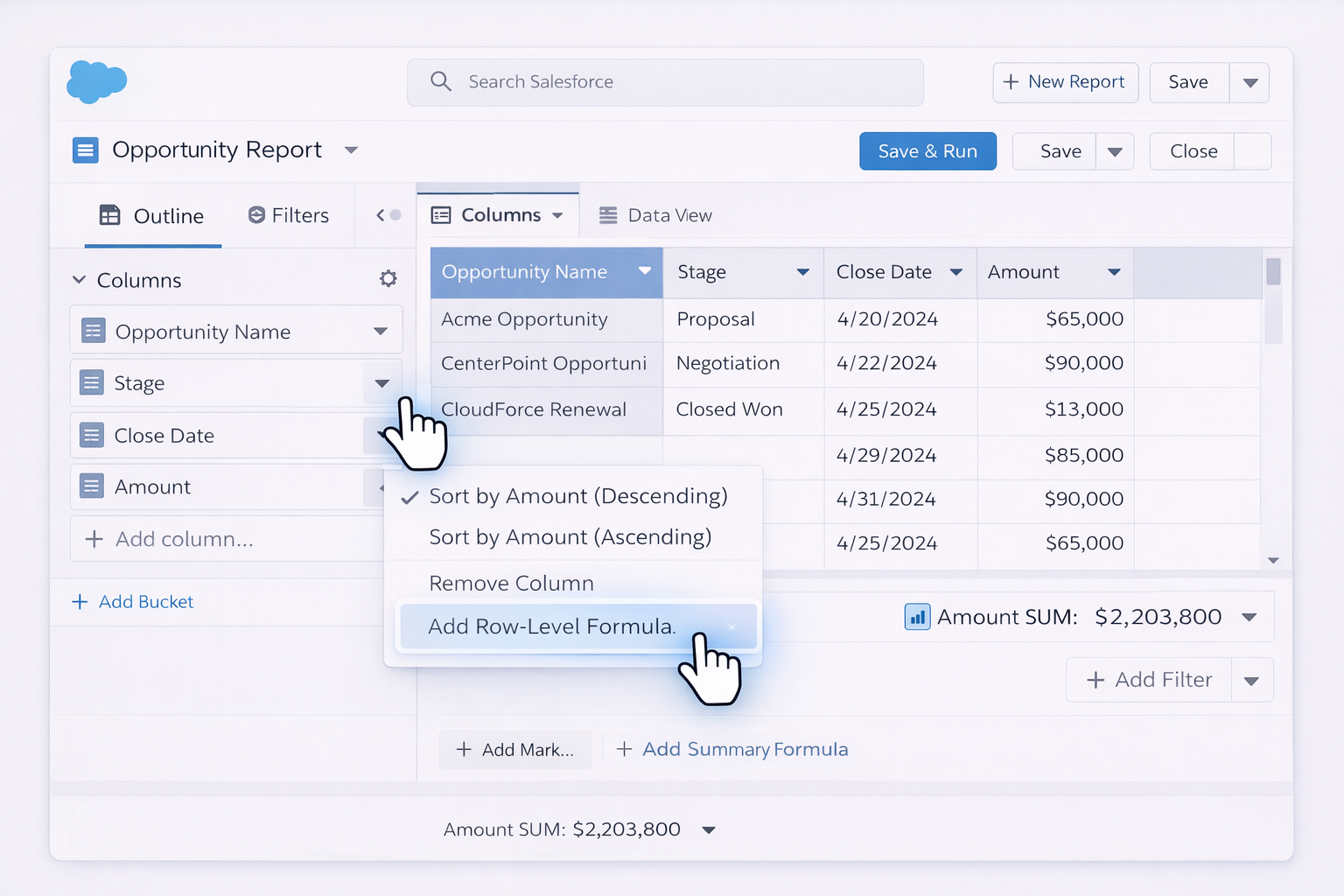
Salesforce’s official guide to row-level formulas is here: https://help.salesforce.com/s/articleView?id=sf.reports_formulas_row_level.htm&type=5
B. Compare two fields on the same record
Imagine sales ops wants to know if an Opportunity’s Current Amount is lower than the Original Amount.
C. Check if related fields match (like Billing vs Shipping)
Inspired by the Salesforce Ben example, let’s compare Billing State and Shipping State on Account-related records:
D. Calculate days between two dates
For general formula syntax, Salesforce’s documentation is useful: https://help.salesforce.com/s/articleView?id=sf.reports_formulas_intro.htm&type=5
Manual formulas work, but you quickly hit friction when multiple teams need similar logic. No-code tools let you templatize and reuse.
A. Standardize formulas with report templates
B. Use custom formula fields when logic is reused everywhere
If a row-level formula becomes the backbone of many reports, turn it into a custom formula field:
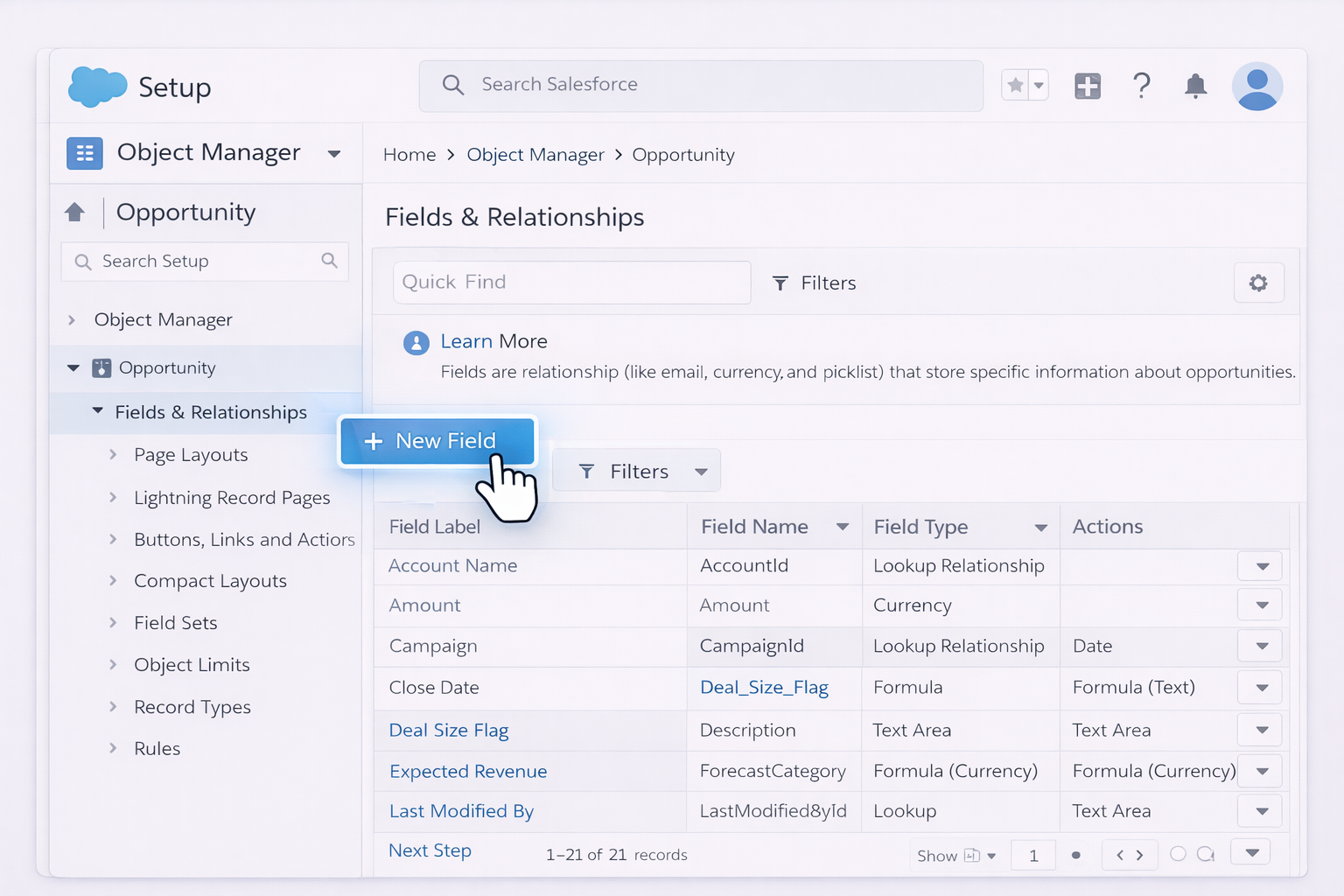
Salesforce’s report creation overview is here: https://help.salesforce.com/s/articleView?id=sf.reports_builder_create.htm&type=5
C. Combine row-level formulas with Flow for light automation
While row-level formulas themselves do not trigger actions, you can:
This gives you a bridge between analytical logic and workflow automation without code.
When you manage many Salesforce orgs (agencies, consultancies) or complex teams (enterprise sales, multi-region marketing), maintaining row-level formulas becomes maintenance-heavy. This is where a desktop-grade AI computer agent such as Sai can help.
Sai (https://www.sai.work/) is designed to act like a power user on your Mac, navigating browsers and apps, clicking, typing, and configuring tools like Salesforce with production-grade reliability.
A. Use an AI agent to build and update formulas across orgs
How it works:
Pros:
Cons:
B. Let the agent regression-test your formulas
Instead of manually spot-checking, you can:
Because Simular supports long, multi-step workflows, this regression suite can run unattended and reliably.
C. Integrate with your pipelines via webhooks
Sai exposes simple webhook integration. For agencies or SaaS teams, you can:
Pros:
Cons:
To understand how Simular agents think and act like humans while remaining reliable, see the company overview: https://www.simular.ai/about




.svg)