
Oops! Something went wrong while submitting the form.

.png)
.svg)
If you run a sales team, an agency, or a growing ecommerce brand, you probably live in Google Sheets. Revenue by month, campaign performance by channel, SKU pricing across regions — all neatly arranged in rows with dates or IDs on top. HLOOKUP is the quiet hero here: it scans that first row for a key (like a month, product ID, or plan tier) and instantly pulls the matching value from any row beneath. Once you understand search_key, range, index, and the is_sorted flag, you can turn messy horizontal logs into reliable, reusable dashboards. No more manual hunting through columns or copy‑pasting numbers into client reports. HLOOKUP makes your top row the control panel for the rest of the sheet. Now imagine you no longer even touch those formulas. An AI computer agent opens Google Sheets, builds the HLOOKUP formulas, fixes #N/A errors, and updates ranges after every new campaign. It becomes your invisible ops analyst, quietly running the same lookup logic across dozens of sheets while you stay focused on deals, strategy, and clients.
HLOOKUP is one of those functions that feels trivial until you need it across 20 client sheets, 12 months of data, and a fast‑moving sales team. Let’s walk through how to use it well, then how to automate it so you never have to explain it twice.
Before anything else, lock in the basics. The official Google help page is here: https://support.google.com/docs/answer/3093375?hl=en The syntax: =HLOOKUP(search_key, range, index, [is_sorted]) • search_key: what you’re looking for in the first row (like a month name or product ID). • range: the full table, including the header row and all rows you might return. • index: which row (within that range) you want back, where the first row is 1. • is_sorted: FALSE for exact match (recommended for business data), TRUE for approximate.
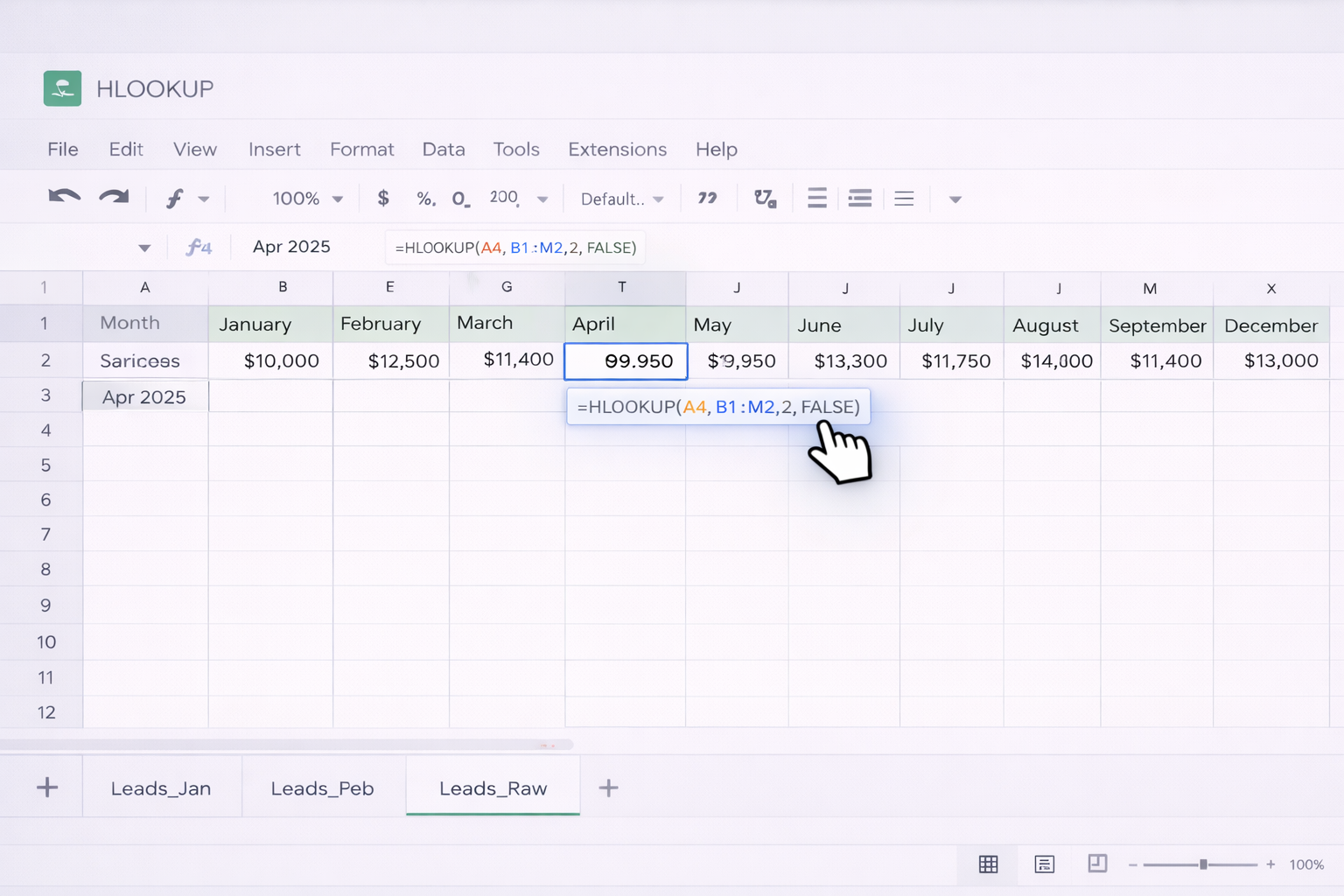
Scenario: You have months across row 1 (B1:M1) and total revenue for each month in row 2.
Imagine SKUs across row 1, and different price tiers in rows 2–4.
From the docs and real‑world use: • If index is less than 1 or more than the number of rows in range, you’ll see #VALUE! Fix by checking your range and index. • If the search_key isn’t in the first row, you’ll get #N/A. Either fix your header or adjust the range. • If you use TRUE for is_sorted but the header row isn’t sorted, you may get wrong values. For business logic, default to FALSE unless you truly need approximate matches.
When the same header appears twice (for example, a client that launched two separate campaigns in the same month), HLOOKUP returns the first occurrence only. Best practice: • Make your header keys unique (e.g. 'Apr 2025 – Brand', 'Apr 2025 – Performance'). • Or use a different structure (VLOOKUP or FILTER) when duplicates are unavoidable.
Once your formulas work, the next bottleneck is feeding them fresh data and keeping ranges in sync. No‑code tools can pipe data into Google Sheets so HLOOKUP always points at a living table instead of a static export.
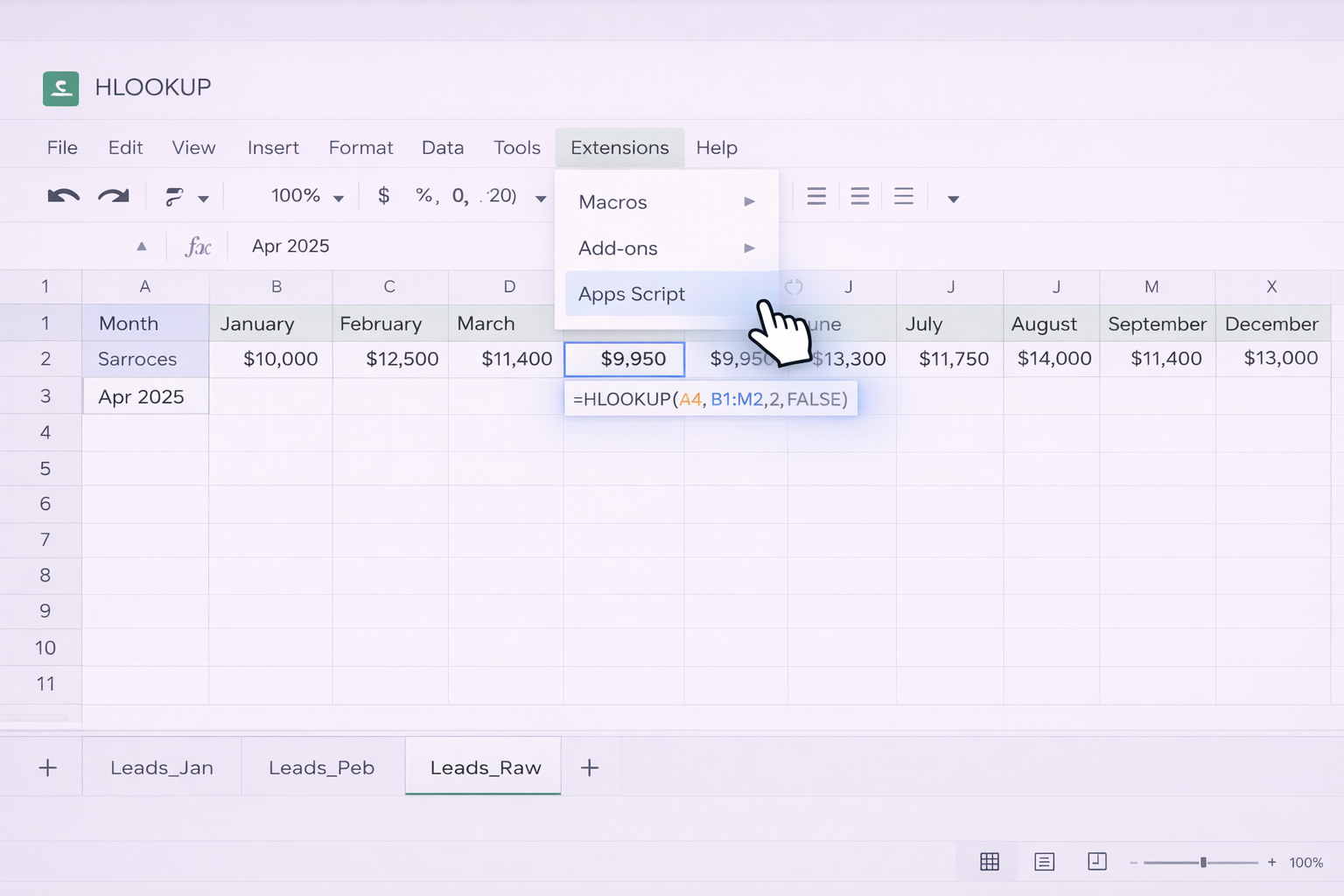
You can use simple Apps Script to update the range that HLOOKUP references when new columns are added.
Tools like Zapier or Make can push CRM, ad, or ecommerce data into Sheets on a schedule. A typical sales workflow:
Use Data → Data validation in Sheets to restrict header values to a known list (e.g. months, SKUs). This dramatically reduces #N/A caused by typos and keeps automations stable.
Manual and no‑code approaches still assume a human is checking formulas and fixing edge cases. An AI computer agent like Simular’s desktop‑level agent can go further by actually operating Google Sheets on your behalf.
A Simular AI agent can: • Open your Google Sheets dashboard in the browser. • Read your business context from a brief (for example, which rows hold revenue, which hold cost, which hold targets). • Insert correct HLOOKUP formulas in target cells, using exact‑match FALSE, correct index values, and named ranges. • Cross‑check results by spot‑calculating a few values and comparing them to expectations. Pros: Removes formula anxiety for non‑technical team members; ensures consistent patterns across many files. Cons: Requires an initial, well‑designed prompt and access setup for the agent.
Imagine 30 client folders, each with its own performance log sheet. The Simular AI agent can:
Because Simular’s agents can run thousands to millions of actions reliably, you can schedule them to: • Open critical dashboards daily. • Scan for #N/A, #VALUE!, or #REF! in key HLOOKUP cells. • Diagnose whether the cause is a missing header, changed range, or incorrect index. • Apply fixes, update named ranges, or flag issues that truly need human input. Over time, your sheets become living systems instead of fragile one‑off models. You stay focused on strategy, while the AI quietly does the clicking, checking, and formula surgery in the background.


%20(1).svg)

%20(2).svg)
.svg)