VLOOKUP is the quiet workhorse behind most business spreadsheets. In Google Sheets, it lets you pull prices, owner names, campaign tags, or CRM IDs from a single source of truth into the sheet where decisions actually happen. Instead of retyping data or trusting your memory, you give Sheets a search key—an email, SKU, or employee ID—and it returns the matching details from another column or even another tab. For agencies, sales teams, and operators, this means cleaner reports, faster forecasts, and fewer “where did this number come from?” moments.As those sheets grow, though, maintaining hundreds of VLOOKUPs becomes a job in itself. Delegating that maintenance to an AI computer agent means the agent can insert and copy formulas, switch ranges when a dataset moves, and troubleshoot #N/A errors at scale. You stay focused on strategy; the agent handles the grunt work of keeping every lookup fast, accurate, and up to date.
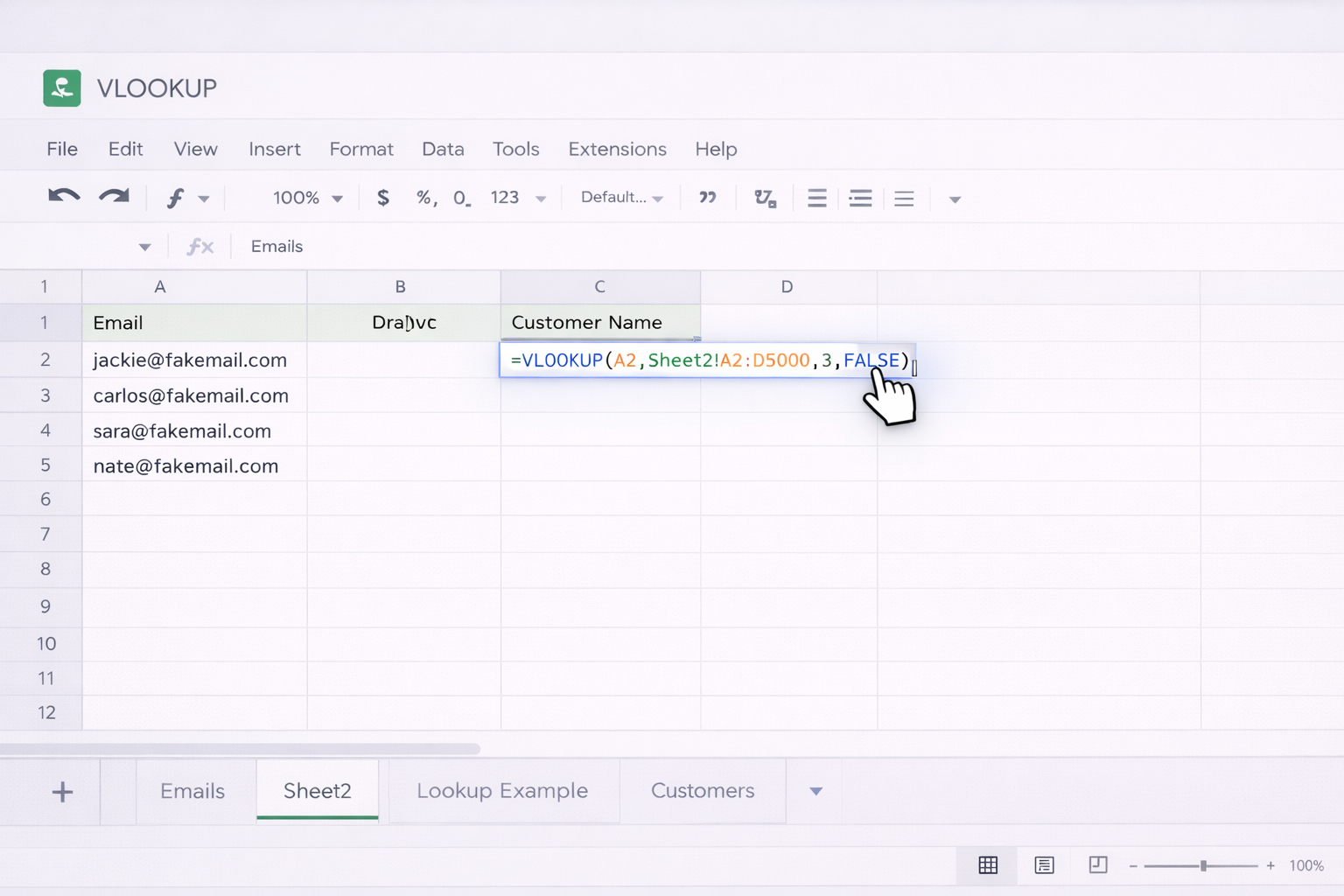
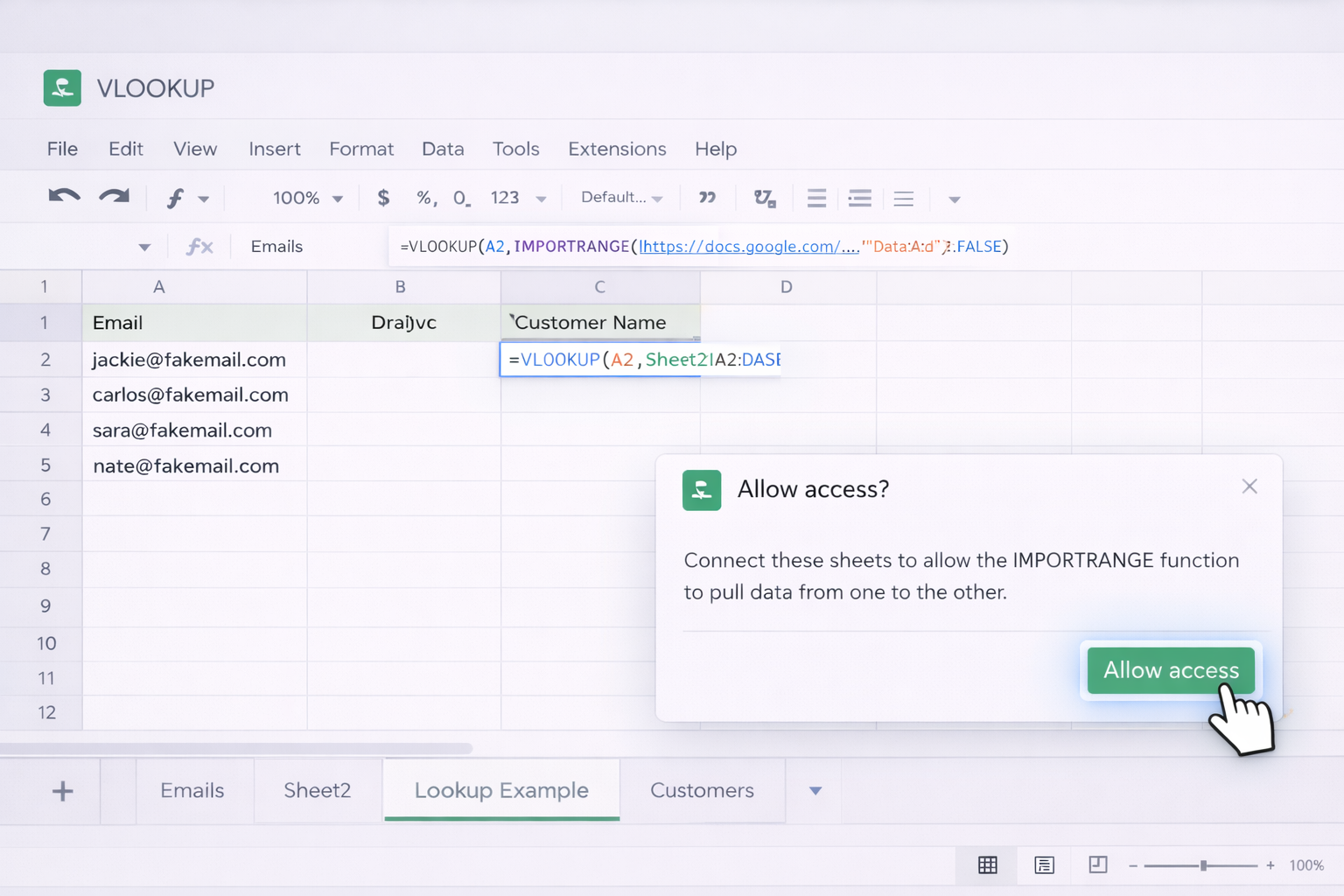
Every business has a “spreadsheet person” — the one everyone pings when a report breaks or a VLOOKUP stops working. If that person is you, the good news is you can teach both humans and AI agents to share the load.## 1. Manual VLOOKUP in Google Sheets (The Foundation)Before you automate anything, you need to know what “correct” looks like.### Step-by-step: simple exact-match VLOOKUP1. Organize your data - Put the key you’ll search on (like email or product ID) in the **first column** of the lookup table. - Make sure there are no stray spaces or mixed formats (e.g., text vs number) in that key column.2. Choose your output cell - Click the cell where you want the result to appear, for example `D2` on your main report sheet.3. Enter the formula shell - Type: `=VLOOKUP(search_key, range, index, FALSE)`4. Define `search_key` - Replace `search_key` with the reference to the cell you’re matching, e.g. `A2` if A2 holds a product ID.5. Define `range` - Switch to the tab that holds your lookup table. - Select the data including the key column and all return columns, e.g. `Sheet2!A2:D5000`. - Sheets will insert that range into the formula.6. Define `index` - Count from the left of the selected range to the column you want to return. - If your key is in column A of the range and price is in column C, `index` is `3`.7. Set `is_sorted` - Use `FALSE` to demand an exact match: `... ,3,FALSE)`.8. Copy the formula - Hit Enter, confirm the result looks right. - Drag the fill handle down to apply VLOOKUP across the entire column.**Pros (manual)**- Full control and transparency.- Great for small, stable tables.**Cons (manual)**- Easy to break when columns move or ranges grow.- Tedious when you manage dozens of lookups across many tabs.## 2. VLOOKUP Across Tabs and SpreadsheetsReal business data rarely lives in one neat table.### From another tab1. Use a sheet-qualified range: `=VLOOKUP(A2,Products!$A$2:$D$500,3,FALSE)`2. Lock the range with `$` so you can safely drag the formula.3. If you reorganize the Products sheet, update the range once; all linked formulas follow.### From another spreadsheet1. In a helper area, use `IMPORTRANGE`: - `=IMPORTRANGE("https://docs.google.com/...", "Data!A2:D")`2. Grant access when prompted.3. Wrap that import with VLOOKUP: - `=VLOOKUP(A2,IMPORTRANGE("url","Data!A2:D"),3,FALSE)`**Pros (cross-sheet)**- One source of truth for data like price books or employee directories.- Changes propagate automatically to every report.**Cons (cross-sheet)**- Formulas become long and harder to debug.- Large `IMPORTRANGE` calls can slow Sheets down.## 3. Scaling VLOOKUP With an AI Computer AgentNow imagine an assistant who never gets tired of:- Building VLOOKUP formulas across new reports.- Fixing broken ranges after a teammate adds a new column.- Copying lookups across hundreds of rows and multiple tabs.That’s where an AI computer agent, such as Simular Pro, comes in. Instead of just calling an API, it actually **uses** your desktop and browser like a human:1. You open Google Sheets and show the agent where your lookup tables live.2. You describe what you want: “Match this CRM ID to that master sheet and bring back owner, tier, and renewal date.”3. The agent selects ranges, types VLOOKUP formulas, locks references, and fills them down — all visible on-screen.4. Because execution is transparent, you can inspect every step and tweak the pattern once. The agent then repeats it across campaigns, clients, or brands.### Pros (AI-powered)- Huge time savings when you maintain many similar reports.- Fewer copy-paste mistakes; the agent follows a consistent pattern.- Works across tools: Sheets, your CRM, dashboards, even email exports.### Cons (AI-powered)- Needs a short onboarding run so it learns your layout and naming.- You still review its work at first, the way you’d coach a new hire.## 4. When To Shift From Manual to AgentIf you only update a small spreadsheet once a month, manual VLOOKUP is fine. But if you:- Rebuild the same style of report for every client or region,- Frequently drag formulas across thousands of rows,- Or spend more time fixing broken ranges than analyzing the numbers,then it’s time to let an AI computer agent handle the mechanics. You define the rules; the agent does the clicking, typing, and checking at scale, while you finally get to focus on the stories the numbers are telling.
Start by placing your lookup key (like an ID) in column A of a lookup table, and your return value (like price) in a column to the right. In your main sheet, use a formula such as =VLOOKUP(A2,Sheet2!$A$2:$C$500,3,FALSE). A2 is the key, the range is the lookup table, 3 is the column index to return, and FALSE demands an exact match. Confirm one row is correct, then drag the formula down.
To fetch data from a different tab, qualify the range with the sheet name. For example, if your product list is on a tab named Products, use =VLOOKUP(A2,Products!$A$2:$D$500,2,FALSE). Make sure the lookup value in A2 exists in Products column A. Lock the range with $ so you can safely fill the formula down. If the tab name includes spaces, wrap it in single quotes like 'Product List'!A2:D500.
#N/A usually means no exact match. First, check that the search key really appears in the first column of your range and that it uses the same format (text vs number). Use FALSE as the fourth argument for reliable exact matches. To hide the error, wrap the formula: =IFNA(VLOOKUP(A2,Sheet2!$A$2:$C$500,3,FALSE),"Not found"). This returns a friendly message instead of an error when no match exists.
If your data is unsorted, always set the fourth argument of VLOOKUP to FALSE. For example: =VLOOKUP(A2,Sheet2!$A$2:$C$500,3,FALSE). This forces Google Sheets to search for an exact match and prevents wrong “approximate” results that occur when is_sorted is TRUE. You don’t need to sort the data, but you must ensure the lookup key is still in the first column of the range and appears exactly as typed.
Yes. First, design and test your VLOOKUP formulas manually so you know which keys, ranges, and indexes are correct. Then configure an AI computer agent to open Google Sheets, paste data from exports, insert or update those formulas, and fill them down. Because the agent can also adjust ranges and fix broken references, it’s ideal for recurring reports where the structure stays similar but the data changes every day or week.