Oops! Something went wrong while submitting the form.



A YouTube transcript is the text of a video's captions, laid out line by line with a timestamp for each line. It comes from the captions on the video: either captions the creator added, or automatic captions that YouTube creates with speech recognition. That's why a transcript only exists when a video has captions, and why its accuracy depends on those captions. YouTube shows the transcript in a panel next to the video, where it scrolls along as the video plays.
Quick answer: On a computer, open the video on YouTube, expand the description and click Show transcript. The transcript opens next to the video, one caption line per timestamp, and you can search it, click a line to jump there, or select and copy it. It's free and works on any video that has captions. To pull transcripts from many videos and keep them as files, have ChatGPT or Claude do it on Simular Box.
Prompt to try:
Use box to open these YouTube videos in Chrome: [video URLs]. For each one, expand the description, click Show transcript, and copy every line with its timestamp. Save each transcript as a text file named after the video title in [folder on the box], then list the files you saved.
| Method | Best for | Cost | What you get | Limits |
|---|---|---|---|---|
| Show transcript on youtube.com | One video, reading or quoting | Free | Text with timestamps in a side panel, ready to copy | One video at a time; you copy by hand |
| YouTube app on your phone | Following along on mobile | Free | The same transcript panel | Copying long text on a phone is fiddly |
| YouTube Studio (your own videos) | Creators checking or fixing captions | Free | The caption tracks for each language | Only for videos on your channel |
| ChatGPT or Claude with Simular Box | Many videos, transcripts saved as files | Box plans, free credit to start | One text file per video in a folder that stays | Videos that need a sign-in need you to sign in first |
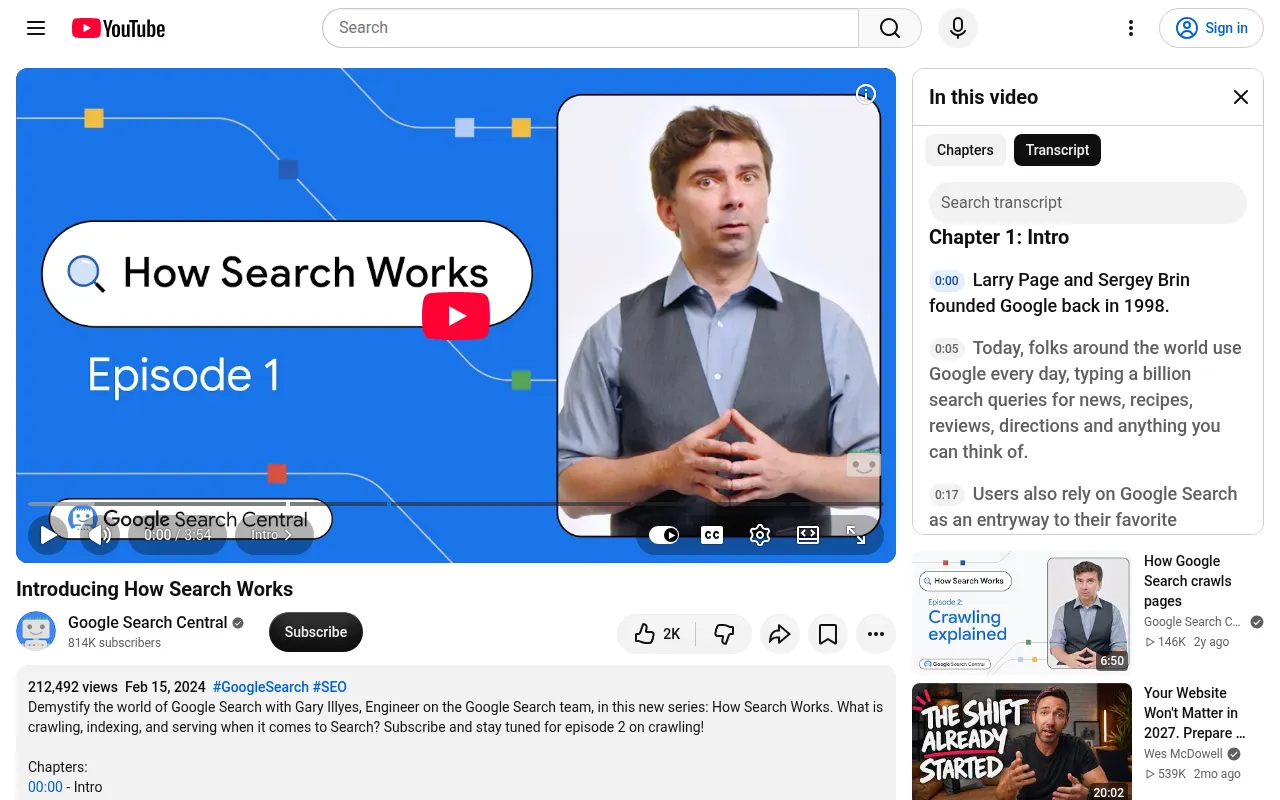
The panel has a Search transcript box at the top. Type a word or a name and jump straight to the lines that mention it. When the creator added chapters, a Chapters tab sits next to Transcript, and the transcript is split under chapter headings, so you can skip to the part you need.
Copied transcripts keep one short line per timestamp, which is hard to read as a document. Two quick ways to clean it up:
The transcript lives in the same place in the YouTube app: open the video, open its description and tap Show transcript. The transcript scrolls as the video plays, and tapping a line jumps to that part of the video. It's the quickest way to find a moment on the go; for copying a long transcript, a computer is easier.
If the video is yours, its transcript is only as good as its captions, and those live in YouTube Studio. Sign in to YouTube Studio and open Subtitles in the left menu to see the caption tracks for each video and language, and to edit or remove them.
If you rely on automatic captions, review them. YouTube creates them with machine learning, and it notes that quality may vary: mispronunciations, accents, dialects and background noise can all lead to mistakes. Fixing the captions fixes the transcript every viewer sees.
Copying one transcript by hand is quick. Doing it for twenty videos, then naming and filing each one, is the part people put off. Simular Box (box by Simular) gives ChatGPT or Claude a cloud computer with Chrome, a terminal and files that stay. Your AI does the clicking in box's Chrome and saves the results as files you can come back to.
We ran this flow on a box: the agent expanded the description, opened the transcript and read every caption line with its timestamp.
Use box to get the transcripts of every video in this playlist: [playlist URL]. Save one text file per video in [folder on the box], named after the video title.
Use box to get the transcripts of these videos: [URLs]. Then make a table with each video's title, link and a three-sentence summary, and save it as a CSV next to the transcripts.
Use box to open the transcripts I saved in [folder on the box] and pull every line that mentions [topic or product], with the video title and timestamp.
Connect. In ChatGPT, search for box by Simular in Plugins and install it in one click. For Claude and other apps, see the box setup guide.
Ask. Paste one of the prompts above with your links. You can watch box's screen live and take control at any point, for example if a video asks you to sign in.
Keep. The transcripts stay on the box, so the next job can build on them: summaries, quote lists or a search across everything you've saved. To bring a folder to your own computer, use Copy files.
YouTube's own panel lets you read and copy the text. To save transcripts as files, one per video, ask ChatGPT or Claude to do it on Simular Box with the prompt above.
With the box by Simular plugin, ChatGPT can open the video in box's Chrome, open Show transcript and save the text for you, while you watch live.
On YouTube you open each video one at a time. With Simular Box, give your AI the playlist link and ask it to repeat the steps for every video and save one file per video.
Sources: YouTube Help, View video transcripts, Use automatic captioning and Edit or remove captions; box docs. Checked 29 Nov 2026.