

Oops! Something went wrong while submitting the form.


.svg)
Every growing team hits the same wall with Airtable: it’s a brilliant operational database, but the rest of the company still lives in Excel. Finance wants multi-tab workbooks, leadership wants emailed spreadsheets before Monday’s standup, and clients demand exports they can open without learning a new tool.
Exporting Airtable to Excel gives you the best of both worlds. Airtable stays your live, collaborative system of record, where sales, marketing, and ops log updates in real time. Excel becomes the analytical “stage”: you build pivot-heavy revenue reports, model budgets, create client-ready campaign recaps, or archive monthly snapshots for compliance. You can design Airtable views for each stakeholder, then export exactly what they need in a familiar format.
Where it breaks is the grind: clicking into multiple bases, adjusting filters, downloading CSVs, cleaning columns, and saving the right filenames every single week. That’s where an AI computer agent shines. Instead of founders, ops leaders, or account managers babysitting exports, you hand those clicks to software that uses your desktop like an assistant. It opens Airtable, applies the right views, grabs fresh data, converts to Excel, and files everything in the correct folder—on a schedule or on command—so reporting stops stealing hours from selling and strategy.
If your business runs on Airtable but your stakeholders live in Excel, you’ve probably felt the friction: endless CSV downloads, manual clean-up, and late-night “just one more export” sessions. Let’s walk through practical ways to move Airtable data into Excel—from quick manual tricks to fully automated AI agent workflows you can delegate and scale.
These methods are perfect when you’re starting out or exporting occasionally.
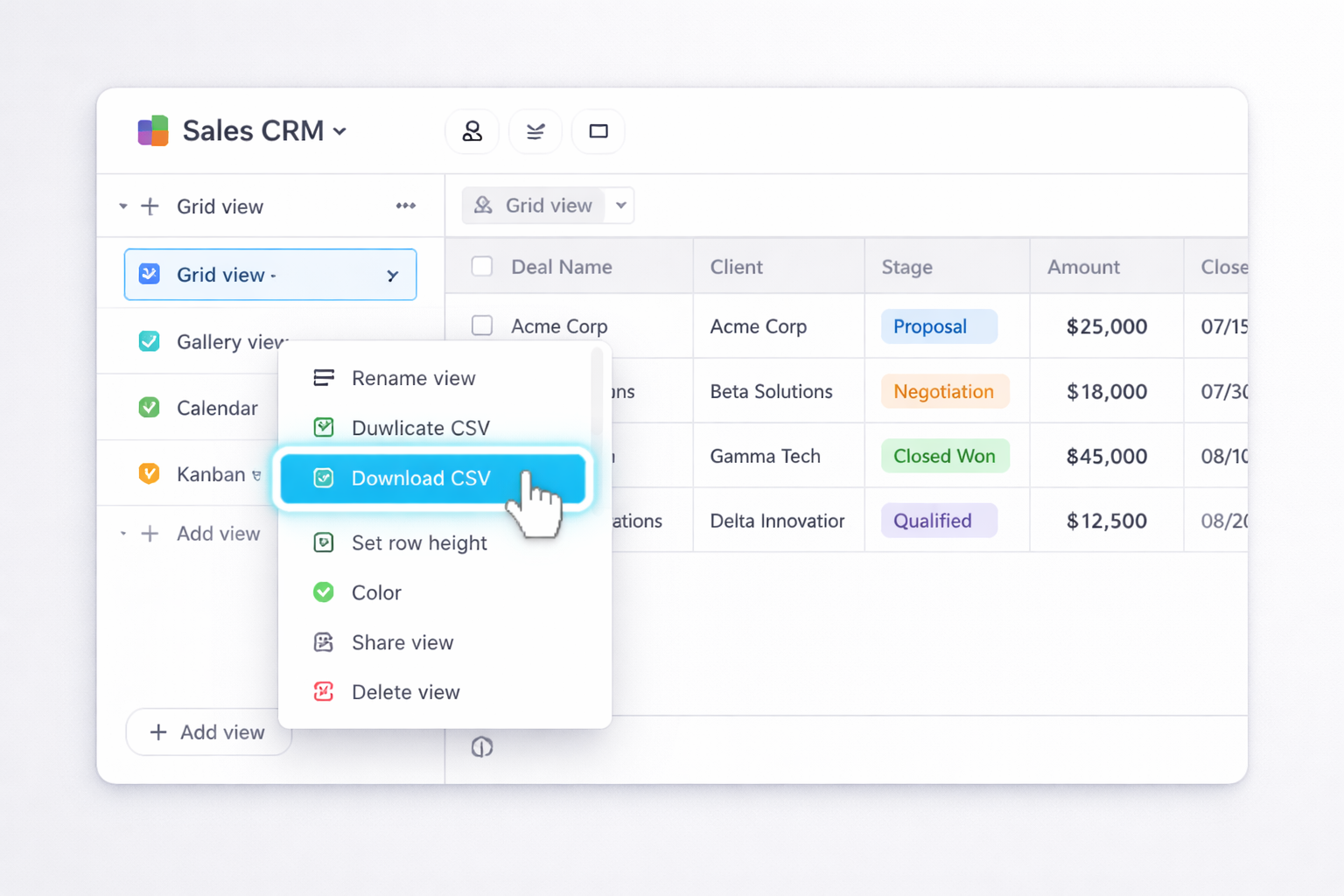
.csv file to your default downloads folder.Official docs:
Pros: Simple, no extra tools, works on any plan. Cons: Fully manual, easy to forget steps, no scheduling, no automatic clean-up.
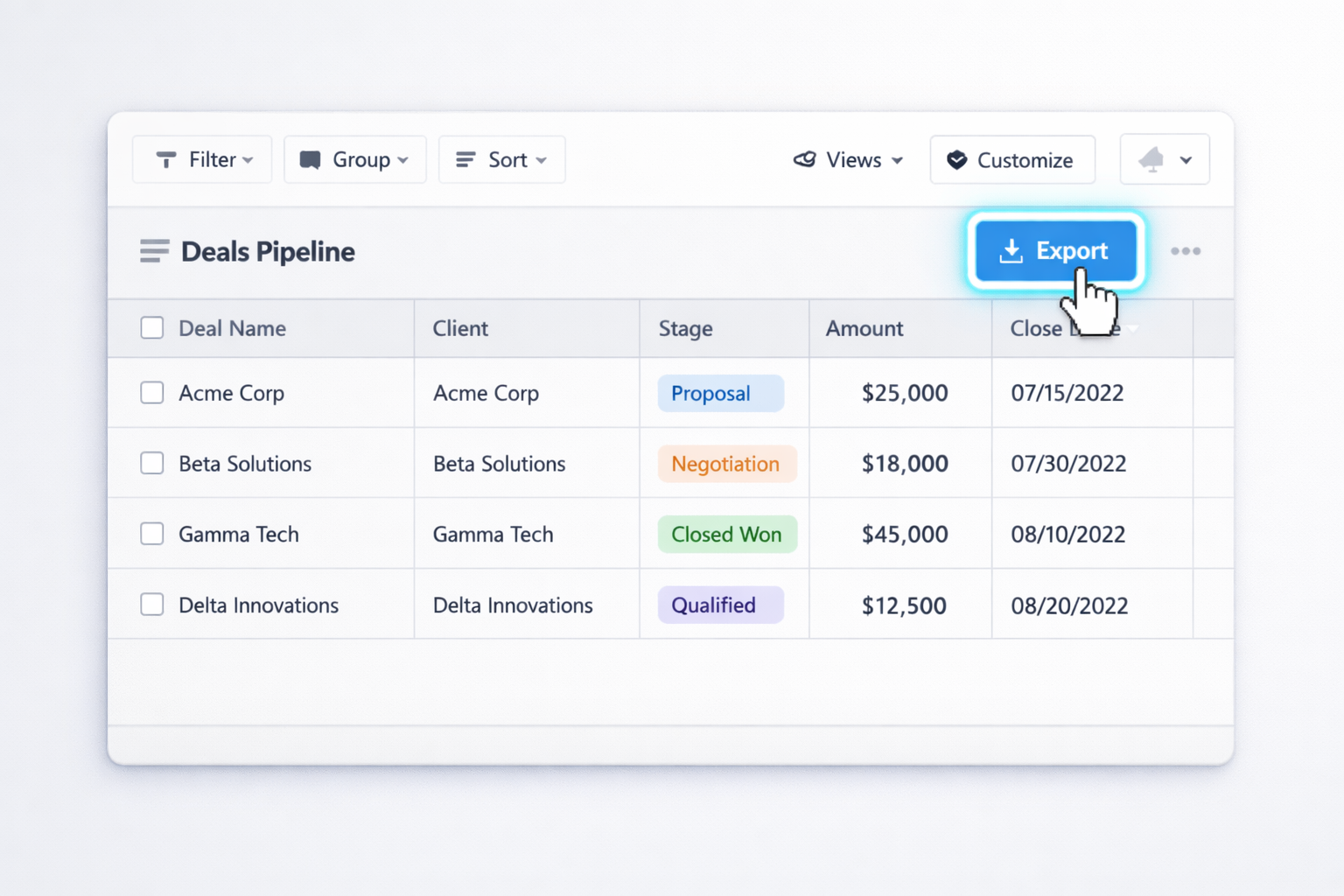
If your team only has access to an Airtable Interface:
Pros: Lets non‑admins export without seeing the base, respects interface filters. Cons: Still manual, no native scheduling, not ideal for multi-table exports.

For quick, ad‑hoc exports of a few dozen–few hundred rows:
Pros: Very fast for small sets, zero configuration. Cons: No repeatability, easy to misalign columns, not good for attachments or large datasets.
When you’re doing exports weekly—or every time a record changes—it’s time to automate.
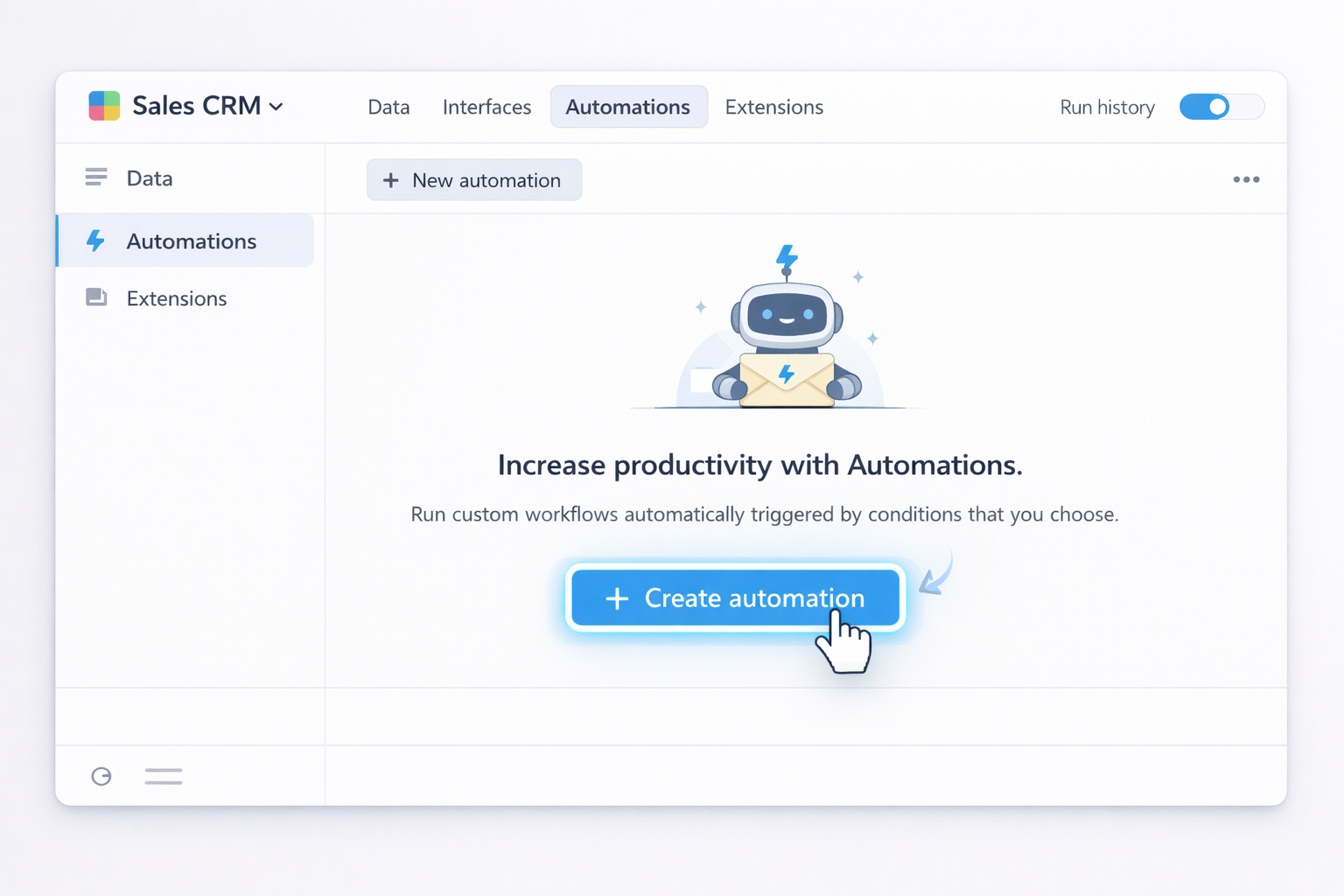
Use Airtable Automations to send CSV snapshots to your inbox or a shared mailbox.
Docs:
Pros: Built into Airtable, good for reminder workflows. Cons: Still requires manual download/open; not full end‑to‑end Excel automation.
Zapier connects Airtable and Excel Online (Microsoft 365) with no code.
Pros: Near real‑time sync, no CSV handling, great for ongoing pipelines. Cons: Row‑by‑row sync, can be slower/expensive at high volume, structure changes require remapping.
Tools like Hevo (highlighted in the source articles) offer managed pipelines from Airtable to Excel/warehouses.
Pros: Robust for analytics teams, handles schema evolution better, less manual oversight. Cons: Overkill for small teams, extra cost, some setup learning curve.
No‑code tools are great, but they still assume clean APIs and simple schemas. Real life is messier: multiple bases, changing interface filters, 10+ exports before every board deck. This is where an AI computer agent—like a Simular-based computer-use agent—becomes your digital ops assistant.
Imagine you describe the job once: “Every Friday, export these Airtable views, convert them to XLSX, name them by week, and drop them in the Finance/Reports folder.” The agent does everything on your desktop:
pipeline_2025-01-13.xlsx)..xlsx.
Pros:
Cons:
For agencies and operators worried about lock‑in or outages, use an AI agent for nightly or weekly backups:
/Backups/Airtable/2025-01-13/).
Pros:
Cons:
You can go further and let your team “ask” for exports in natural language:
Pros:
Cons:
By starting with simple manual exports, then layering in no‑code tools, and finally delegating the repetitive, multi‑step work to an AI computer agent, you turn “exporting Airtable to Excel” from a weekly chore into an invisible background process that just happens.

