

Oops! Something went wrong while submitting the form.


.svg)
If you run a business, character limits sneak into your day more often than you notice. Tweet drafts, ad headlines, product descriptions, email subject lines – they all live somewhere in Google Sheets before they ever reach your customers. Being able to count characters in a cell is how you keep copy on‑brand, within platform limits, and free from messy spacing issues.
Manually dragging LEN formulas down a column works for ten rows, not for ten thousand. That’s where an AI computer agent changes the story. Instead of you policing every cell, the agent watches your rules once – which columns, which limits, what to flag – and then applies them across entire sheets, campaigns, or even multiple files. It never forgets a rule, never skips a row, and leaves you free to focus on message, not mechanics.
You’ve probably lived this scene: a marketer drafts copy in Google Sheets, ships it to the social team, and only then notices half the headlines blow past Twitter or ad platform limits. Cue the scramble: count characters, trim, re‑approve.
Character counting sounds tiny, but it’s exactly the kind of repetitive work that quietly steals hours from owners, agencies, and sales teams. Let’s fix it from the ground up – from simple formulas to full automation with an AI computer agent.
Use this when you just need the length of each cell.
=LEN(A2)
Pros:
Cons:
Real data is messy: leading, trailing, and double spaces creep in from copy‑pastes.
To ignore accidental extra spaces but keep single spaces between words:
=LEN(TRIM(A2))To ignore all spaces entirely:
=LEN(SUBSTITUTE(A2," ",""))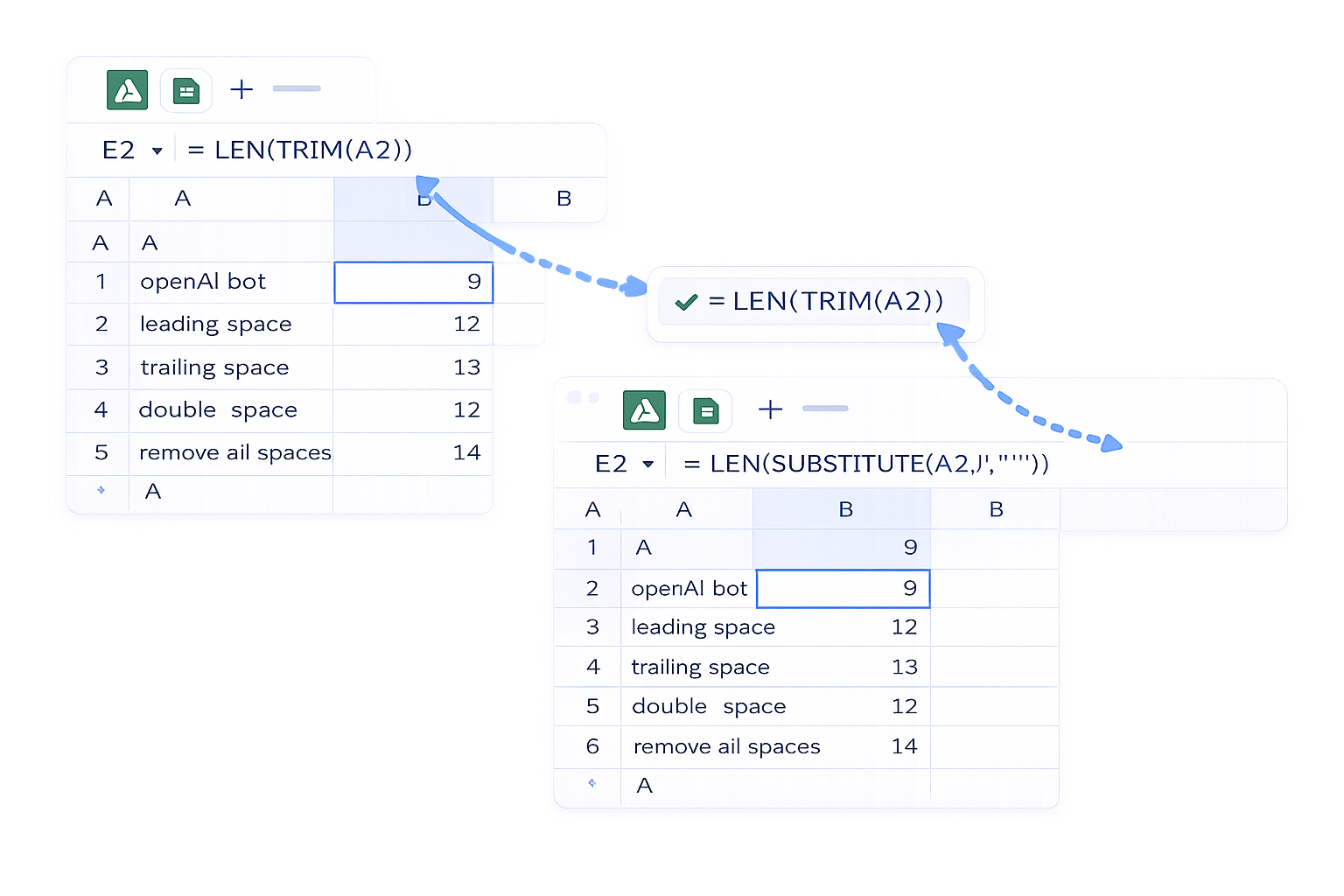
Pros:
Cons:
Need to know how many times a letter or symbol appears (for regex‑like checks, tags, or separators)? Use LEN with SUBSTITUTE:
=LEN(A2) - LEN(SUBSTITUTE(A2,"N",""))
Replace "N" with the character you care about.
How it works:
SUBSTITUTE removes that character.To apply this down a column, just drag the formula.
Sometimes you need the total characters in a whole range, not per cell.
Use SUMPRODUCT: =SUMPRODUCT(LEN(A2:A100))
Or with ArrayFormula: =ArrayFormula(SUM(LEN(A2:A100)))
Pros of manual methods overall:
Cons:
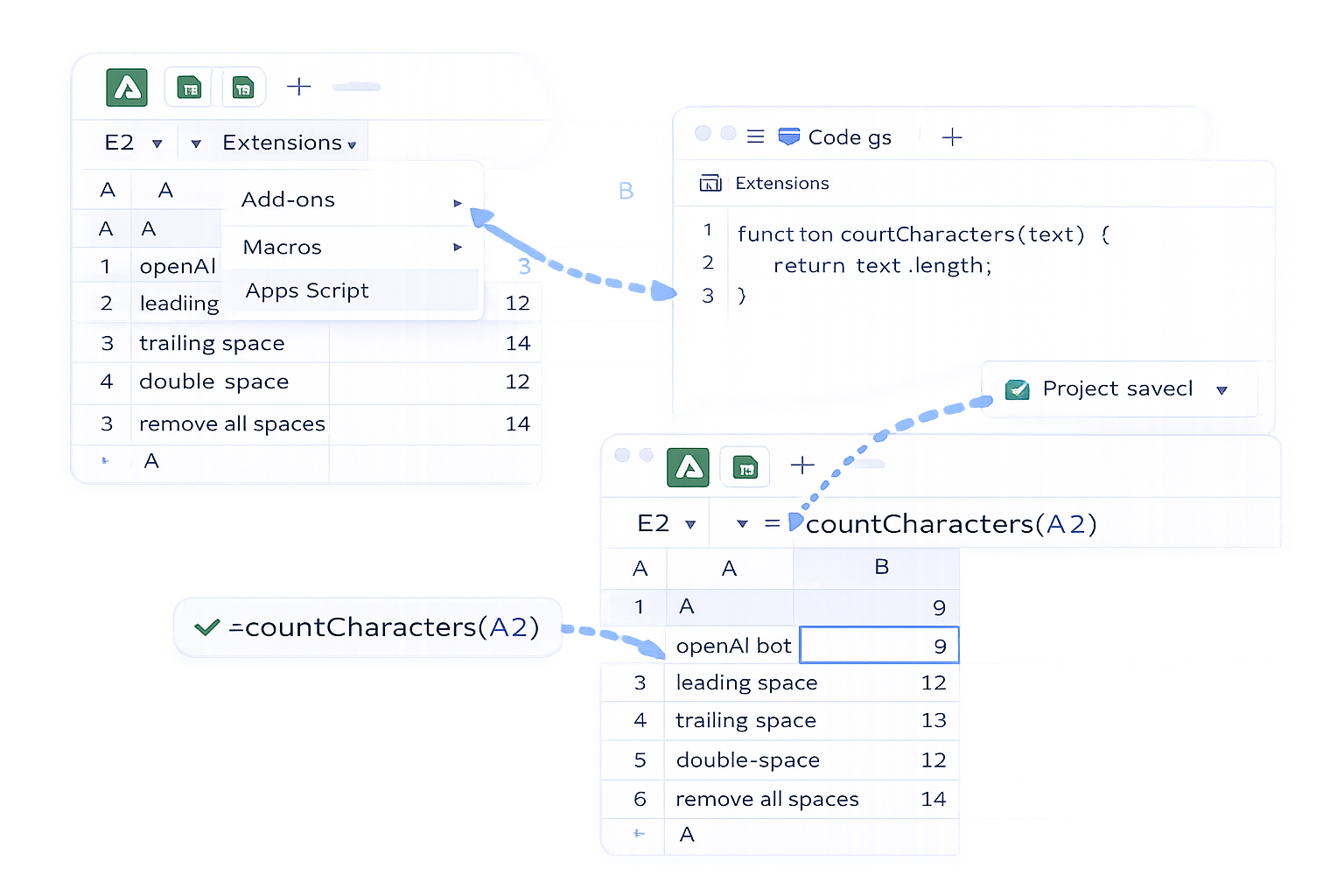
When you find yourself repeating the same setup in sheet after sheet, step up to a simple script.
function countCharacters(text) {
  return text.length;
}
=countCharacters(A2) just like LEN.You can extend this to ignore spaces or count specific characters.
Pros:
Cons:
Manual methods are fine until:
This is where an AI computer agent like Simular steps in. Instead of living inside Sheets as a formula, it behaves like a smart teammate operating your computer.
You teach the agent once:
Because Simular’s agent can control your whole desktop, it can also:
LEN() directly.Once you’ve done the math on how many times you’ve written =LEN(A2) this year, giving that job to an agent starts to feel less like a luxury and more like common sense.


