Every business has a version of the same story: a “simple” Google Sheets report that behaves strangely. Totals don’t add up, filters feel off, and your gut says something’s wrong. Often the culprit is hidden text-formatted numbers—values that look like 1200, but behave like the word “twelve hundred.”Learning how to reliably convert text to numbers in Google Sheets is about more than spreadsheet hygiene. It protects your revenue forecasts, ad performance reports, sales pipelines, and client dashboards from silent errors. Once you understand the manual methods—VALUE(), formatting, ARRAYFORMULA, and regex—you can debug almost any messy import.But for agencies, operators, and growth teams, doing this cleanup by hand on every CSV import is a tax on your best people. That’s where an AI agent comes in. An AI computer agent can watch for new data, open the right Google Sheets, run conversion formulas across thousands of rows, validate with ISNUMBER checks, and log what changed. You go from babysitting spreadsheets to simply reviewing clean, trustworthy numbers at the end of each run.
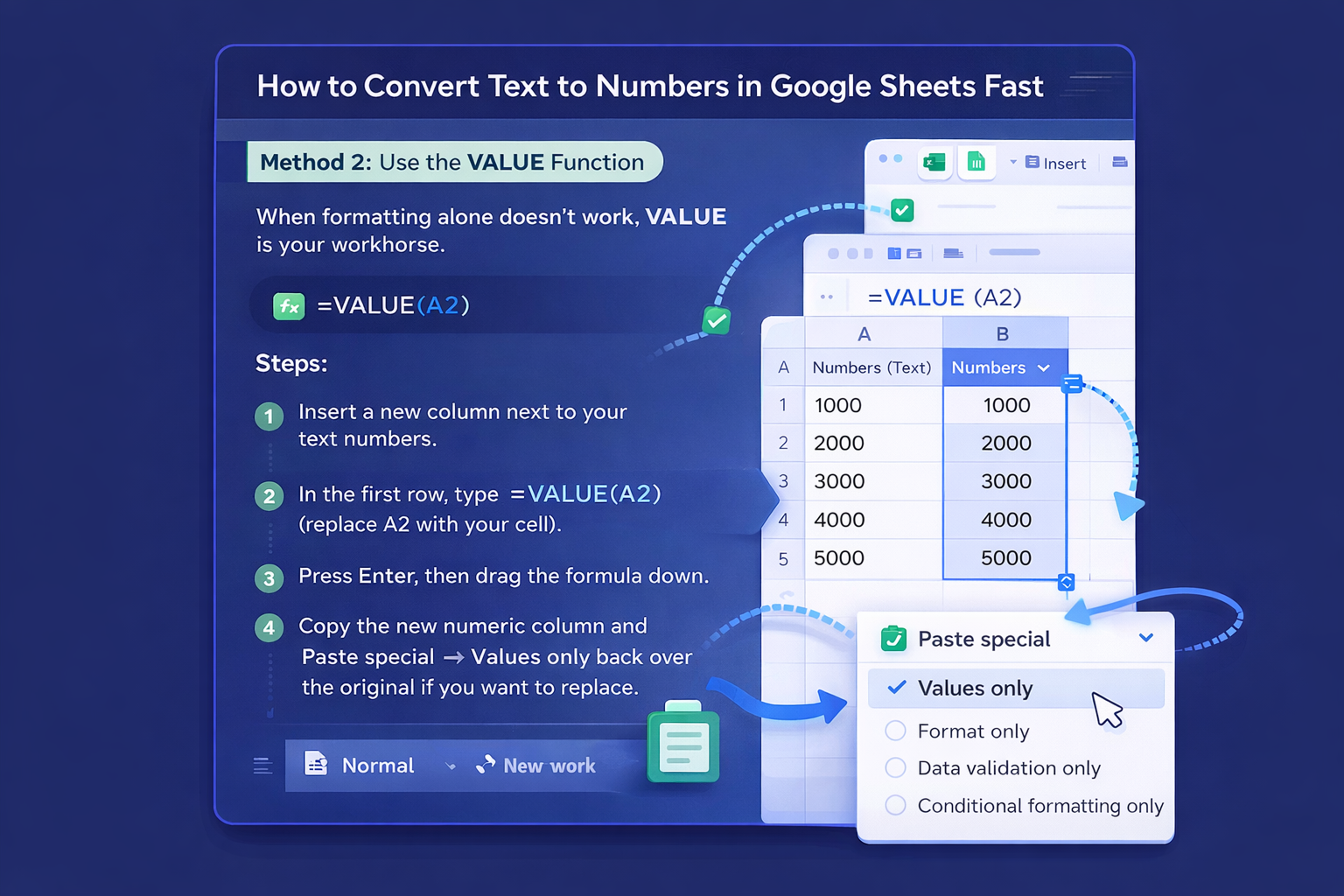
# Guide: How to Convert Text to Number in Google Sheets (And Then Automate It)You’ve just imported a chunky CSV from your CRM or ad platform into Google Sheets. Everything looks fine—until your SUM formula returns zero. The numbers aren’t really numbers. They’re text.Let’s walk through the best ways to fix this manually, then scale it with an AI computer agent so you never fight this battle twice.## 1. Quick Manual Fixes Inside Google Sheets### Method 1: Change Cell Format to NumberThis is the first thing to try when values look like numbers but behave like text.**Steps:**1. Select the cells or column with the suspicious numbers.2. Click **Format → Number → Number** (or Currency, Percentage, etc.).3. Check alignment: real numbers usually right-align; text is left-aligned.**Pros:**- Fast for small ranges.- No formulas required.**Cons:**- Fails if there are hidden spaces, symbols, or commas your locale doesn’t expect.### Method 2: Use the VALUE FunctionWhen formatting alone doesn’t work, VALUE is your workhorse.**Formula:** `=VALUE(A2)`**Steps:**1. Insert a new column next to your text numbers.2. In the first row, type `=VALUE(A2)` (replace A2 with your cell).3. Press Enter, then drag the formula down.4. Copy the new numeric column and **Paste special → Values only** back over the original if you want to replace.**Pros:**- Reliable for clean numeric strings like "1234", "99.95", or date/time formats.**Cons:**- Breaks with extra characters like `$`, labels, or stray text.### Method 3: Multiply by 1This is the classic “brute force” trick.**Formula:** `=A2*1`**Steps:**1. Add a helper column.2. Enter `=A2*1` in the first helper cell.3. Fill the formula down.4. Paste values back if needed.**Pros:**- Simple and fast.- Forces numeric conversion when Sheets can interpret the text as a number.**Cons:**- Same limitations as VALUE: garbage in, garbage out.## 2. Cleaning Messy Data With Regex and ArraysReal business data is rarely clean. Think "Price: $199" or "Revenue (EUR) 1,234.50". For that, you need slightly sharper tools.### Method 4: REGEXREPLACE + VALUE for Mixed Text**Formula example:**`=VALUE(REGEXREPLACE(A2, "[^\d.]", ""))`**What it does:**- `REGEXREPLACE` strips everything except digits and decimal points.- `VALUE` converts the cleaned string into a number.**Steps:**1. Add a helper column.2. In the first row, enter the formula above.3. Adjust the pattern if you use commas or different decimal symbols.4. Fill down and paste values back when you’re happy.**Pros:**- Great for imported data with labels, currency symbols, or extra characters.**Cons:**- Regex can be scary at first.- Needs testing on a sample before you trust it at scale.### Method 5: ARRAYFORMULA for Entire ColumnsIf you’re converting hundreds or thousands of rows, ARRAYFORMULA saves you from dragging formulas.**Basic example:**`=ARRAYFORMULA(VALUE(A2:A))`**Steps:**1. In an empty column header cell (e.g., B2), type the ARRAYFORMULA.2. Sheets will auto-expand the results down the column for all filled rows.3. Optionally convert the whole thing to static values once checked.**Pros:**- Perfect for live feeds where new rows are added regularly.- One formula handles the entire range.**Cons:**- Can feel opaque to teammates unfamiliar with arrays.- Errors in one row can spill through the range.## 3. Validating Your ConversionsNever trust a conversion until you verify it.### Method 6: Use ISNUMBER Checks**Formula:** `=ISNUMBER(B2)`**Steps:**1. Add a temporary column.2. Check `=ISNUMBER(your_converted_cell)`.3. TRUE = valid number; FALSE = still text.4. Filter for FALSE to quickly audit problem rows.This tiny check can save a campaign report, a revenue forecast, or a client relationship.## 4. Automating Conversions With an AI Computer AgentManual fixes are fine the first time. They’re a problem the tenth time.Imagine an AI computer agent that:- Opens your browser and navigates to the right Google Sheets file.- Detects newly imported tabs from your CRM, Stripe, or ad platforms.- Inserts the correct VALUE/ARRAYFORMULA/REGEXREPLACE routines.- Runs ISNUMBER checks and highlights any rows it can’t safely convert.- Logs every change so you can review what happened.That’s where a production-grade agent platform like Simular comes in. Instead of relying on one-off scripts, you spin up a computer-use agent that behaves like a meticulous analyst: clicking, selecting ranges, typing formulas, inspecting cells, and retrying if something fails.### Benefits of Letting an AI Agent Handle It- **Consistency:** The agent runs the same playbook across every sheet and client.- **Scale:** Whether it’s 1,000 or 1,000,000 rows, the workflow is the same.- **Transparency:** With Simular-style transparent execution, every step is visible and editable.- **Focus:** Your team stops babysitting imports and starts using the numbers to make decisions.Set up once, test it on a few messy spreadsheets, then let the agent take over. Your future self—and your future dashboards—will thank you.
If your “numbers” in Google Sheets sort as 1, 100, 12 instead of 1, 12, 100, they’re stored as text. Check alignment first: text is usually left-aligned. Then try changing the format to Number or using =VALUE(A2) in a helper column, filling it down, and pasting values back to convert everything to real numeric data.
To convert a whole column, use ARRAYFORMULA with VALUE. In an empty column, enter =ARRAYFORMULA(VALUE(A2:A)). This applies VALUE down the entire range automatically. Review the results, then copy the converted column and use Paste special → Values only to replace the original text column if everything looks correct.
When cells contain labels or symbols like “Price: $99.99”, combine REGEXREPLACE with VALUE. Use =VALUE(REGEXREPLACE(A2, "[^\d.]", "")) to strip everything except digits and decimal points, then convert the result. Test the formula on a few rows, ensure the numbers match expectations, and then apply it down the entire column.
Imported CSVs often store numbers as text. First, try Format → Number. If that fails, add a helper column with =VALUE(A2) or =A2*1. For messy strings, use REGEXREPLACE to remove extra characters. Once the numbers look right, convert the entire helper column to values and delete or hide the original text-based column.
You can automate by combining formulas with an AI computer agent. Define a repeatable playbook: detect new data, apply VALUE or ARRAYFORMULA, use REGEXREPLACE for mixed strings, and validate via ISNUMBER. A Simular-style agent can execute this flow in the browser, sheet by sheet, whenever new data arrives, so your team always sees clean numeric values.