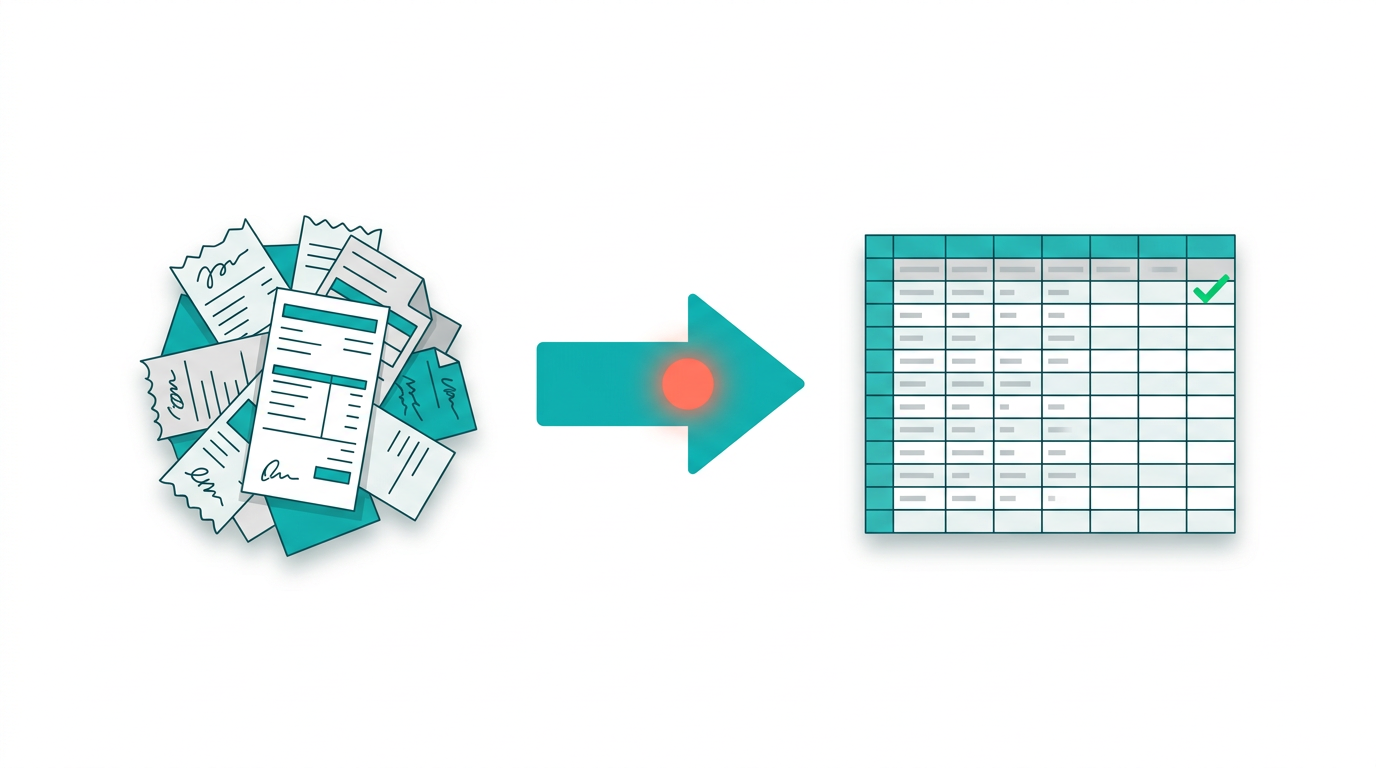
Open a blank invoice in Google Sheets and you can almost hear the gears of your business clicking into place. Formulas handle totals and tax, filters surface overdue payments, and version history keeps every edit accountable. Instead of chasing PDFs, your team works from a single live source of truth that everyone can access.Layer an AI computer agent on top of that, and the real magic starts. The agent can duplicate templates, pull client details from your CRM, log items, calculate totals, and tag invoice status without you lifting a finger. Delegating invoice workflows in Google Sheets to an AI agent means fewer typos, faster billing cycles, and the freedom to focus on selling, serving clients, and growing the business instead of babysitting spreadsheets.
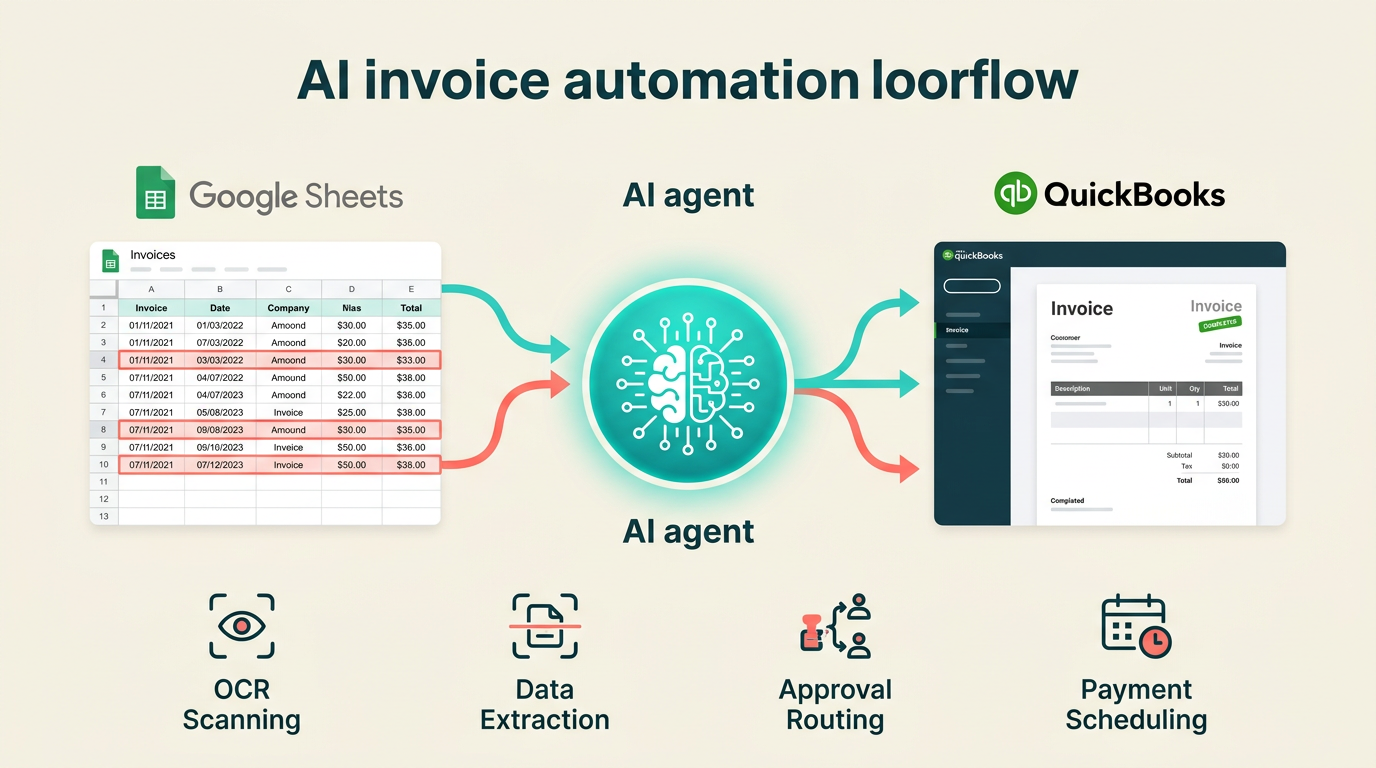
If you run a business, agency, or sales team, invoices are the unglamorous heartbeat of your cash flow. You know the drill: copy the last invoice, tweak the client name, change the dates, double‑check the math, export to PDF, send, log the payment. Ten times a week. A hundred times a month.Google Sheets is already a great home for invoice templates. Add an AI agent on top, and you turn a boring chore into a mostly self‑running system.## Option 1: Manual Invoicing in Google SheetsThis is where most teams start.Steps:1. Open a template - Grab a free invoice template in Google Sheets. - Click File → Make a copy so you have your own editable version.2. Customize the template - Replace placeholder fields with your real company name, address, logo (Insert → Image), and payment terms. - Set up tax and discount formulas in the subtotal and tax cells.3. Create a new invoice for each client - Duplicate the invoice tab or the whole file. - Update client details (Bill To), invoice date, and invoice number. - Add line items: description, quantity, unit price. Let formulas calculate totals.4. Send and track - Export as PDF (File → Download → PDF) or share a view‑only link. - Manually log sent invoices and payment status in another tab or spreadsheet.Pros:- Free and flexible.- Easy to start with just one template.- Works well for a handful of invoices per week.Cons:- Repetitive, error‑prone typing.- Easy to forget an invoice or misnumber it.- Your time becomes the bottleneck as volume grows.## Option 2: Semi‑Automated Workflows in SheetsBefore you bring in an AI agent, you can squeeze more out of Google Sheets itself.Ideas:- Use data validation lists for products/services and tax rates so you are not retyping the same thing.- Build a simple invoices database tab where each row is an invoice; use formulas to pull those details into a nicely formatted invoice sheet with VLOOKUP or INDEX/MATCH.- Connect Sheets to tools like Stripe or QuickBooks via add‑ons to sync payment data.Pros:- Reduces some manual work.- Keeps everything inside Google Sheets.Cons:- Still requires you to trigger everything.- Complex formulas and add‑ons can be fragile.- Hard to extend beyond a few hundred invoices without turning into a part‑time spreadsheet engineer.## Option 3: Fully Automate With a Simular AI Computer AgentThis is where you step out of the loop and let an AI agent handle the busywork.Simular builds autonomous computer agents that can use your desktop, browser, and cloud apps almost like a human. With Simular Pro, the agent can:- Open Google Sheets in your browser.- Make copies of your invoice template.- Pull client and deal data from your CRM or another sheet.- Fill in all invoice fields, apply discounts, calculate taxes.- Export the invoice as a PDF and send it via email.- Update status columns or a tracking sheet as it works.A high‑level workflow looks like this:1. Define your invoice template - Keep your existing Google Sheets template or adopt a new one. - Standardize columns for client name, email, items, quantity, price, tax, and payment terms.2. Create a source of truth for jobs - Maintain a sheet of deals, projects, or time entries. - Each row should include: client, amount, due date, and whether an invoice has been generated.3. Let the Simular agent do the clicking - The agent logs into your browser, opens the right Google Sheets file, and duplicates the invoice tab. - It copies client details from the source sheet, fills in line items, applies your formulas, and checks the totals. - Then it exports the PDF, drafts an email to the client, and logs everything back in your invoice tracking tab.Because Simular Pro agents are designed for production‑grade reliability, they can run workflows with thousands of steps, not just a single invoice. And every action is transparent, so you can inspect and tweak exactly how the agent interacts with Sheets.Pros of automating with an AI agent:- Massive time savings once set up.- Consistent formatting, numbering, and terms.- Easy to run weekly or daily invoice batches without extra effort.- Scales from a handful to thousands of invoices.Cons:- Requires a clear process and clean data upfront.- A bit of initial setup to define prompts and edge cases.## Putting It All TogetherStart manually to design the perfect Google Sheets invoice template. Add light automation inside Sheets to reduce obvious repetition. Then hand the whole workflow to a Simular AI agent so it can live inside your browser and handle the grind for you.Your role shifts from invoice typist to system designer: you decide the rules, the agent does the work. That is how modern teams reclaim hours each week while their Google Sheets invoices keep flowing out like clockwork.
Open the invoice template in Google Sheets, then go to File > Make a copy so you do not edit the original. Replace placeholder text with your company name, address, and logo. Adjust currency, tax rate, and payment terms in the relevant cells. Finally, test by entering a few sample line items to confirm that subtotal, tax, and total formulas still calculate correctly before using it with real clients.
In your Google Sheets invoice template, dedicate cells for subtotal, discount, tax rate, and final total. For example, set subtotal as the sum of all line item totals, discount as a fixed value or percentage, and tax as subtotal minus discount multiplied by the tax rate. Then set total as subtotal minus discount plus tax. Use clear labels and lock those formula cells to prevent accidental edits.
Create a separate tab called Invoice Log with columns for invoice number, client, date, amount, status, and payment date. Each time you issue an invoice from your template tab, add a new row to the log. Link the two by referencing invoice numbers. You can then use filters or conditional formatting to highlight overdue invoices and build simple dashboards with SUMIF formulas for monthly revenue.
For a polished look, export the invoice as a PDF from Google Sheets using File > Download > PDF. Alternatively, share the sheet as view‑only by clicking Share, entering the client email, and choosing Viewer permission. Avoid giving Edit access so clients cannot change amounts. If you reuse the template, duplicate the tab for each client instead of sharing the master template directly.
For recurring clients, store their details and standard line items in a separate tab. Use data validation lists or lookup formulas to pull those fields into your invoice template with a couple of clicks. For even more speed, pair Google Sheets with a Simular AI agent that can duplicate the template, fill in recurring data, adjust dates and invoice numbers, export PDFs, and send emails automatically on your preferred schedule.