Oops! Something went wrong while submitting the form.


.svg)
Every ambitious product story starts in a spreadsheet. For founders, marketers, and agency leaders, a product roadmap template in Google Sheets or Excel is the simplest way to turn ideas into a visible, shared plan. Columns become your narrative: themes, releases, experiments, and bets laid out across quarters so everyone sees where you’re going and why.
But the magic of these templates really shows up when they’re alive, not static. An AI computer agent can live inside this ecosystem—pulling fresh data from your CRM, support inbox, and experiment trackers, then reshaping your roadmap in Sheets and Excel automatically. Instead of spending Fridays nudging dates, coloring statuses, and copying feedback, you delegate that choreography to the agent. It standardizes formats, highlights slippage, and proposes re-prioritizations based on impact and effort. You stay in the role you actually signed up for: editing the strategy, not wrestling the spreadsheet. Automating roadmap maintenance this way gives you a planning ritual that’s always current, always aligned, and never dependent on who last touched the file.
If you’re a founder, agency lead, or marketer, your brain probably already lives in Google Sheets or Excel. A product roadmap template there is like a living storyboard: features, experiments, and launches mapped against time. It’s flexible enough for messy ideas, structured enough for serious planning, and familiar to every stakeholder.
The twist is this: you don’t have to maintain it all by hand. You can start manually, then gradually hand repetitive work to an AI computer agent so your roadmap updates itself while you focus on decisions.
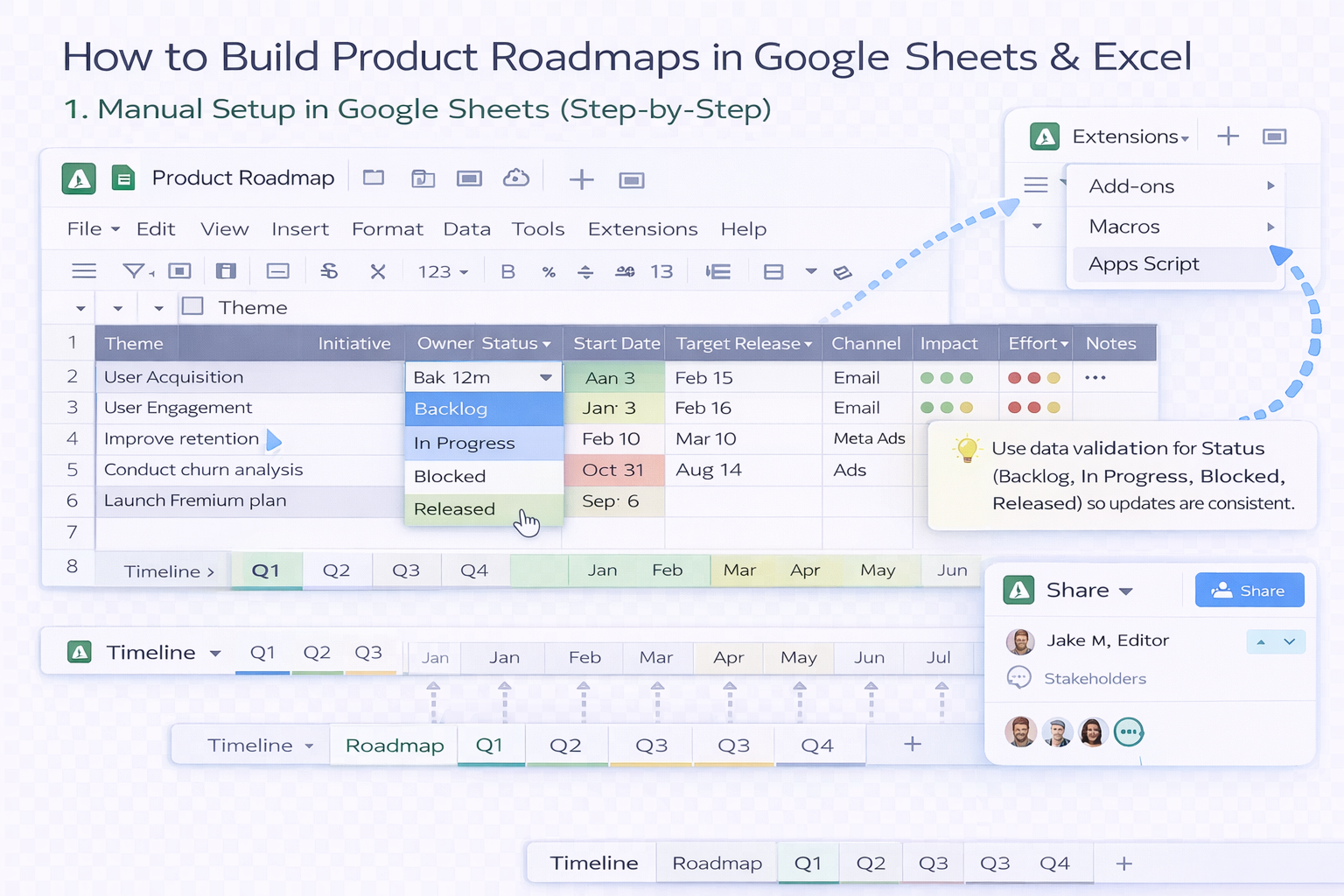
Pros (Sheets): real-time collaboration, easy sharing, integrations with many SaaS tools.
Cons: manual updates can get noisy and slow as your roadmap grows.
Pros (Excel): powerful formulas, pivot tables, offline-friendly, great for deep analysis.
Cons: sharing and co-editing can feel heavier than Sheets, especially across companies.
Manual roadmaps start strong and drift quickly. Someone forgets to mark a feature as shipped. A launch moves but the date isn’t updated in all tabs. Sales is still pitching the old plan. You spend more time reconciling versions than actually deciding what to build.
This is the ceiling of spreadsheet-only roadmapping: the tool is fine; the human time cost is not.
This is where an AI computer agent, running on your desktop with tools like Simular Pro, becomes your behind-the-scenes operator.
What the agent can do for Google Sheets and Excel:
You define how you think about priority (e.g., revenue potential, customer impact, effort). The agent turns that philosophy into repeatable actions across Google Sheets and Excel.
Pros (AI agent): eliminates repetitive maintenance, keeps a single source of truth, scales to multiple products or clients without extra manual effort.
Cons: requires a short onboarding phase and clear instructions; you still own the strategy and final calls.
For most teams, the sweet spot is hybrid:
A typical weekly rhythm:
By starting manually and then layering in automation where it obviously hurts, you end up with product roadmap templates in Google Sheets and Excel that stay accurate without eating your week. The AI computer agent becomes the quiet ops teammate who never gets tired of updating cells.