A marketing reach calculator turns gut-feel campaigns into measurable, optimizable systems. Instead of guessing how many unique people saw your ads, you track impressions, frequency, and cost in one structured model. With Google Sheets you can centralize data from Meta, Google Ads, LinkedIn, and email, apply the classic reach formula (Reach = Impressions / Frequency), and instantly compare campaigns, creatives, and channels.Now imagine delegating the grunt work to an AI computer agent. While you sleep, it logs in to ad platforms, exports performance, pastes everything into Google Sheets, refreshes pivot tables, and flags campaigns whose cost per reach is spiking. You wake up not to raw numbers, but to a living reach dashboard you didn’t have to build or maintain yourself.
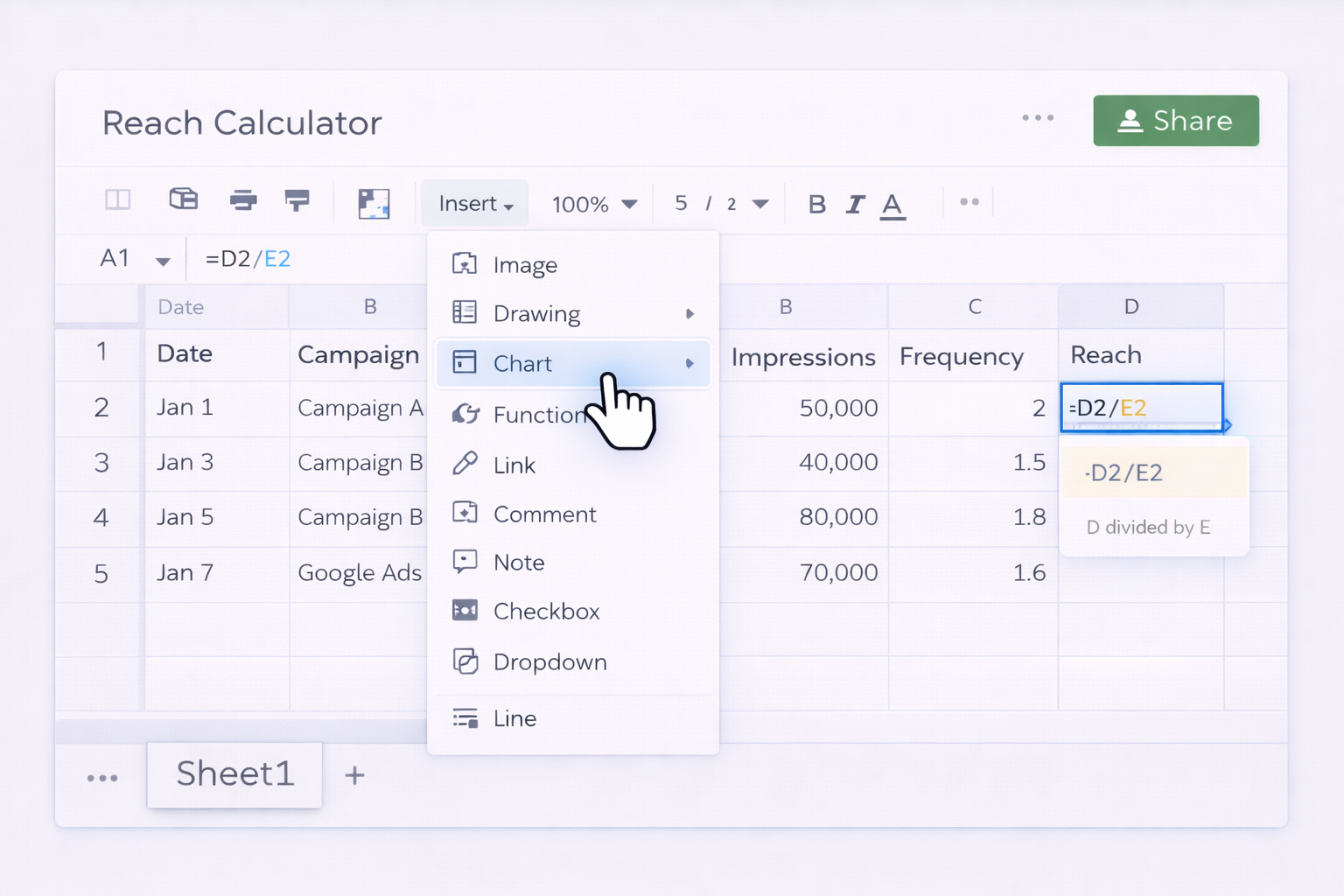
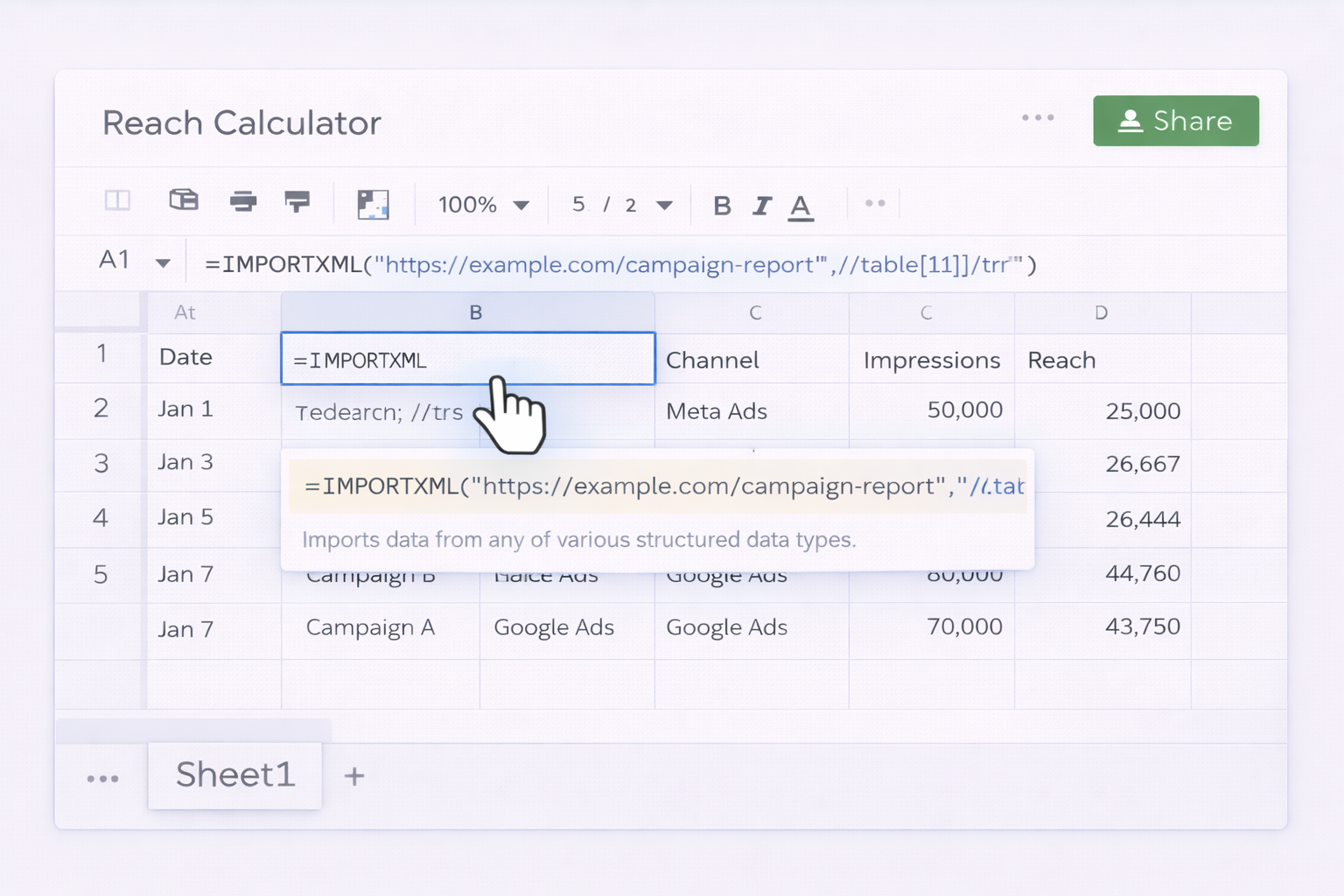
## 1. Manual ways to calculate marketing reachBefore we talk automation, it helps to understand the manual workflow you’re trying to offload.### Method 1: Single‑channel reach in Google Sheets1. Create a new spreadsheet in Google Sheets.2. In row 1, add headers: `Date`, `Campaign`, `Channel`, `Impressions`, `Frequency`, `Reach`.3. Each reporting period, export data from your ad platform (e.g., Meta Ads, Google Ads) and paste rows into the sheet under the right columns.4. In the `Reach` column, use the basic formula: - `=D2/E2` assuming `D` is Impressions and `E` is Frequency.5. Drag the formula down for all rows.6. Use `Insert → Chart` to visualize reach trends.Official docs to help:- Create and edit Sheets: https://support.google.com/docs/answer/6000292- Work with charts: https://support.google.com/docs/answer/190718### Method 2: Multi‑channel reach with cost per reach1. Extend your header row with `Spend`, `Cost_per_Reach`.2. Paste spend for each campaign from your ad platforms into the `Spend` column.3. In `Cost_per_Reach`, use: - `=G2/F2` assuming `G` is Spend and `F` is Reach.4. Add a pivot table (`Insert → Pivot table`) to summarize reach and cost per reach by channel and by campaign.5. Filter the pivot to spot channels with low cost per reach.Docs:- Pivot tables: https://support.google.com/docs/answer/1272900### Method 3: Estimate reach from impressions onlyIf your platform does not give you frequency:1. Decide an estimated average frequency (e.g., 1.8 based on past campaigns).2. Add a `Freq_Assumed` column and fill with that value.3. Compute reach as `=Impressions / Freq_Assumed`.4. Clearly label this tab as "Estimated" so stakeholders don’t confuse it with actual reach.## 2. No‑code automation methodsManual pasting works for a couple of campaigns; it collapses when you manage dozens across channels. No‑code tools can move data into Google Sheets on a schedule.### Method 4: Use Google Ads’ built‑in Sheets export1. In Google Ads, create a custom report with `Impressions`, `Average frequency` (if available), `Cost` and identifiers like campaign and date.2. Schedule the report to export to Google Sheets.3. In your destination Sheet, add calculated columns for `Reach` (`=Impressions / Frequency`) and `Cost_per_Reach`.4. Use filters and charts to analyze.Docs:- Schedule Google Ads reports to Sheets: https://support.google.com/google-ads/answer/2404182### Method 5: Connect platforms via no‑code automation (e.g., Zapier/Make)1. Create a new Sheet and define your schema (headers for impressions, spend, frequency, etc.).2. In your no‑code tool, set up a scenario/"Zap" that: - Triggers on a scheduled time (e.g., daily at 1am). - Calls each ad platform’s API to get yesterday’s performance. - Appends a row to your Google Sheet via the Google Sheets connector.3. In Sheets, use array formulas so new rows are auto‑calculated: - In `Reach`: `=ARRAYFORMULA(IF(D2:D="",,D2:D/E2:E))` - In `Cost_per_Reach`: `=ARRAYFORMULA(IF(F2:F="",,G2:G/F2:F))`4. Protect your formula columns so they can’t be overwritten (`Data → Protect sheets and ranges`).Docs:- ARRAYFORMULA: https://support.google.com/docs/answer/3093275- Protect ranges: https://support.google.com/docs/answer/1218656### Method 6: IMPORT functions from public sourcesIf you’re estimating reach from public stats (e.g., YouTube channel views as a proxy):1. Use `IMPORTXML` or `IMPORTHTML` to fetch stats into Sheets.2. Example: `=IMPORTXML("https://example.com/campaign-report","//table[1]//tr")`.3. Parse the relevant columns and apply your reach formulas.Docs:- IMPORTXML: https://support.google.com/docs/answer/3093342- IMPORTHTML: https://support.google.com/docs/answer/3093339## 3. Scaled, AI‑agent workflows with an AI computer agentAt some point, even no‑code automation hits a wall: complex logins, 2FA, different report layouts per client, or channels that lack good APIs. This is where an AI computer agent that can actually use your desktop and browser shines.### Method 7: Agent as your cross‑channel reporting assistant**What it does**- Opens your browser, logs into Meta, Google Ads, LinkedIn, TikTok, etc.- Navigates to saved reports, sets date ranges, downloads CSVs.- Opens Google Sheets, uploads or pastes fresh data into the right tabs.- Applies or updates formulas for reach and cost per reach.**How to set it up (conceptually):**1. Record or describe the workflow once: which URLs to visit, which reports to download, where to paste in Sheets.2. Let the agent run the sequence while you watch; correct it when column orders or UI elements differ.3. Save this as a reusable "reach refresh" workflow and schedule it via webhook or cron from your data stack.**Pros**- Handles platforms with weak or no APIs.- Survives UI changes better than brittle RPA scripts because it “sees” the screen.- Frees your marketing ops team from late‑night reporting crunches.**Cons**- Initial onboarding time to teach the agent your exact process.- Needs clear guardrails (e.g., which accounts and tabs it’s allowed to touch).### Method 8: Agent as anomaly hunter for reach efficiency**What it does**- Opens your master Google Sheet each morning.- Scans for campaigns where cost per reach jumped beyond a threshold.- Leaves comments in the sheet or posts summaries into Slack/Email.**Setup outline**1. Add a `Status` column and an `Alert` rule in your Sheet (e.g., `=IF(Cost_per_Reach>TARGET,"CHECK","OK")`).2. Give the AI agent a simple instruction: “Each day, find rows where `Alert` = CHECK, summarize them, and notify our sales/marketing channel.”3. The agent reads and writes directly in your Sheet, so there’s no custom code.**Pros**- Tells you where to act, not just what happened.- Easy for non‑technical marketers to tweak thresholds and logic.**Cons**- Still depends on the quality of your underlying formulas.- Needs periodic review so it’s aligned with new campaign goals.
Start by mirroring the logic of classic reach calculators inside Google Sheets. Create a new sheet and, in row 1, add headers such as Date, Campaign, Channel, Impressions, Frequency, Reach, Spend, and Cost_per_Reach. Each reporting period, export performance from your ad platforms and paste the data under the matching headers. In the Reach column, use the formula =Impressions / Frequency, for example =D2/E2 if D is Impressions and E is Frequency. Copy or drag this formula down for all rows. Next, add Cost_per_Reach as =Spend / Reach (e.g., =G2/F2). To make analysis easier, insert a pivot table (Insert → Pivot table) that summarizes total reach and average cost per reach by channel or campaign. Finally, add filters and charts so sales and marketing teams can quickly see which campaigns are expanding audience most efficiently.
If you can’t or don’t want to use APIs, you can still calculate multi‑channel reach with a disciplined manual process in Google Sheets. First, design a standard template with one tab per channel and one master tab that aggregates everything. On each channel tab, define consistent columns: Date, Campaign, Impressions, Frequency (or estimated frequency), Reach, Spend. Each week or day, log into each platform, export CSV reports, and paste them into the relevant tab. Use formulas like =Impressions/Frequency to compute reach, and then reference those tabs from the master sheet using SUMIF or QUERY to aggregate by campaign name or date. For example, in the master sheet Reach column, use =SUMIF(Facebook!B:B,A2,Facebook!F:F)+SUMIF(GoogleAds!B:B,A2,GoogleAds!F:F) where A2 is the campaign name. This lets you track combined reach by campaign across channels even when everything is updated by hand.
When platforms don’t expose frequency, you can still produce a reasonable reach estimate, as long as you clearly label it as such. Begin by analyzing past campaigns from the same channel that do have frequency data to derive an average frequency for similar budgets and audiences, say 1.7 or 2.3. In Google Sheets, add a column called Freq_Assumed and fill it with that value for all rows lacking actual frequency. Then compute Estimated_Reach using =Impressions / Freq_Assumed instead of true frequency. Use conditional formatting to highlight these rows and add a note or a separate “Estimated” tab so stakeholders know these are approximations. Over time, revisit your assumed frequency by comparing estimates to any later campaigns where the platform reveals true reach. This keeps your estimated reach calculator grounded in real historical behavior, rather than pure guesswork.
No‑code tools are perfect bridges between ad platforms and your Google Sheets reach model. Start by choosing a tool that has connectors for your main channels and for Google Sheets. In that tool, create a scenario that triggers on a schedule (for example, every morning at 6am). Add steps that call each platform’s reporting endpoint to pull yesterday’s metrics: impressions, clicks, spend, and frequency or reach where available. Next, add a step that appends a row into your Google Sheet via the Google Sheets connector, mapping each metric to the right column. In your sheet, use ARRAYFORMULA so your Reach and Cost_per_Reach fields auto‑populate for newly added rows. Finally, protect those formula columns so the automation never overwrites them. With this in place, your reach calculator updates itself daily, and you only need to adjust formulas or thresholds, not copy‑paste CSVs.
An AI computer agent can act like a tireless marketing ops assistant that maintains your reach dashboard end‑to‑end. First, define the exact workflow you currently perform: which platforms you log into, which reports you open, which date ranges and filters you apply, how you download or copy data, and where you paste it inside Google Sheets. Then onboard the agent by stepping through this process once while it observes, or by writing detailed natural‑language instructions. Let the agent repeat the workflow while you watch, correcting mistakes (like misaligned columns or wrong date filters). Once the results in Google Sheets match your manual calculations for a few cycles, schedule the workflow to run on a timer or via webhook. From then on, the agent signs in, fetches the latest metrics, refreshes reach and cost per reach, and can even flag anomalies—so your team focuses on creative and strategy instead of spreadsheet drudgery.