How to Build a Google Sheets Facebook Ad Cost Guide

Estimate Facebook ad ROI in Google Sheets while an AI computer agent pulls spend, clicks, and conversions into your models so you can adjust budgets faster.
Advanced computer use agent
Production-grade reliability
Transparent Execution

Why Google Sheets + AI

Most marketers meet their Facebook ads “budget moment” the same way every month: too many tabs open, numbers copied from Ads Manager into a half-broken spreadsheet, and a nagging doubt that the ROAS you’re reporting is even right.A dedicated Facebook ad cost calculator turns that chaos into a clear story. By standardizing inputs like spend, CPC, CPM, CTR, and CPA, you can quickly see which campaigns are profitable, which are burning cash, and what needs to change before the next billing cycle. Building this inside Google Sheets keeps everything flexible: you can customize formulas, add benchmarks, and adapt it to ecommerce, SaaS, or lead gen without waiting on a dev team.Now layer in an AI computer agent. Instead of you hunting for numbers, the agent logs in, pulls fresh data, drops it into Sheets, and runs the calculations on autopilot.When you delegate the Facebook ad cost calculator to an AI agent, you stop being a human API between Facebook Ads Manager and your spreadsheet. The agent fetches data, updates Google Sheets, and recalculates ROAS on a schedule, so you see performance early enough to act. That means fewer late-night exports, fewer copy‑paste errors, and more time for strategy, creative, and client conversations that actually move revenue.

How to Build a Google Sheets Facebook Ad Cost Guide

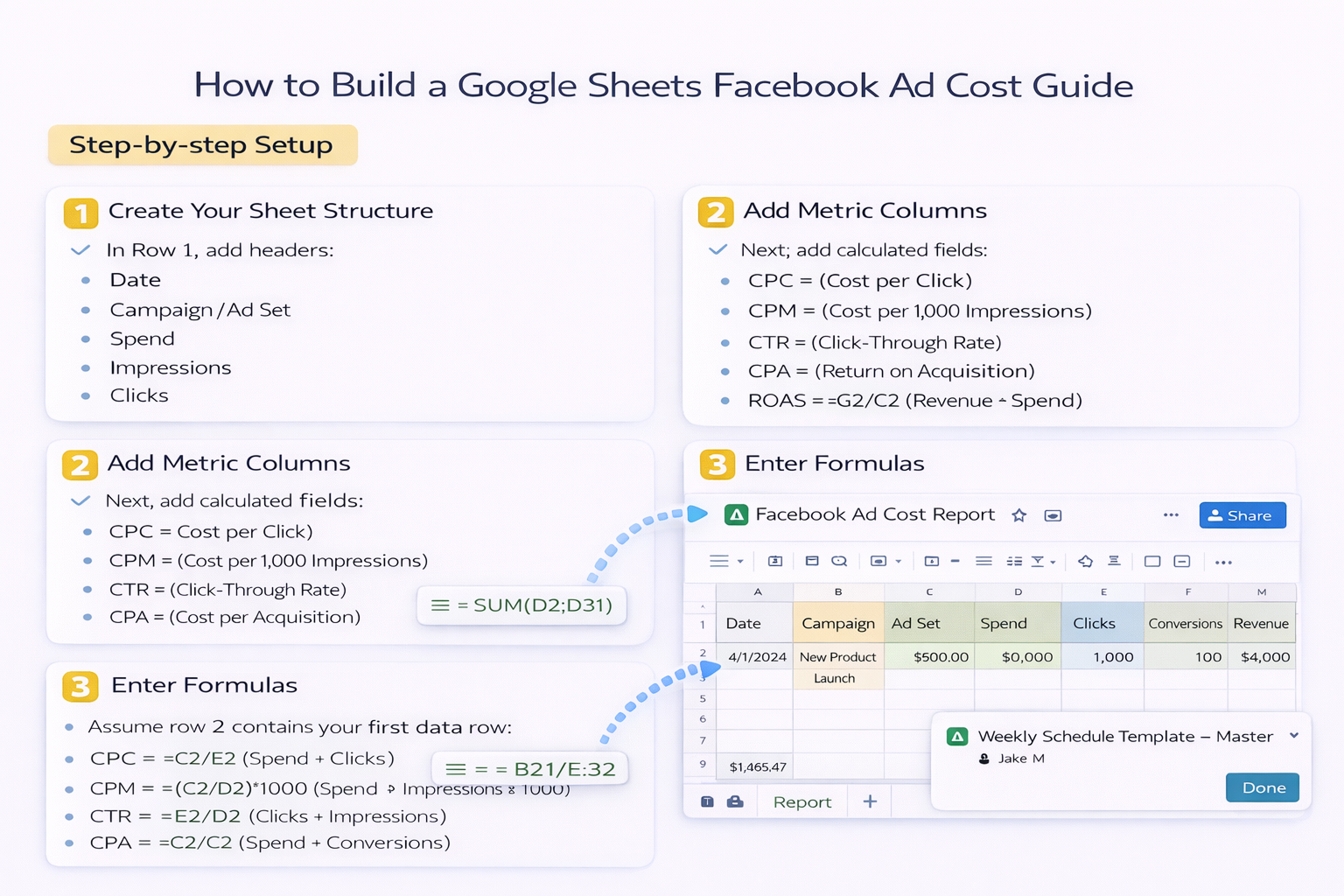
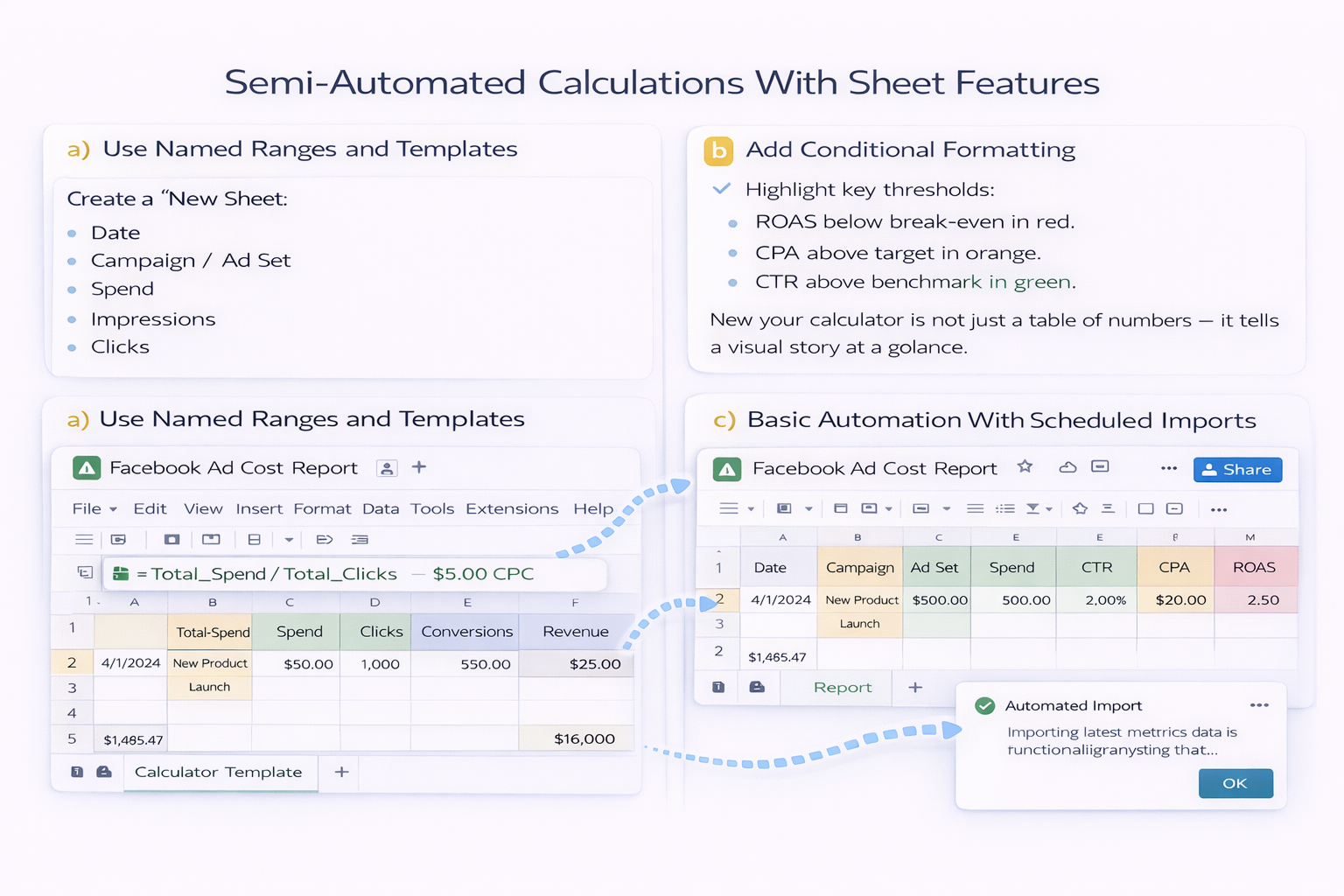
### The Problem: Too Many Numbers, Not Enough TimeIf you manage Facebook ads for your own business or a roster of clients, you already know the pattern: Ads Manager dashboards, CSV exports, half-finished spreadsheets, and a gut feeling that your ROAS could be better if you just had an extra hour to analyze.A Facebook ad cost calculator — especially one that lives in Google Sheets — is how you turn raw metrics into real decisions. And when you pair it with an AI computer agent like Simular, you can run that whole process on autopilot.Below are the top ways to calculate Facebook ad costs, from fully manual to fully automated.---## 1. Manual Facebook Ad Cost Calculator in Google SheetsThis is the starting point: you build the calculator once, then (for now) keep it updated by hand.### Step-by-step Setup1. **Create Your Sheet Structure** In Row 1, add headers: - Date - Campaign / Ad Set - Spend - Impressions - Clicks - Conversions - Revenue2. **Add Metric Columns** Next, add calculated fields: - CPC (Cost per Click) - CPM (Cost per 1,000 Impressions) - CTR (Click-Through Rate) - CPA (Cost per Acquisition) - ROAS (Return on Ad Spend)3. **Enter Formulas** Assume row 2 contains your first data row: - `CPC` = `=C2/E2` (Spend ÷ Clicks) - `CPM` = `=(C2/D2)*1000` (Spend ÷ Impressions × 1000) - `CTR` = `=E2/D2` (Clicks ÷ Impressions) - `CPA` = `=C2/F2` (Spend ÷ Conversions) - `ROAS` = `=G2/C2` (Revenue ÷ Spend)4. **Copy Formulas Down** Drag the formulas down so every new row you add is automatically calculated.5. **Pull Numbers From Facebook Ads Manager** - Open Ads Manager. - Filter by account, date range, and campaign/ad set level. - Export the data or copy/paste the main metrics into your Sheet on a regular cadence (daily, weekly, or per campaign).### Pros- Complete control over formulas and layout. - Easy to customize for unique funnels or blended metrics. - Zero extra tools required.### Cons- Manual copy-paste is time-consuming and error-prone. - Easy to forget updates, leaving you with stale data. - Doesn’t scale well across many ad accounts or clients.---## 2. Semi-Automated Calculations With Sheet FeaturesBefore bringing in AI agents, squeeze more value from Google Sheets itself.### a) Use Named Ranges and TemplatesCreate a “Calculator Template” tab with all formulas and a clear input section. Use **named ranges** (like `Total_Spend`, `Total_Clicks`) so your formulas read like sentences, making it easier for teammates and clients to understand.### b) Add Conditional FormattingHighlight key thresholds:- ROAS below break-even in red. - CPA above target in orange. - CTR above benchmark in green.Now your calculator is not just a table of numbers — it tells a visual story at a glance.### c) Basic Automation With Scheduled ImportsIf you’re comfortable with connectors or scripts, you can connect Google Sheets to Facebook via a third-party connector or an Apps Script calling the Facebook Marketing API. That automatically updates raw metrics, while your existing formulas do the math.### Pros- Reduces manual work while keeping your familiar Sheet. - Better visibility through formatting and standardized templates. - Good middle ground for small teams.### Cons- Connectors and scripts still require setup and maintenance. - When Facebook or your structure changes, things tend to break. - You’re still the human orchestrating the workflow.---## 3. Fully Automated Workflow With a Simular AI Computer AgentThis is where you stop being a spreadsheet operator and start acting like a strategist. Instead of logging in, exporting, and pasting data yourself, you teach an AI computer agent to do it for you.### What the Simular Agent Can DoUsing Simular Pro, you can spin up an agent that:- Logs into Facebook Ads Manager in your browser. - Navigates to the right account and date range. - Exports or copies metrics (spend, impressions, clicks, conversions, revenue). - Opens Google Sheets, pastes data into the correct tab and cells. - Triggers your cost and ROAS formulas. - Optionally summarizes performance for you in plain language.All of this runs like a very fast, very careful assistant who never gets bored of repetitive clicks.### How to Set It Up (Conceptually)1. **Define the Workflow** Record a single “perfect run” yourself: from logging in, to pulling data, to updating your Sheet. Write this as a clear checklist.2. **Onboard the Agent** In Simular, you give the agent access to your desktop, browser, and Google Sheets. You specify the Sheet URL, tabs to use, and how to handle different date ranges.3. **Teach It the Rules** - Where to find each metric in Ads Manager. - How to paste into your template (e.g., always append below the last row). - What to do if something changes (e.g., a new campaign appears).4. **Run and Review** Let the agent perform a test run while you watch. Because Simular’s execution is transparent, you can see each step, correct mistakes, and update the workflow.5. **Schedule and Scale** Once stable, schedule the agent: hourly, daily, or weekly. Use the same agent design across multiple client accounts by changing only the Sheet and account parameters.### Pros- Frees you from all the repetitive clicking and exporting. - Production-grade reliability across thousands of steps. - Transparent actions: you can inspect, tweak, and improve the workflow. - Scales effortlessly across campaigns and clients.### Cons- Requires an initial time investment to design and test the workflow. - Best suited for teams or agencies running ongoing campaigns, not one-off boosts.---## 4. Which Approach Should You Choose?- **Solo founder or early-stage marketer?** Start with the manual Google Sheets calculator. Get comfortable with CPC, CPM, CTR, CPA, and ROAS first. - **Growing business or small agency?** Add formatting, templates, and scheduled imports to standardize reporting. - **Scaling agency or in-house team with multiple accounts?** Move to a Simular AI computer agent so your “calculator” becomes a living system that updates itself.The endgame is simple: you spend less time wrangling numbers and more time deciding what to do about them — creative tests, new audiences, better offers. Let the agent handle the math and the mechanics; you handle the strategy.


Scale Facebook Ad Costs With AI Agents in Sheets Now

Train Simular agent
Set up a Simular AI agent with access to Facebook Ads Manager and your Google Sheets budget template. Walk it through one full export-and-paste run so it learns where to grab metrics and where to store them.
Test & tune Simular
Run the Simular agent on a small date range, watch each desktop and browser step, and adjust cell ranges or filters. Use its transparent logs to fix edge cases so the Facebook ad cost calculator works perfectly on the first full run.
Delegate and scale it
Once reliable, schedule the Simular AI agent to refresh your Facebook ad cost calculator in Google Sheets on autopilot. Reuse the same workflow across accounts to scale reporting without adding manual analyst hours.

FAQS