Oops! Something went wrong while submitting the form.
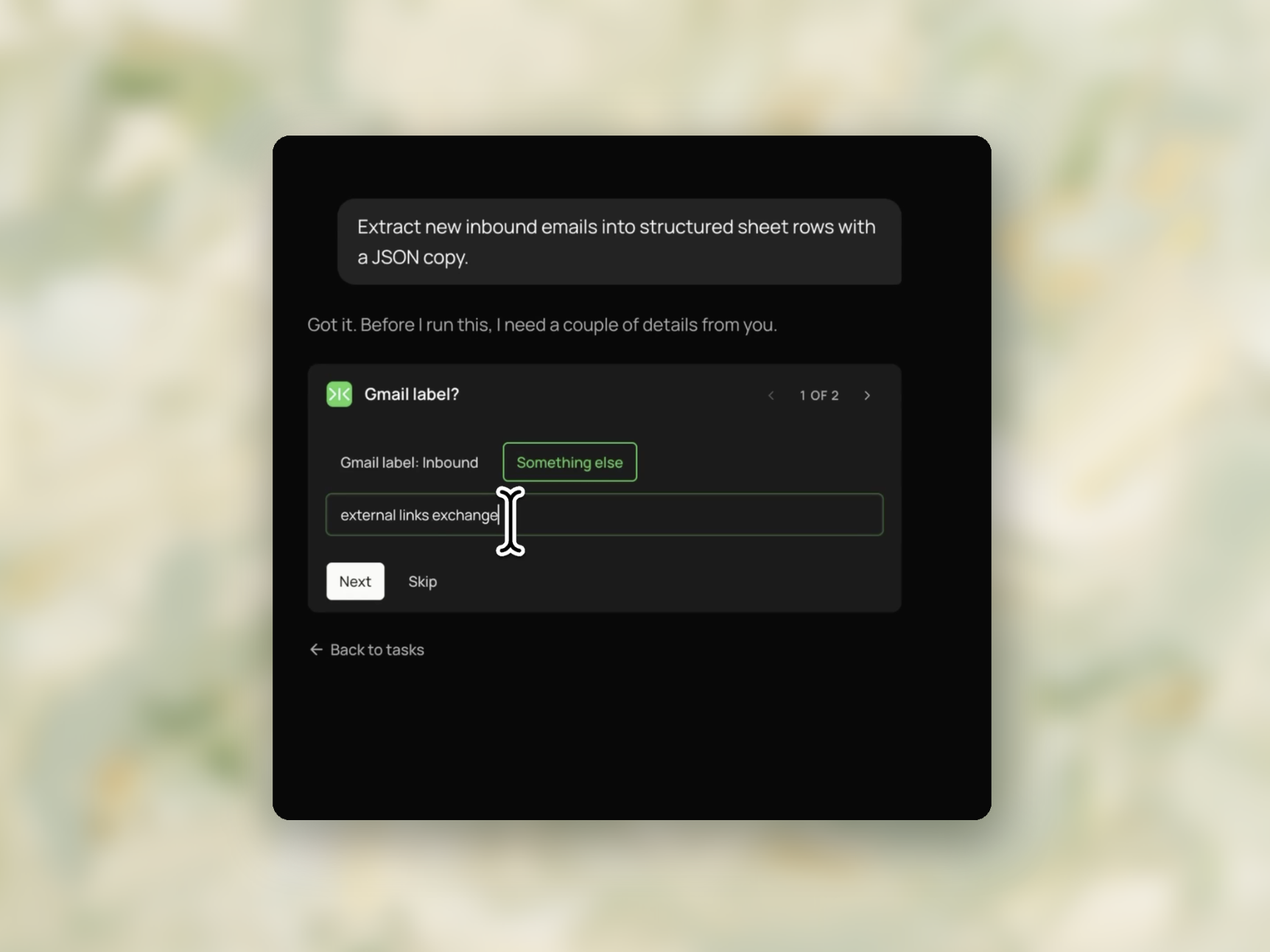
Sai reads the inbound emails, extracts sender name, email, company, domain, subject, intent and any phone or budget mentioned, and appends one row per email with a JSON copy in the last column. In the recorded run it scanned 119 messages, classified 111, and logged the 23 that qualified.


The recording is a real session. The sheet on the right is what it produced.
Sai opens each profile, pulls the signal, and writes the row, live, in a real browser.

Eight columns, sorted by score, with a source link behind every claim.
Gmail access and a target Google Sheet. Either a Gmail label, or a description of the category in plain language.
One row per email with sender name, email, company, domain, subject, intent, and any phone or budget stated — plus a JSON copy in the last column with consistent keys. The tab name, row range, and before/after log count are reported, along with what was excluded and why.
Hourly for active inbound. Daily is sufficient where same-hour response is not required.
Email data extraction is the process of turning the contents of an inbound email — the sender, the organisation, the request, any figures or dates in the body — into named fields that another system can read.
An email arrives as two parts: a set of headers, and a body. Headers are standardised. RFC 5322 defines the From field as the author of the message and Reply-To as the address the author nominates for responses; these can differ, and where they do, the reply address is the one that matters operationally. Headers also carry the message identifier, the date, and the subject.
The body is not standardised. A sender's name in the signature block, the company they work for, the size of the request, the deadline they mention — these appear in prose, in whatever form the sender chose. No parser reads them from a defined position.
This split is what makes email extraction different from parsing a form submission. Half the information is in a fixed schema and half is in free text, and the half that usually determines what happens next is the unstructured half.
A contact form produces the same fields every time, because the form defined them. An inbound email produces whatever the sender wrote.
Two enquiries about the same thing can arrive as a three-line note with a signature block and as an eight-paragraph message with the budget stated mid-sentence. Both contain the same operational facts. Neither presents them in the same place.
The common workarounds each give something up. A forwarding rule moves the email but does not read it. A regular expression captures a phone number reliably and a company name unreliably. Zapier's Email Parser requires a template drawn on a sample email, which works for machine-generated mail with a fixed layout and does not survive a human writing freely.
The practical result is that inbound email is usually re-keyed by hand into a CRM or a spreadsheet, and the fields that get entered are the ones the person had time for.
Sales teams handling inbound enquiries. The lead exists in an inbox rather than in the CRM until someone types it in, and the details that qualify it — company, headcount, stated budget, timeline — are in the body.
Support and operations desks. Requests arriving by email need a category, a requester, and an account reference before they can be routed.
Recruiters receiving direct applications. Candidate name, role of interest, and current employer arrive as prose plus an attachment.
Anyone maintaining a spreadsheet from an inbox. The transcription step is the whole job.
Manual re-keying reads everything correctly. It is the only method in the table that does, and it is listed first for that reason. Its constraint is throughput, not accuracy.
Sai opens Gmail as you, reads the messages you specify, and returns JSON with the fields you named.
The field list is written in plain language rather than configured. Asking for sender name, company, email address, request type, stated budget and deadline returns those six keys. Emails where a field is absent return it as null rather than omitting the key, so the output shape stays constant across a batch.
Header fields come from the message headers. Body fields are read from the prose. There is no template to draw and no sample email to train on.
JSON extracted from email is usually written into something else, which means duplicates matter. The Gmail API exposes two identifiers and they are not interchangeable.
id is documented as the immutable ID of the message — one specific email. threadId is the ID of the thread the message belongs to — the conversation, shared by every reply in it.
Keying a record on the thread means a reply updates the existing row. Keying on the message means each reply creates a new one. Which is correct depends on whether the unit of work is the conversation or the individual message, but choosing without knowing the difference produces either silent overwrites or duplicated leads.
The output is only as useful as the field list, and the common failure is asking for too much.
Fields that are reliably present in the email get filled. Fields that are usually absent return null across most of the batch, adding keys without adding information.
A short list — who sent it, from where, what they want, and any figure or date they stated — covers most routing and qualification decisions. Fields can be added once the first batch shows what the mail actually contains.
For scheduled outbound rather than inbound processing, scheduling email in Gmail handles the sending side.
Where extracted records feed a sheet that then needs additional company data, lead list enrichment continues from that point.
For inboxes where the question is what needs a response rather than what the mail contains, email management covers triage.