Oops! Something went wrong while submitting the form.
Sai reads a set window of Gmail and returns a briefing organized by accountability: what you owe others, what others owe you, and which threads require no action. Deadlines are recorded only when stated in the email. The briefing stays private until you approve it.

The recording is a real session. The sheet on the right is what it produced.
Sai opens each profile, pulls the signal, and writes the row, live, in a real browser.
Eight columns, sorted by score, with a source link behind every claim.
A connected Gmail account and a time window. Sai confirms the scope up front and shows you the draft before anything is shared.
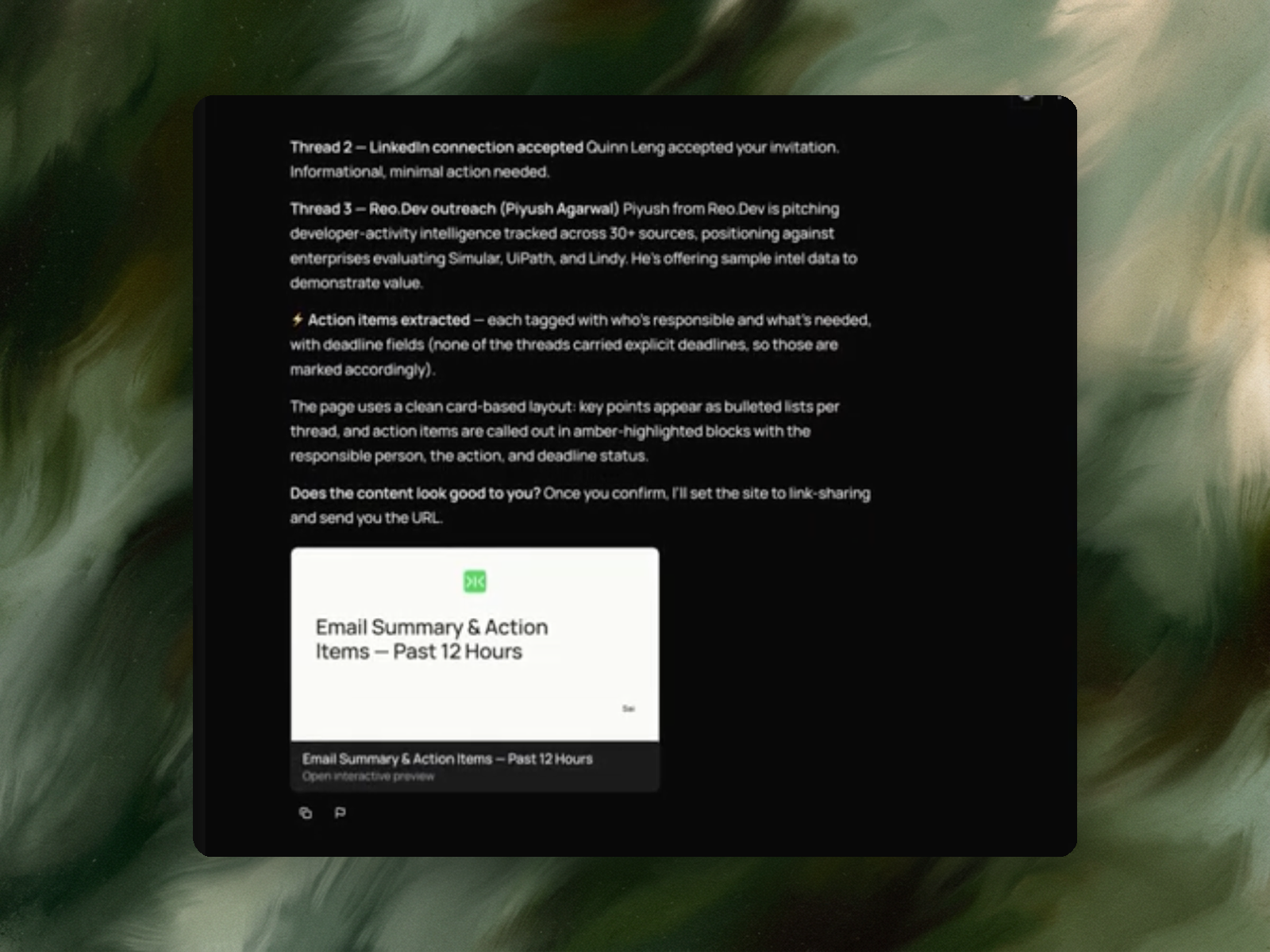
A card-based briefing with per-thread key points and action items in highlighted blocks — each tagged with who's responsible, what's needed, whether a deadline was actually stated, and which thread it came from. Private until you say otherwise.
One run covers fetching, summarizing and extracting across the whole window, then pauses for your review before anything is shared. The example covered a 12-hour window.
Run it every morning at 8am and the first thing you see is what moved overnight and what's now on you.
Almost always one of three things: sort your inbox, summarize threads, or draft your replies.
The category is good at this. SaneBox pulls low-priority mail into separate folders and gives you a quiet inbox in about five minutes. Fyxer organizes your inbox and writes your next reply. Superhuman and Shortwave make triage fast enough that a large inbox stops being frightening. Gmail and Outlook now do a version of this natively.
If your problem is volume — too much mail, not enough time to sort it — one of those will fix it, and this page won't argue otherwise.
But they share an assumption worth naming: that the goal is to get through your inbox. Every feature points at making processing faster. Sort faster, read faster, reply faster, archive faster.
Getting through your inbox is not the same as knowing what you signed up for.
Because clearing mail and tracking commitments are different jobs, and only one of them has a tool.
The pattern is familiar. You spend forty minutes clearing 200 messages. Inbox zero. It feels finished. Then on Thursday someone asks about the file you said you'd send on Tuesday, and you have no memory of agreeing to it — because you processed that thread, you didn't record it.
The commitment was real. It was in the thread. You read it. But read-and-archive is a workflow designed to make mail disappear, and a commitment that disappears along with the message is one you will miss.
Inbox tools aren't built to catch this, and that isn't an oversight. Their success metric is an empty inbox. Yours is a kept promise. Those two come apart exactly when the week gets busy.
Not a tidier inbox. A record of who owes what.
Sai reads the window you set and produces two things. First, per-thread key points — what each conversation is actually about, in a few lines rather than a subject line. Second, a structured action list where every item carries the person responsible, the action needed, whether a deadline was stated, and which thread it came from.
The example run shows the shape. One thread is a LinkedIn connection acceptance from Quinn Leng — logged, and marked explicitly as informational, minimal action needed. Another is inbound outreach from Piyush at Reo.Dev, pitching developer-activity intelligence and offering sample data, with the specifics of what's being offered captured rather than flattened into "sales email."
Notice what the first one does. It doesn't dress up a non-event as a task. A tracker that converts every message into a to-do is just your inbox with extra steps — and the willingness to say "this needs nothing" is what keeps the list short enough to act on.
No, and this is the design decision I'd point at first.
From the example run: "Action items extracted — each tagged with who's responsible and what's needed, with deadline fields (none of the threads carried explicit deadlines, so those are marked accordingly)."
Not one thread had a stated deadline, so not one got a date. It would have been easy to produce a more impressive-looking output by inferring — "probably end of week," "likely urgent" — and that output would have been worse than useless. A list you can't trust is a list you have to re-verify against the original emails, which is precisely the work you were trying to avoid.
Deadlines come from the email, or they're marked as not specified. That's the entire rule, and it's what makes the output safe to work from.
Cards, with the actions visually separated from the summaries.
Key points appear as bulleted lists per thread. Action items are pulled out into highlighted blocks showing the responsible person, the action, and the deadline status. The two things you do with a briefing — read for context, act on obligations — are given different visual treatment so you're not hunting for the second inside the first.
That matters for a document you'll open every morning at speed. A wall of prose with commitments buried in it recreates the original problem at a smaller scale.
No. It's private until you've read it and said yes.
From the run: "Does the content look good to you? Once you confirm, I'll set the site to link-sharing and send you the URL."
The briefing is rendered for review first. Link-sharing is a separate step that happens after you approve, not a default. Given what ends up in a briefing like this — a vendor's pricing pitch, who you're connected to, what you've committed to and to whom — publishing first and asking later would be the wrong order.
It also takes no outgoing actions. Nothing sent, nothing replied to, nothing written anywhere except the briefing itself.
Outside your inbox, once you've approved it.
That's an unusual property in this category. An inbox assistant's output is only ever visible inside your inbox, to you. But a list of commitments is frequently something someone else needs to see — a standup, a shared doc, a manager or chief of staff who needs to know what's in flight without being given access to your mail.
Approved, it's a link. Unapproved, it's yours alone.
Worth being direct, because this is a category where the gaps matter.
It doesn't organize your inbox. No labels, no folders, no sorting, no unsubscribing. Run it and your inbox is exactly as it was.
It doesn't draft replies. Fyxer and Superhuman do this well; we don't do it here.
It doesn't send anything. The output is a briefing, not an outbox.
It isn't always-on. It runs when you run it, over the window you set.
It doesn't reduce your email volume. Same amount of mail. You just know what's in it.
So if you're evaluating tools to get a 3,000-message inbox under control, buy one of the inbox tools. This is for the person whose inbox is already manageable and who still keeps dropping things.
Yes, and honestly that's the setup I'd expect.
They work on different layers and don't collide. Let SaneBox or Superhuman handle triage so the inbox stays navigable. Run this in the morning so you start the day with a list of commitments rather than a list of messages.
One reduces the volume. The other extracts the obligations. Neither substitutes for the other, and the tools in this category don't compete on the second one because none of them are on it.
That's when it becomes a habit rather than a tool. Set it for 8am and you open your inbox already knowing what's in it — what you owe, what you're waiting on, what you can ignore.
If you want the same idea across more than just email, our daily communication briefing reads your calendar and Slack alongside Gmail and organizes by urgency rather than by accountability — it answers "what should I do first," where this one answers "what did I agree to." And when a thread ends with "let's just get on a call," scheduling a Google Meet from Slack closes that loop without a trip to your calendar.