Oops! Something went wrong while submitting the form.


.svg)
Before AI agents, most founders, agency owners, and sales leaders lived inside their calendars and spreadsheets. Google Sheets became the de facto place to juggle client projects, campaign timelines, and staff rosters. It’s flexible, cloud-based, and familiar to everyone on the team. Learning how to make a schedule in Google Sheets gives you a single, source‑of‑truth grid where you can see days, shifts, owners, and dependencies at a glance.
Once you know the basics—using the template gallery, freezing headers, color‑coding with conditional formatting—you can spin up weekly or monthly schedules in minutes instead of hours. You can share one link with your team, capture updates in real time, and build lightweight systems without buying more software.
But here’s where it gets interesting: the same schedule that used to trap you in manual updates can become a fully automated workflow when you hand it to an AI agent. Imagine an AI agent that opens Google Sheets like a human assistant, copies your master template, fills in dates and owners from your CRM, color‑codes risks, and emails links to your team—every single week. Delegating this to an AI agent turns scheduling from a recurring chore into a background process that quietly keeps your business on schedule.
Google Sheets is often the first place a business owner or agency leader designs a schedule: client deliverables, employee shifts, content calendars, or launch timelines. Done right, a single sheet can keep an entire team aligned. Done manually, it quietly eats away hours every week.
Below are three practical layers of sophistication:
This is the fastest way to start if you’re not ready to design from scratch.
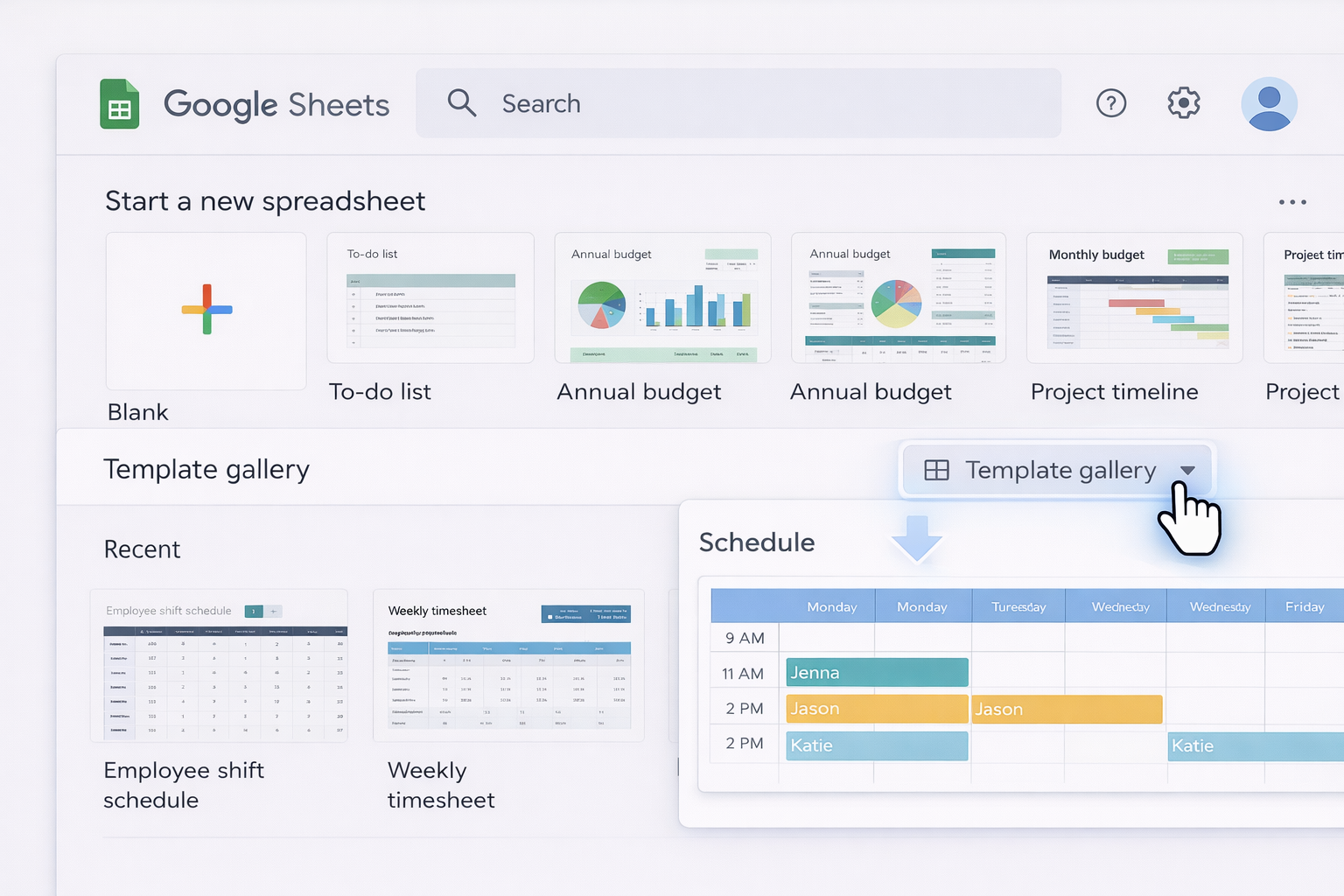
Steps:
When to use: First version of a team roster, content plan, or simple weekly planner.
When you need more control (extra columns, statuses, notes), build your own.
Steps:
Time, Monday, Tuesday, Wednesday, Thursday, Friday, Saturday, Sunday.
Color makes patterns obvious: nights vs days, campaigns vs internal tasks, at‑risk deadlines.
Steps:
B2:H49).Prospecting, Client Call, or Overtime.Official help: https://support.google.com/docs/answer/78413
As your team grows, you may want only managers to change certain cells.
Steps:
Docs on protection: https://support.google.com/docs/answer/1218656
Field teams or managers without stable Wi‑Fi still need to see the plan.
Steps:
Official help: https://support.google.com/docs/answer/2494822
Pros of traditional methods:
Cons:
Instead of chasing Slack messages and emails, let people submit data that flows directly into Sheets.
Example: Employees submit weekly availability; the responses feed a master schedule sheet.
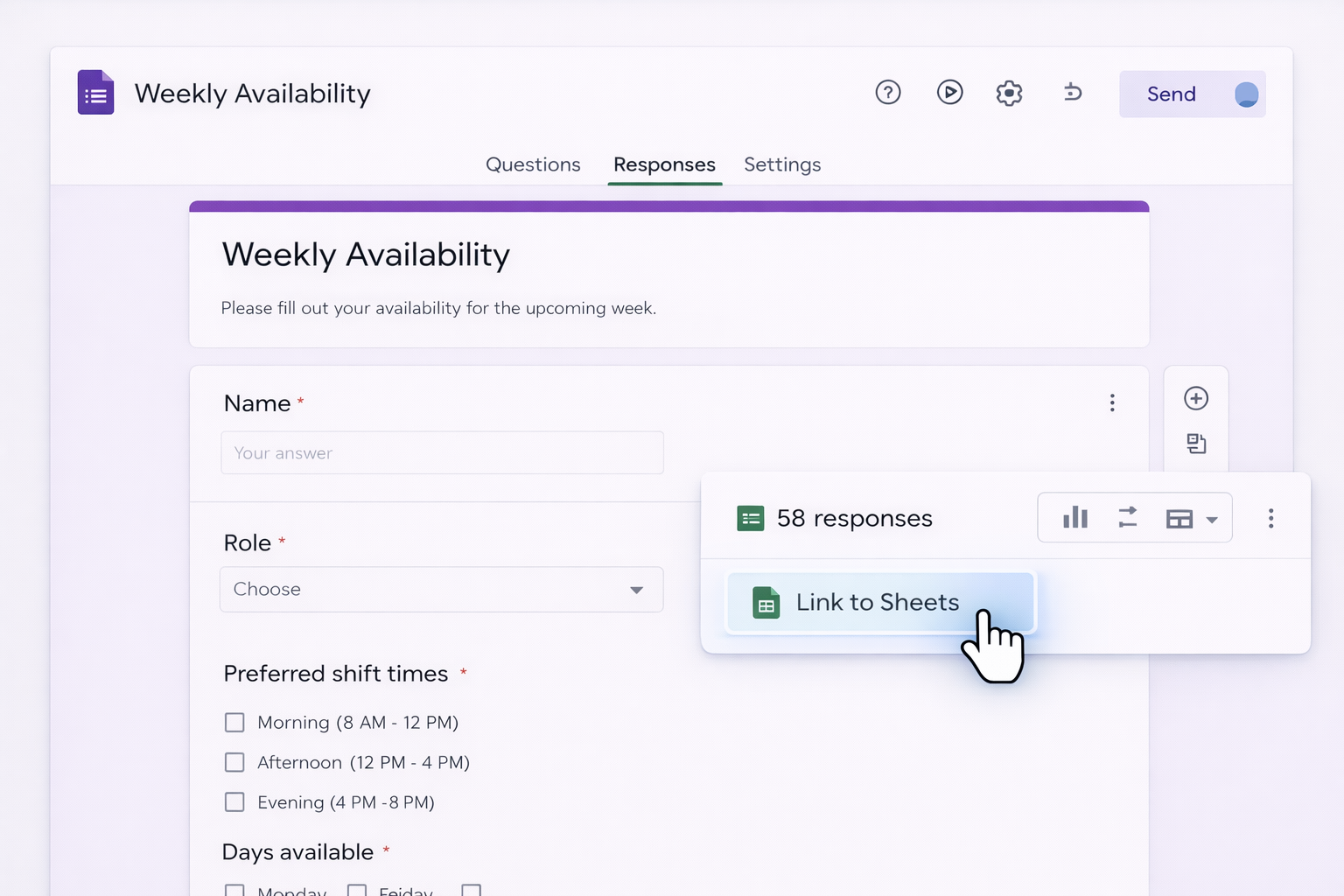
Steps:
=FILTER() or =VLOOKUP() to pull availability into your visible weekly schedule.Docs: https://support.google.com/docs/answer/2917686
Sheets can email you when someone edits the schedule—no separate status checks.
Steps:
Docs: https://support.google.com/docs/answer/91588
You can automate the busywork around your schedule with no code.
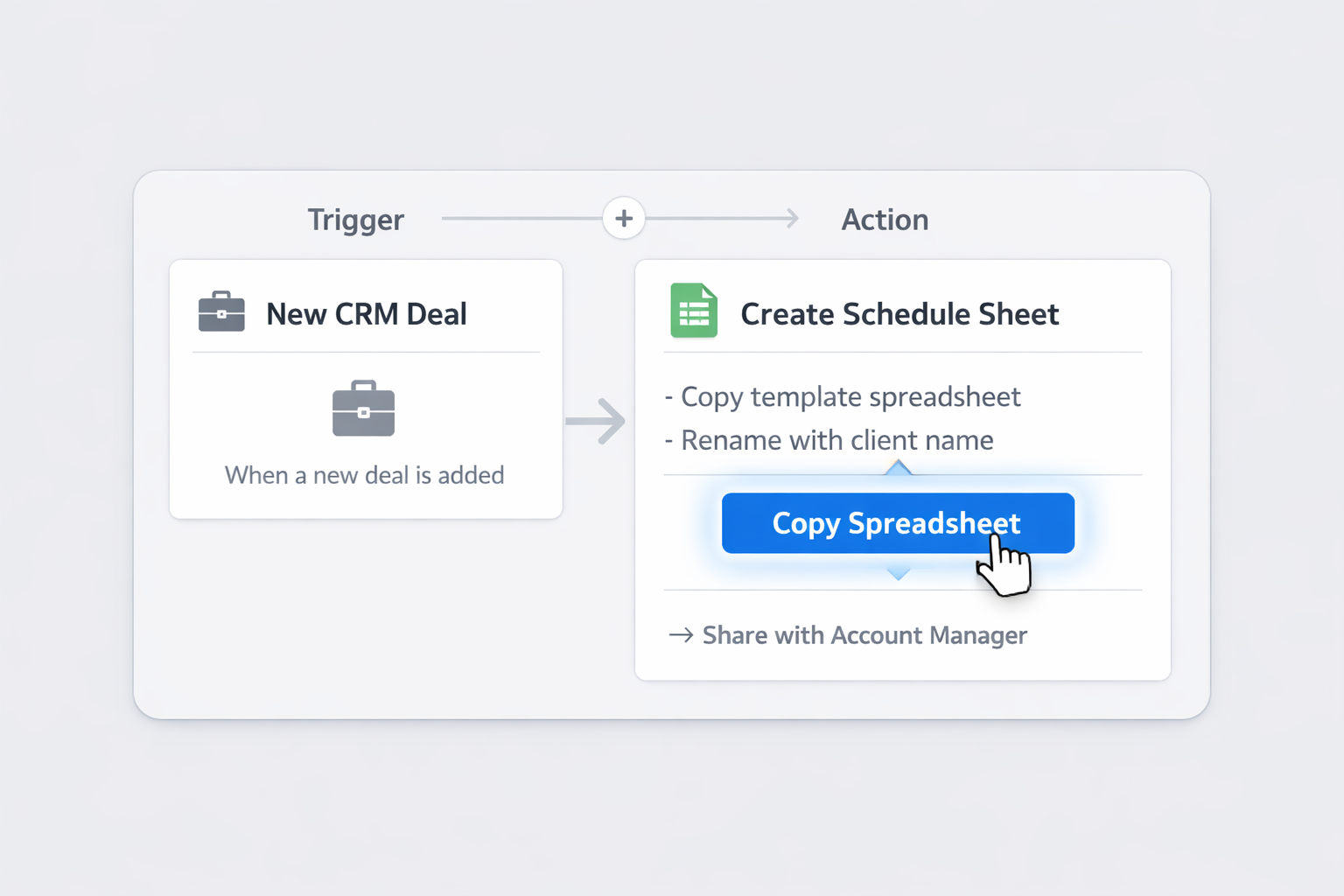
Example 1: Create a new schedule sheet when a new client is added in your CRM.
Example 2: Post daily schedule snapshots to Slack.
Check Google’s integration overview: https://workspace.google.com/products/sheets/
Pros of no‑code automations:
Cons:
Simular builds autonomous computer agents that behave like a skilled assistant at your Mac: they open the browser, navigate to Google Sheets, click, type, drag, and follow your instructions across desktop, browser, and cloud apps.
Learn more: https://www.simular.ai/simular-pro
Imagine every Friday at 3 PM, an AI agent prepares next week’s schedule without you.
How it works:
Pros:
Cons:
Agencies and franchises often inherit dozens of ad‑hoc sheets from different teams. Standardizing them manually is painful.
Agent workflow:
This uses the same abilities Simular already demonstrates for web data extraction and spreadsheet operations.
Pros:
Cons:
For sales and marketing teams, schedules depend on live data: campaigns, lead volume, events.
Example:
Pros:
Cons:
You can explore Simular’s research‑driven approach and team here: https://www.simular.ai/about
Together, these three layers—manual, no‑code, and AI‑agent—give you a roadmap. Start simple in Google Sheets, add no‑code automation as you grow, and let Simular AI agents take over once the process is stable enough to scale.