
What Is a Kanban Board? Examples, Templates, and How to Build One with AI

Learn what a kanban board is, see real examples for marketing, software, and executive tasks, and discover how to generate one automatically with AI in 2026.
Advanced computer use agent
Production-grade reliability
Transparent Execution

How to Use Sai for Kanban Board Generation

Natural Language Board Generation
Describe your project in plain text — "marketing campaign with 15 tasks across content, design, and ads teams" — and Sai generates a complete kanban board with appropriate columns, task cards, team assignments, and color coding.
Google Sheets Native
Every board is created in Google Sheets with frozen headers, conditional formatting, data validation dropdowns, and auto-filters — shareable with any team without requiring them to learn new software.
Template Flexibility
Sai adapts the board structure to your use case. A software sprint board gets Backlog/In Progress/Code Review/QA/Done columns. An executive assistant board gets Urgent/This Week/This Month/Delegated columns. You describe the context; Sai picks the right structure.

What Is a Kanban Board?

A kanban board is a visual project management tool designed to help teams visualize work, limit work-in-progress, and maximize workflow efficiency (Atlassian, 2026). The word "kanban" comes from Japanese and translates roughly to "visual signal" or "sign board."

The concept originated in Toyota's manufacturing system in the late 1940s, where Taiichi Ohno developed a scheduling system to improve production efficiency. Workers used physical cards — kanban cards — to signal when they needed more parts, creating a pull-based system that prevented overproduction and reduced waste.

In the decades since, kanban has migrated far beyond manufacturing. Software teams, marketing departments, executive assistants, HR teams, and individual freelancers all use kanban boards to manage workflows. The methodology has become so widespread that 65% of Agile teams now use some form of kanban to streamline delivery (PremierAgile, 2025, citing Atlassian State of Agile Report).

The Five Components of Every Kanban Board

David Anderson, one of the pioneers of applying kanban to knowledge work, established that kanban boards can be broken down into five components (Atlassian, 2026):

  1. Visual signals (cards): Each task is represented as a card that moves across the board. Cards typically include the task name, assignee, priority level, and due date. Physical boards use sticky notes. Digital boards use structured cards with metadata.
  2. Columns: The board is divided into columns representing workflow stages. The simplest board has three columns — To Do, In Progress, Done — but most real-world boards have 4-7 columns reflecting the actual stages work passes through before completion.
  3. Work-in-progress (WIP) limits: This is the feature that separates a kanban board from a simple to-do list. WIP limits cap the number of tasks allowed in any column at one time. If the "In Progress" column has a WIP limit of 4, a fifth task cannot enter until one of the current four moves to the next column. Teams that implement WIP limits report up to a 37% improvement in delivery times (PremierAgile, 2025).
  4. Commitment point: The stage where a task enters the active workflow. Before the commitment point, tasks sit in a backlog or idea queue. Once committed, the team is responsible for moving the task through to completion.
  5. Delivery point: The final stage where work is considered complete and delivered to the customer or stakeholder. The time between the commitment point and delivery point is the lead time — a key metric for measuring team efficiency.

Jim Benson, author of Personal Kanban, simplifies this further: kanban has only two rules — limit work in progress, and visualize your work (Atlassian, 2026, citing Benson). Everything else is customization.
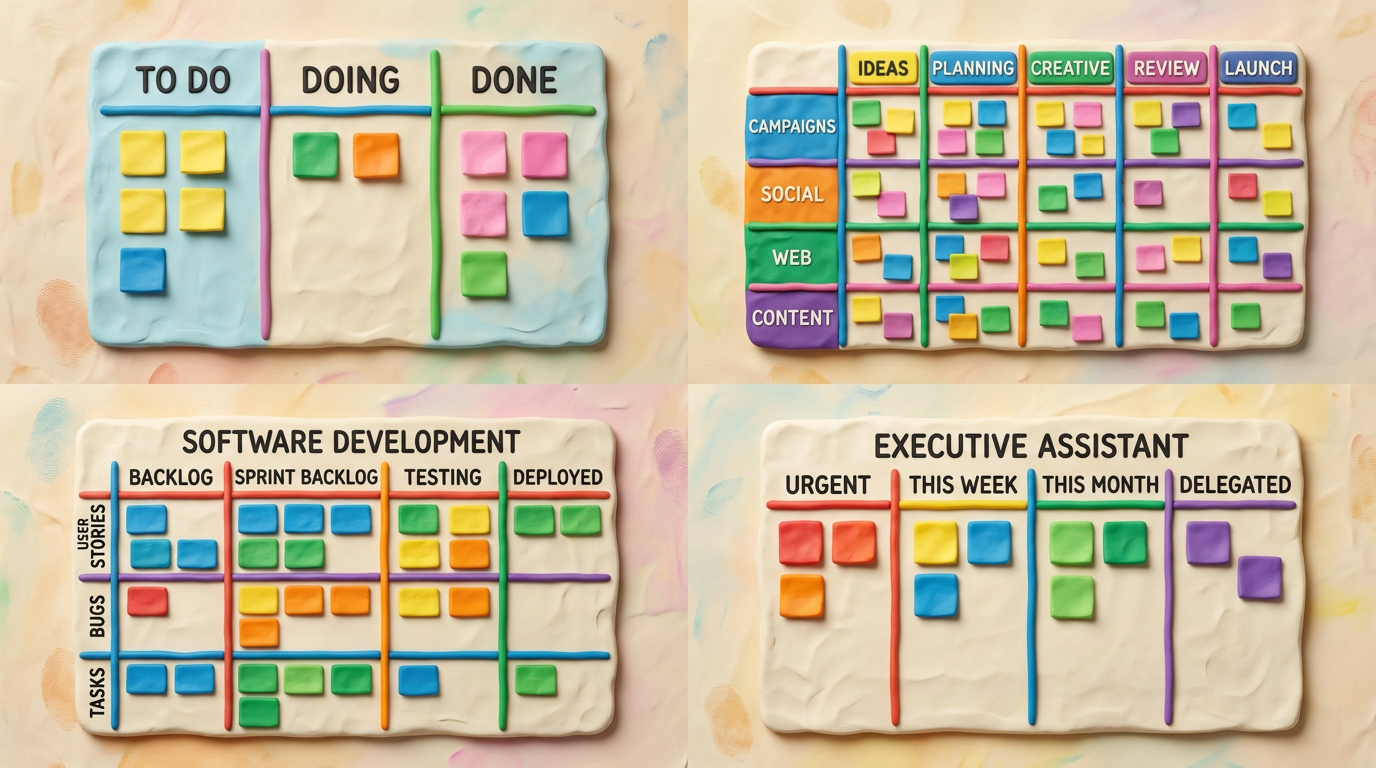
8 Kanban Board Examples for Different Use Cases

Example 1: Personal Task Board (3 Columns)

The simplest kanban board for individual productivity.

Columns: To Do | Doing | Done

WIP limit: 2 tasks in Doing. This prevents the common trap of starting five things and finishing none. Personal kanban is about finishing, not starting.

Best for: Freelancers, solo founders, students, anyone managing their own task queue.

Example 2: Marketing Campaign Board (5 Columns)

A mid-complexity board for marketing teams running campaigns.

Columns: Ideas | Planning | Creating | Review | Published

This structure mirrors the natural flow of marketing content: an idea is born, it gets planned (brief, audience, channel), content is created (copy, design, video), it goes through stakeholder review, and finally gets published.

WIP limit: 4 tasks in Creating. Marketing teams frequently bottleneck at creation because writing and design take longer than ideation. Limiting WIP forces the team to finish existing content before starting new pieces.

Swimlanes: Separate rows for Content, Design, Paid Ads, and Events allow team members to focus on their lane while leadership sees the full picture.

Best for: Marketing teams of 3-8 people running multi-channel campaigns.

Example 3: Software Development Board (6 Columns)

Columns: Backlog | Ready | In Development | Code Review | QA/Testing | Deployed

The software board adds stages that reflect engineering workflow realities: code review and QA are distinct checkpoints that catch defects before deployment. The "Ready" column serves as a refined backlog — stories that are groomed, estimated, and ready to be picked up.

WIP limit: 3 in Development, 2 in Code Review. Limiting code review ensures developers do not ignore reviews in favor of writing new code — a common pattern that creates merge conflicts and technical debt.

Best for: Agile software teams running continuous delivery.

Example 4: Executive Assistant Board (5 Columns)

Columns: Inbox | Urgent Today | This Week | Delegated | Completed

This board is designed for executive assistants who manage multiple principals, competing priorities, and constant incoming requests. The "Inbox" column captures everything new — emails, Slack messages, verbal requests — before triage. "Urgent Today" has a strict WIP limit of 3 to force prioritization.

The "Delegated" column tracks tasks handed off to other team members, with assignee names and follow-up dates on each card. This solves the EA's biggest visibility problem: knowing the status of tasks they have delegated without chasing people for updates.

Best for: Executive assistants, chiefs of staff, office managers.

Example 5: Recruitment Pipeline Board

Columns: Sourced | Screening | Interview Scheduled | Offer Stage | Hired/Rejected

Each card represents a candidate. Card metadata includes role, recruiter, interview date, and notes. The "Interview Scheduled" column links to the team's calendar system so scheduling conflicts are visible at the board level.

Best for: HR teams and recruitment agencies managing multiple open roles simultaneously.

Example 6: Sales Pipeline Board

Columns: Lead | Qualified | Proposal Sent | Negotiation | Closed Won/Lost

This board mirrors the standard sales funnel but adds kanban discipline. The WIP limit on "Proposal Sent" prevents reps from sending proposals they cannot follow up on — a pattern that kills close rates. Each card carries deal value, company name, and next action date.

When combined with Sai's lead enrichment and LinkedIn outreach capabilities, the sales board becomes a living pipeline that updates as outreach activities progress.

Best for: B2B sales teams, account executives, SDR teams.

Example 7: Content Production Board

Columns: Brief | Research | Drafting | Editing | SEO Review | Published

This board adds editorial workflow stages that generic boards miss. The "SEO Review" column ensures every piece gets GEO optimization before publication — a step many content teams skip because it is not part of their standard workflow.

Best for: Content marketing teams, editorial departments, blog publishers.

Example 8: Event Planning Board

Columns: Ideas | Pre-Production | In Progress | Vendor Confirmation | Day-Of | Post-Event

Event boards need a "Vendor Confirmation" column because event tasks frequently depend on external parties (caterers, AV companies, venues) who operate on their own timelines. Making vendor dependencies visible on the board prevents last-minute surprises.

Best for: Event planners, conference organizers, wedding coordinators.

Kanban Board Tools Compared

Feature Sai Trello Jira Notion Asana Monday.com
AI board generation Yes - from plain text No No Partial (AI assist) No Partial (AI assist)
WIP limits Yes Power-Up only Yes No No No
Swimlanes Yes Labels only Yes Group by Sections Groups
Conditional formatting Yes (auto-applied) Limited Partial Partial Yes Yes
Multiple board templates Unlimited (AI-generated) Pre-built only Pre-built only Community Pre-built 200+ templates
Works in Google Sheets Yes (native) No No No No No
No new software required Yes Requires signup Requires signup Requires signup Requires signup Requires signup
Auto-update board status Yes (scheduled) Butler automation Automation rules Limited Rules Yes
Free tier Free trial Yes (limited) Yes (10 users) Yes (limited) Yes (limited) Yes (2 seats)
Starting paid price Free trial $5/user/mo $7.75/user/mo $10/user/mo $10.99/user/mo $9/seat/mo

How to Build a Kanban Board with AI (Step-by-Step)

Step 1: Describe Your Project in Plain Text

Tell Sai what you are working on. For example:

"I am managing a product launch with 18 tasks across content, design, advertising, and social media teams. The launch date is May 15. I need columns for Ideas, Planning, Creating, Review, and Published."

Sai interprets this description and determines the appropriate board structure, column names, WIP limits, and card categories. You do not need to know kanban terminology — Sai translates plain language into board architecture.

Step 2: Sai Generates the Board Structure

Based on your description, Sai creates a Google Sheet with:

  • Column headers matching your workflow stages
  • Color-coded priority system (red = urgent, yellow = high, green = normal)
  • Team member assignment column with data validation dropdowns
  • Due date column with conditional formatting (overdue tasks turn red)
  • Status tags (Not Started, In Progress, Blocked, Complete)
  • Frozen top row so headers remain visible while scrolling

The sheet is created in your Google Drive and shared with any collaborators you specify.

Step 3: Populate Cards with Task Details

Sai fills the board with your tasks, distributing them across columns based on their current status. Each task card includes:

  • Task name and description
  • Assigned team member
  • Priority level
  • Due date
  • Content pillar or project category
  • Dependencies (if any)

For the product launch example, Sai might distribute tasks like this: 3 tasks in Ideas (future content angles), 4 in Planning (briefs being written), 4 in Creating (actively being produced), 4 in Review (awaiting stakeholder approval), and 3 in Published (already live).

Step 4: Apply Formatting and WIP Limits

Sai applies professional formatting:

  • Alternating row colors for readability
  • Column-width auto-sizing
  • Conditional formatting rules (e.g., cells turn green when status = "Complete")
  • Data validation on status columns (dropdown menus prevent free-text chaos)
  • Auto-filters on every column for quick sorting
  • A summary row at the top showing task counts per column

WIP limits are enforced visually — if the "Creating" column has a WIP limit of 4 and currently holds 4 tasks, the column header displays "Creating (4/4)" in amber. If someone adds a fifth task, it turns red.

Step 5: Review and Customize

The board is yours to modify. Change column names, adjust WIP limits, add swimlanes, or reorder tasks. Because it lives in Google Sheets, your team can edit it simultaneously — no new software to learn, no licenses to purchase, no training sessions to schedule.

Step 6: Maintain and Update

A kanban board is only useful if it stays current. Sai can update the board on a schedule — moving completed tasks to the "Done" column, flagging overdue items, and sending Slack or email notifications when WIP limits are breached. This transforms the board from a static document into a living workflow tool.

FAQS