
Oops! Something went wrong while submitting the form.
Your coding agent can write code. But can it file an expense report? Open a desktop app? Fill out a form that lives behind a login wall?
That is the question driving the newest category in AI tooling: computer use agents. OpenAI's Codex now includes a Computer Use feature that lets the agent see your screen and interact with applications through screenshots and mouse clicks. Simular's Simulang takes a fundamentally different approach — it reads the operating system's accessibility tree and writes deterministic scripts that replay without an LLM in the loop.
I tested both on the same set of desktop automation tasks. Here is what I found — and when you should pick one over the other.
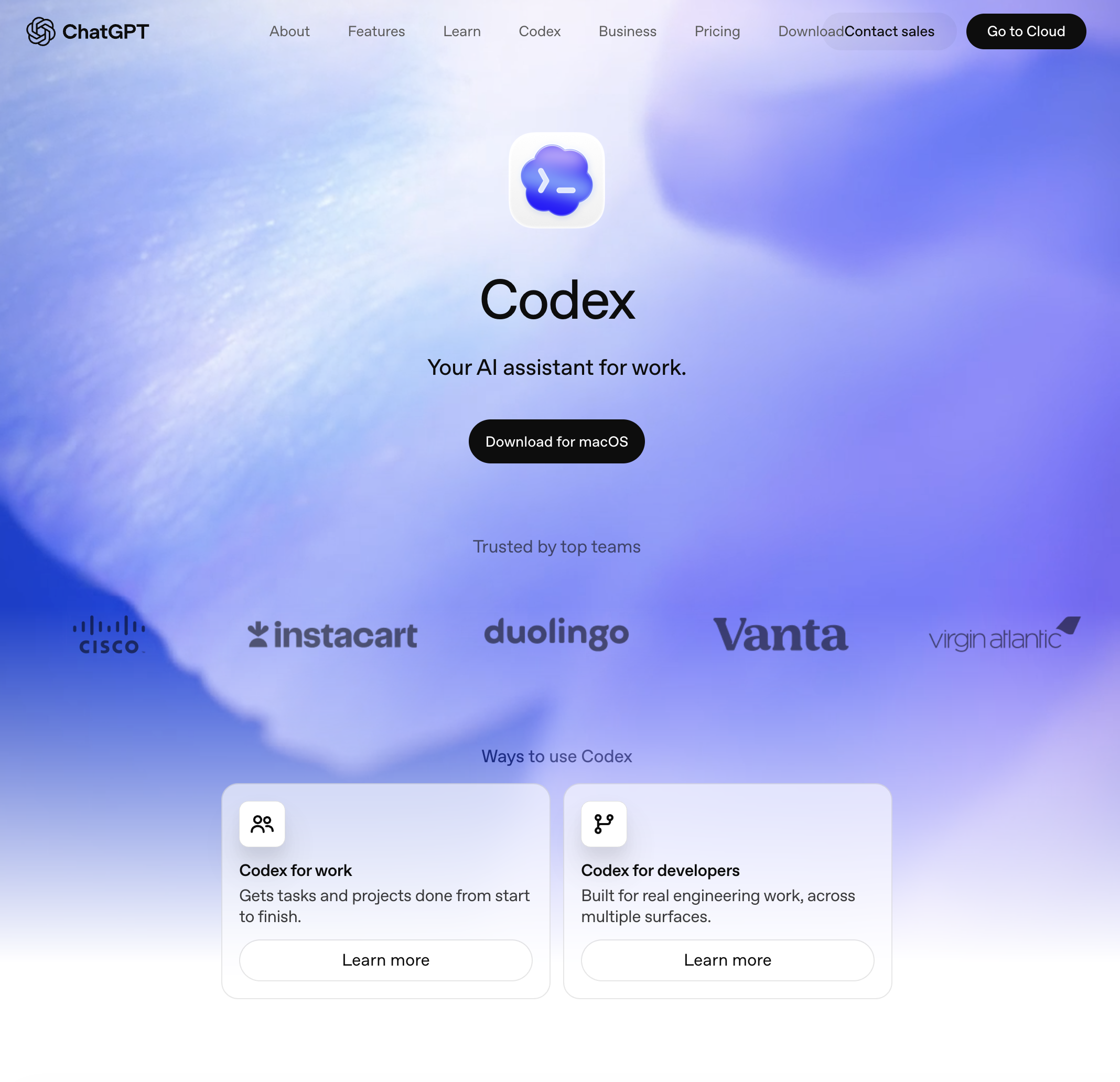
Codex is OpenAI's AI agent platform. Originally launched as a code-generation model in 2021, Codex has evolved into a full-featured agent that can write code, run terminal commands, browse the web, and — as of its latest update — control desktop applications through a Computer Use feature.
The Computer Use capability works by taking screenshots of the user's screen, sending them to a vision model, and returning mouse/keyboard actions. The agent sees what you see — a grid of pixels — and decides where to click, what to type, and when to scroll.
Codex runs in a cloud sandbox by default. The Computer Use feature extends this to local desktops through a plugin architecture.
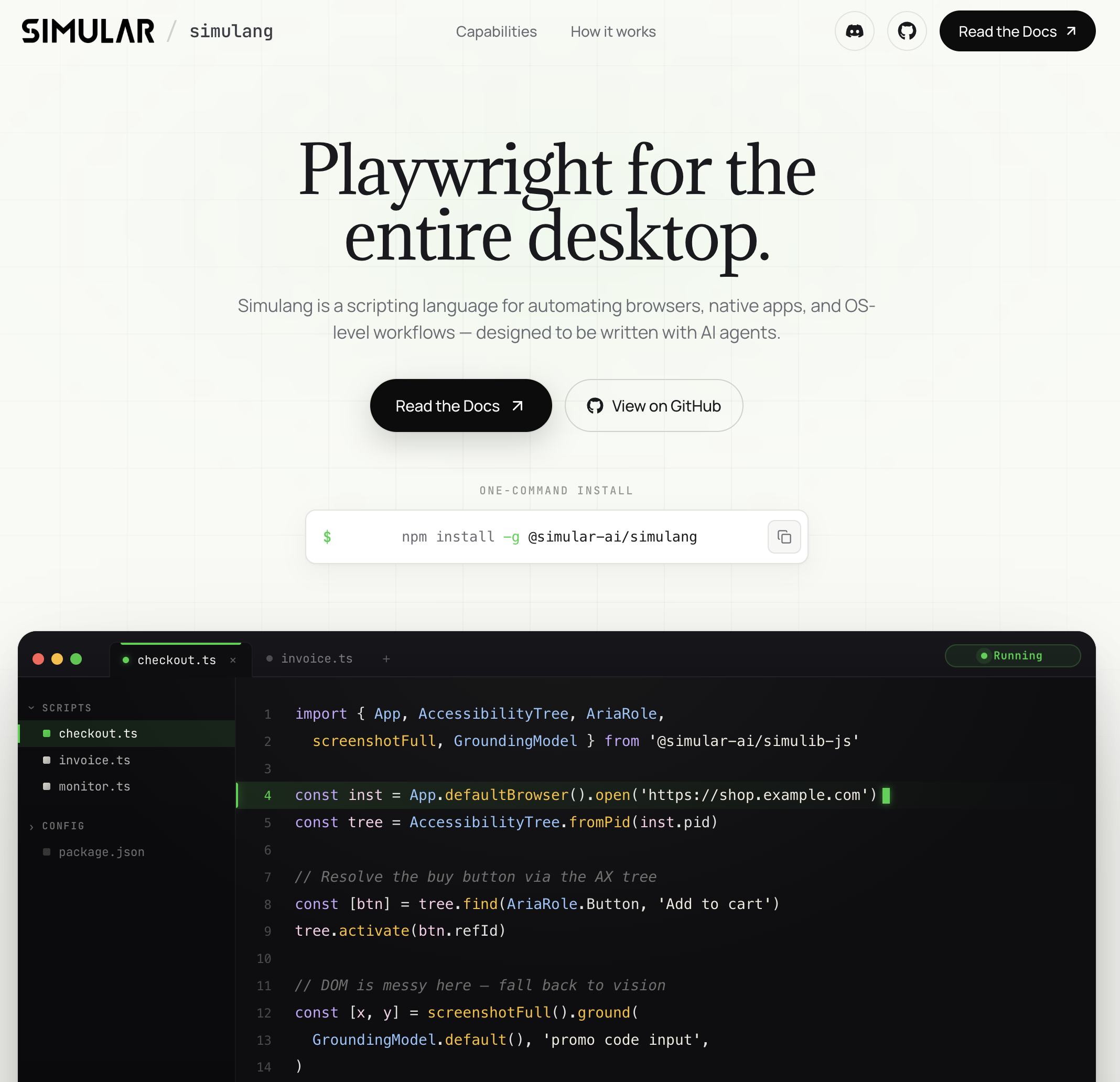
Simulang is a scripting language for automating browsers, native apps, and OS-level workflows. It is open source, installs with
npm install -g @simular-ai/simulangand produces TypeScript scripts that interact with applications through the operating system's accessibility APIs. Simulang is produced and backed by Simular.
Instead of looking at screenshots, Simulang reads the accessibility tree — the same structured interface that screen readers like VoiceOver and JAWS use. Every button, text field, menu item, and label is exposed as a named, ref-addressable element. The script interacts by reference, not by pixel coordinate.
Simulang is designed to be the output format of coding agents. Claude Code, Cursor, or any LLM-powered coding tool can write a Simulang script once, and that script replays deterministically — no LLM required at runtime.
This is the core architectural difference, and it affects everything downstream.
Codex Computer Use takes a screenshot (typically 1920x1080 pixels), sends it to a vision model, and asks: "Where is the Submit button?" The model returns coordinates. Codex moves the mouse to those coordinates and clicks.
This approach has three problems:
Simulang reads the accessibility tree and assigns a stable ref ID to each element. The script says tree.activate("ref_42") — not "click at pixel (847, 312)." If the window moves, the ref is still valid. If the OS scaling changes, the ref is still valid. If a dialog pops up, Simulang reads the new tree and finds the element by its semantic identity.
Response time per action: milliseconds. A 10-step workflow completes in under a second.
This difference determines both cost and reliability.
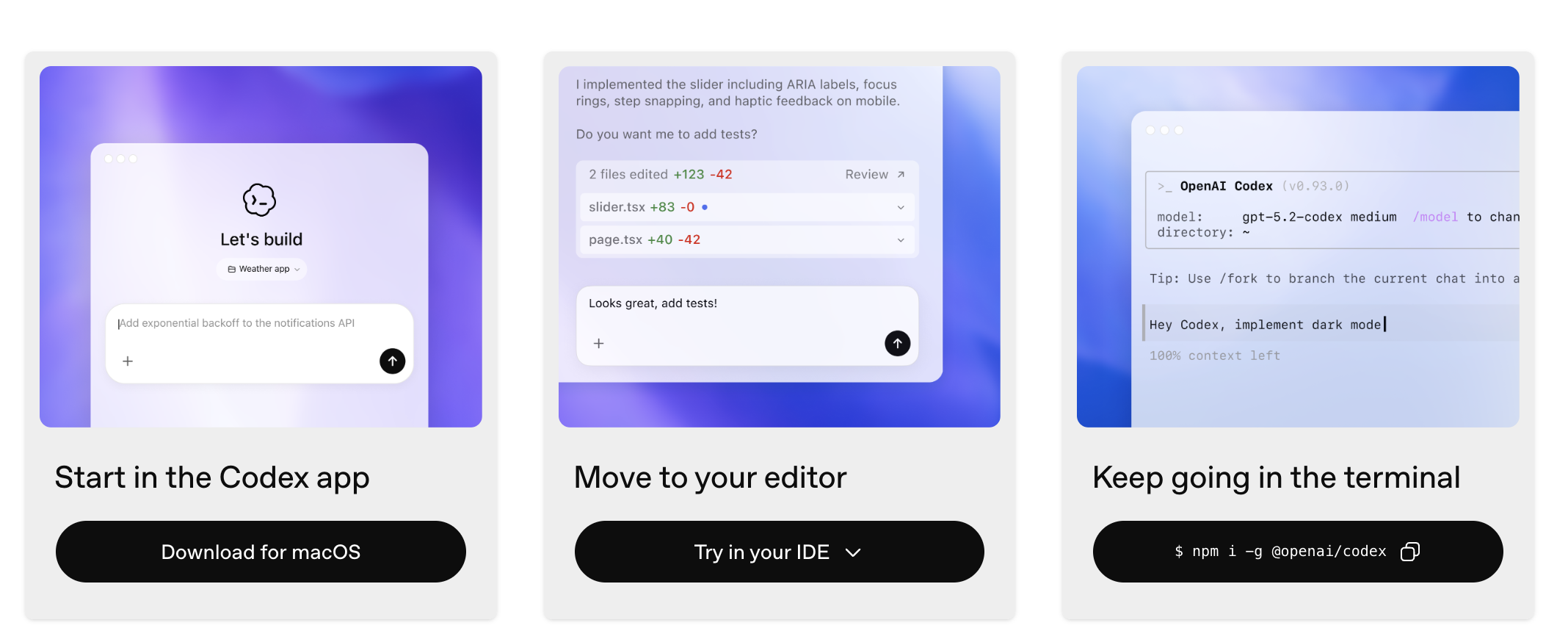
Codex Computer Use requires an LLM call for every interaction. Open a menu: LLM call. Click a button: LLM call. Type into a field: LLM call. Each call costs tokens, adds latency, and introduces a chance of misinterpretation. Run the same workflow 100 times, and you pay for 100 x N LLM calls (where N is the number of steps).
Simulang uses the LLM exactly once — at script authoring time. The coding agent (Claude Code, Cursor, etc.) writes the Simulang script, and from that point forward, the script executes deterministically. Run it 100 times, and you pay for 0 additional LLM calls.
The cost difference is not marginal. For a 20-step daily workflow running 5 days a week:
Both tools can interact with any application that appears on screen — but the mechanism differs.
Codex is application-agnostic by design: if it's visible as pixels, Codex can try to interact with it. This is genuinely useful for applications that have no API, no accessibility support, and no automation hooks. Legacy enterprise software, custom-rendered canvases, and remote desktop sessions are all fair game.
Simulang handles browsers natively (through Playwright-style accessibility APIs) and extends to any native application that exposes accessibility data — which includes virtually all standard macOS, Windows, and Linux applications. For the rare application that does not expose accessibility data, Simulang falls back to vision grounding: it takes a screenshot and uses a vision model to locate the target element.
The practical difference: Simulang uses the fast, deterministic path (accessibility tree) for 95% of interactions and the slow, probabilistic path (vision) for the remaining 5%. Codex uses the slow, probabilistic path for 100% of interactions.
Codex operates in a cloud VM by default. Your code, your files, and your credentials are uploaded to OpenAI's infrastructure. The Computer Use plugin extends Codex to local desktops, but the core architecture is cloud-first.
Simulang runs entirely on your local machine. Scripts execute against your actual desktop — your browser sessions, your logged-in applications, your file system. Nothing is uploaded. Nothing leaves your machine unless the script explicitly sends data somewhere.
For enterprises with compliance requirements (SOC 2, HIPAA, financial regulations), local execution is often non-negotiable. For individual developers who want to automate workflows involving authenticated sessions (email, banking, internal tools), local execution means no credential sharing.
Fairness matters. Here is where Codex has real advantages:
For most developers building production automation workflows, Simulang is the more practical choice: write the script once, run it forever, pay nothing per execution. For ad hoc desktop tasks where you want to point an AI at your screen and say "do this," Codex Computer Use is faster to get started.
The two tools are not mutually exclusive. You can use Codex (or Claude Code, or Cursor) to write Simulang scripts — getting the best of both worlds: LLM intelligence at authoring time, deterministic execution at runtime.