
Oops! Something went wrong while submitting the form.
Anthropic launched Claude Cowork — a feature that lets Claude control your Mac or Windows desktop through screenshots and mouse clicks. It can open apps, fill forms, and navigate menus while you watch. It feels like magic the first time you see it.
Then you watch it click the wrong button because two icons looked similar. Or wait 4 seconds between each action while the vision model processes another screenshot. Or wonder what happens to your banking credentials when screenshots are sent to Anthropic's servers for interpretation.
Simulang solves all three problems. It reads the accessibility tree instead of screenshots, executes in milliseconds instead of seconds, and runs entirely on your local machine. But Cowork has advantages too — especially for non-technical users who want to point at their screen and say "do this."
I tested both on the same desktop workflows. Here is the honest comparison.
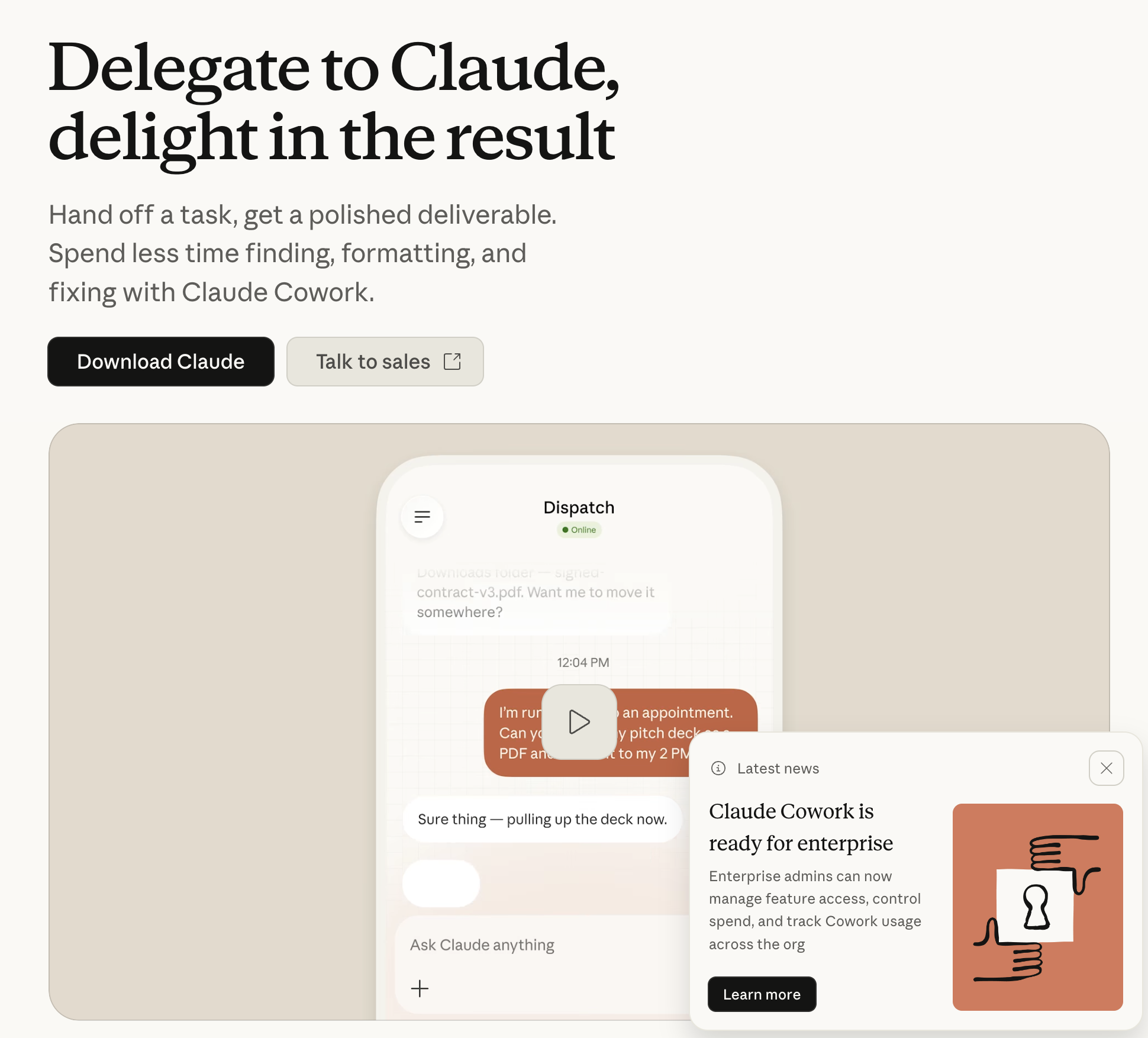
Claude Cowork is Anthropic's computer use feature, available in the Claude desktop app. It gives Claude the ability to see your screen through screenshots, move your mouse, click elements, and type text — effectively controlling your desktop the way a human would.
The interaction loop works like this: Cowork takes a screenshot, sends it to Claude's vision model, identifies UI elements from pixels, decides what action to take, executes it, takes another screenshot to verify, and repeats. Every single action goes through this screenshot-reason-act cycle.
Cowork was born when non-technical teams at Anthropic started bypassing the chat interface to use Claude Code for knowledge work tasks. Anthropic built Cowork as a simplified version of that same computer use capability, targeting researchers, analysts, ops teams, and anyone who works with documents and data daily.
Pricing: Claude Pro ($20/month), Team ($30/month per seat), and Enterprise plans. Each action consumes API tokens through the screenshot processing pipeline.
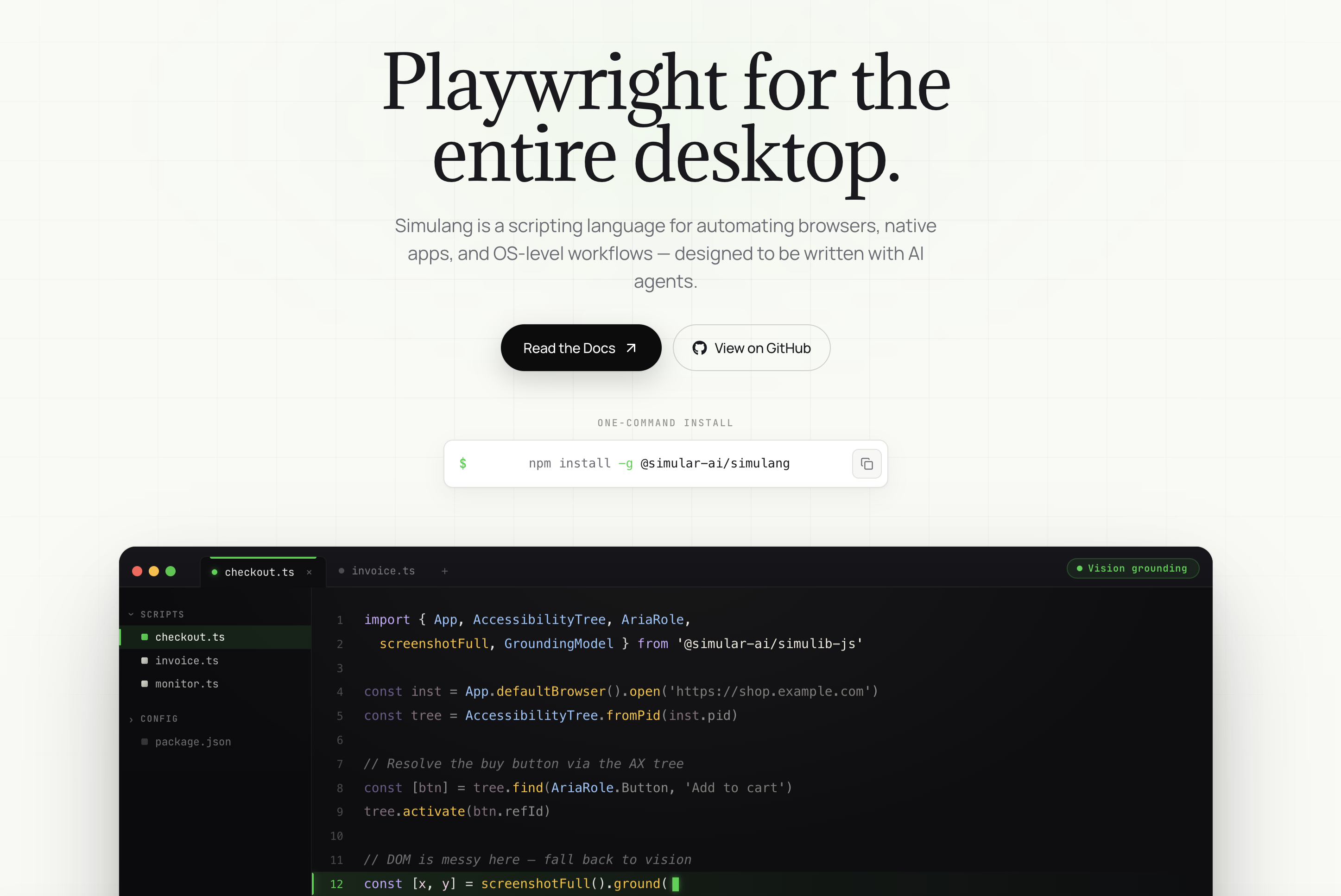
Simulang is an open-source JavaScript library that automates desktop applications by reading the operating system's accessibility tree — the same structured data that screen readers use. Instead of looking at pixels, Simulang understands each UI element's role (button, text field, menu item), name, state, and exact position.
You write automation scripts in JavaScript. Those scripts interact with any desktop application — browsers, spreadsheets, email clients, terminals — through precise element references rather than coordinate guessing. Once written, scripts replay instantly without consuming any API tokens.
Simulang powers Sai, the AI agent that uses it as its execution layer. When Sai automates a workflow, it uses Simulang's accessibility tree underneath.
Pricing: Simulang is free and open source. Sai (the AI agent built on Simulang) offers a free tier and paid plans starting at $20/month.
Cowork captures your entire screen as an image, downscales it to fit within Claude's context window, and sends it to Anthropic's servers. The vision model interprets the screenshot to identify buttons, menus, text fields, and other elements based on how they look. Then it returns mouse coordinates for where to click.
This approach has an inherent accuracy ceiling. Small UI elements, low-contrast text, and similar-looking icons can confuse the vision model. A dropdown menu with 20 items looks different to a vision model than it does to a human who can read each line. When Cowork misclicks, it takes another screenshot, realizes the error, and tries to recover — adding more time and more token consumption.
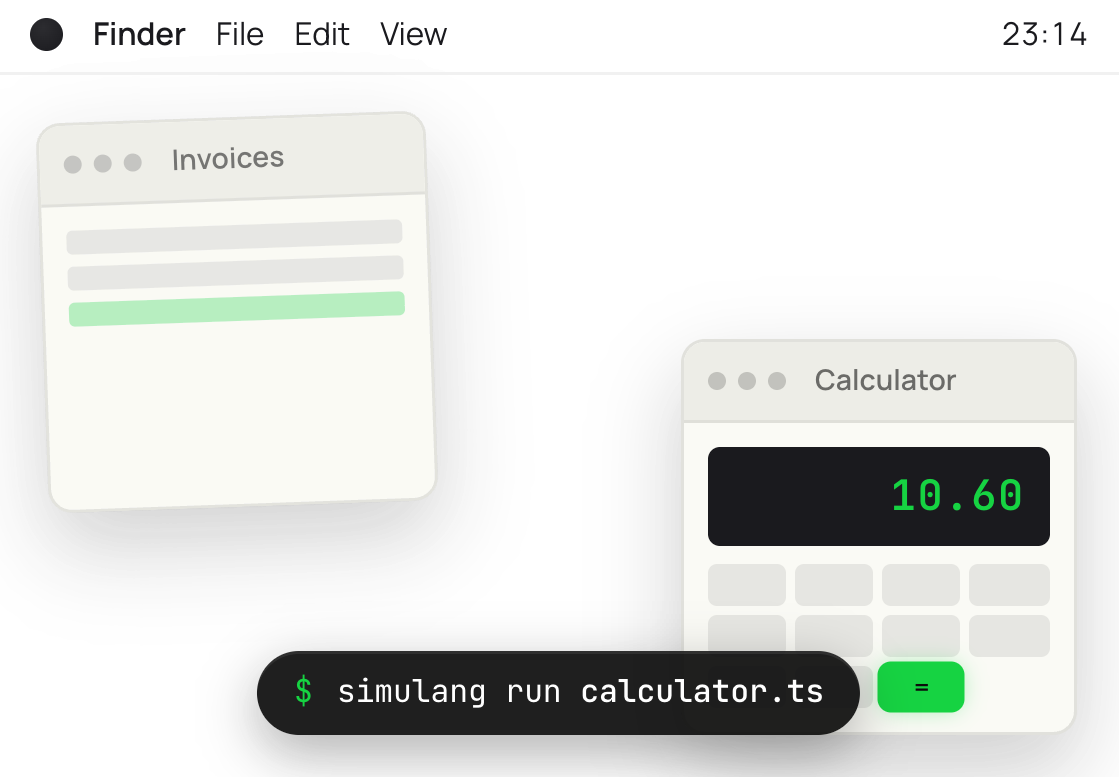
Simulang queries the operating system's accessibility API (UI Automation on Windows, AXTree on macOS). This returns a structured tree of every UI element on screen, including elements that are technically off-screen or hidden behind other windows. Each element comes with its role, name, value, and state — no interpretation required.
Clicking a button means referencing it by its accessibility identifier, not guessing where it is on screen. There is no ambiguity. A button named "Submit" is always "Submit," regardless of screen resolution, font size, dark mode, or window position.
Every Claude Cowork action follows this pipeline:
Total per action: 3 to 5 seconds.
Simulang's pipeline:
Total per action: under 50 milliseconds.
A 10-step workflow takes Cowork 30 to 50 seconds. Simulang finishes in under a second. Over a 20-step form-filling task, you are watching Cowork work for nearly two minutes while Simulang completes it before you finish reading this sentence.
This is not a marginal difference. It is a 100x speed gap that compounds with every step.
Claude Cowork's accuracy depends entirely on how well the vision model interprets each screenshot. Anthropic has improved this significantly since the original Computer Use preview, but certain scenarios consistently cause problems:
Simulang does not have these problems. It reads element metadata directly from the operating system. A button is a button, with a name and a position, regardless of how it renders on screen. Accuracy is effectively 100% for any element that exists in the accessibility tree.
The caveat: some applications have poor accessibility implementation. Games, custom-rendered canvases, and some Electron apps may not expose all elements through the accessibility API. For these cases, Simulang offers vision-based grounding as a fallback — but the primary interaction path is always the structured tree.
Claude Cowork consumes tokens on every execution. Each screenshot is approximately 1,500 to 3,000 tokens (depending on resolution), plus the reasoning tokens for each decision. A 20-step workflow might consume 40,000 to 80,000 tokens per run.
Run that workflow 10 times per day, 20 days per month, and you are consuming millions of tokens monthly — even on a Pro plan, you will notice the usage.
Simulang scripts cost nothing to replay. You write the automation once, and it runs forever at zero marginal cost. No API calls, no token consumption, no usage limits. This makes Simulang dramatically more economical for repetitive workflows.
This is where the difference becomes critical for security-conscious teams.
Claude Cowork sends full screenshots of your desktop to Anthropic's servers for processing. Everything visible on your screen at the moment of capture — passwords, financial data, confidential documents, personal messages — gets transmitted to a third-party API. Anthropic's data retention policies apply.
Simulang runs entirely on your local machine. The accessibility tree is queried locally. Actions are executed locally. No data leaves your computer. If you pair Simulang with a local LLM for the reasoning layer, the entire pipeline is air-gapped from the internet.
For industries with compliance requirements — healthcare (HIPAA), finance (SOX), legal (attorney-client privilege) — this distinction is not a preference. It is a requirement.
Cowork has genuine advantages that Simulang does not match:
Zero-code interaction. You describe what you want in plain English, and Cowork figures out how to do it. There is no scripting, no setup, no learning curve beyond typing a prompt. For a researcher who needs to organize 50 PDFs into folders by topic, Cowork handles it without writing a single line of code.
Visual understanding. Cowork can interpret charts, graphs, images, and visual layouts that the accessibility tree does not describe. If you need Claude to "look at this dashboard and summarize the trends," Cowork can do that — Simulang cannot, because the visual content is not in the accessibility tree.
Conversational iteration. You can watch Cowork work, interrupt it, give corrections, and refine the approach in natural language. The interaction feels like pair-working with a colleague who can see your screen. Simulang requires you to modify code to change behavior.
Broad application support. Because Cowork works from screenshots, it can interact with any application that renders pixels — including custom internal tools, legacy software, and web applications with non-standard UI frameworks. It does not depend on accessibility API implementation quality.
Simulang has structural advantages that Cowork cannot replicate:
Production-grade reliability. When you need an automation to run 1,000 times without a single misclick, Simulang's deterministic element targeting is the only option. Cowork's probabilistic vision model will eventually make mistakes at scale.
Speed-critical workflows. Any workflow where execution time matters — CI/CD pipelines, real-time data entry, high-frequency monitoring — requires Simulang's millisecond execution. Cowork's multi-second latency per action makes it unsuitable for time-sensitive automation.
Cost-sensitive operations. Teams running hundreds of automated workflows daily cannot afford pay-per-execution pricing. Simulang's zero-cost replay makes automation economically viable at scale.
Sensitive environments. Any context where screenshots of your desktop should not be sent to a third-party cloud service. Government, healthcare, finance, legal, and any organization with strict data residency requirements.
Programmatic integration. Simulang scripts can be embedded in CI/CD pipelines, called from other applications, scheduled via cron jobs, and composed into complex multi-step workflows. Cowork is limited to interactive sessions in the Claude desktop app.