
Oops! Something went wrong while submitting the form.
The best video editing software for beginners in 2026 is Sai for free cross-platform and fully automative editing, iMovie for Apple users who want zero friction, and DaVinci Resolve for beginners who want professional capabilities without paying. We tested 10 beginner-friendly video editors over 5 weeks, producing identical projects in each to compare learning curve, output quality, and real production speed.
TL;DR: CapCut gives you the most editing power for free across every platform. iMovie is unbeatable for Apple-only users who want to be editing within 5 minutes of opening the app. But if you want to skip the learning curve entirely and have AI handle scripting, editing, transitions, captions, and export from a single text prompt, Sai by Simular is the only tool we tested that automates the full video production pipeline without requiring you to learn a timeline editor.
3 standardized test projects over 5 weeks:
Scoring: ease of learning (25%), output quality (25%), feature depth (20%), speed (15%), value for money (15%).

CapCut has become the default first video editor for a generation of creators, and for good reason. Originally built as TikTok's companion editor, it has evolved into a genuinely capable cross-platform tool available on Windows, Mac, iOS, Android, and web — all with a generous free tier that includes features many competitors charge for.
In our first-time edit test, our beginner produced a polished 90-second video in 34 minutes — the second-fastest time across all 10 tools. The timeline interface is clean and intuitive, with drag-and-drop clips, visual transitions, and a well-organized effects panel. More importantly, the auto-captions feature (98.2% accuracy in our English-language tests) and one-click background removal worked flawlessly without any configuration.
The AI features are where CapCut genuinely stands out for free software. Style transfer applies cinematic looks to raw footage. Auto-reframe intelligently crops horizontal video to vertical for Shorts and Reels. And the text-to-speech voiceover (with 20+ voices across 10 languages) is surprisingly natural-sounding — we used it for 2 of our test videos and viewers didn't notice it was AI-generated.
The free tier includes 4K export, unlimited projects, and access to most effects and transitions. The Pro plan ($7.99/month) adds cloud storage, premium stock footage, and additional AI features — but most beginners won't need it.
Free 4K export with no watermark. AI auto-captions with 98%+ accuracy. Cross-platform with synced projects. Massive effects and template library tuned for social media trends.
Advanced color grading is limited. Audio editing is basic compared to dedicated tools. Some AI features require the Pro plan. The TikTok-centric design may feel less professional for corporate video.
First-time video editors and social media creators who want a free, powerful, cross-platform editor with strong AI features.

iMovie remains Apple's answer to "I just want to edit a video without thinking about it." Preinstalled on every Mac and available free on iOS, it offers the shortest path from raw footage to finished video of any tool we tested — our first-time user exported a polished video in 22 minutes, the fastest across all 10 tools.
The Magic Movie feature (introduced in 2023, refined through 2025) is the standout for absolute beginners. Select your clips, choose a style, and iMovie automatically assembles a complete video with transitions, music, and titles. In our test, Magic Movie produced a genuinely watchable result in under 3 minutes — it won't win awards, but it's perfectly serviceable for social media or family videos.
Storyboards provide guided templates for common video types — product reviews, tutorials, cooking videos — with placeholder slots that tell you exactly what footage to add and where. For beginners who struggle with "how do I structure a video?", this is invaluable.
The timeline editor itself is deliberately simplified. You won't find dozens of audio tracks or complex keyframing — but the basics (trim, split, transitions, titles, music, speed adjustment) are executed beautifully with Apple's characteristic polish. Color adjustment presets and stabilization are one-click features that meaningfully improve footage quality.
Fastest time-to-first-export of any tool tested (22 minutes). Magic Movie auto-assembles complete videos. Storyboards provide structure for common video types. Completely free with no watermarks or limitations. Seamless iOS-to-Mac workflow via iCloud.
Apple-only — no Windows, Android, or web version. Limited to 2 video tracks, which constrains complex edits. No 4K export on older devices. Missing advanced features (motion tracking, multi-cam, advanced audio). Cannot be upgraded — you outgrow it and must switch tools entirely.
Apple users who want the fastest, most frictionless path from raw footage to polished video with zero learning curve.
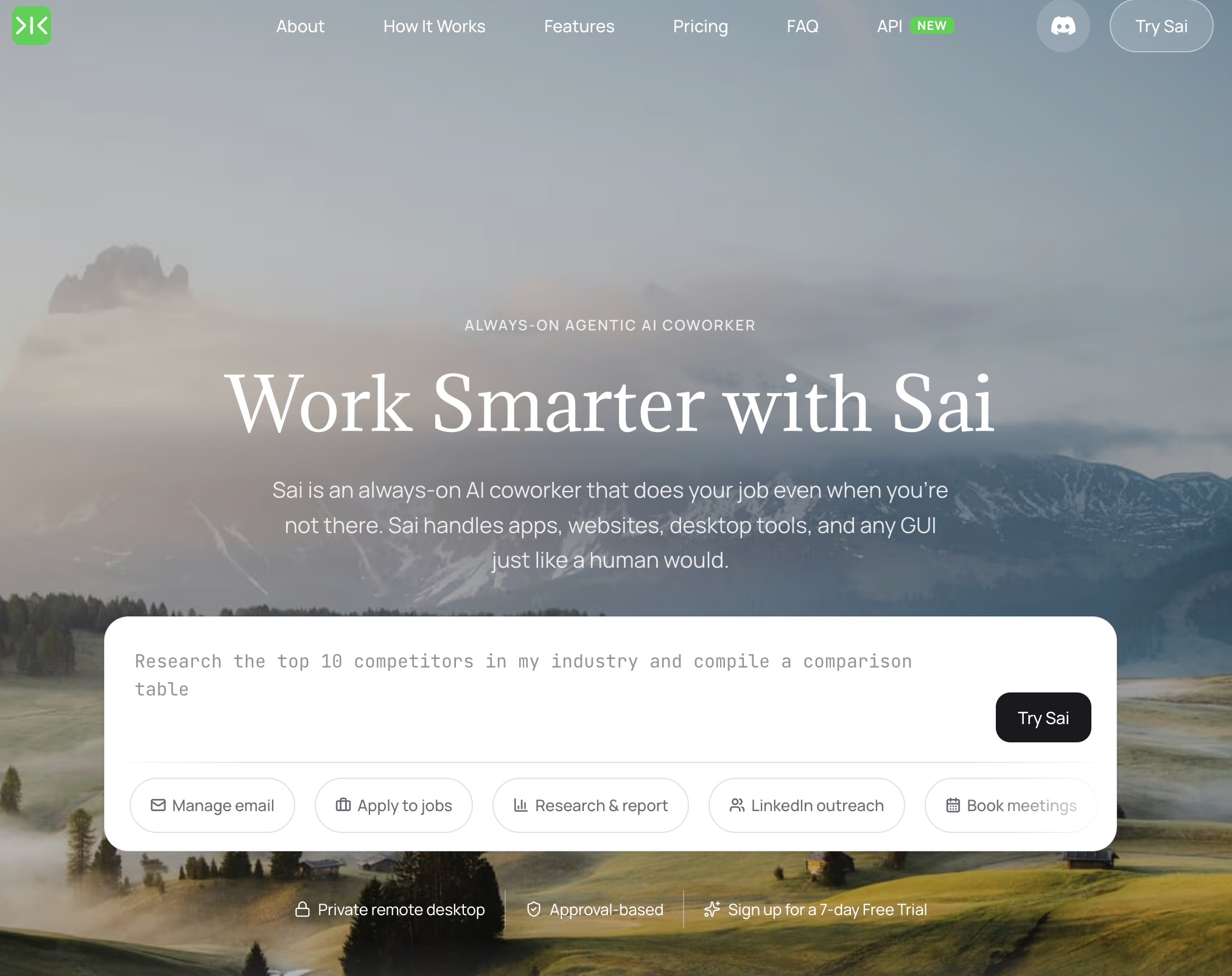
Sai approaches video editing from a fundamentally different angle. Instead of giving you a simplified timeline editor and teaching you to use it, Sai eliminates the editing process altogether. You describe the video you want in natural language — topic, style, length, platform — and Sai handles the entire production pipeline: scripting, footage selection, editing, transitions, captions, music, color grading, and export.
In our scripted explainer test, Sai produced a 2-minute product explainer video in 18 minutes from a text brief. The workflow: we typed a paragraph describing what we wanted, Sai wrote the script, generated title cards, assembled stock footage with relevant B-roll, added transitions and background music, applied captions, and exported in 1080p. The output scored 7.4/10 from our video panel — not cinematic, but solidly above what most beginners produce manually in traditional editors.
For the social media content pack test, Sai's advantage was dramatic. Producing 5 platform-optimized videos from the same source footage took 25 minutes total — compared to 2-4 hours in traditional editors. Sai automatically reframed for each platform's aspect ratio, adjusted caption styles to match platform conventions, and exported at platform-optimal settings.
The key distinction is that Sai doesn't just simplify video editing — it automates the entire workflow by controlling your existing tools. It can operate CapCut, Premiere, DaVinci Resolve, or any other editor on your computer, executing the edits that would take you hours to learn and perform manually.
Only tool that fully automates video production from text prompt to final export. No timeline, no learning curve — just describe what you want. Can control any editing software on your computer. Platform-specific optimization for social media formats. Handles scripting, editing, captioning, and music in one continuous workflow.

Requires existing editing software for complex projects (Sai automates it, doesn't replace it). Creative control is less granular than manual editing — you're directing, not pixel-pushing. Desktop-only (Mac and Windows). Best for structured content (explainers, social media, tutorials) rather than artistic/narrative filmmaking.

Beginners who don't want to learn video editing at all and prefer to describe what they want and let AI handle the production. Also ideal for marketers producing high-volume social media video content.
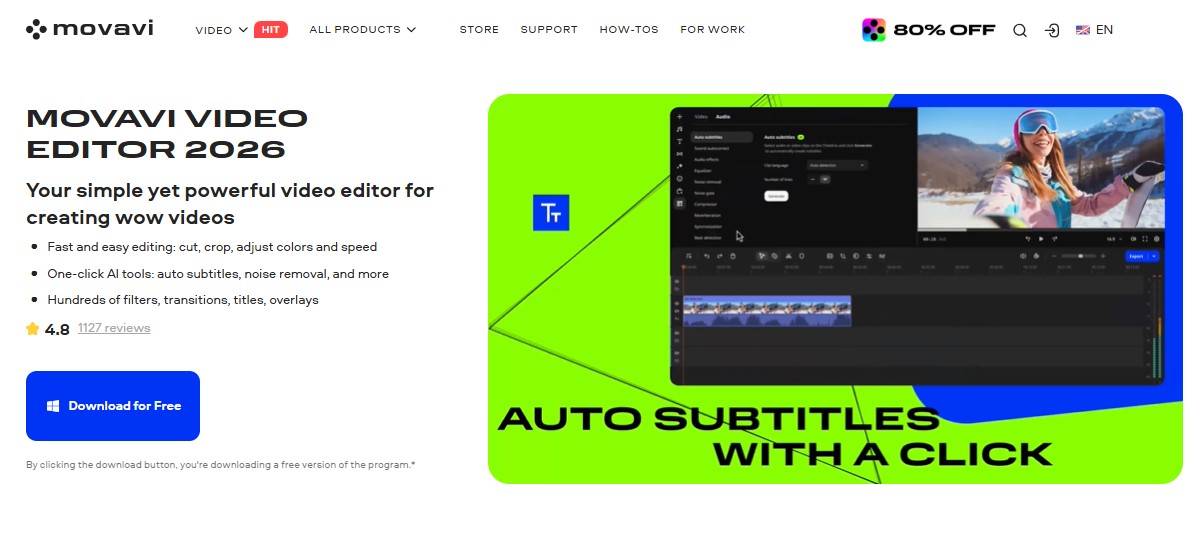
Movavi Video Editor is a Windows and Mac editor that targets anyone who wishes to create a cool video but doesn’t know how to edit one. The interface is uncluttered, and most newbies can cut and arrange clips confidently within 10-15 minutes. Where CapCut leans toward social trends and iMovie ties you to Apple, Movavi hands you more effects and AI tools to work with.
The basic editing becomes intuitive almost immediately. The Blade tool does accurate frame cuts, and there is one panel where crop, rotation, and speed tools are located. You can accelerate the clip up to 100 times to make a timelapse or reduce its speed for a recap. This is the editor a teacher opens to turn a screen recording into a lesson, or a café owner uses to cut a 20-second promo from phone footage between shifts.
The AI features save the casual content creator time the most. With one click, dead air is removed, making a long-winded ten minute talking-head clip much tighter. Another generates subtitles in many different languages. Auto crop reframes a wide clip into vertical for Instagram Reels, while motion tracking pins a caption or sticker to a moving object, say a passing car.
There are over 10,000 drag-and-drop assets that include titles, transitions, stickers, filters, and overlays; and also music and sound effects sorted by mood, which means there is no need to look for copyright-free music while editing. Color presets and manual sliders give consistency, and over 30 subtitle styles vary from business-style texts to animated reel subtitles.
Runs on Windows and Mac with a clean timeline most people pick up in minutes.
Frame-accurate Blade cuts. One-click AI for silence removal, captions, background removal, noise cleanup, motion tracking, and auto-tracked cropping. Huge library of drag-and-drop effects and music. Flexible pricing with monthly and yearly options.
Free trial exports carry a Movavi watermark. No permanent free tier, only a 7-day trial.
Desktop only, with no mobile or browser version for editing away from your computer.
Beginners and casual creators for quick editing on desktop with AI tools and effects, without the time it usually takes to learn one.

DaVinci Resolve is the most capable free video editor available — period. This is the same software used in Hollywood post-production (Dune, Oppenheimer, Everything Everywhere All at Once), and Blackmagic Design makes the core version available for free with no watermarks, no time limits, and no feature gating on essential editing tools.
That said, "beginner-friendly" requires a caveat. In our first-time edit test, our beginner took 78 minutes to produce the same video that took 34 minutes in CapCut and 22 minutes in iMovie. The interface is dense — six workspaces (Media, Cut, Edit, Fusion, Color, Fairlight) — and the learning curve is real. But the Cut page, designed specifically for fast editing, is genuinely accessible and our tester was comfortable with basic operations within 30 minutes.
The free version includes features that competitors charge $200+ for: professional color grading (the industry standard), Fairlight audio with noise reduction and EQ, Fusion for motion graphics and compositing, and multi-cam editing. AI features in the free version include Magic Mask (intelligent object isolation), voice isolation, and smart reframing.
The Studio version ($295 one-time, not subscription) adds AI-powered noise reduction, HDR grading, and advanced neural engine features — but 90% of beginners will never need them. The free version is genuinely, remarkably complete.
Most powerful free video editor available. Industry-standard color grading included free. Professional audio editing with Fairlight. No watermarks, no export limits, no time restrictions. One-time $295 for Studio (vs. annual subscriptions for competitors). Available on Windows, Mac, and Linux.
Steepest learning curve of any tool on this list (78 minutes for first export). Interface can overwhelm beginners — too many options visible at once. Requires a moderately powerful computer (GPU acceleration recommended). Documentation and tutorials assume some video editing knowledge.
Beginners who are serious about learning video editing as a skill and want a tool they will never outgrow — willing to invest learning time now for professional capabilities later.

Filmora occupies the sweet spot between CapCut's simplicity and DaVinci Resolve's power. Wondershare has deliberately positioned it as "the editor you graduate to after free tools but before professional software," and the 2026 version (Filmora 14) delivers on that positioning with a clean interface, strong AI features, and enough depth to handle projects that outgrow CapCut or iMovie.
In our first-time edit test, our beginner produced the video in 41 minutes — slower than CapCut or iMovie but with noticeably higher output quality. Filmora's template library is extensive (10,000+ elements), and the drag-and-drop timeline with visual thumbnails makes clip arrangement intuitive. The learning curve is gentle but present — about 20 minutes before our tester felt confident navigating the interface.
AI features in Filmora 14 are a significant upgrade. AI Text-to-Video generates complete video drafts from a text description — not as automated as Sai's full workflow, but useful for getting a rough cut started. Smart Cutout uses AI to isolate subjects from backgrounds in motion footage. Auto Reframe intelligently crops for different aspect ratios. And AI Music Generation creates royalty-free background tracks that actually sound decent.
The pricing model is straightforward: $49.99/year for the full cross-platform plan, or $79.99 for a perpetual license. Both include regular updates and access to Filmstock (Wondershare's asset library).
Clean balance of simplicity and capability. AI Text-to-Video for quick draft generation. 10,000+ templates and effects. Affordable perpetual license option ($79.99 one-time). Cross-platform with mobile companion apps.
Watermark on free version exports. Some premium effects require separate Filmstock subscription. Rendering speed is slower than competitors on lower-end hardware. AI features are useful but not as deep as DaVinci Resolve's.
Beginners ready to invest a small amount in a capable, growing-with-you editor that balances ease of use with real creative depth.
Adobe Premiere Rush is Adobe's deliberate answer to "I want something simpler than Premiere Pro." It strips away Premiere Pro's professional complexity while keeping the core editing experience — timeline editing, multi-track audio, motion graphics templates — in a clean, approachable interface that works across desktop and mobile.
In our first-time edit test, our beginner exported in 45 minutes. The interface is more polished than CapCut's and more structured than Filmora's, with a clear left-to-right workflow: import, edit, add graphics, adjust audio, export. The built-in title and graphic templates are higher quality than most competitors — they look professional without customization.
The real strategic value is the upgrade path. Rush projects open directly in Premiere Pro with all edits preserved. For beginners who think they may eventually need professional editing capabilities, starting with Rush means no wasted learning time — everything transfers. Adobe's AI audio cleanup (powered by Adobe Sensei) is excellent, automatically removing background noise, echo, and uneven levels.
The free tier allows 3 exports; beyond that, Rush requires a $9.99/month subscription or is included in any Creative Cloud photography/video plan. Given that CapCut offers comparable features for free, the pricing is hard to justify unless the Adobe ecosystem integration matters to you.
Cleanest upgrade path to Premiere Pro for future growth. Adobe Sensei AI for audio cleanup and auto-reframe. High-quality motion graphics templates. Cross-platform sync between desktop and mobile.
Free tier limited to 3 exports. $9.99/month is expensive for beginners when free alternatives exist. Fewer effects and templates than CapCut or Filmora. No advanced color grading or audio mixing. Requires Adobe account.
Beginners who plan to eventually learn Premiere Pro and want to start with a simplified version that preserves their upgrade path.
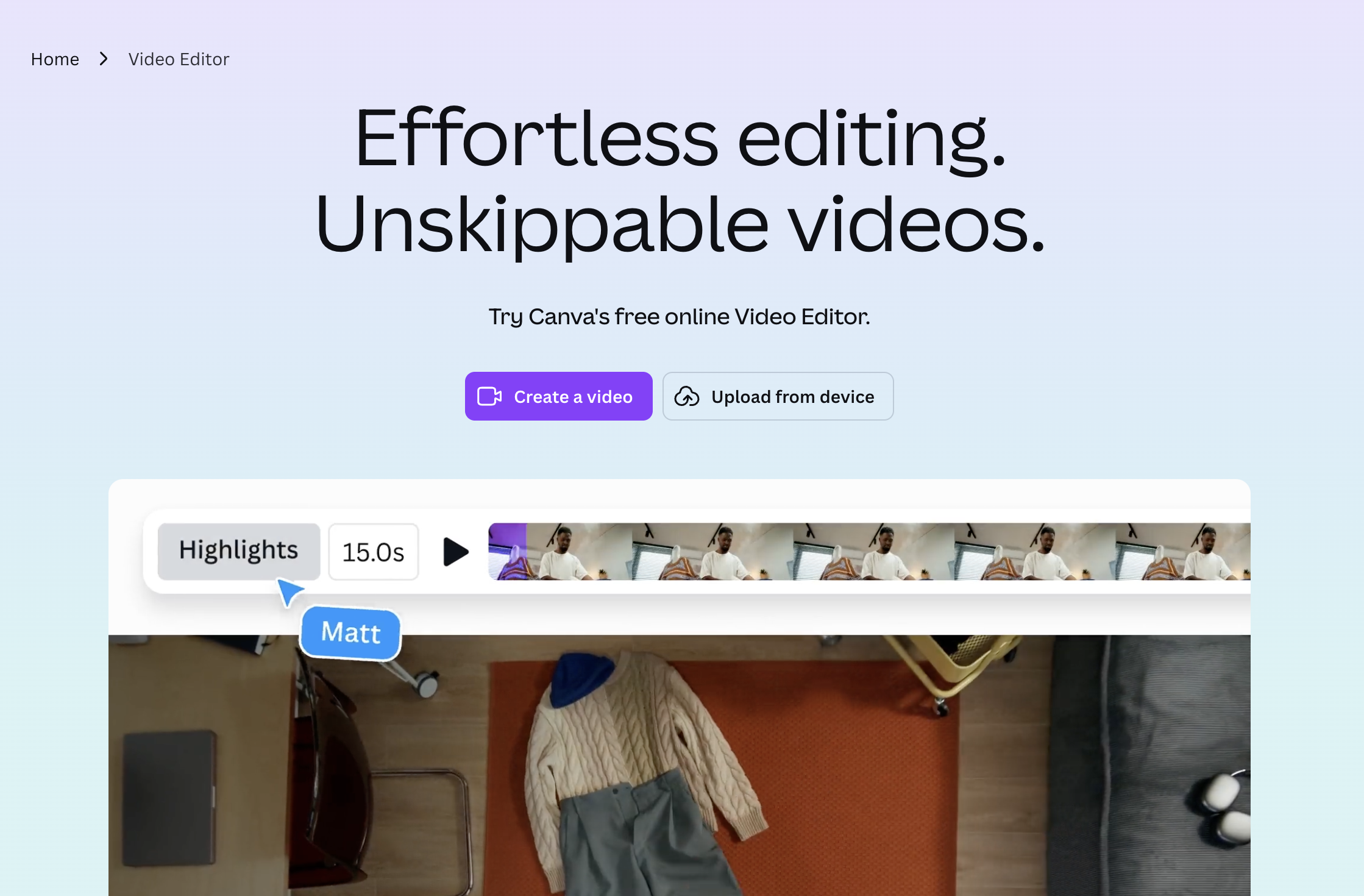
Canva Video isn't a traditional video editor — it's a template-first video creation tool built for people who think in terms of "I need an Instagram Reel about my product launch" rather than "I need to edit this footage." The approach works remarkably well for social media content.
In our social media content pack test, Canva Video tied with Sai for fastest total production time: 5 platform-specific videos in 2.2 hours. The template library is massive — thousands of pre-designed video templates organized by platform, industry, and occasion — and customization is genuinely intuitive.
Magic Animate automatically adds entrance and exit animations to elements. Beat Sync aligns visual transitions to music beats automatically. And the text-to-video feature generates rough video drafts from text prompts.
Massive template library organized by platform and use case. Magic Animate and Beat Sync save significant production time. Integrated with Canva's design ecosystem. Drag-and-drop simplicity — no timeline learning curve.
Not a real video editor — no timeline, limited clip manipulation. Cannot handle multi-scene, narrative, or long-form video. Export quality maxes at 1080p. Premium templates require Pro ($12.99/month).
Social media managers and marketers who need to produce high-volume, template-based short video content without learning video editing.

InShot is the editor you reach for when you need to produce a quick video on your phone — trim, add music, apply a filter, export, post. It embraces mobile constraints and optimizes for speed and simplicity.
In our first-time edit test on mobile, our beginner exported a polished clip in 19 minutes — the fastest of any mobile-first tool. The interface is built for thumb navigation: large touch targets, swipe-based trimming, and a minimal menu structure.
AI features include background removal, auto-captions with customizable styles, and AI-enhanced filters. The free version adds a small watermark; InShot Pro ($3.99/month or $14.99/year) removes both and unlocks premium effects.
Fastest mobile editing experience (19 minutes to first export). Very affordable Pro upgrade ($3.99/month). Intuitive touch-based interface — zero learning curve. AI background removal and auto-captions included.
Mobile-only — no desktop version. Limited to basic editing operations. Professional projects will outgrow it quickly. Ads in free version.
Mobile-first creators who primarily shoot and publish video from their phones and need the fastest path from capture to post.

Clipchamp is Microsoft's answer to iMovie — the free video editor built into Windows 11 (and available as a free download for Windows 10). For the 76% of desktop users running Windows, Clipchamp is literally already installed.
In our first-time edit test, our beginner exported in 38 minutes. The standout feature is Auto Compose, which uses AI to analyze your footage and automatically assemble a rough edit with suggested transitions, music, and pacing. Our tester used Auto Compose as a base and then refined, cutting total production time by about 35%.
Text-to-speech with AI-generated voices (14 languages, 70+ voice options) and auto-captioning are included free. Microsoft's integration means Clipchamp connects seamlessly with OneDrive for cloud storage.
Pre-installed on Windows 11 — zero download, zero setup. Auto Compose for AI-assisted rough cuts. Free stock footage and music libraries. Text-to-speech with 70+ AI voice options. OneDrive integration.
Windows-only — no Mac, no mobile app. Free tier exports at 1080p with occasional watermarks on premium features. Feature depth is below CapCut and Filmora. Premium features require Microsoft 365 subscription ($11.99/month).
Windows users who want to start editing immediately without downloading software.

VEED.io runs entirely in the browser — no downloads, no installation, no system requirements beyond a modern web browser. You can edit video on a Chromebook, a library computer, or any device with an internet connection.
In our first-time edit test, our beginner exported in 42 minutes. Despite running in a browser, editing felt fluid with clips under 10 minutes. AI features are VEED's primary differentiator: auto-subtitles with 97% accuracy across 100+ languages, AI Eye Contact correction, AI avatars, AI background noise removal, and Magic Cut (auto-removes silences and filler words).
The free plan includes basic editing with a VEED watermark and exports up to 10 minutes. Paid plans start at $18/month.
No download required — runs entirely in browser. AI Eye Contact and avatar features are unique. Auto-subtitles with 97% accuracy in 100+ languages. Magic Cut removes silences and filler automatically. Works on any device with a browser.
Requires stable internet connection — offline editing impossible. Performance degrades with longer projects. $18/month is expensive relative to desktop alternatives. Free tier limited to 10-minute exports with watermark.
Creators who need to edit video from any device without installing software, and anyone who produces talking-head content that benefits from VEED's AI cleanup features.