
Oops! Something went wrong while submitting the form.


.svg)
If you run sales, marketing, or an agency, your spreadsheets are probably full of messy strings: “Name – Company – Title”, UTM-packed URLs, CRM exports with five values jammed into one cell. Excel’s TEXTAFTER function is built for this chaos. Give it a delimiter, optionally tell it which occurrence to use, and it reliably returns the text that comes after. Need the domain after “@”, the campaign name after the third “/”, or everything after the last dash in a product code? TEXTAFTER turns a tangle of text into clean columns you can actually analyze.
But once you’re cleaning thousands of rows across Google Sheets and Excel every week, the bottleneck is no longer the formula – it’s you. That’s where an AI agent shines. Instead of opening files, tweaking ranges, fixing #N/A errors, and copying formulas sheet by sheet, you let an AI computer agent drive the apps: it opens workbooks, applies or mimics TEXTAFTER, validates results, and saves outputs while you focus on strategy, not cell surgery.
For modern Excel (Microsoft 365 / Excel 2021+), TEXTAFTER is the native way to grab everything after a delimiter.
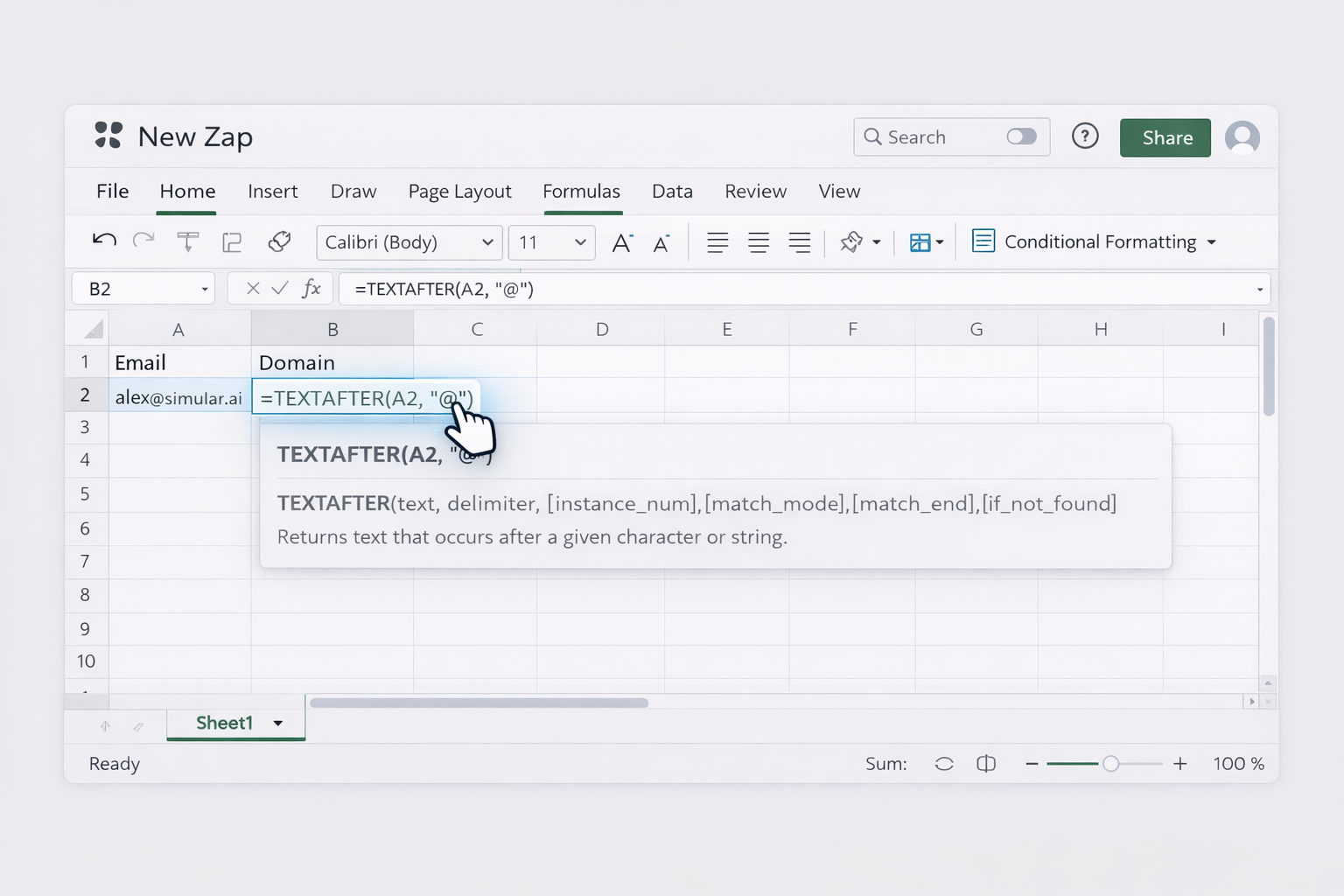
Basic pattern:=TEXTAFTER(text, delimiter, [instance_num], [match_mode], [match_end], [if_not_found])
Example: Get the domain from an email
alex@simular.ai.=TEXTAFTER(A2, "@")simular.ai.
Example: Get everything after the last dash
SKU-2025-Q1-US.US, use a negative instance:=TEXTAFTER(A2, "-", -1).Q1-US (after the second dash from the left):=TEXTAFTER(A2, "-", 2).
You can tune behavior:
match_mode: 0 for case‑sensitive, 1 for case‑insensitive.if_not_found: e.g. "" to avoid #N/A.Full reference: Microsoft’s official doc at https://support.microsoft.com/en-us/office/textafter-function-c8db2546-5b51-416a-9690-c7e6722e90b4
If you’re on older Excel, you can emulate TEXTAFTER.
Get text after the first comma:
John Doe, CEO, Simular.=MID(A2, FIND(",", A2) + 1, LEN(A2))
Get text after the last space:
Maria Lopez Growth Lead.=FIND("♦",SUBSTITUTE(A2," ","♦",LEN(A2)-LEN(SUBSTITUTE(A2," ",""))))=MID(A2, that_formula + 1, LEN(A2))This is clunky but works where TEXTAFTER is missing.
Google Sheets doesn’t yet have TEXTAFTER, but you can replicate it.
Using SPLIT for simple cases:
name@company.com.=INDEX(SPLIT(A2, "@"), 1, 2){"name","company.com"} and INDEX picks the second value.
Using REGEXEXTRACT for patterns:
AB-123-XYZ.=REGEXEXTRACT(A2, "-(.*)")123-XYZ.Docs:
Once you know the formulas, the next step is to stop doing the same clicks every Monday.
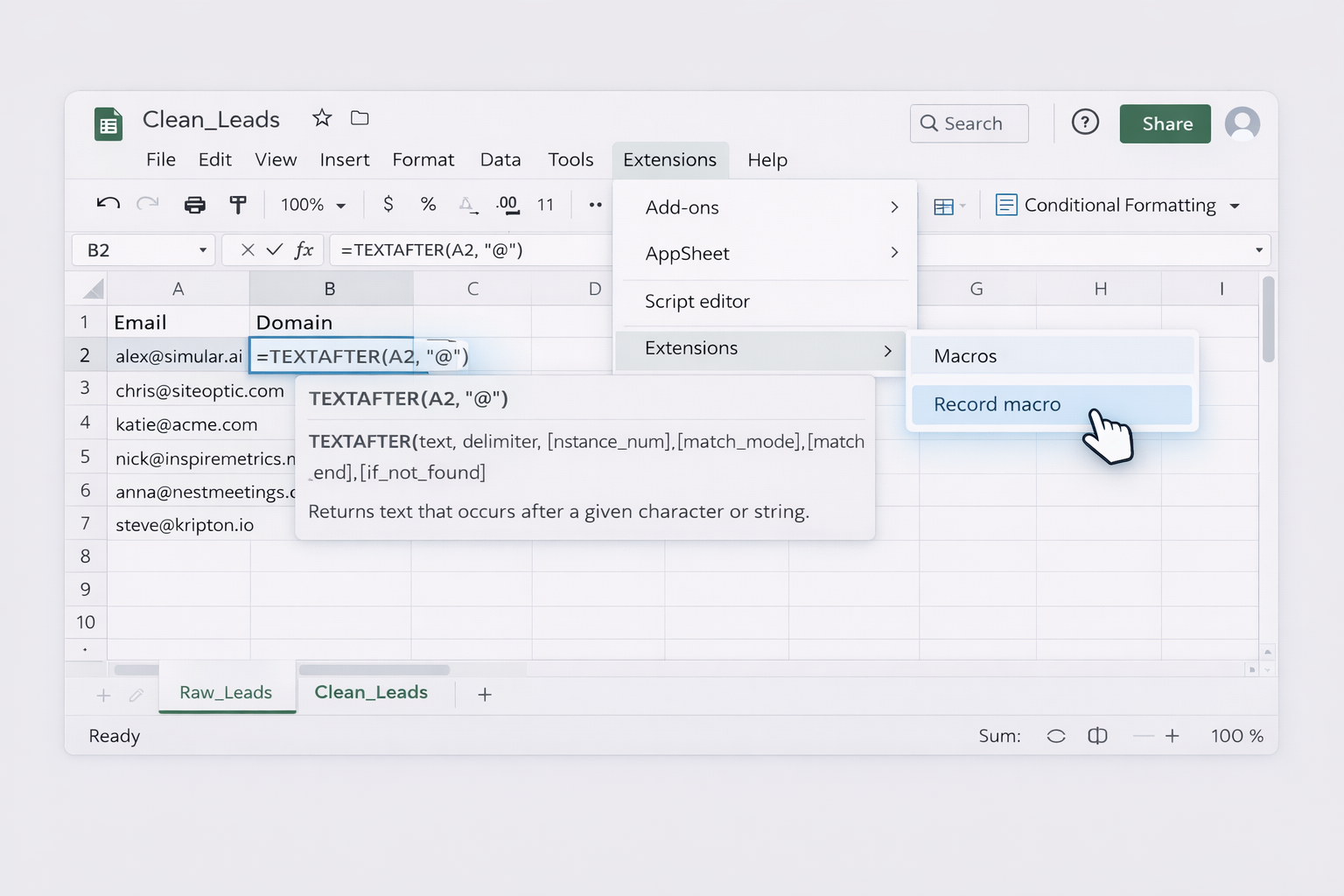
Scenario: Weekly CSV export from your CRM that needs domain names extracted from email addresses.
Raw_Leads.Clean_Leads, set up formulas:=Raw_Leads!A2.=INDEX(SPLIT(Raw_Leads!A2, "@"), 1, 2).Raw_Leads.Result: Drop in a new file, click a macro (or wait for the trigger), and all the “TEXTAFTER-like” parsing runs for you.
Power Query can industrialize text extraction without code.
Example: Clean a messy product code column
Product_Code: BRAND-SKU-2025-Q1).-, select Right-most delimiter to mimic "after last dash" behavior when needed.Quarter).Next time the file updates, just hit Refresh—Power Query reruns the whole pipeline.
Docs:
For marketers and agencies, your "text after" needs rarely live in a single sheet.
Example: Parse UTM parameters from links in a form tool and log them in Sheets
=REGEXEXTRACT(A2, "utm_campaign=([^&]+)")Now your analytics dashboard always has ready-to-use fields with no manual parsing.
At some point, even no-code tools hit limits: odd one-off files, legacy Excel models, or teams that refuse to touch formulas. This is where an AI computer agent like Simular becomes your ops teammate.
Sai is designed to behave like a power user:
=TEXTAFTER(A2, "@") (or a legacy MID/FIND combo), drags it down, and saves.
Pros:
Cons:
Learn more about Sai’s desktop automation at https://www.sai.work/
For sales or marketing teams that live in online tools:
Now, the entire “extract text after X” routine—from web app export to cleaned spreadsheet—is hands-off. You trigger it via a webhook or a simple command.
Pros:
Cons:
By starting with manual formulas, layering in no-code tools, and finally letting an AI agent run the whole play, you move from “I know how TEXTAFTER works” to “My spreadsheet text cleanup runs itself while I close deals.”
.png)
%20(1).svg)