
Oops! Something went wrong while submitting the form.


.svg)
Every strong strategy has two halves: deciding where you are going, and making sure the plan actually survives contact with reality. Strategic planning timeline templates bridge that gap. They turn vague intentions into dated milestones, owners, and dependencies spread across months or years. In Google Sheets or Excel, you can align vision, annual goals, and marketing or product campaigns into a single visual path that everyone sees.
But these templates only work if they stay current. That is where an AI computer agent changes the game. Instead of leaders chasing updates, the agent lives inside your existing tools: opening Sheets and Excel files, adjusting dates as projects slip, rolling up progress, and flagging risks before your quarterly review. Delegating timeline maintenance to an AI agent means your team spends less time nudging cells and more time debating real strategic choices.
Now imagine the same agent waking up every Monday, scanning CRM and project tools, refreshing your Google Sheets and Excel timelines, and emailing a crisp summary to your leadership team. No pings, no chasing. Just a living roadmap, continuously updated in the background by an AI partner that never gets tired of dates, dependencies, and status fields.
If you are just getting started or running a small team, the classic manual workflow in Google Sheets and Excel is enough. Here is a simple, repeatable approach:
Step 1: Define your planning horizon and levels
Decide if your timeline is annual, 3 year, or 5 year. Then list what you will track: company objectives, departmental OKRs, key projects, and major campaigns.
Step 2: Build your structure in Google Sheets
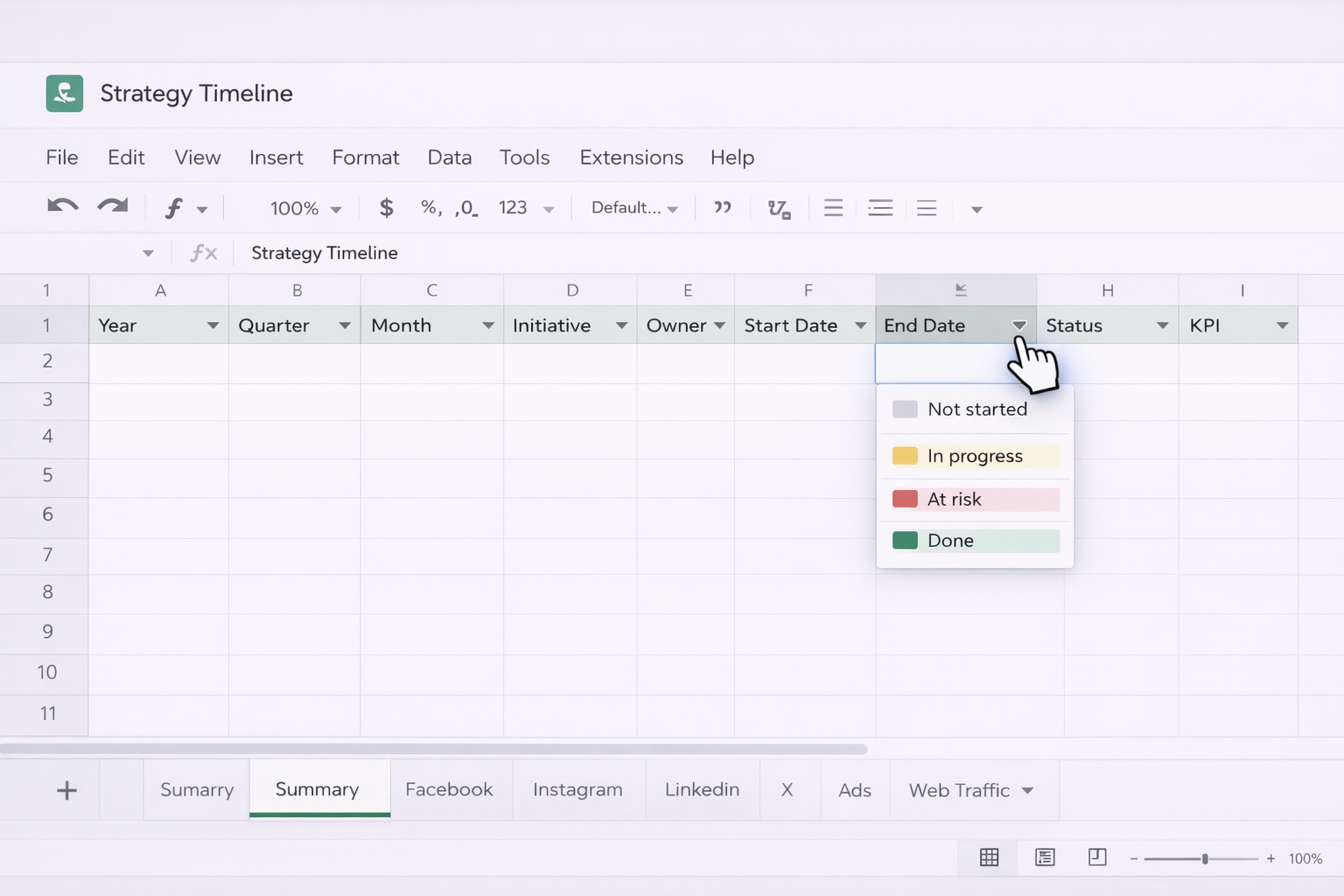
Step 3: Create a visual timeline in Sheets
Step 4: Mirror or extend in Excel
If finance or operations lives in Excel, mirror key parts of the timeline there:
Step 5: Run a recurring review cadence
Set a monthly or quarterly meeting where leaders walk through the timeline, update statuses, and adjust dates. This is still manual, but it forces alignment and better decisions.
Manual works until you are drowning in projects. The next step is layering simple, no code automation on top of your Google Sheets and Excel templates.
Approach A: Form based intake into Google Sheets
Approach B: Connect project tools to Sheets
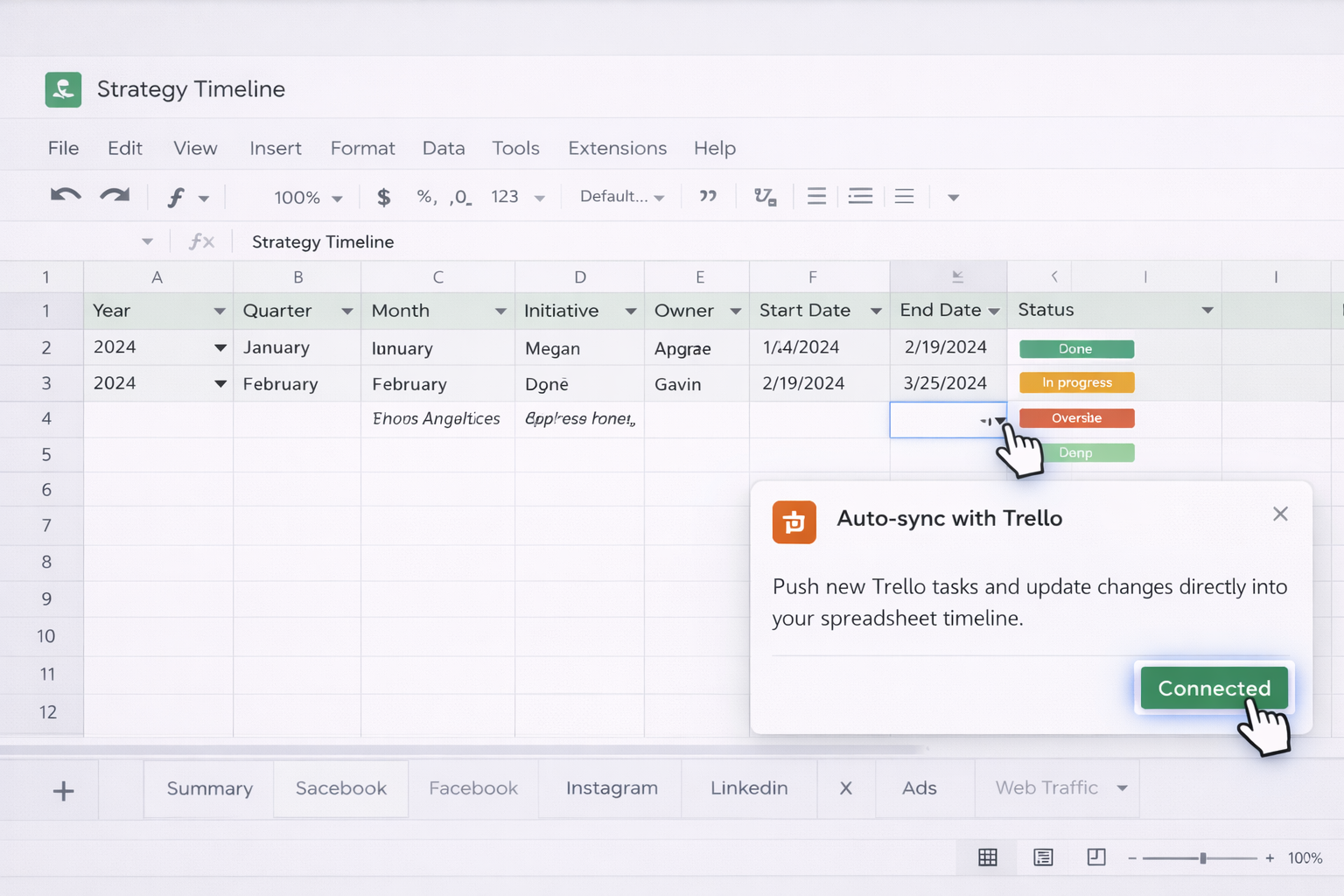
If you manage work in tools like Asana, ClickUp, or Trello, use their native Google Sheets integrations or Zapier/Make to:
Approach C: Sync Excel with source systems
For teams that live in Excel, use Power Query or connectors to pull data from your CRM, ERP, or data warehouse:
Pros of no code automation
Cons
Once your Google Sheets and Excel templates are in place, an AI computer agent lets you operate them like a virtual strategy operations assistant.
Method 1: Let the agent maintain the master timelines
You define the rules: how often to check, where to look, and what changes are allowed. The AI agent then:
Pros
Cons
Method 2: Use the agent as a strategic planning co pilot
Here the AI computer agent is not just maintaining dates; it is orchestrating the planning ritual:
You then use the session to make decisions, while the agent handles the prep and post meeting updates.
Method 3: Always on scenario testing
At a more advanced stage, you can ask the agent to run what if simulations:
This blend of manual structure, light no code automation, and a capable AI computer agent lets business owners, agencies, and marketing or sales leaders maintain strategic planning timelines that are both rigorous and remarkably low touch.
.png)
%20(1).svg)