Oops! Something went wrong while submitting the form.
How to use Solver in Google Sheets and Excel guide
Practical guide to using Solver in Google Sheets and Excel, then handing models to an AI computer agent that optimizes, documents, and scales decisions.
Advanced computer use agent
Production-grade reliability
Transparent Execution
AI Solver in Sheets & Excel
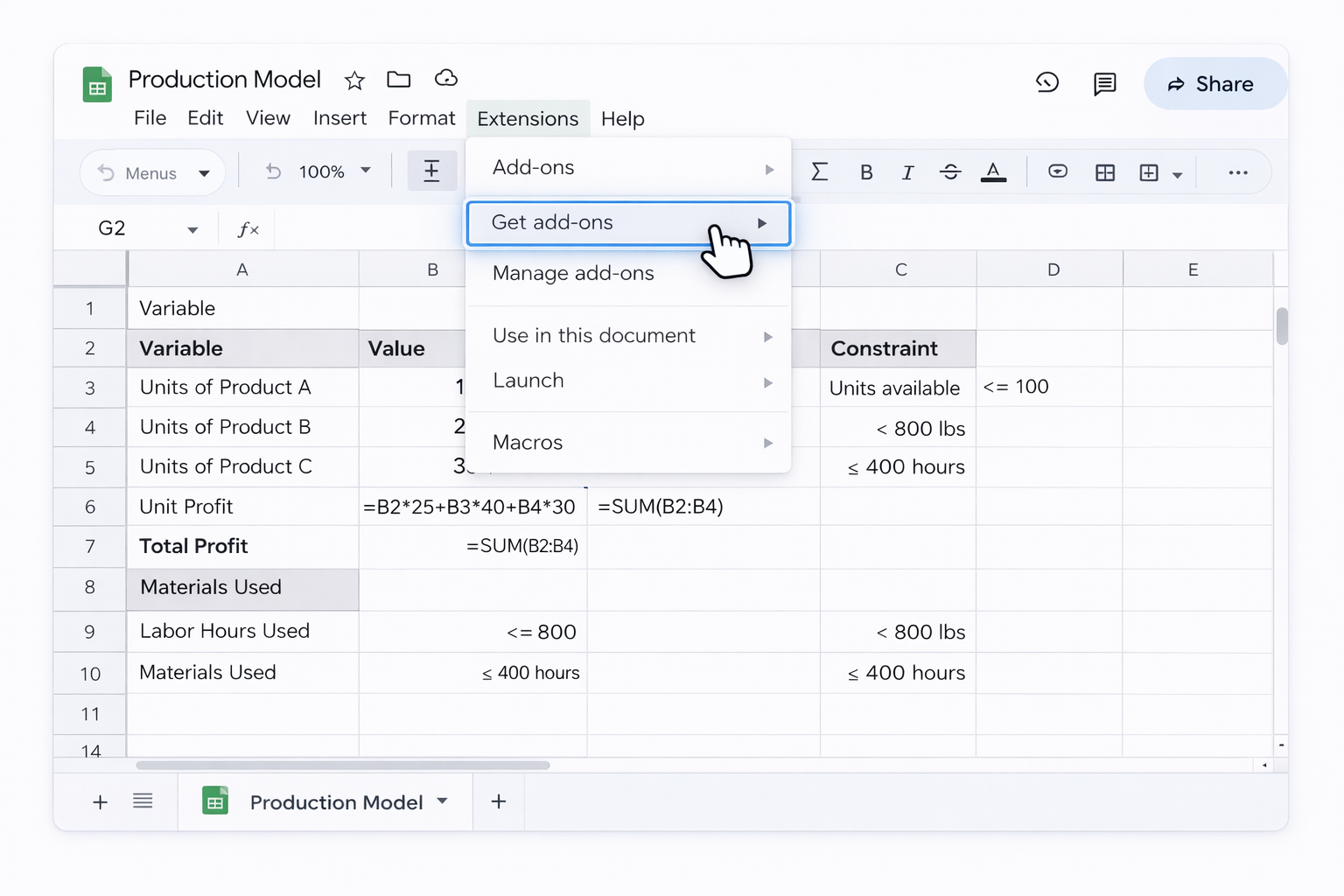
Most business owners, agency leads, and sales teams already live in spreadsheets. Solver turns those grids into decision engines. In Google Sheets, you can bolt on tools like OpenSolver to maximize profit or minimize cost under real-world constraints. In Excel, the built-in Solver add-in lets you frame complex questions as objective cells, decision variables, and constraints, then search thousands of combinations in seconds.
Where it breaks down is repetition. Every new campaign, region, or pricing test means opening files, tweaking ranges, clicking 'Solve', saving results, and documenting what changed. That is exactly the kind of high-precision, low-creativity work an AI computer agent excels at.
Imagine your agent opening Google Sheets and Excel, loading fresh data, running Solver across dozens of scenarios, labeling each run with date, assumptions, and outcome, then posting a summary to your CRM or Slack. While the agent iterates, you stay focused on strategy: which scenario to ship, not how to click your way there.
One objective cell with a formula (e.g. total margin).
Decision variables: cells Solver can change.
Constraint cells: formulas that link to limits.
Open Solver: Data > Solver.
Configure:
Set Objective: select the objective cell.
To: Max, Min, or Value Of.
By Changing Variable Cells: select the variable range.
Add constraints one by one (e.g. D2:D10 <= F2:F10, B2:B10 >= 0, integer constraints where required).
Choose solving method (GRG Nonlinear, Simplex LP, Evolutionary) based on whether your relationships are linear.
Click 'Solve', then choose whether to keep Solver solution.
Save a Scenario so you can compare multiple runs: in Solver, click 'Load/Save' or use 'Scenario Manager'.
This manual approach is powerful but fragile: one mistaken range or forgotten constraint, and a busy marketer or founder has to re-run everything.
2. No-code automation for Solver workflows
Once you know the clicks, you can layer light automation on top. This doesn’t remove Solver’s dialogs, but it reduces all the surrounding busywork: data prep, logging, and reporting.
A. Triggered Solver models around your data refresh (Google Sheets)
Store raw data (ad spend, leads, inventory) on a 'Data' tab, fed by tools like Google Analytics, ad platform exports, or no-code connectors.
Keep your optimization model on a separate 'Model' tab that references the Data tab.
Use Apps Script (no-code-ish) or a marketplace connector to refresh data on a schedule.
Save this macro in your workbook as 'RunCampaignSolver'.
Add a button on the sheet linked to the macro.
Now a team member only clicks a button instead of configuring Solver from scratch.
C. Scenario templates for non-technical teammates
In either Sheets or Excel, create a 'Scenario' input area with clearly labeled cells: target CPA, minimum margin, max inventory, etc.
Use formulas to connect this section to the model tab that Solver will reference.
Document in a top-left note: '1) Edit scenario cells. 2) Press Run Solver button. 3) Read results on Summary tab.'
You’ve now turned Solver into a productized template. This makes it dramatically easier to hand off to an AI agent later, because the structure is consistent.
3. Running Solver at scale with an AI agent
Here’s where a Simular AI computer agent changes the game for operators, agencies, and sales teams.
A. AI agent as your Solver operator Imagine you run weekly pricing optimization across 40 product groups in both Google Sheets and Excel models. Instead of an analyst babysitting each file:
You document the workflow once: open file, refresh data, run Solver, log result, export summary.
In Sai, you configure an agent to:
Launch the required apps (browser for Google Sheets, desktop for Excel).
Navigate to each spreadsheet or workbook.
Detect the 'Run Solver' macro button in Excel, or the Solver add-on menu in Sheets.
Execute the steps exactly as a human would: select ranges, click 'Solve', wait, store outputs.
Connect the agent to a webhook so, after all runs, it posts a dashboard summary to your reporting tool or Slack channel.
Pros:
Eliminates repetitive, error-prone clicking.
Works across desktop Excel, browser-based Google Sheets, and even other tools in the same run.
Transparent execution: you can replay every step the agent took.
Cons:
You must design stable templates: consistent sheet names and ranges.
Initial onboarding effort to teach the agent the exact flow.
B. Multi-scenario Solver simulations overnight For agencies and revenue teams, the real power is scenario volume. With an AI agent:
Create a table of scenarios in Google Sheets or Excel (different budgets, prices, lead-cost assumptions).
Script your model so it reads one scenario at a time into the Solver inputs.
In Simular, instruct your agent to:
Loop through each scenario row.
Update the input cells accordingly.
Run Solver.
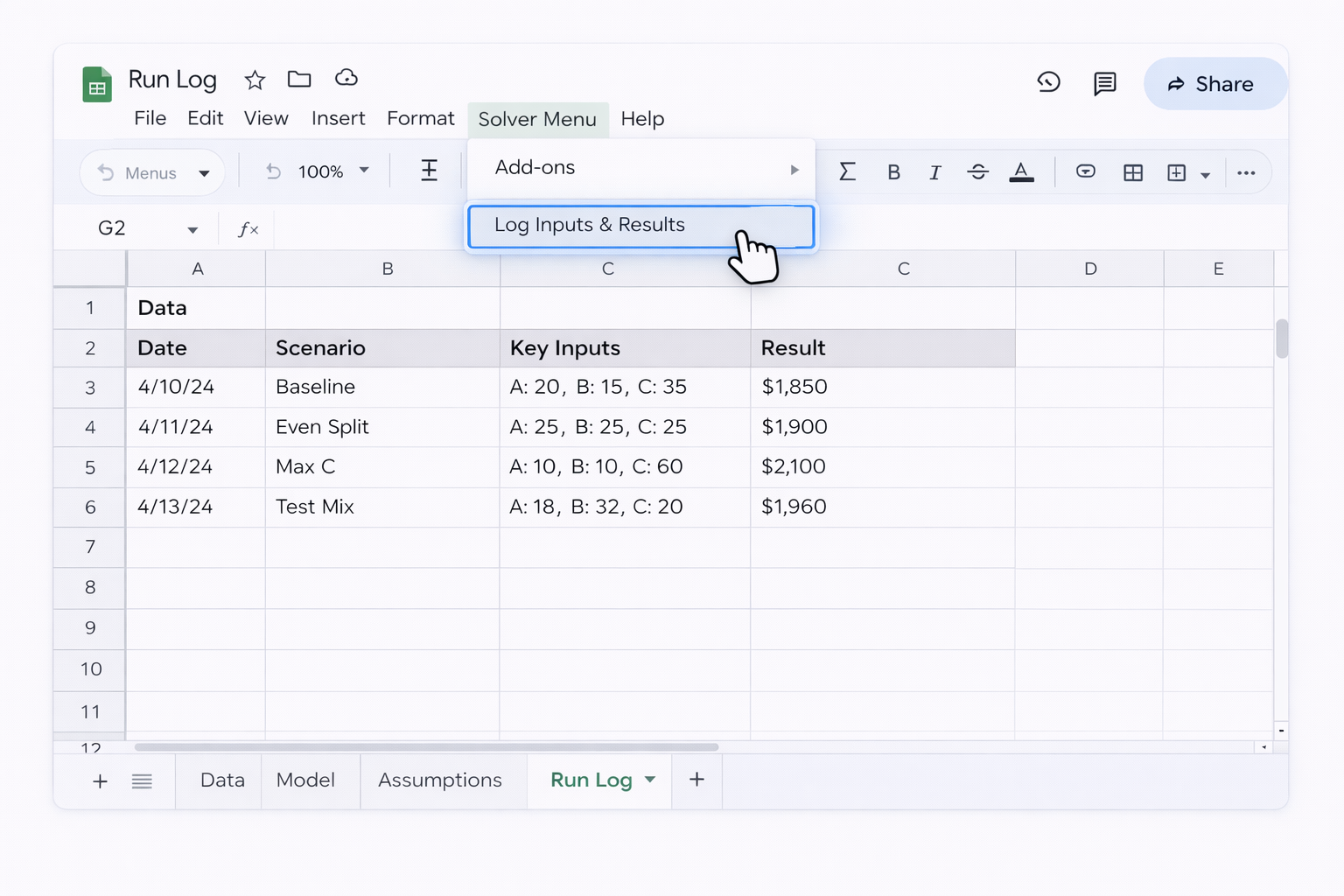
Append the result to a 'Scenario Results' sheet.
Schedule this as a nightly or weekly job.
You wake up to a scenario matrix ranked by objective (profit, revenue, ROAS) instead of spending hours experimenting.
Pros:
Turns Solver from a one-off tool into a decision pipeline.
Allows non-technical founders and marketers to benefit from optimization at scale.
Cons:
More moving parts: your scenarios table, Solver model, and agent loop must stay in sync.
Requires some governance so someone owns verifying that the model’s still valid as the business changes.
Scale Solver in Sheets and Excel with AI agents
Teach agent Solver
Train a Simular AI agent by recording the exact clicks for running Solver in Google Sheets and Excel: opening files, launching add-ins, selecting ranges, and saving results.
Test agent on Solver
Use Sai’s transparent execution to replay each Solver run, verify the right Sheets and Excel ranges are used, then refine prompts and safeguards until it succeeds reliably.
Let agent run Solver
Once stable, delegate recurring Solver jobs to the Simular AI agent so it runs models, logs outputs, and scales Google Sheets and Excel optimizations across clients automatically.
Learn how to automate Google Sheets
Google Sheets runs Solver via add-ons like OpenSolver, letting you model constraints, test scenarios, and optimize decisions directly in shared spreadsheets.
Excel includes the Solver add-in to optimize goals under constraints, ideal for budgeting, scheduling, pricing, and other data-driven business decisions.


.svg)
.png)
%20(1).svg)