How to Use Google Sheets Slicers: A Practical Guide

Explore how Google Sheets slicers tame messy tables, and how an AI computer agent keeps dashboards filtered, current, and ready for every decision.
Advanced computer use agent
Production-grade reliability
Transparent Execution

Why Google Sheets Slicers + AI

If you live in dashboards, sales pipelines, or campaign reports, a Google Sheets slicer is your best friend. It acts like a remote control for your data, letting you toggle segments, dates, and channels without ever touching the raw spreadsheet. Instead of cloning tabs or rewriting filters, a slicer gives everyone a clean, visual way to answer questions like “What happened last quarter?” or “Which region is actually driving profit?”—all from the same source of truth.Now layer in an AI computer agent. Instead of you clicking through every report each morning, the agent can open Google Sheets, adjust slicers for the views you care about, capture snapshots, and share the highlights. Delegating this routine exploration means you still get the insight, but the agent does the clicking, filtering, and refreshing at scale—on time, every time.

How to Use Google Sheets Slicers: A Practical Guide

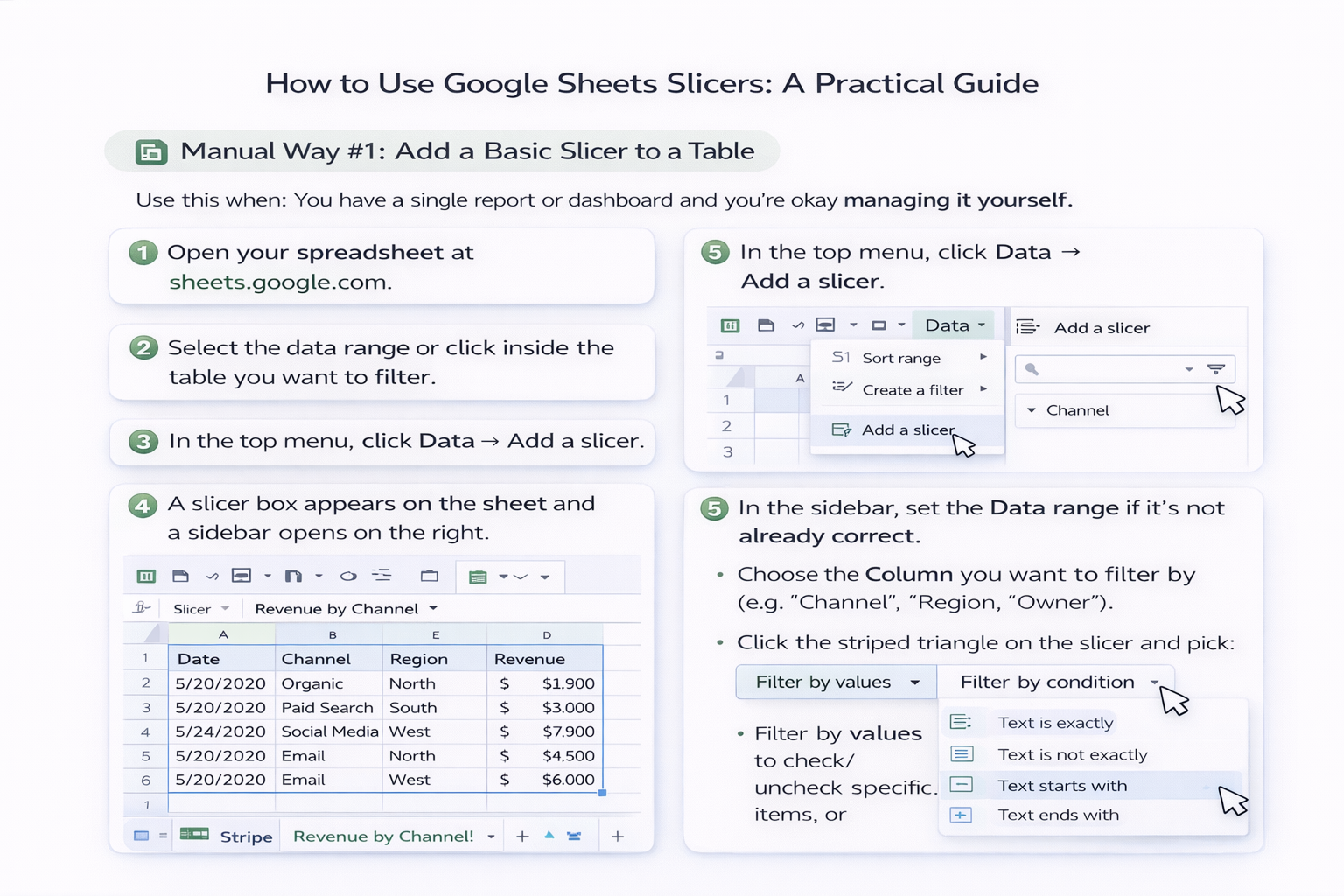
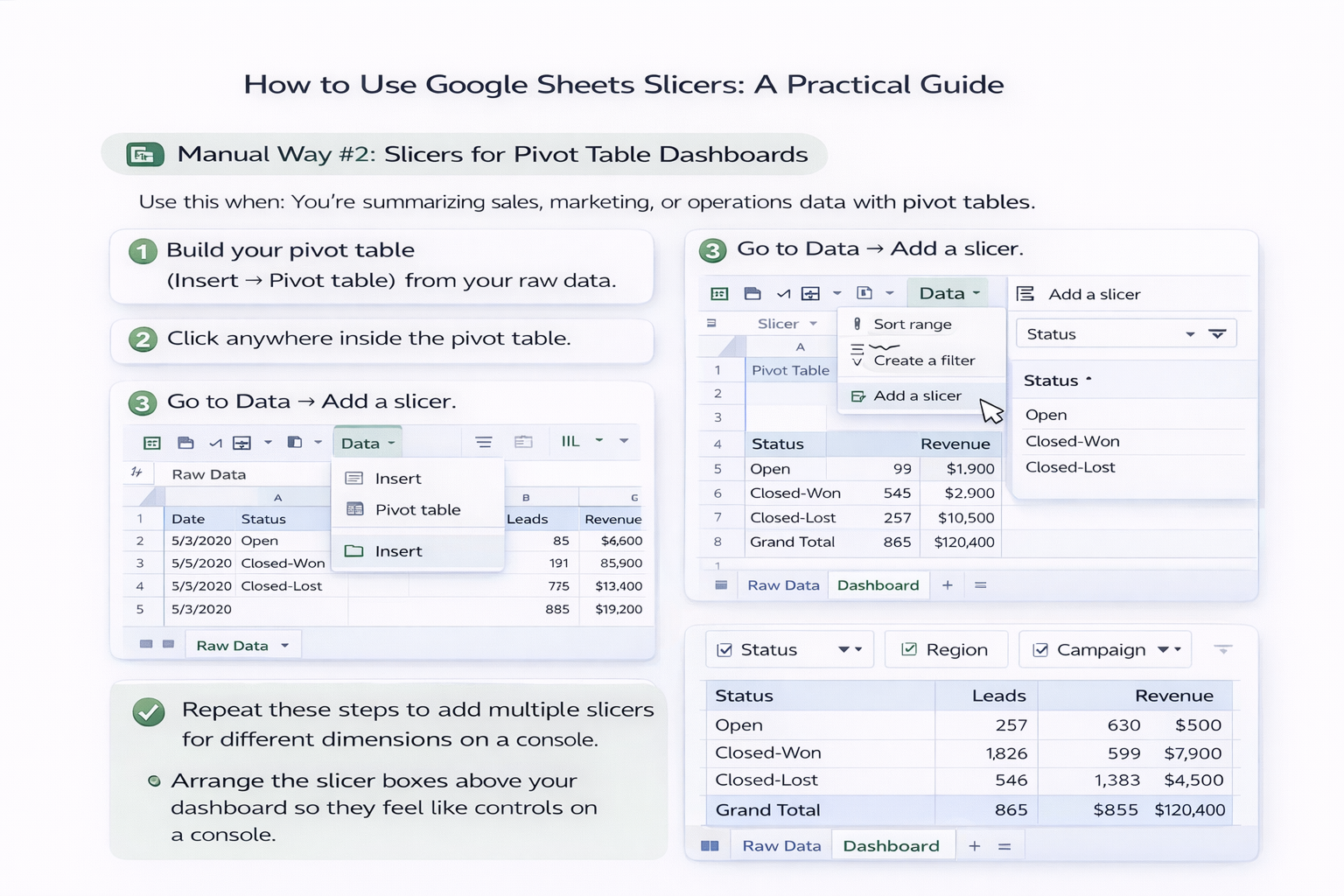
### Understanding Slicers Before You AutomateBefore you hand anything to an AI computer agent, you need to understand what you’re delegating.A slicer in Google Sheets is a visual filter you can attach to a table, chart, or pivot table. Instead of digging into the Data menu, you get a tidy box that lets you filter by values or conditions with a couple of clicks. It’s perfect for dashboards: same data, many different views.Below, we’ll walk through how to use slicers manually, then how to make an AI agent like Simular handle the repetitive parts at scale.---### Manual Way #1: Add a Basic Slicer to a Table**Use this when:** You have a single report or dashboard and you’re okay managing it yourself.**Steps:**1. Open your spreadsheet at `sheets.google.com`.2. Select the data range or click inside the table you want to filter.3. In the top menu, click **Data → Add a slicer**.4. A slicer box appears on the sheet and a sidebar opens on the right.5. In the sidebar, set the **Data range** if it’s not already correct.6. Choose the **Column** you want to filter by (e.g., “Channel”, “Region”, “Owner”).7. Click the striped triangle on the slicer and pick: - **Filter by values** to check/uncheck specific items, or - **Filter by condition** (e.g., dates after a certain day, values greater than X).**Pros:**- Fast and intuitive.- Great for small teams and simple dashboards.**Cons:**- You must remember to change the slicer every time.- Easy to forget a filter and misread the data.---### Manual Way #2: Slicers for Pivot Table Dashboards**Use this when:** You’re summarizing sales, marketing, or operations data with pivot tables.**Steps:**1. Build your pivot table (Insert → Pivot table) from your raw data.2. Click anywhere inside the pivot table.3. Go to **Data → Add a slicer**.4. In the slicer sidebar, set the **Data range** to the same source range used by your pivot.5. Pick a **Column** you want to slice by (e.g., “Status”, “Campaign”, “Region”).6. Repeat these steps to add multiple slicers for different dimensions.7. Arrange the slicer boxes above your dashboard so they feel like controls on a console.**Pros:**- One slicer can control multiple charts/pivots based on the same data.- Ideal for interactive exec dashboards.**Cons:**- Still manual: someone has to open the sheet, click the slicers, and save views.- As dashboards multiply, the daily maintenance becomes a time sink.---### Manual Way #3: Customize and Save Default Slicer Views**Use this when:** Different stakeholders want different “default” views.**Steps:**1. Click a slicer and apply your preferred filters.2. Click the three-dot **More** menu on the slicer.3. Choose **Set current filters as default**.4. Share the sheet. Others will see your default selection when they open it.**Pros:**- Helpful for recurring reports (e.g., “Marketing default”, “Sales default”).**Cons:**- Defaults still need a human to update as priorities change.- No scheduling, no automation, no notifications.---### Automated Way #1: Let a Simular AI Agent Drive the SlicersHere’s where your life gets easier.Simular’s AI computer agents can operate your desktop and browser like a human—opening Google Sheets, adjusting slicers, capturing views, and syncing results into other tools. Instead of you repeating the same clicks across 10 dashboards, an agent replays them reliably.**Example Workflow for a Sales Leader:**- Every morning, the agent: 1. Opens your CRM report in Google Sheets. 2. Sets a slicer to **This Week** and **New Opportunities**. 3. Exports a PDF snapshot. 4. Posts it into your team’s Slack or email.**Pros:**- Zero manual clicking after setup.- Runs on schedule or on demand.- Production-grade reliability across long, multi-step workflows.**Cons:**- Requires a short upfront setup and testing.- Best payoff when you have recurring, repeatable views.---### Automated Way #2: Multi-Client or Multi-Country Dashboards at ScaleIf you’re an agency or distributed team, you probably maintain the same Google Sheets dashboard template for dozens of clients or markets. Manually changing slicers per sheet is where time goes to die.With a Simular agent, you can:- Maintain one master playbook: open sheet → duplicate → rename → adjust slicers → share.- Feed the agent a list of clients/regions.- Let it loop through each row, updating slicers and sharing tailored views in bulk.**Pros:**- Perfect for agencies and RevOps teams.- Eliminates copy-paste errors and forgotten filters.**Cons:**- You’ll want clear naming conventions so the agent can find the right sheets.---### When to Stay Manual vs. When to Use an AI AgentStay manual when:- You only manage one or two dashboards.- Filters change rarely and stakes are low.Use an AI agent when:- You repeat the same slicer clicks weekly or daily.- You manage dashboards across many teams, regions, or clients.- A missed filter could lead to bad decisions.Start small: build one clean dashboard, then let a Simular AI computer agent handle the repetitive part—opening Google Sheets, turning those slicers, and delivering the views your business actually runs on.


Scale Google Sheets Slicers With Smart A.I. Agents

Train Simular on slicers
Onboard your Simular AI computer agent by recording a simple run-through: open Google Sheets, locate the right dashboard, add or edit a slicer, apply filters, then save. This becomes the repeatable playbook.
Test and refine the workflow
Use Simular Pro’s transparent execution to watch each slicer step in Google Sheets. Verify ranges, columns, and default filters, then tweak the agent’s instructions until it reliably produces the exact views you expect.
Delegate and scale slicer work
Once validated, schedule your Simular AI agent to refresh Google Sheets dashboards, rotate slicers for each team or client, export results, and push them into email or Slack so your reports scale without extra clicks.

FAQS