
Oops! Something went wrong while submitting the form.


.svg)
If you run a business, you already know invoices never sleep. Clients change scopes, retainers renew, and payment terms shift. Free QuickBooks invoice templates are a lifesaver because they give you polished, professional layouts without paying a designer or building everything from scratch.
You can download formats that match your industry—freelance, construction, commercial—and then personalize them in Google Sheets. That means one central place to tweak branding, adjust taxes, and keep a running history of every bill. The result: faster invoicing, fewer errors, and a cleaner paper trail when tax season hits.
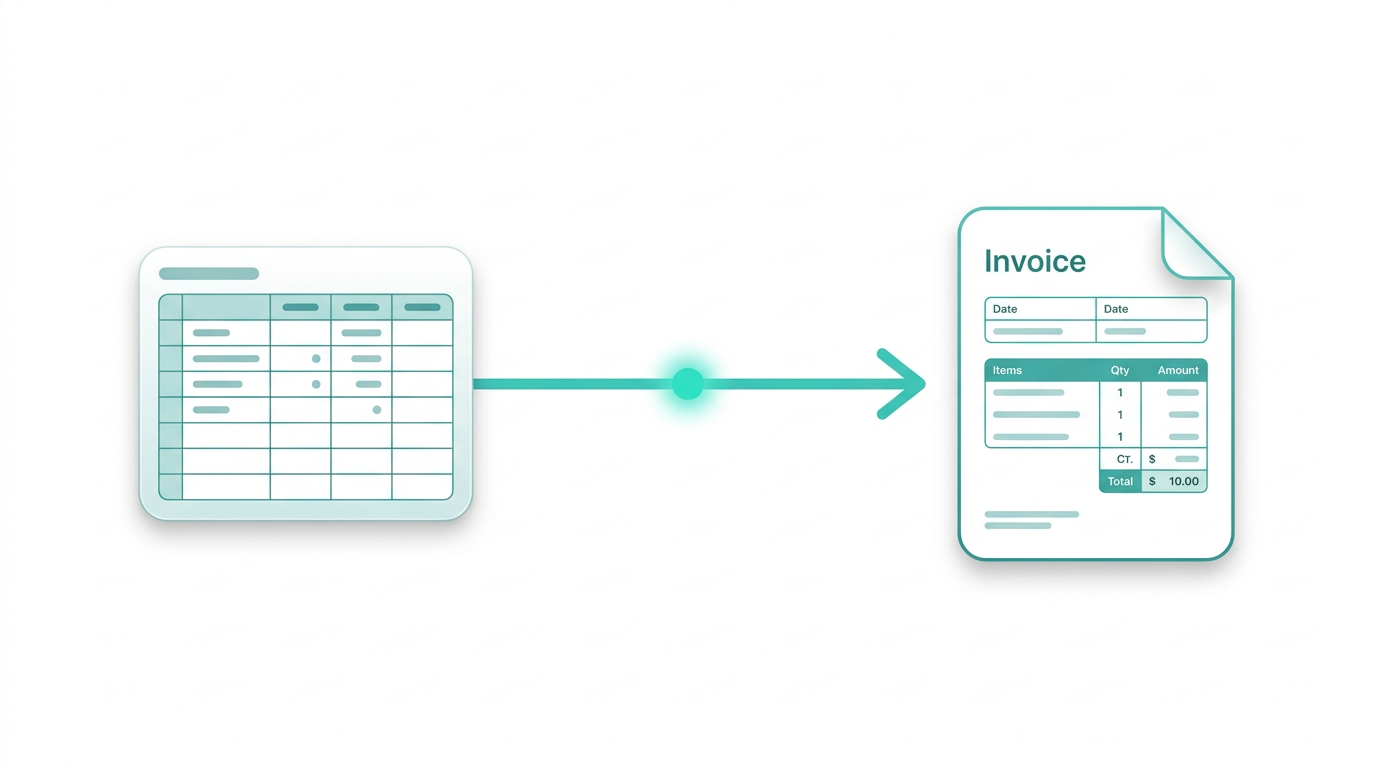
Where it gets interesting is when you let an AI computer agent handle the grunt work. Instead of you hunting for the right QuickBooks template, saving files, and copying data into Google Sheets, the agent can automatically download templates, organize them by client or offer, and even prep them for sending. You stay focused on closing deals while the agent keeps your invoice system consistent, up to date, and ready to scale.
You probably didn’t start your business because you love downloading invoice templates. Yet every month, someone on your team is stuck doing exactly that—clicking around QuickBooks, saving files, and cleaning them up in Google Sheets.
Here’s how to handle QuickBooks invoice templates free download the old-fashioned way—and then how to hand the entire workflow to an AI computer agent so it quietly runs in the background.
Step 1: Choose the right template
- Sign in to your QuickBooks account.
- Go to the invoicing or templates section.
- Browse categories (small business, contractor, freelance, etc.) and pick the layout that fits your business model.
Step 2: Download the template
- Click the template you like.
- Choose your format: Word, Excel, PDF, or a Google Sheets-compatible Excel file.
- Save it to a clear folder structure: /Finance/Invoices/Templates/Year.
Step 3: Customize your invoice
- Open the file in Excel or Google Sheets.
- Add your logo, business details, payment terms, and tax rules.
- Save a clean “master” version and a separate version for each client.
Step 4: Repeat for each use case
- Need a different style for retainers, time & materials, or international sales? Repeat the entire process with a new QuickBooks template.
- Over time, you’ll build your own small library of templates across folders and formats.
Pros of the manual route:
- Full control over every design choice.
- Great for experimenting with new layouts.
Cons:
- Repetitive: the same clicks every month.
- Easy to lose track of the latest version.
- Time sink for you or your team.
Step 1: Import templates into Google Sheets
- Download QuickBooks templates in Excel format.
- Open Google Drive, click New → File upload.
- Open in Google Sheets and save as a dedicated template sheet.
Step 2: Use Sheets as your single source of truth
- Create one Google Sheets file per template type (e.g., "Consulting Invoice Master").
- Use separate tabs for different clients or pricing models.
- Add drop-downs for payment terms, currencies, and tax rates so your team stays consistent.
Step 3: Share with your team
- Give edit or view access to sales, account managers, and finance.
- Add simple instructions in the first tab: how to duplicate, fill, and export each invoice.
This setup still requires human effort, but it pulls the work into one organized, collaborative place.
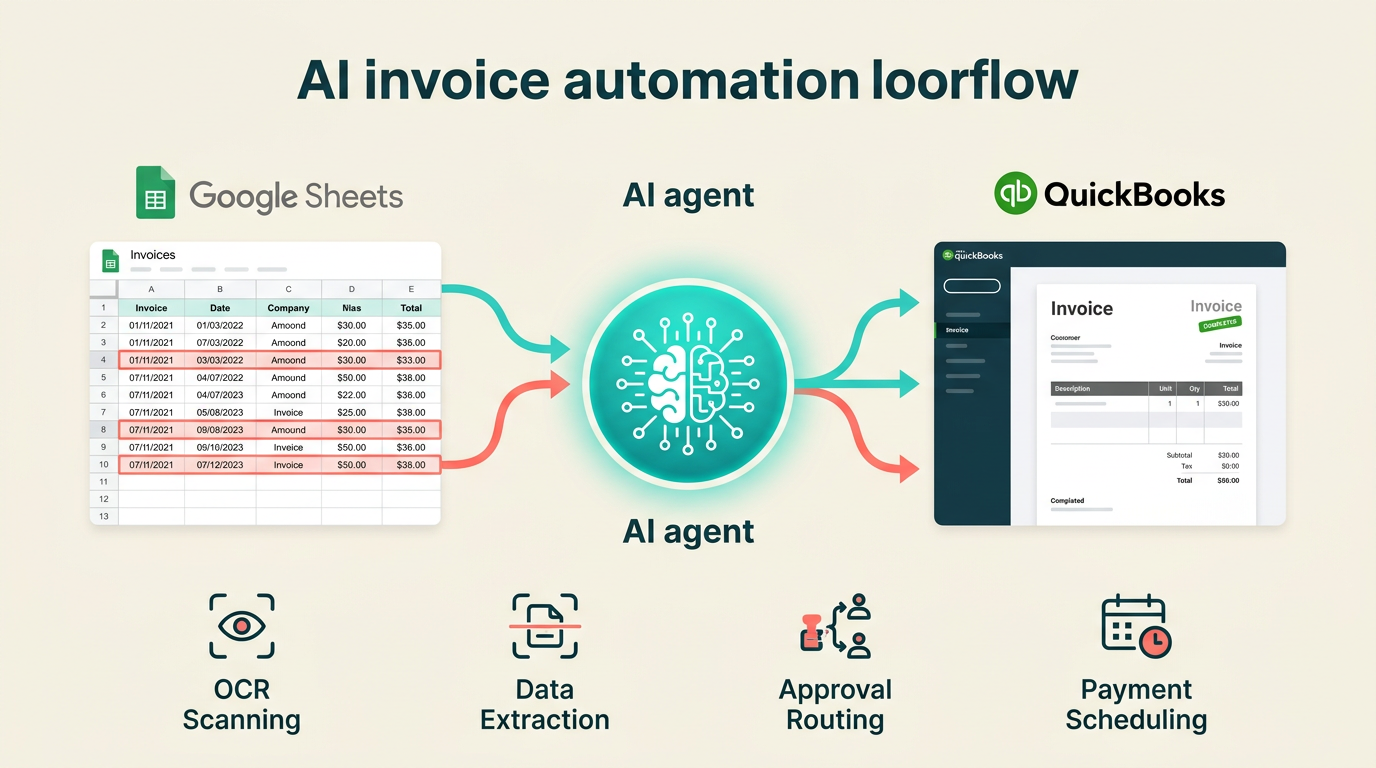
Now imagine this instead: you tell an AI computer agent, “Every Monday, grab the latest QuickBooks invoice templates we use, update them in our Google Sheets library, and prepare drafts for new clients added in our CRM.” Then you go back to selling.
Here’s how that workflow looks with an agent platform like Sai behind the scenes.
Step 1: Record the ideal playbook
- Sit down once and perform your perfect workflow: log into QuickBooks, navigate to templates, download the ones you need, upload them to Drive, open in Google Sheets, and update naming.
- The AI agent learns your clicks, URLs, and file structure across the desktop and browser—just like a human watching over your shoulder.
Step 2: Turn it into a repeatable automation
- Define triggers: new month, new client, or a simple Slack command.
- The agent replays the workflow: logging into QuickBooks, downloading templates, uploading, and organizing in Google Sheets exactly the way you did it.
- Because Sai-style agents are built for long, multi-step workflows, they don’t break if a page scrolls or an element moves slightly.
Step 3: Add validations and safeguards
- Ask the agent to log its actions in a "Template Audit" tab in Google Sheets: which template, when downloaded, and where it was stored.
- Require human approval for the first few runs: the agent prepares everything, you click a quick “Looks good” before it finalizes.
Pros of the AI-agent route:
- Massive time savings once set up.
- Consistent folder structure and naming.
- Easy for non-technical teammates to trigger.
- Transparent logs so finance and leadership can review what ran.
Cons:
- Requires a short upfront investment to define the ideal workflow.
- Best suited once you know which templates you actually use regularly.
4. When to Switch From Manual to Agent
You know it’s time to delegate this to an AI agent when:
- You’re downloading or tweaking QuickBooks templates every week.
- Different team members save files in different places.
- You want sales and marketing focused on revenue, not file management.
Start with the manual steps so you understand your ideal process. Then have an AI computer agent copy it, scale it, and run it on schedule—so invoices stop being a chore and become just another automated part of your business engine.
.png)

