Oops! Something went wrong while submitting the form.
Comments vs Notes in Google Sheets & Excel: What's the Difference?
Understand comments vs notes in Google Sheets and Excel in 2026, when to use each, how they sync and the key differences, with practical examples for teams.
Advanced computer use agent
Production-grade reliability
Transparent Execution
Why Sheets & Excel notes
If you run a sales team, agency, or SaaS business, your spreadsheets quietly run the show: forecasts, campaigns, commissions, experiments. Yet the real story lives in comments and notes. Comments are the live meeting in the margin—questions, decisions, approvals. Notes are the quiet documentation—assumptions, formulas, and data sources. Mixing them up leads to bloated sheets, lost decisions, and painful onboarding every time a new teammate joins.
This is exactly where an AI computer agent shines. Instead of humans hunting through tabs, the agent can scan comments and notes across Google Sheets and Excel, classify them, convert noisy chats into clean notes, and elevate true decisions into threaded comments. Delegating this housekeeping to an AI agent turns your spreadsheets from cluttered whiteboards into living playbooks that stay organized at scale, even as your pipelines, budgets, and headcount grow.
Comments vs Notes in Google Sheets & Excel: What's the Difference?
Quick answer: In Google Sheets, a comment is a threaded discussion you can reply to, assign and resolve, while a note is a simple text label attached to a cell. Use comments for collaboration and feedback; use notes for quick, always-visible context. Excel's equivalents work the same way. The full comparison is below.
Below are practical ways to manage comments vs notes in Google Sheets and Excel, from hands-on to fully automated with AI agents.
1. Manual methods in Google Sheets and Excel
A. Google Sheets – using comments for conversations
Open your sheet and select the cell with data you want to discuss.
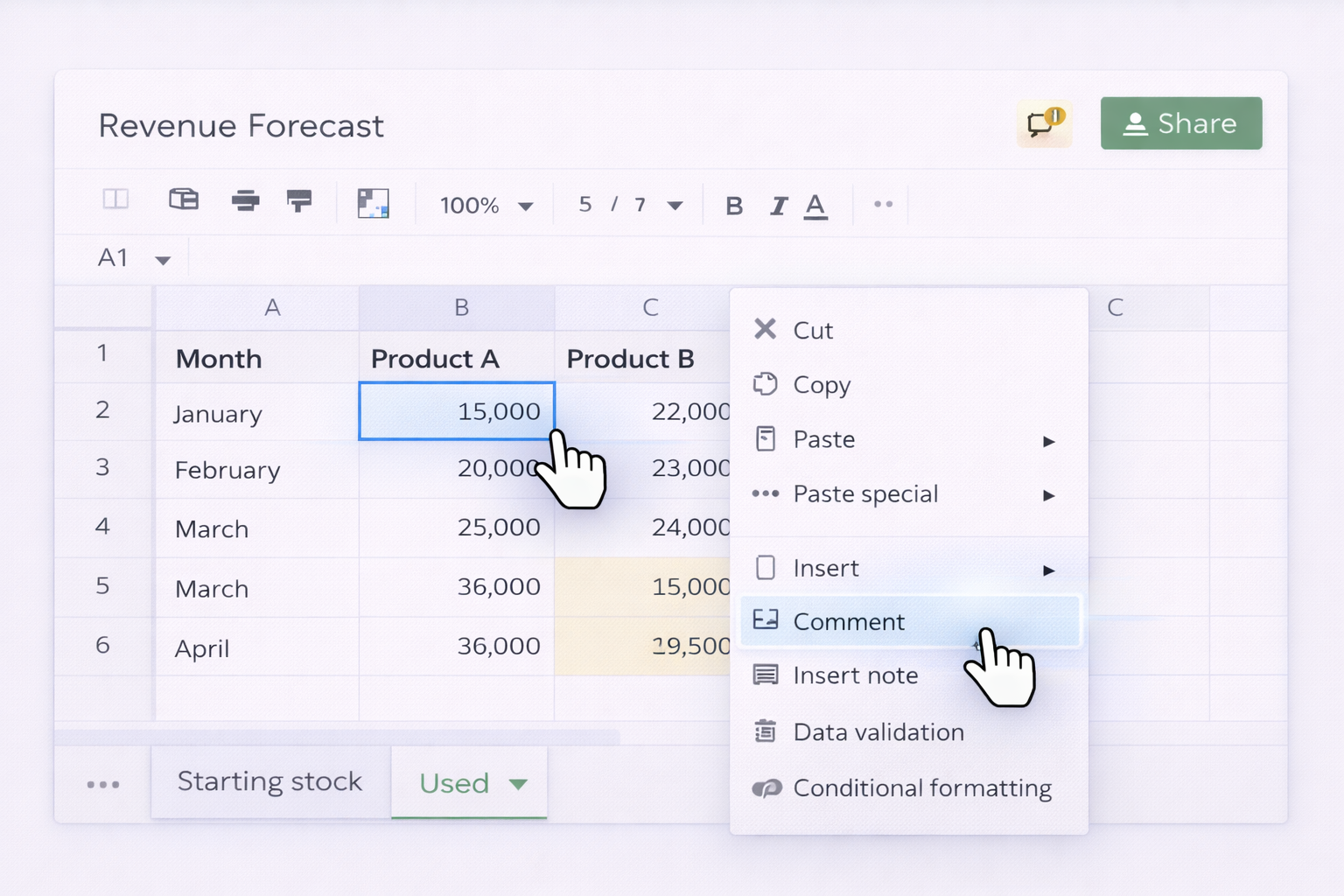
Right‑click the cell and choose Comment, or use the menu: Insert → Comment.
Type your question, decision, or request (treat this like a mini chat thread).
Click Comment to post. Teammates can reply in the same thread.
Use the comments button in the top‑right to see all open threads and resolve them when a decision is made.
Easy to get inconsistent: people mix comments and notes.
Hard to audit across many files or months of history.
Time‑consuming to clean up when onboarding new staff.
2. No‑code automation with tools
Here you keep humans in charge of content but automate triggers around comments and notes.
A. Trigger workflows from Google Sheets comments (Zapier/Make)
Use Zapier or Make and connect your Google account.
Create a trigger like New or updated comment in Google Sheets (or, if not available, trigger on New row and use a dedicated “Needs review” column instead of comments).
Add actions:
Post the comment text into Slack or Microsoft Teams.
Create a task in Asana/ClickUp with a link to the exact cell.
Append the comment into a running “decision log” spreadsheet.
Use filters to react only to comments containing tags such as “[BLOCKER]” or a specific label.
B. Capture “note‑like” context as structured fields
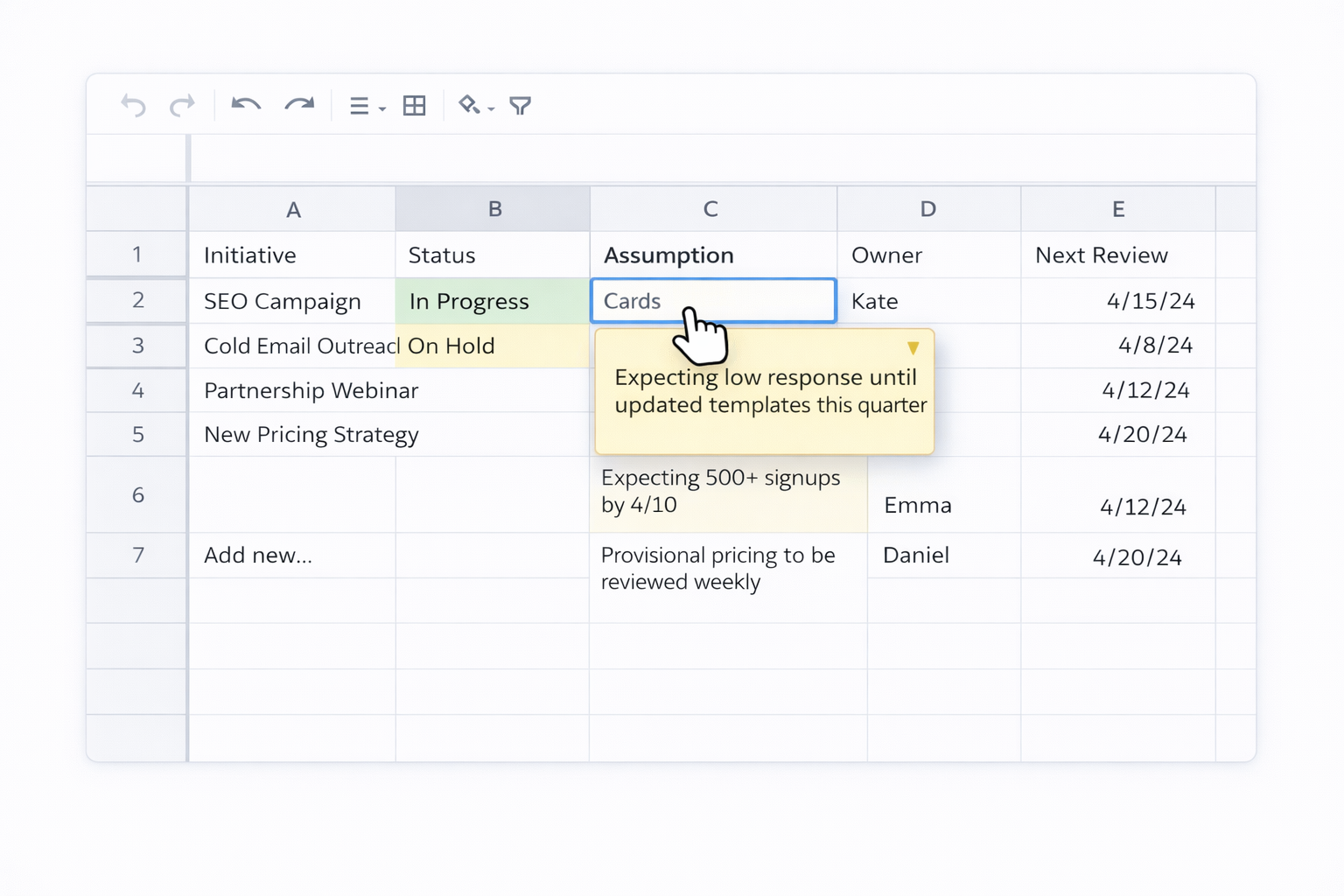
In Sheets or Excel, add helper columns: e.g., Assumption, Owner, Next review date.
In your no‑code tool, trigger on New or updated row.
When those fields are filled, automatically:
Add a standardized note to the cell using the API (Excel via Microsoft Graph / Office Scripts; Sheets via Google Sheets API wrapped by Zapier/Make).
Or send a summary email to stakeholders containing the new context.
C. Excel + Power Automate for comment hygiene
Store your workbook in OneDrive or SharePoint.
In Power Automate, create a flow triggered by When a file is created or modified (properties only).
Add an Office Scripts or Graph API action that:
Scans for comments older than X days marked “Resolved”.
Exports them to a log sheet.
Optionally deletes the resolved threads to keep the workbook light.
Schedule the flow daily.
Pros of no‑code methods
Reduce manual follow‑up; comments become live signals.
Centralize decisions into CRMs, PM tools, or logs.
Still transparent and easy to tweak.
Cons
Logic is brittle if sheet structure changes.
No semantic understanding of text—just triggers on patterns.
Hard to scale across dozens of workbooks without careful design.
3. Scaling with AI computer agents (Simular‑style workflows)
Now imagine an AI computer agent that can operate your entire desktop, browser, and cloud stack like a power user.
A. Agent to normalize comments vs notes across files
You define the playbook: "In Google Sheets and Excel, move decisions/questions into comments; move background explanations into notes."
The AI agent:
Opens each assigned spreadsheet (Excel desktop or web, Google Sheets in Chrome).
Scans cells, existing comments, and notes.
Classifies text: decision, question, reminder, formula explanation, data source, etc.
Converts mis‑used comments into notes (and vice versa) following your rules.
Logs every change in a summary sheet for audit.
Pros
Semantic understanding: it actually reads content, not just triggers.
Works across tools (Sheets + Excel in same run).
Huge time savings when retrofitting old workbooks.
Cons
Requires an initial spec and small pilot run.
Best suited for recurring cleanup (weekly/monthly) rather than one‑off tiny files.
B. Agent as ongoing “spreadsheet editor” for revenue teams
Sales leaders often want consistent comment formats on pipeline or forecast sheets.
You teach the agent a pattern: "Each deal row must have: latest call summary in a note, open questions as comments, and a resolved comment once next step is agreed."
Moves outdated threads to a summary sheet and closes them as resolved comments.
C. Agent to sync insights between Excel and Google Sheets
Many agencies keep client‑facing Sheets and internal Excel models.
The AI agent:
Reads comments in the internal Excel model where strategists discuss performance.
Distills non‑sensitive conclusions into concise notes in the client Google Sheet.
Ensures client sheets stay clean (notes only), while internal debates stay in Excel comments.
Overall pros of AI agents
Production‑grade: can handle workflows with thousands of steps.
Transparent: every action is inspectable and repeatable.
Frees humans to focus on strategy, not formatting.
Overall cons
Needs clear guardrails and testing.
Overkill for very small teams with one or two sheets.
Scale spreadsheet feedback with AI comments/notes!
Train agent on notes
Install Simular’s desktop agent, open sample Google Sheets and Excel files, then record a run where you classify text as a comment or note so the agent can mimic your workflow.
Validate agent runs
Start Simular in transparent mode, let it process a copy of your spreadsheets, then review every comment/note change in its action log and tweak prompts or rules until results are clean.
Scale tasks to agent
Once you trust its behavior, point Simular at live Google Sheets and Excel folders, trigger runs via webhook or schedule, and let the agent maintain comments vs notes across all files.
Learn how to automate Google Sheets
Google Sheets lets teams chat in comments while tucking background logic into notes, so every cell carries both discussion history and quiet context.


.svg)
.png)
%20(1).svg)