Every business has a money story. An income and expense worksheet is the page where that story finally becomes readable. Instead of guessing from a bank balance, you see patterns: the clients who always pay late, the subscriptions you forgot to cancel, the campaigns that quietly print profit. In Google Sheets or Excel, a simple layout of dates, categories, and amounts turns chaos into a narrative you can actually steer.Where an AI agent changes the game is in the execution. Instead of you chasing receipts, exporting CSV files, and copy pasting into columns, an AI computer agent can log in, open your Google Sheets or Excel workbook, pull transaction data from email or portals, label it, and reconcile totals on its own. You keep strategic control, while the machine handles the clicks, drags, and data cleanup.
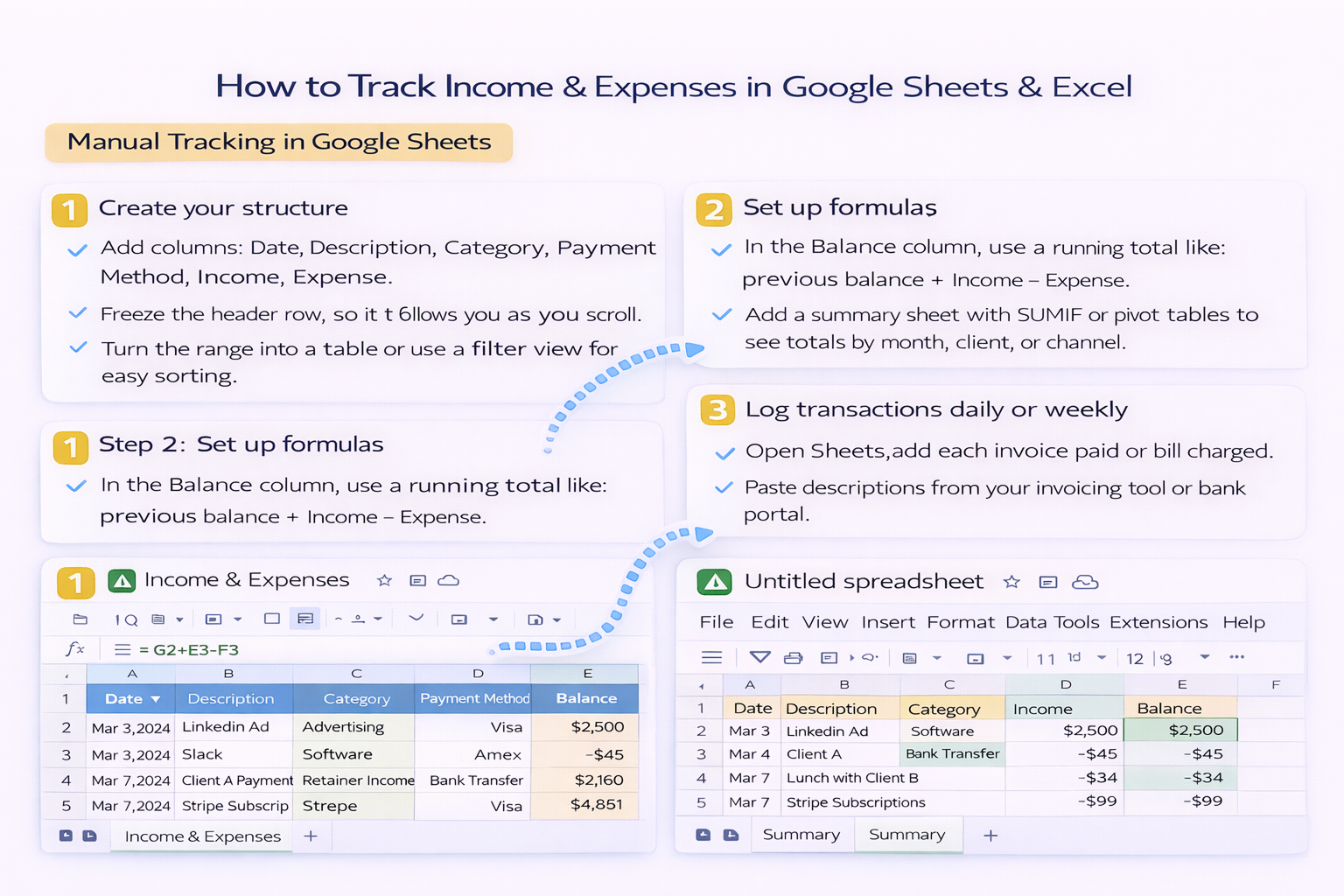
You can build a beautiful income and expense worksheet in an afternoon. The real challenge is keeping it alive when business gets busy. Let’s walk through the practical ways to manage it manually in Google Sheets and Excel, then see how an AI agent can quietly take over the grunt work.## 1. Manual Tracking in Google SheetsThis is where most scrappy founders and agencies start.**Step 1: Create your structure**- Add columns: Date, Description, Category, Payment Method, Income, Expense, Balance.- Freeze the header row so it follows you as you scroll.- Turn the range into a table or use a filter view for easy sorting.**Step 2: Set up formulas**- In the Balance column, use a running total like: previous balance + Income − Expense.- Add a summary sheet with SUMIF or pivot tables to see totals by month, client, or channel.**Step 3: Log transactions daily or weekly**- Open Sheets, add each invoice paid or bill charged.- Paste descriptions from your invoicing tool or bank portal.- Tag each line with a Category such as Advertising, Software, Payroll, or Retainer Income.**Pros**- Free, flexible, easy to share with your team and accountant.- Great visibility; you see every transaction as you enter it.**Cons**- Easy to fall behind when you get busy.- Copy paste errors creep in over time.- Requires discipline from you or a teammate.## 2. Manual Tracking in ExcelExcel shines when your data gets heavier or you are used to desktop tools.**Step 1: Start from a template**- Open a budget or income expense template from Microsoft’s library.- Replace placeholder categories and sample rows with your own.**Step 2: Customize for your business**- Add extra columns for Project, Client, or Campaign.- Use Data Validation for dropdown categories to keep naming consistent.- Use conditional formatting to highlight negative cash flow months or overdue invoices.**Step 3: Update on a schedule**- Once or twice a week, export a CSV from your bank or payment processor.- Import into Excel, clean up extra columns, and copy into your main sheet.**Pros**- Very strong analysis tools and pivot tables.- Works well offline and with large files.**Cons**- Imports and cleanup become tedious as transactions grow.- Version control gets messy when multiple people edit.## 3. Where Manual Starts to BreakIf you are a solo creator with a dozen payments a month, manual is fine. But as soon as you are running an agency with multiple retainers, ad spend, contractors, and subscription tools, two problems appear:- You avoid the sheet because it is boring, repetitive work.- When you finally sit down to do it, it eats half a day.That is exactly the kind of digital chore an AI computer agent is built for.## 4. Automating With an AI AgentAn AI agent can operate your computer the way a human assistant would: opening the browser, logging into portals, downloading CSVs, and updating Google Sheets or Excel line by line.**Example automated workflow**- At 6 pm, the agent opens your bank, Stripe, and PayPal dashboards.- It downloads today’s transactions and standardizes them.- It opens your Google Sheets or Excel workbook.- It pastes each transaction into the correct sheet, applies categories based on rules or past behavior, and updates running balances.### Pros of the AI approach- You dramatically reduce manual typing and copy pasting.- Updates can happen daily, even if you never touch a spreadsheet.- The agent can handle multi step, cross app routines that typical integrations do not cover.### Cons and trade offs- You still need to design the worksheet logic: categories, formulas, and summary views.- The first run requires careful review to confirm categories and mappings.- You need to define guardrails, like which accounts to touch and where to write data.## 5. Blending Manual Control With AutomationThe sweet spot for most business owners and marketers looks like this:- You design the income and expense template once in Google Sheets or Excel.- You do one or two weeks of manual entry so the AI agent has good examples.- Then you delegate the repetitive steps: logging in, exporting, pasting, categorizing.- You keep ownership of exceptions and higher level questions, like whether a new tool is personal or business.Over time, your worksheet becomes less of a chore and more of a live dashboard. You still get the story of your money, but an AI agent does the typing, clicking, and late night data cleanup for you.

Start with one month. In Google Sheets or Excel, create columns for Date, Description, Category, Income, Expense, and Balance. Add a simple running total formula in Balance. Then import one bank CSV, clean column names, and paste just that month into your sheet. Once it looks right, duplicate the tab for future months so you never redesign the layout again.
Decide on 10–20 categories that match how you think: Advertising, Software, Contractors, Payroll, Office, Travel, etc. Add them to a reference sheet and use data validation to create dropdowns in your main table. As you log transactions, always pick from the dropdown instead of typing free text. This keeps reporting clean and makes annual reviews and tax prep much faster.
For a small business or agency, weekly is the minimum; daily is ideal when cash flow is tight. Pick a recurring time block, like Friday afternoon, and protect it on your calendar. During that window, import bank or processor CSVs, reconcile against invoices, and scan for surprises. If you later add an AI agent, keep this review slot but shift it to checking the agent’s work instead of typing.
Lock in a template before you scale. In one tab, perfect your formulas and formatting. Name ranges where possible, and avoid hard coded cell references that break when you insert rows. Once stable, duplicate that tab for each month or client. When you change a formula, test it on a copy first. Version your file with dates so you can roll back if something goes wrong.
First, clean your current Google Sheets or Excel file so columns, categories, and formulas are consistent. Document the exact steps you take today: which sites you open, what you download, and where you paste. Use that as the script for your AI agent. Let the agent handle one account while you watch. Fix edge cases, then gradually expand to more accounts and clients once the workflow runs smoothly.