Oops! Something went wrong while submitting the form.
How to sync Zendesk tickets to Google Sheets guide
Turn Zendesk exports into live Google Sheets dashboards while an AI computer agent handles clicks, downloads and imports so your team focuses on strategy.
Advanced computer use agent
Production-grade reliability
Transparent Execution
Why Zendesk to Google Sheets
Every day, your team pours priceless context into Zendesk: tickets, tags, custom fields, SLAs, even CSAT signals. Left inside the help desk, that data mostly powers support ops. Exported into Google Sheets, it suddenly serves marketing, sales, finance, and leadership as a shared, lightweight warehouse.
With exports you can slice ticket volume by campaign, spot failing onboarding flows, track churn-risk conversations, or hand sales a live list of “hot” accounts with repeated issues. Zendesk’s native JSON, CSV, XML and Explore dataset exports give you the raw material; Sheets turns it into fast, flexible models and dashboards.
Now imagine you never again log into Admin Center to request a CSV, wait for an email, download a ZIP, unzip files, clean columns, and paste into Sheets. That entire loop is perfect work for an AI computer agent: it can follow your rules, run exports on a schedule, normalize fields, push data into Google Sheets, and alert you if something looks off—freeing your humans to act on the insight instead of wrangling the data.
How to sync Zendesk tickets to Google Sheets guide
Top Ways to Export Zendesk Data to Google Sheets (and Then Let an AI Agent Run It)
You don’t want your best people babysitting CSVs. You want them acting on insights. Let’s walk through the main ways to get Zendesk data into Google Sheets—from fully manual, to no-code automation, to letting an AI computer agent handle the whole workflow end-to-end.
1. Manual & Traditional Methods
1.1 Native JSON/CSV/XML export from Zendesk Admin Center
Best for: one-off historical exports, audits, migrations.
Make sure exports are enabled. The Zendesk account owner must contact Zendesk Support to enable exports, as described in the official guide: Exporting ticket, user, or organization data.
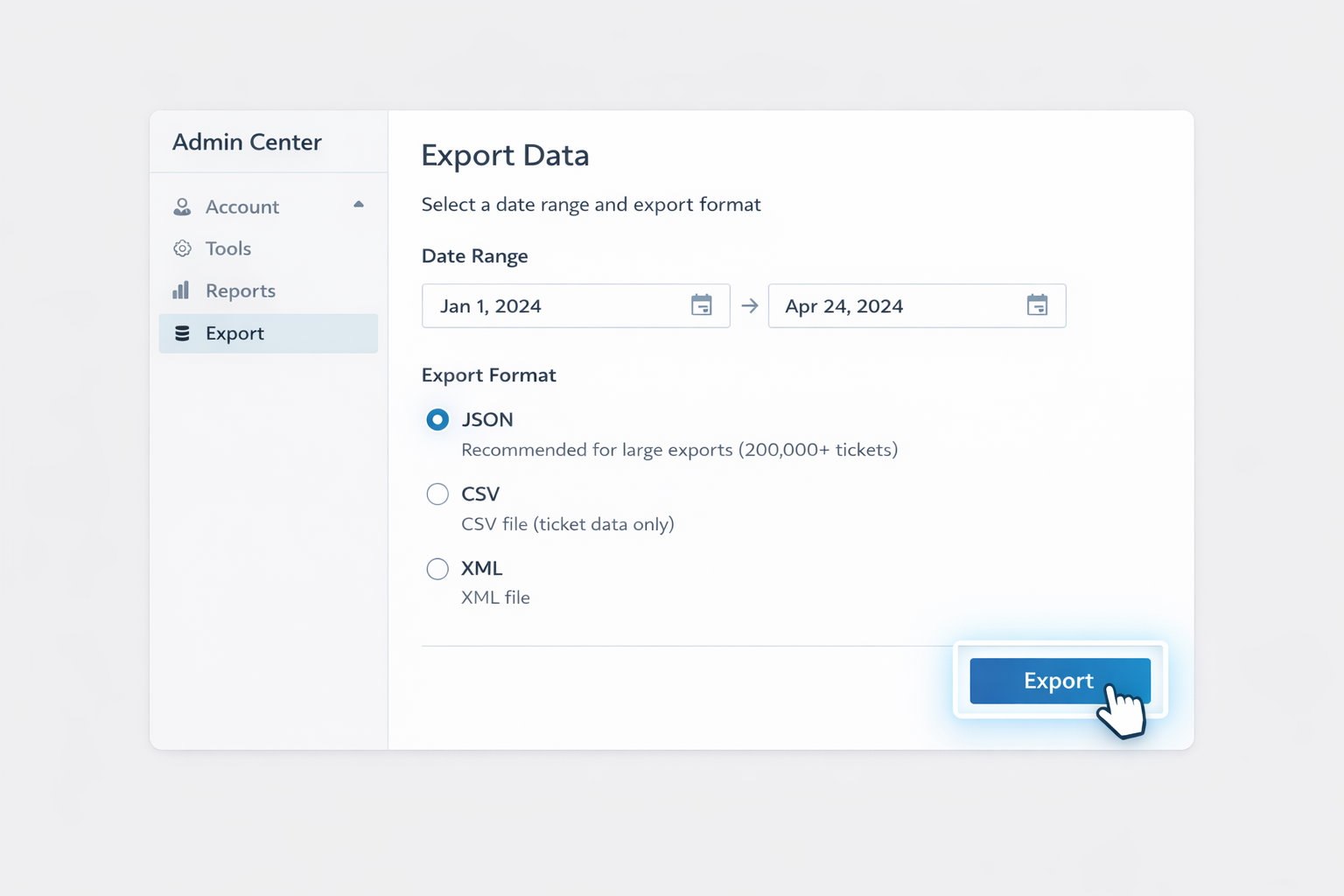
In Admin Center, go to Account → Tools → Reports → Export.
Choose your format:
JSON export (recommended for >200k tickets; supports tickets, users, organizations).
CSV export (ticket data only; no comments/descriptions).
XML export (full or user XML).
Set a date range (for JSON/CSV) and select tickets / users / organizations if applicable.
Click Export. Zendesk will email you a download link once the ZIP is ready.
Download and unzip the file, then open the CSV (or convert JSON/XML using a script/tool).
Runs inside Google’s environment; no external server.
Fully customizable transformations.
Cons
You still maintain code.
Harder to debug for non-engineers.
3. Scaling with an AI Agent (Simular) Handling the Entire Workflow
Manual exports and no-code flows solve parts of the problem. But when you’re running a serious sales, marketing, or agency operation, the work around the export becomes the bottleneck: logging in, adjusting filters, downloading ZIPs, fixing headers, deduping, pasting into the right tab, and notifying stakeholders.
A Simular AI computer agent can act like a tireless operations assistant who lives in your browser and desktop.
3.1 Agent-driven Admin Center export → Google Sheets
Story: Every Monday at 7 a.m., your Simular agent wakes up before your team does.
It:
Opens your browser, logs into Zendesk Admin Center.
Navigates to Account → Tools → Reports → Export.
Requests a CSV export of tickets updated in the last 7 days.
Waits for the email, opens the download link, and saves the ZIP.
Unzips the CSV, cleans headers, standardizes date/time formats.
Opens your master Google Sheet, imports the latest CSV into a staging tab, and uses formulas or recorded steps to:
Deduplicate by ticket ID.
Normalize statuses to your internal taxonomy.
Append to a historical log tab.
Finally, it posts a summary in Slack or email: “New Zendesk → Sheets export completed. 4,872 tickets synced.”
Pros
Zero human clicks after setup.
Works with Zendesk’s native, supported export flow.
Transparent execution: you can see and adjust every step the agent runs.
Cons
Requires an initial configuration and testing period.
Open Zendesk Explore and navigate to Dataset exports.
Create or adjust recurring export schedules (for example, weekly exports of Support – SLAs and Support – Updates History).
Download the CSVs before they expire.
Push each dataset into a dedicated tab or separate Sheet, preserving schema.
Maintain links between tables (tickets, SLAs, updates) so your dashboards and Looker Studio reports stay intact.
Pros
Uses Explore’s curated datasets.
Keeps multi-table reporting in sync without a data engineer.
Cons
Still bound by Explore’s export frequency and row limits.
3.3 Hybrid: Agent orchestrating APIs and no-code tools
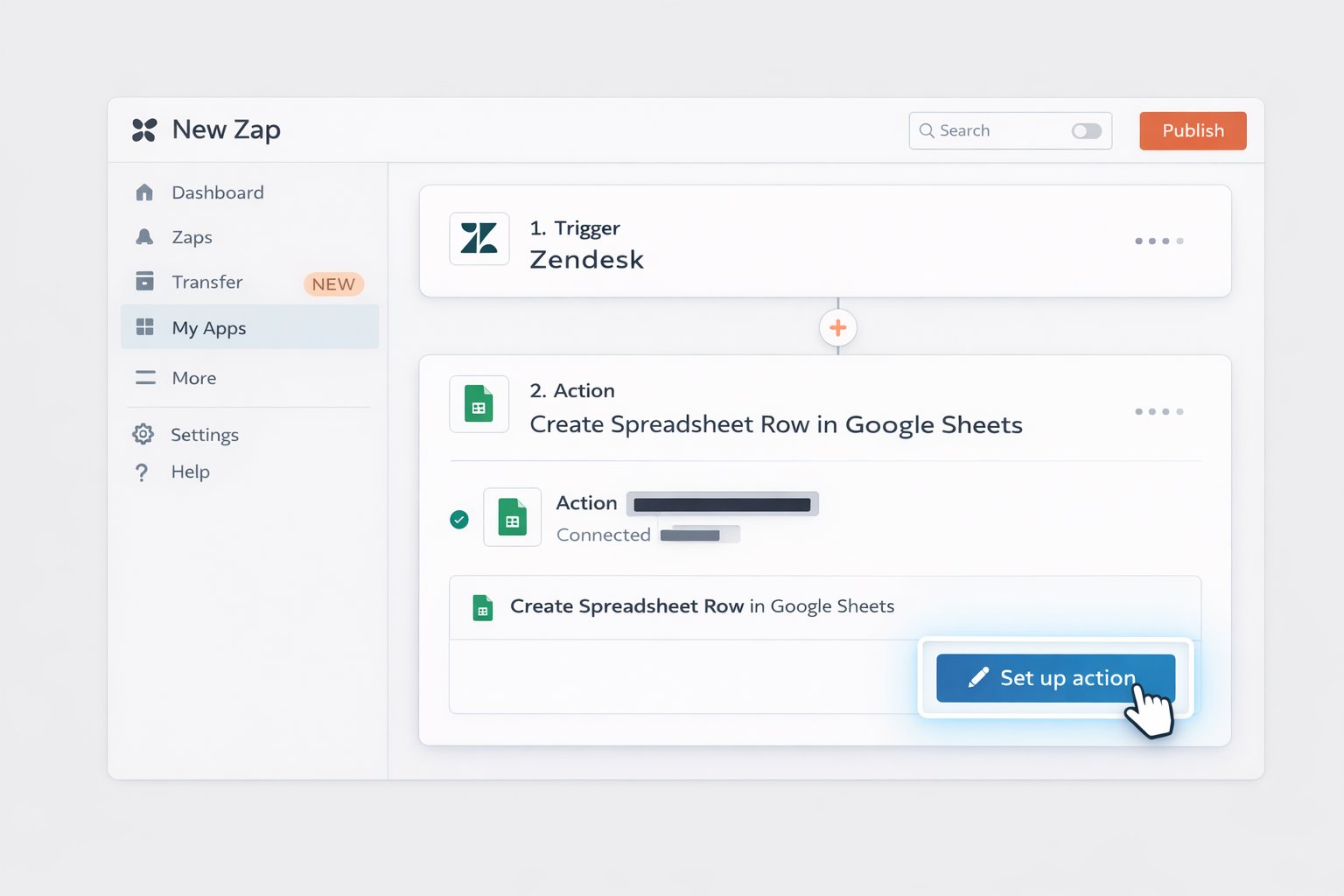
If you already use Zapier/Make or Apps Script, your Simular agent can orchestrate:
Turning Zaps on/off for specific campaigns.
Adjusting filters or Views in Zendesk before exports.
Copying sample rows into QA sheets for human review.
In other words, the AI agent doesn’t replace your stack; it operates your stack. It clicks buttons, changes configs, and stitches the last mile of work humans usually hate doing.
Pros
Leverages what you’ve already built.
Great for complex, multi-app workflows.
Cons
Needs clear checklists and guardrails so the agent knows exactly what “success” looks like.
Once configured, you’re no longer “doing exports”—you’re simply deciding what questions you want the data to answer, and your AI agent keeps the pipelines humming in the background.
Scale Zendesk exports with AI smart agents now too
Prep Simular export!
Define a clear Zendesk-to-Google Sheets playbook, then show your Simular AI agent how to log in, request exports, download CSVs, and append data into the right Sheets tabs.
Test & refine agent!
Run dry runs where Simular exports a small Zendesk date range into a sandbox Google Sheet, then inspect every column and formula, tightening prompts until the flow is flawless.
Scale export via AI!
Once the Simular AI agent reliably syncs Zendesk into Google Sheets, schedule it for daily or weekly runs and let it own the export pipeline while your team uses the insights.
Learn how to automate Zendesk
Zendesk is a cloud-based customer support hub for tickets, users, and organizations, giving you a central place to export structured data into other tools.
Google Sheets is an online spreadsheet where exported Zendesk data becomes living reports, funnels, and dashboards your team can share, slice, and automate.


.svg)
.png)
