

Oops! Something went wrong while submitting the form.


.svg)
If you live in Google Sheets, you know a single sort is rarely enough. Sales pipelines need sorting by deal stage, then value, then close date. Agency rosters get ordered by client, channel, and latest activity. Sorting by multiple columns turns flat tables into structured stories: top leads rise to the top, edge cases fall into place, and errors jump out. Manually repeating that sorting every day, though, is pure drag work. Delegating it to an AI agent means the computer clicks through Data menus, applies multi-column rules, and refreshes views on schedule. You keep the logic; the agent handles the keystrokes, so your Sheets are always sorted before you even open them.
"Every business has a version of this story: a founder, marketer, or account manager opens a massive Google Sheets file and spends the first 15 minutes of the day just sorting columns to make sense of it. Deals, campaigns, or tasks are all there, but in the wrong order.
Multi-column sorting is how you turn that chaos into a clear narrative. Let’s walk through the best ways to do it manually, then see how an AI computer agent like Simular can take over the repetitive work at scale.
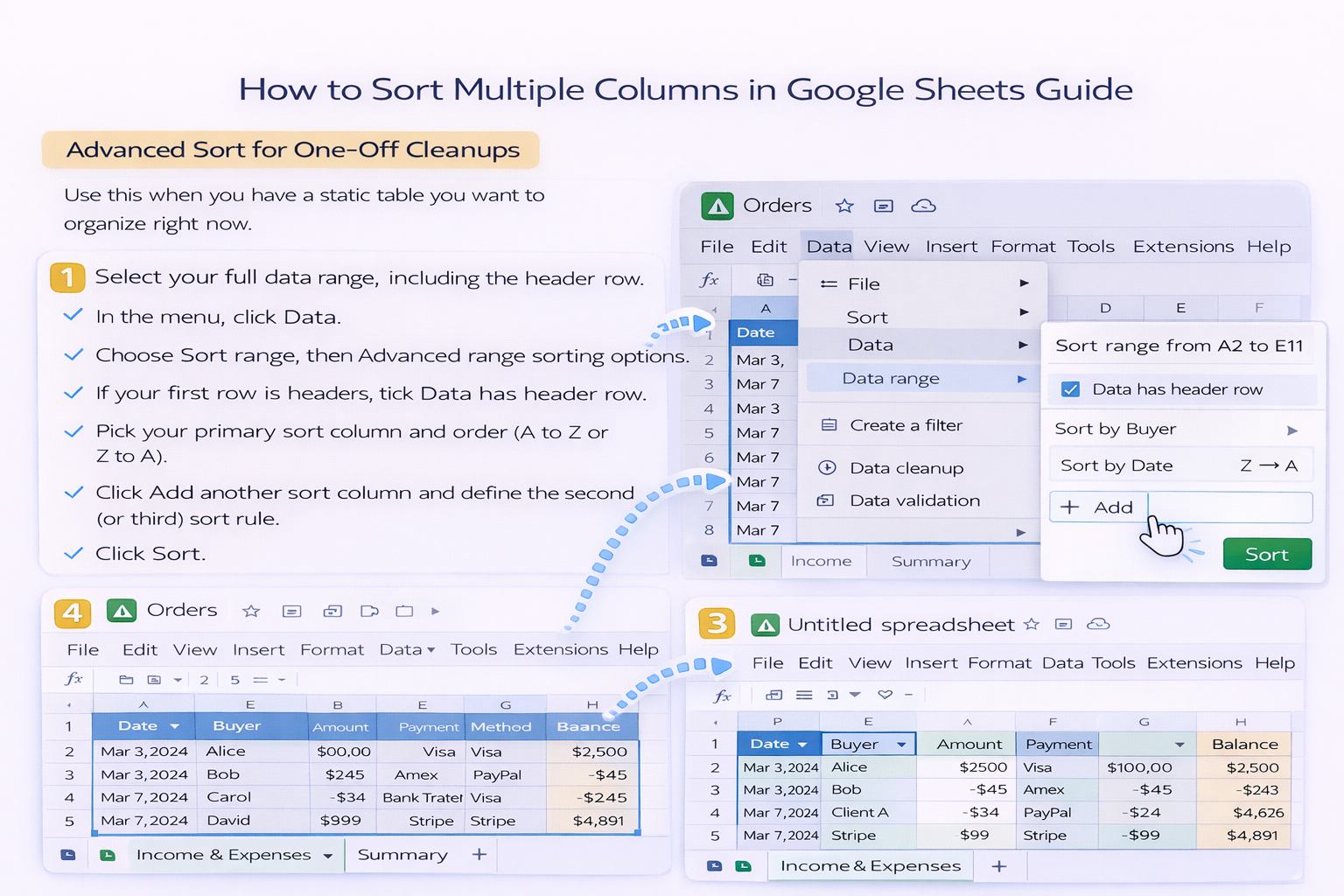
Use this when you have a static table you want to organize right now.
This is perfect for snapshots: a weekly export of leads, a one-time mailing list, or a static project tracker.
Pros:
Cons:
When your data grows over time, use the SORT function to keep a separate, always-sorted view.
Basic pattern: =SORT(A2:D100, 1, TRUE, 3, FALSE)
Here:
Put this formula on another sheet or below your raw data. As new rows appear in A2:D100, the sorted output updates automatically.
Pros:
Cons:
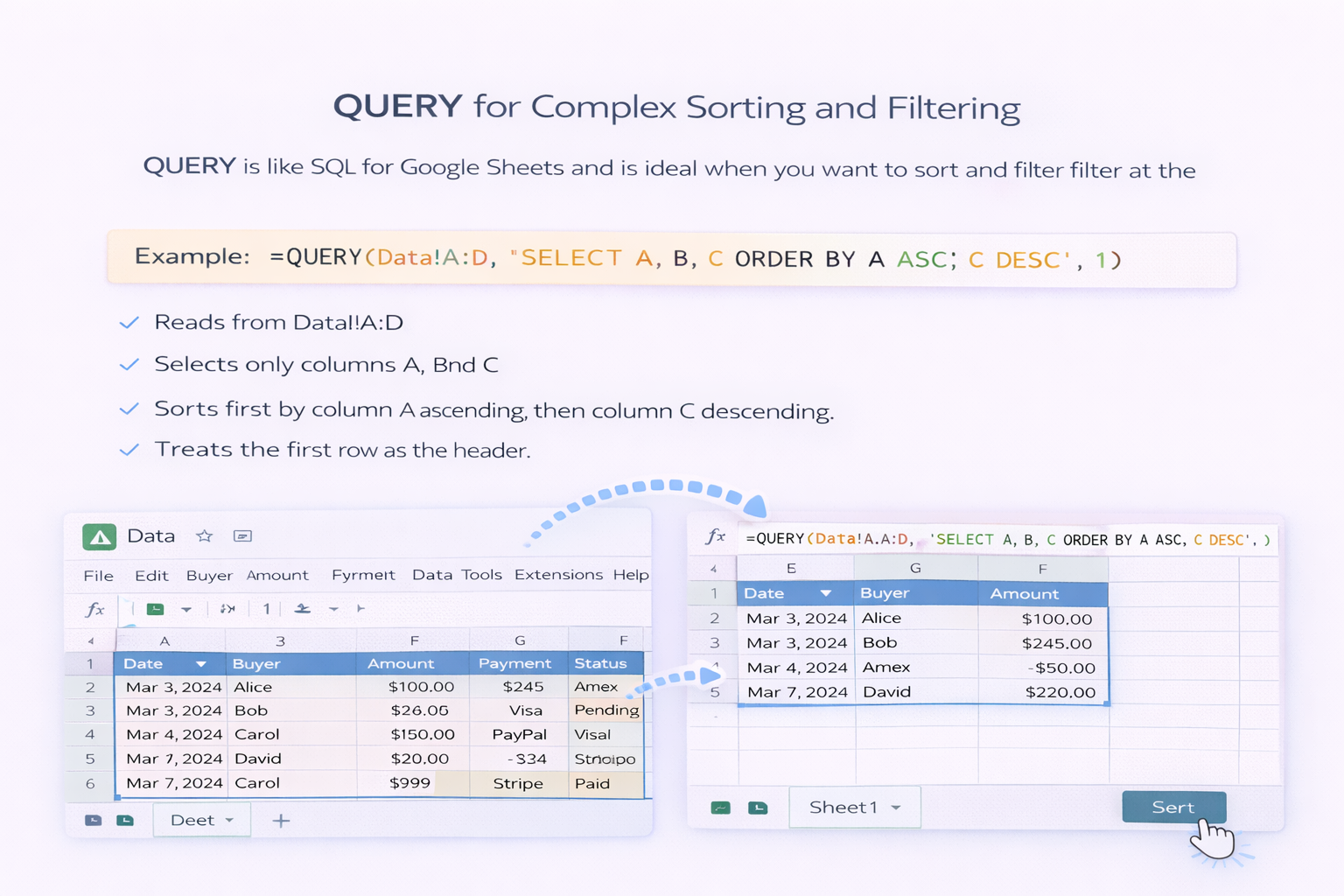
QUERY is like SQL for Google Sheets and is ideal when you want to sort and filter at the same time.
Example: =QUERY(Data!A:D, 'SELECT A, B, C ORDER BY A ASC, C DESC', 1)
This formula:
Pros:
Cons:
Manual methods are powerful, but they assume you have time and attention every day. In reality, that job belongs to a computer.
With a Simular AI agent running on Simular Pro, you can:
Picture this: at midnight, your AI agent wakes up, logs into the right account, opens the Sheet, applies your multi-column sort logic, and then posts a link to a Slack channel or updates a dashboard. By the time your sales or marketing team arrives, everything is already in order.
Pros:
Cons:
If you only touch a Sheet once a month, manual sorting is fine. But if you or your team:
…then it is time to let an AI computer agent handle the mechanics. You keep the thinking; the agent owns the clicks."


