How to Sort Multiple Columns in Google Sheets Guide

Learn practical ways to master Google Sheets multi-column sorting and then hand the repetitive steps to an AI computer agent so your reports stay organized on autopilot.
Advanced computer use agent
Production-grade reliability
Transparent Execution

Why Google Sheets + AI

If you live in Google Sheets, you know a single sort is rarely enough. Sales pipelines need sorting by deal stage, then value, then close date. Agency rosters get ordered by client, channel, and latest activity. Sorting by multiple columns turns flat tables into structured stories: top leads rise to the top, edge cases fall into place, and errors jump out.Manually repeating that sorting every day, though, is pure drag work. Delegating it to an AI agent means the computer clicks through Data menus, applies multi-column rules, and refreshes views on schedule. You keep the logic; the agent handles the keystrokes, so your Sheets are always sorted before you even open them.

How to Sort Multiple Columns in Google Sheets Guide

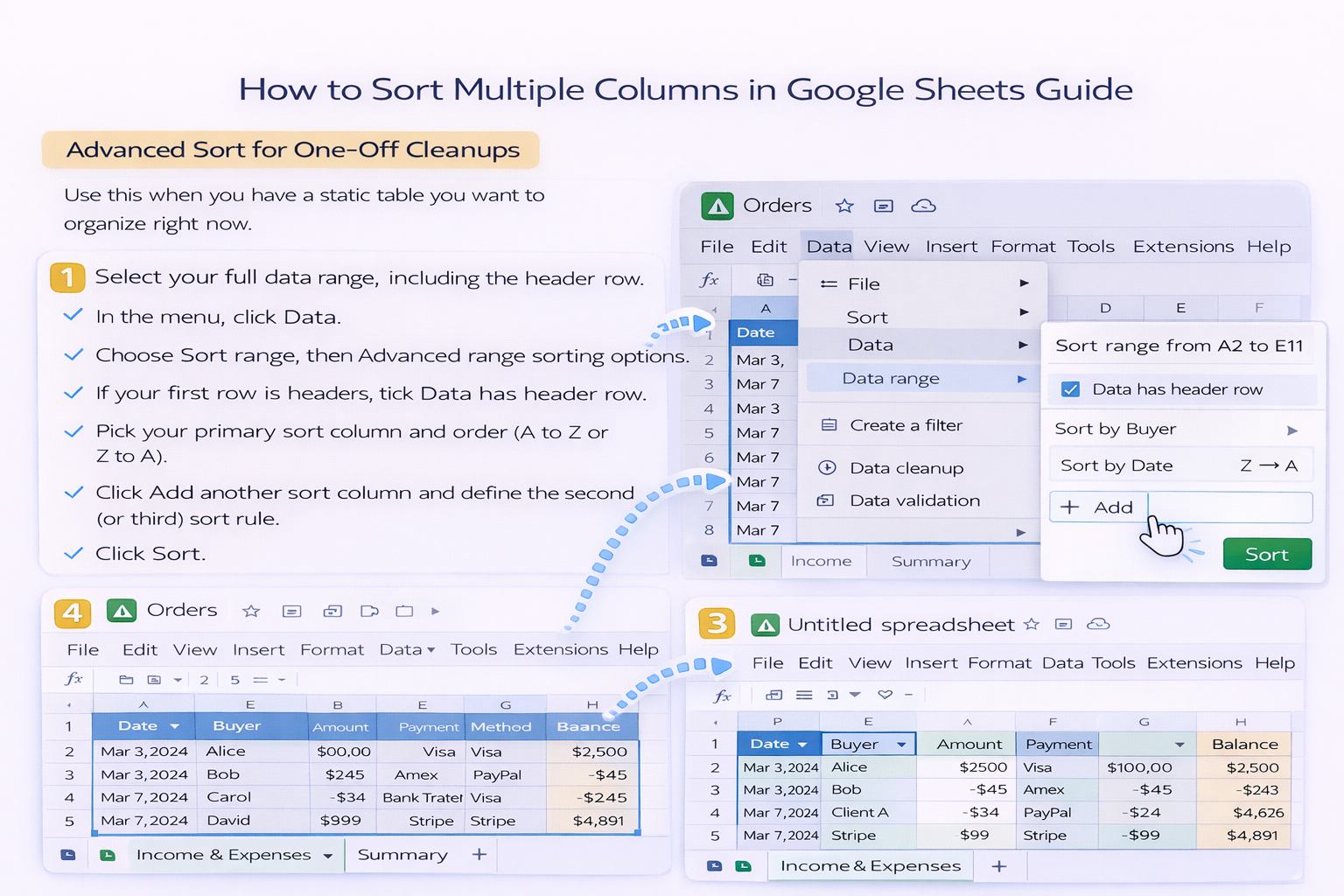
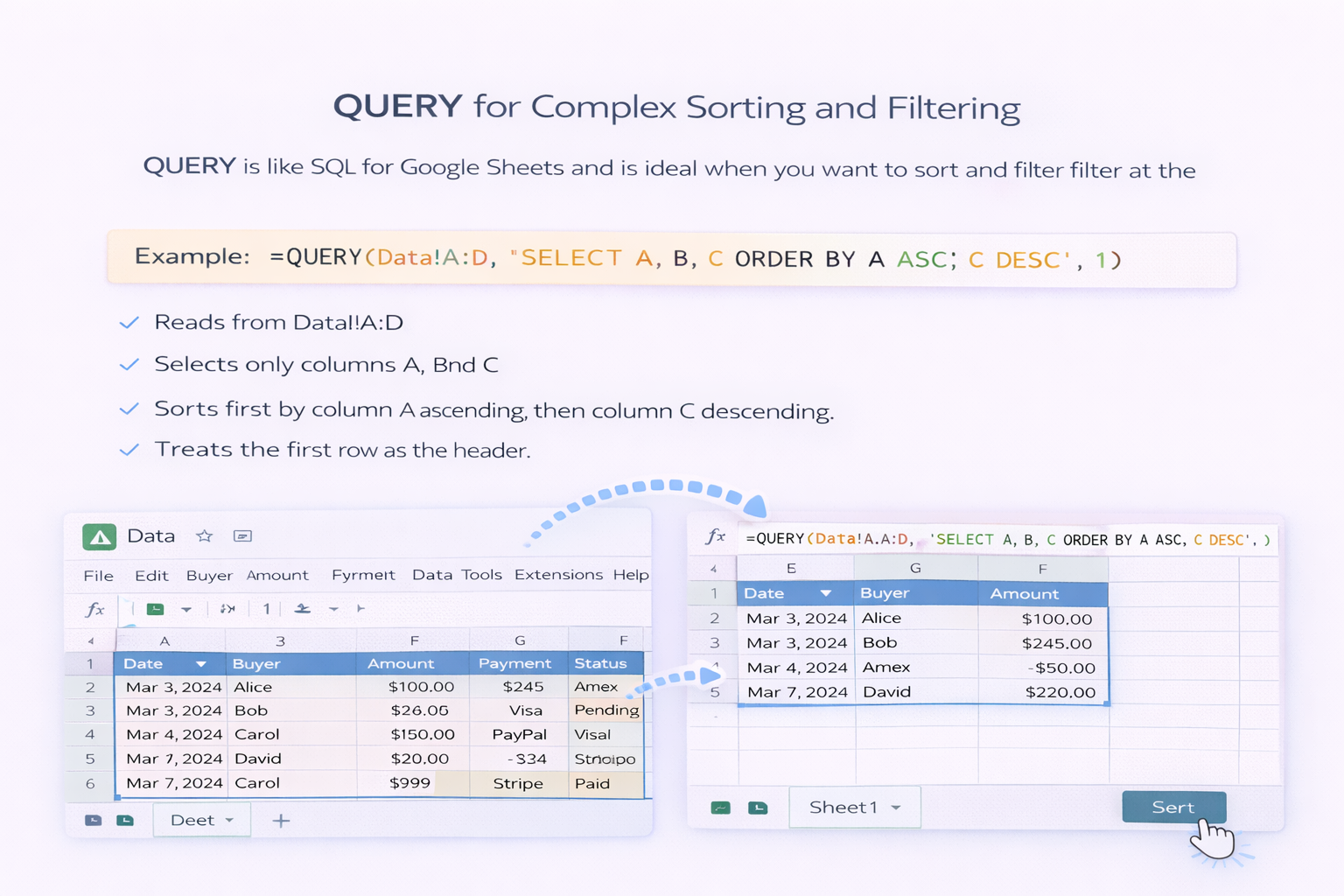
Every business has a version of this story: a founder, marketer, or account manager opens a massive Google Sheets file and spends the first 15 minutes of the day just sorting columns to make sense of it. Deals, campaigns, or tasks are all there, but in the wrong order.Multi-column sorting is how you turn that chaos into a clear narrative. Let’s walk through the best ways to do it manually, then see how an AI computer agent like Simular can take over the repetitive work at scale.### Method 1: Advanced Sort for One-Off CleanupsUse this when you have a static table you want to organize right now.1. Select your full data range, including the header row.2. In the menu, click Data.3. Choose Sort range, then Advanced range sorting options.4. If your first row is headers, tick Data has header row.5. Pick your primary sort column and order (A to Z or Z to A).6. Click Add another sort column and define the second (or third) sort rule.7. Click Sort.This is perfect for snapshots: a weekly export of leads, a one-time mailing list, or a static project tracker.Pros:- Very visual and easy to learn.- Great when the data does not change often.Cons:- You must repeat the process every time new rows are added.- Easy to make mistakes if you forget to include the full range.### Method 2: SORT Function for Live RangesWhen your data grows over time, use the SORT function to keep a separate, always-sorted view.Basic pattern:=SORT(A2:D100, 1, TRUE, 3, FALSE)Here:- A2:D100 is the data range.- 1, TRUE sorts by the first column ascending.- 3, FALSE adds a second sort by the third column descending.Put this formula on another sheet or below your raw data. As new rows appear in A2:D100, the sorted output updates automatically.Pros:- Dynamic: updates when data changes.- Great for dashboards or read-only reports.Cons:- You must manage ranges carefully, or new rows will fall outside.- Headers cannot be included inside the SORT range.### Method 3: QUERY for Complex Sorting and FilteringQUERY is like SQL for Google Sheets and is ideal when you want to sort and filter at the same time.Example:=QUERY(Data!A:D, 'SELECT A, B, C ORDER BY A ASC, C DESC', 1)This formula:- Reads from Data!A:D.- Selects only columns A, B, and C.- Sorts first by column A ascending, then column C descending.- Treats the first row as the header.Pros:- Most flexible way to combine filters, sorting, and projections.- Preserves header rows cleanly.Cons:- Query syntax has a learning curve.- Debugging complex logic can be slow for busy teams.### Method 4: Let an AI Computer Agent Do the SortingManual methods are powerful, but they assume you have time and attention every day. In reality, that job belongs to a computer.With a Simular AI agent running on Simular Pro, you can:- Open your browser or desktop Google Sheets file like a human would.- Navigate to Data, choose Sort range, and configure multiple sort columns.- Or insert and maintain SORT or QUERY formulas based on your instructions.- Trigger the workflow via a webhook from your CRM, analytics tool, or internal system.Picture this: at midnight, your AI agent wakes up, logs into the right account, opens the Sheet, applies your multi-column sort logic, and then posts a link to a Slack channel or updates a dashboard. By the time your sales or marketing team arrives, everything is already in order.Pros:- Removes repetitive clicking and menu navigation from your day.- Works across your entire desktop and browser, not just Sheet functions.- Transparent: every step the agent takes is inspectable and adjustable.Cons:- Best suited once your sorting logic is stable and agreed upon.- Requires a short onboarding period to define rules and edge cases.### When to Move From Manual to AIIf you only touch a Sheet once a month, manual sorting is fine. But if you or your team:- Sort the same Sheet more than once a day.- Depend on precise ordering before making decisions.- Already maintain formulas that teammates are afraid to touch.…then it is time to let an AI computer agent handle the mechanics. You keep the thinking; the agent owns the clicks.

Scale Google Sheets Multi-Column Sorting With AI

Onboard Your AI Agent
Show your Simular AI agent exactly how you sort in Google Sheets: open the Sheet, select the data range, apply multi-column sort rules or formulas, and save that routine as a repeatable workflow.
Test And Refine Sorting
Run your Simular AI agent on a copy of your Google Sheets file first. Check that every multi-column sort matches your ideal order, then tweak prompts and constraints so the workflow succeeds reliably on the first full run.
Delegate And Scale Tasks
Connect the Simular AI agent to your live Google Sheets through scheduled runs or webhooks, so every new import or report is automatically multi-column sorted without manual effort, across all your key spreadsheets.

FAQS