How to Sort by Last Name in Google Sheets: A Guide

Streamline Google Sheets name lists by sorting on last name, then hand the clicks to an AI computer agent so team stays aligned while you focus on work.
Advanced computer use agent
Production-grade reliability
Transparent Execution

Why Google Sheets + AI Agent

If you manage clients, students, or subscribers, your Google Sheets contact list quietly runs your day. When those names are jumbled by first name, it is harder to match records, find people quickly, or line up reports with tools that expect last-name order. Sorting by surname sounds trivial, but at scale it is the difference between hunting through rows and instantly seeing who is who. Clean, consistently ordered data gives every downstream workflow a smoother path: gradebooks, CRM exports, event check-ins, payroll, even simple mail merges all benefit.

This is exactly where an AI computer agent shines. Instead of you repeating the same sequence of clicks and formulas in Google Sheets, the agent learns the pattern once and then applies it every time: opening the right sheet, extracting last names, running the sort, and saving or exporting results. You get the reliability of a documented process with the convenience of never touching the mouse for it again.

How to Sort by Last Name in Google Sheets: A Guide

How to Sort by Last Name in Google Sheets: A Practical Guide


You would not ask your top salesperson to spend an afternoon alphabetizing a spreadsheet by hand. Yet that is exactly what happens when name lists in Google Sheets are messy.

Let’s walk through the best manual methods first, then see how an AI agent can take the entire workflow off your plate.

Manual Method 1 — Quick Sort (Last Names in Their Own Column)

If first and last names are already separated, this is the fastest option.

Steps

  1. Put first names in one column and last names in another
    • Example: Column A = First Name
    • Column B = Last Name
  2. Select the full range of data, including any extra columns that should stay attached to each person.
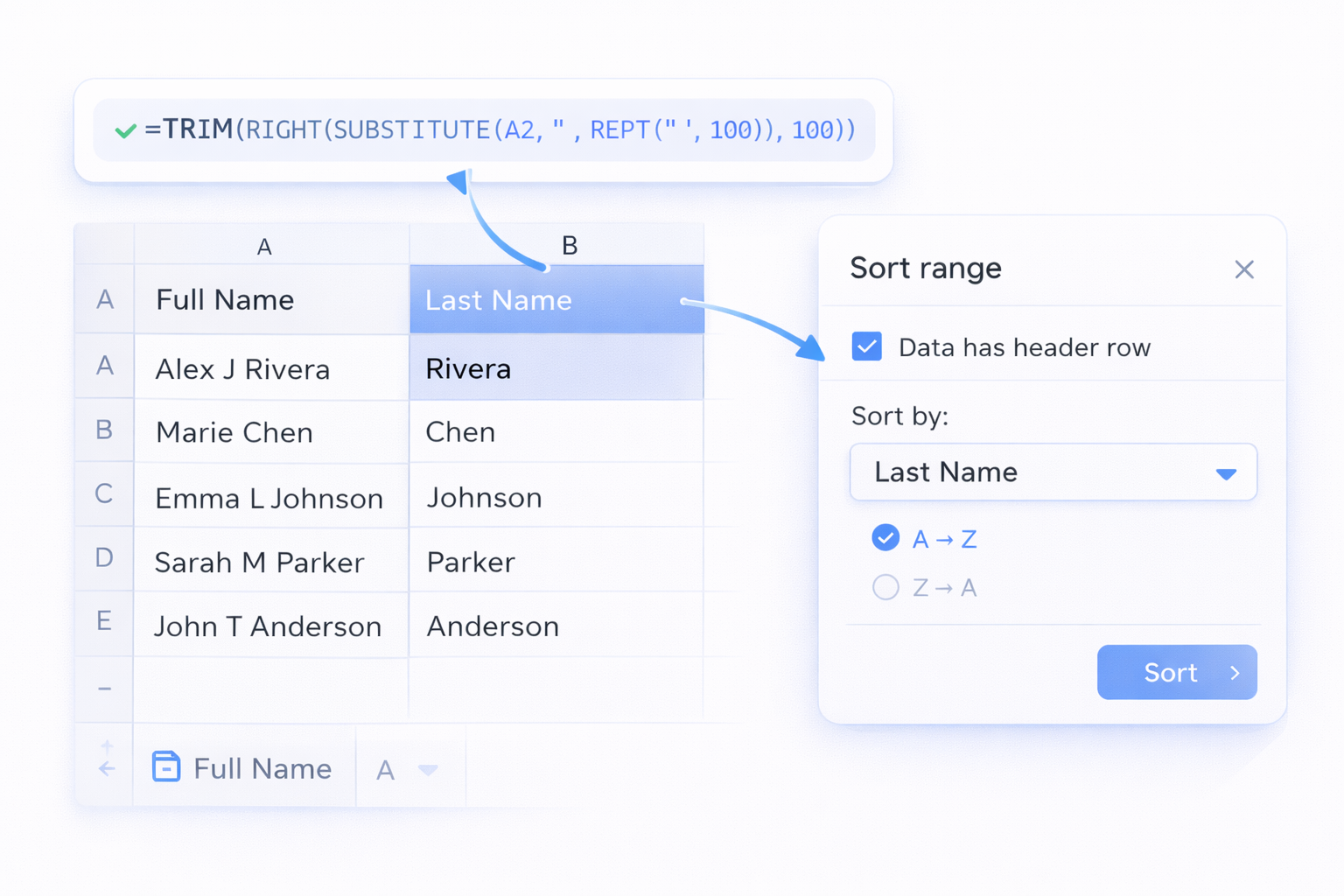
  3. In the menu, choose Data → Sort range.
  4. If you have a header row, check Data has header row.
  5. In the Sort by dropdown, select the Last Name column and choose A → Z.

Pros

  • Very fast
  • Built into Google Sheets
  • No formulas required

Cons

  • Only works cleanly if last names already live in their own column

Manual Method 2 — Split Full Names, Then Sort

If your sheet has full names like "Alex Rivera" in a single column:

Steps

  1. Insert two empty columns to the right of the full name column.
  2. In the first empty column, use:

=SPLIT(A2, " ")

  1. This pushes the first word into one column and the second into the next.
  2. Drag the formula down to fill all rows.
  3. Sort the range by the new last-name column using Data → Sort range.
  4. (Optional) Recombine names with:

=CONCATENATE(C2, " ", B2)

  1. or

=TEXTJOIN(" ", TRUE, C2, B2)

Pros

  • Simple and transparent
  • Easy to debug

Cons

  • Struggles with middle names, suffixes, or multi-word last names
  • Needs repeating every time you update data

Manual Method 3 — Robust Last-Name Formula

For messy names with middle names or initials, pull only the final word from the cell.

Steps

  1. Add a helper column called Last Name.
  2. Use a formula that always extracts the last word (for example, a TRIM + RIGHT + SUBSTITUTE pattern).
  3. Copy the formula down the column.
  4. Sort the entire range by this helper column.


Pros

  • Handles middle names more reliably
  • Updates automatically if a name changes

Cons

  • Still manual to set up
  • Helper column must be preserved if other sheets depend on it

Why Manual Breaks Down at Scale

If you run an agency, school, or membership business, you’re not sorting ten names — you’re sorting thousands of records across dozens of Google Sheets tabs.

Every export from a CRM or classroom tool means you have to:

  • Clean up full names
  • Rebuild helper columns
  • Reapply the sort
  • Double-check that nothing broke formulas or filters


Multiply that by your whole team, and you can lose hours every week on what is essentially glorified alphabetizing.

Automated Method 1 — Scripting Inside Google Sheets

One way to automate is with Apps Script.

Steps

  1. Open Extensions → Apps Script.
  2. Write a script that:
    • Reads the full-name column
    • Computes last names
    • Writes them to a helper column
    • Sorts the range
  3. Attach the script to a custom menu item or button.

Pros

  • One click to re-sort anytime
  • Lives directly inside Sheets

Cons

  • Requires coding comfort
  • Breaks if column layout changes
  • Someone still has to remember to run it

Automated Method 2 — Use a Simular AI Computer Agent

Instead of embedding logic into one sheet, let a Simular AI computer agent handle the workflow like a human — without the tedium.

How It Works

  • You describe the process once:
    • Which Google Sheets file to open
    • Which tab holds full names
    • How you want them sorted
  • The agent:
    • Opens Google Drive
    • Launches the sheet
    • Applies name-splitting and sorting steps
  • It can repeat this across multiple files, export clean CSVs, or update dashboards.


Pros

  • Works across many sheets and accounts
  • Production-grade reliability for large workflows
  • Fully transparent — every step is visible and inspectable

Cons

  • Best for teams ready to formalize their process once, instead of improvising in every sheet

Putting It All Together

For a one-off cleanup, manual sorting is perfectly fine.

But when sorting by last name in Google Sheets becomes a recurring task across clients or departments, it’s a clear candidate for automation.

Start by nailing the logic with helper columns and sorts — then promote that logic into a Simular AI agent that runs the steps for you at scale. You keep control over the rules. The agent takes over the repetition.

Automate Google Sheets Last-Name Sorts with AI

Train Simular agent
Set up a Simular AI computer agent with clear instructions: which Google Sheets file to open, which tab holds the names, and how to derive and sort by last name every run.
Tune Simular runs
Run the Simular AI agent on a test Google Sheets copy, watching each transparent step. Adjust the name-parsing and sort range so the workflow succeeds cleanly on the first real run.
Scale tasks to agent
Once the Simular AI Agent is reliable, delegate all recurring Google Sheets last-name sorting to it, triggering runs for new exports or client lists so the process scales without extra clicks.

FAQS