
Oops! Something went wrong while submitting the form.

.png)
.svg)
If you run a team, you already live in Google Sheets: lead lists, giveaway entries, A/B test variants, outreach queues. Any time you need to pick fairly from that list—who gets the next warm lead, which subject line to ship, which customer wins a free upgrade—you’re doing random selection.
Manually, this looks like scrolling, eyeballing, or over-engineering formulas. Using built-in functions like INDEX with RANDBETWEEN or INDIRECT with RANDBETWEEN, you can turn Sheets into a transparent, auditable “draw engine” that anyone on the team understands.
The real unlock is when an AI computer agent takes over the ritual. Instead of you opening the sheet, refreshing formulas, copying results, and notifying winners or owners, the agent opens Google Sheets, triggers the random selection, logs the draw, and posts outcomes to Slack or your CRM. Delegating this to an AI agent means every contest draw, round‑robin lead assignment, or random QA sample happens on time, with zero keystrokes from you and a clear, reproducible trail your team can trust.
Randomly selecting from lists in Google Sheets sounds simple, but in real businesses it powers a lot: assigning hot leads fairly, choosing contest winners, rotating outreach accounts, sampling tickets for QA. Below are three levels of mastery—from quick manual tricks to fully automated AI‑agent workflows.
These require no extra tools—just formulas. Perfect for one‑off draws or early experiments.
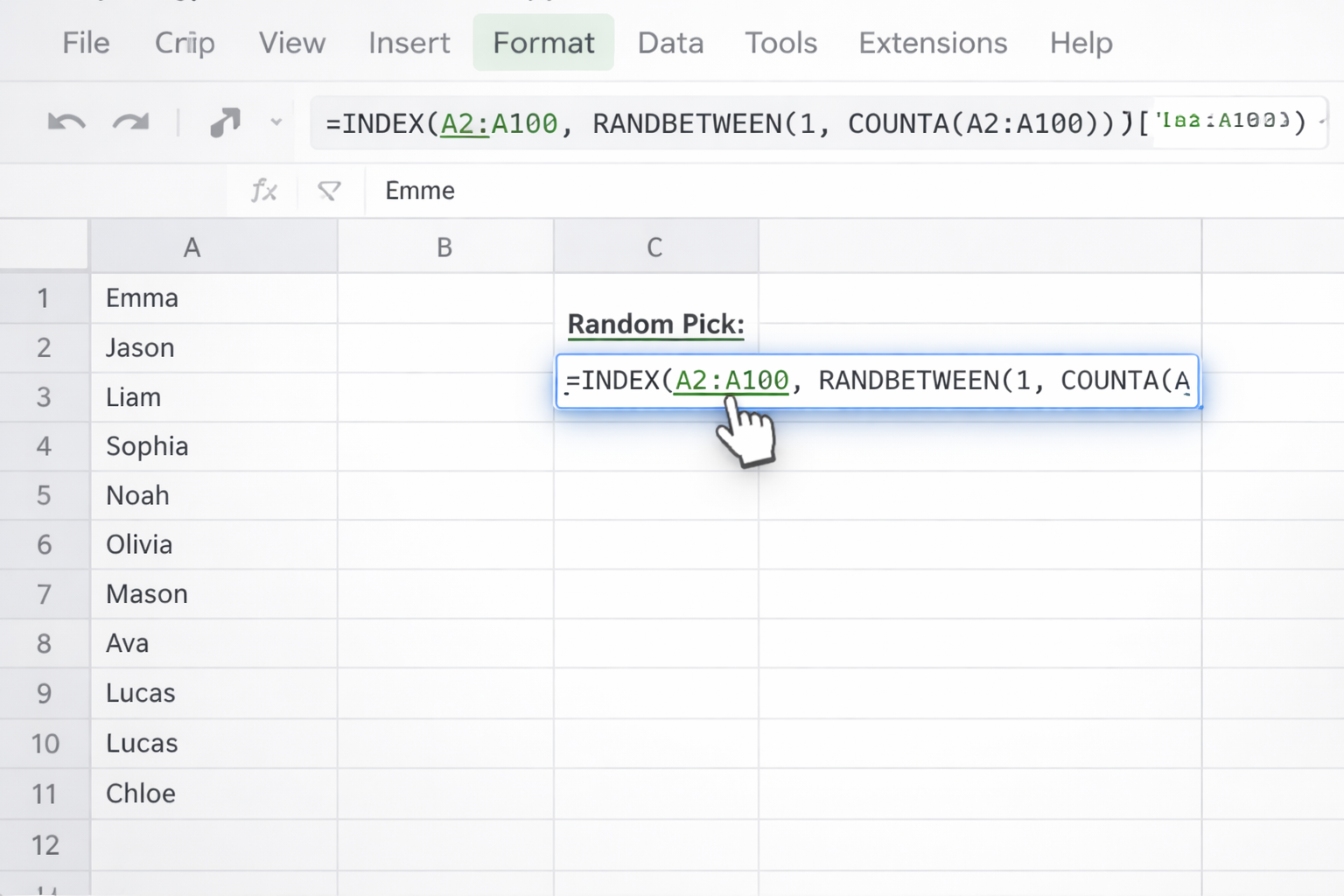
Use INDEX + RANDBETWEEN.
A2:A100 (no header in A1, or start at A2 and adjust).=INDEX(A2:A100, RANDBETWEEN(1, COUNTA(A2:A100)))
This works because:
COUNTA(A2:A100) counts how many non‑blank entries you have.RANDBETWEEN(1, that_count) chooses a random row number.INDEX returns the corresponding cell.
Official docs: Google’s INDEX function guide – https://support.google.com/docs/answer/3098242 and RANDBETWEEN – https://support.google.com/docs/answer/3093507
If your list has empty cells, the basic formula can return blanks or under‑sample the end.
Use FILTER to strip blanks first:
=INDEX(FILTER(A2:A100, A2:A100<>""), RANDBETWEEN(1, COUNTA(FILTER(A2:A100, A2:A100<>""))))
Steps:
FILTER sub‑formula creates an in‑memory clean list; INDEX draws from that.
For a small, fixed range like A1:A10, you can use:
=INDIRECT("A" & RANDBETWEEN(1,10))
This literally builds a random address like A7. Fast, but brittle—if you insert rows, your logic breaks. Use it only for tiny, static sheets.
If you want a random order (for round‑robin assignments, for example):
A2:A100.=SORT(A2:A100, RANDARRAY(COUNTA(A2:A100),1), TRUE)
Here:
RANDARRAY generates a random number per row.SORT reorders A by those random keys.
Docs: SORT – https://support.google.com/docs/answer/3093150 and RANDARRAY (Google Sheets) – https://support.google.com/docs/answer/9391278
To grab, say, 5 random items:
=ARRAY_CONSTRAIN(
  SORT(A2:A100, RANDARRAY(COUNTA(A2:A100),1), TRUE),
  5,
  1
)
SORT shuffles.ARRAY_CONSTRAIN returns only the first 5 rows.
Docs: ARRAY_CONSTRAIN – https://support.google.com/docs/answer/3093197
Pros (manual):
Cons:
Here we keep Google Sheets as the “random brain” but let automation tools orchestrate when and how draws happen.
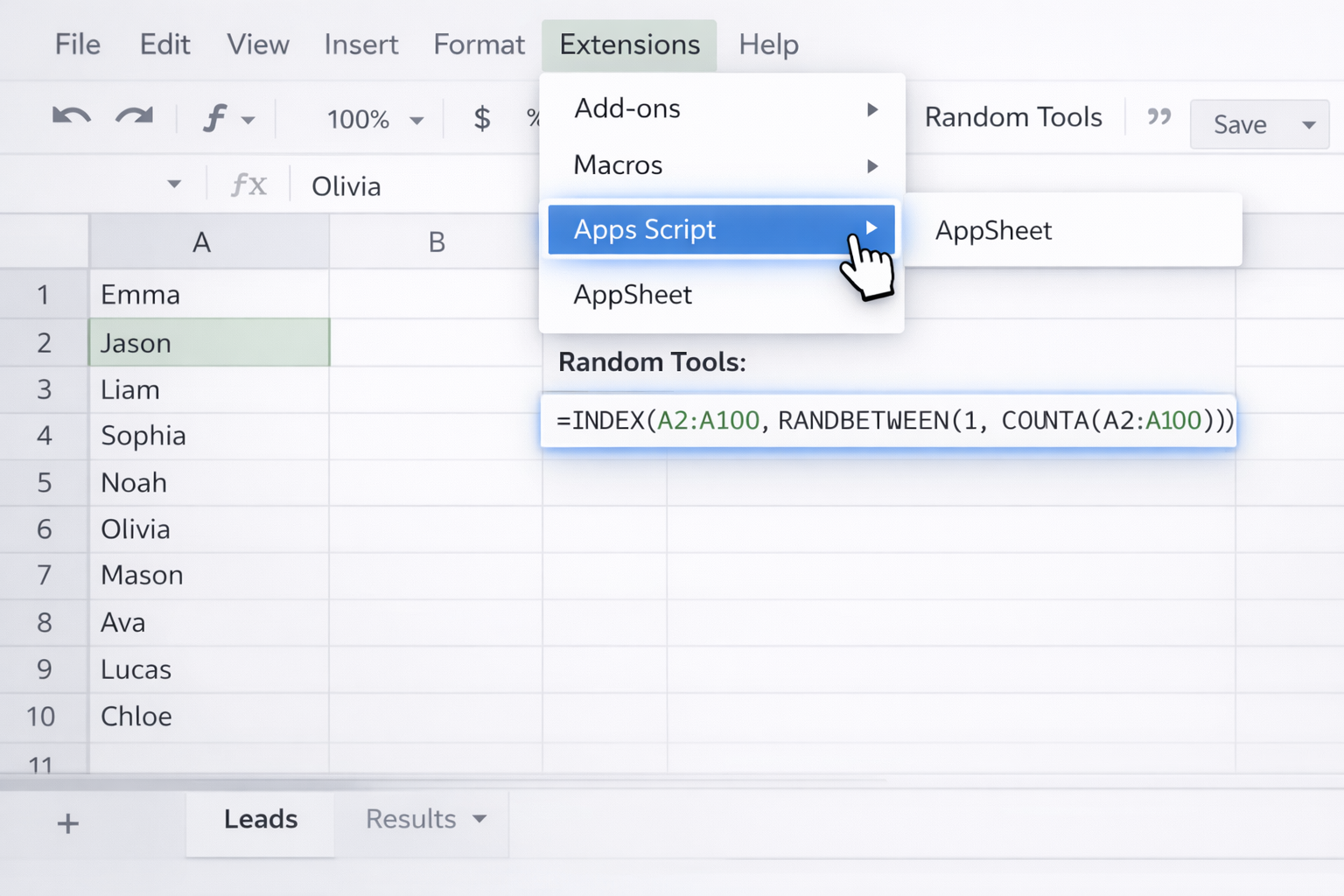
Apps Script is built into Google Sheets and still counts as “no‑code-ish” for power users.
function pickRandomLead() {
  const ss = SpreadsheetApp.getActive();
  const sheet = ss.getSheetByName('Leads');
  const data = sheet.getRange('A2:A').getValues().filter(String);
  const idx = Math.floor(Math.random() * data.length);
  const pick = data[idx][0];
  ss.getSheetByName('Results').getRange('A2').setValue(pick);
}
function onOpen() {
  SpreadsheetApp.getUi()
    .createMenu('Random Tools')
    .addItem('Pick random lead', 'pickRandomLead')
    .addToUi();
}
Docs: Apps Script + Sheets – https://developers.google.com/apps-script/guides/sheets
Turn your random sample into a daily or hourly routine.
pickRandomLead above.pickRandomLead
Use this for:
Docs: Time‑driven triggers – https://developers.google.com/apps-script/guides/triggers/installable#time-driven_triggers
You can also:
High‑level flow:
Results!A2, it posts to Slack or creates a task.
Pros (no‑code):
Cons:
Now imagine you never touch the sheet at all. An AI computer agent (like those built with Sai) behaves like a power assistant at your keyboard.
Simular’s agents are designed to:
Example workflow for a sales agency:
SORT + RANDARRAY).
Pros:
Cons:
For marketing teams running recurring giveaways:
INDEX + RANDBETWEEN or SORT + RANDARRAY) to pick winners.
You get:
To learn how Sai agents work across desktop and browser, see: https://www.sai.work/
In short: start with simple formulas, add Apps Script for repeatability, and when the workflow becomes mission‑critical and cross‑tool, let an AI computer agent run the entire Google Sheets random selection pipeline on your behalf.
%20(1).svg)

.svg)