How to Master Nested IF in Google Sheets & Excel Fast

Practical nested IF workflows in Google Sheets and Excel, then offload formula building and maintenance to an AI computer agent so your team focuses on strategy.
Advanced computer use agent
Production-grade reliability
Transparent Execution

Why Sheets & Excel logic + AI

Every sales pipeline, campaign report, or ops dashboard hides the same secret: a long list of “if this, then that” rules. Nested IF in Excel or Google Sheets is how we encode those rules into live decisions—who qualifies as an MQL, which deal gets priority, which discount to apply. Done well, nested IF turns messy business judgment into consistent, shareable logic. Done badly, it becomes a brittle wall of parentheses nobody wants to touch.That’s why nested IF matters: it’s the bridge between human reasoning and automated action inside your spreadsheets. But as your conditions grow—from 3 tiers to 12, from one territory to eight—maintaining those formulas by hand becomes risky and time‑consuming.This is where an AI agent shines. Instead of a marketer or founder wrestling with formulas late at night, a Simular AI agent can read your rules in plain language, write and refactor the nested IF across Google Sheets and Excel, test edge cases, and keep everything in sync. You still own the logic; the agent owns the repetitive work, so your spreadsheets stay sharp while your team stays focused on closing deals and shipping campaigns.

How to Master Nested IF in Google Sheets & Excel Fast

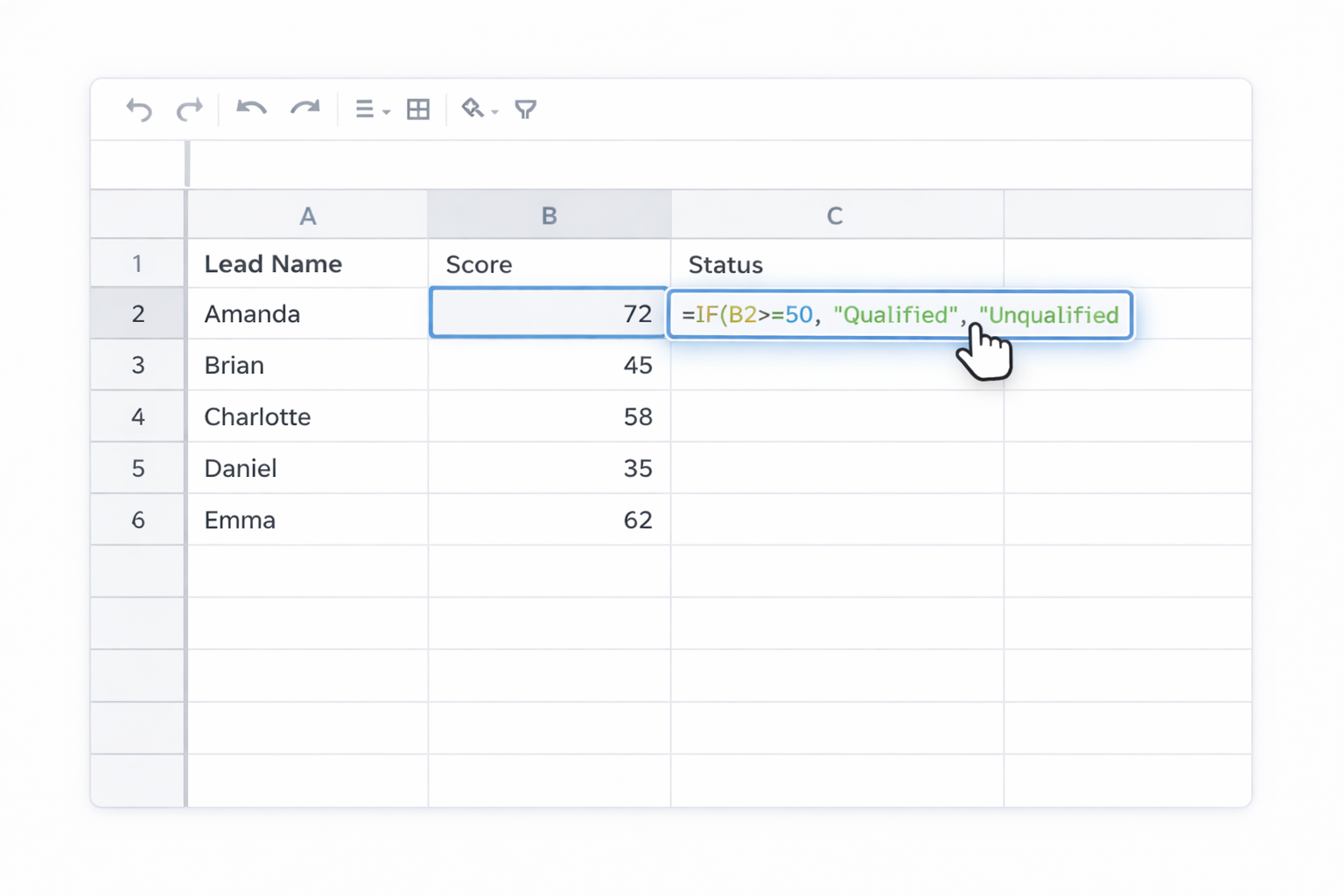
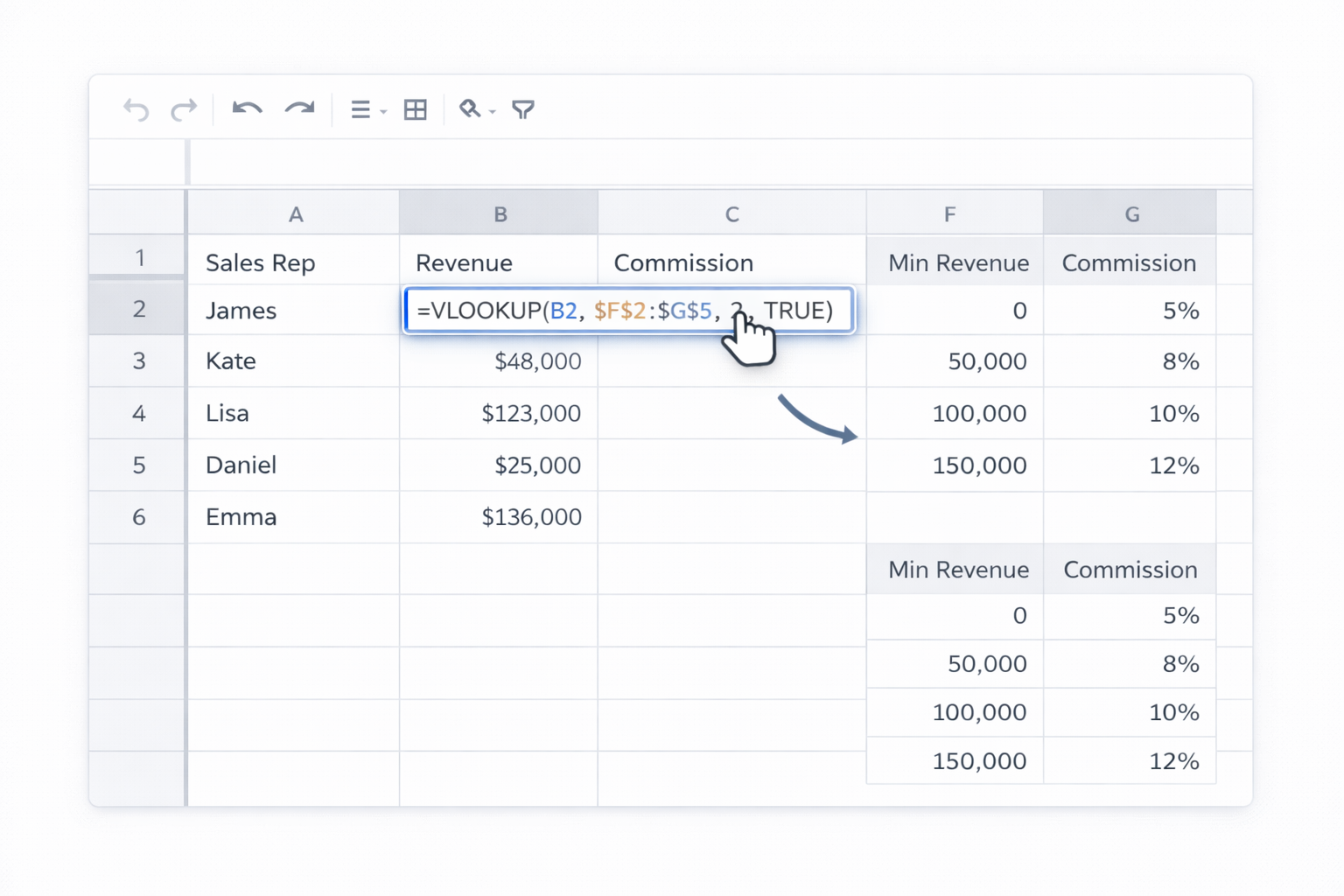
### 1. Manual ways to build nested IF in Google Sheets and ExcelBefore you automate, it helps to understand the basics. Nested IF simply means putting one IF inside another so multiple conditions can be checked in order.Official docs:- Excel IF: https://support.microsoft.com/en-us/office/if-function-69aed7c9-4e8a-4755-a9bc-aa8bbff73be2- Excel nested IF guidance: https://support.microsoft.com/en-us/office/if-function-nested-formulas-and-avoiding-pitfalls-0b22ff44-f149-44ba-aeb5-4ef99da241c8- Google Sheets IF: https://support.google.com/docs/answer/3093364#### 1.1 Simple two-level IF (lead qualification)Use this when you only have two outcomes, like “Qualified” vs “Unqualified”.Excel and Sheets formula:=IF(B2>=50,"Qualified","Unqualified")Step by step:1) Put your score in B2 (e.g., lead score).2) Click the cell where you want the result, say C2.3) Type the formula above (in Sheets or Excel).4) Drag the fill handle down the column to apply to more rows.#### 1.2 Multi-level nested IF (sales commission tiers)Use this when you have several ranges, like commission bands.Example tiers:- Under 5,000: 0%- 5,000–9,999: 10%- 10,000–14,999: 15%- 15,000+: 20%Excel / Sheets formula:=IF(C2>=15000,20%,IF(C2>=10000,15%,IF(C2>=5000,10%,0)))Steps:1) Put revenue in C2.2) In D2, enter the formula above.3) Notice the order: highest thresholds first. This avoids the common bug where a low threshold “catches” everything.4) Copy the formula down.For more patterns, see Microsoft’s examples: https://support.microsoft.com/en-us/office/if-function-nested-formulas-and-avoiding-pitfalls-0b22ff44-f149-44ba-aeb5-4ef99da241c8#### 1.3 Nested IF with AND/OR (complex lead routing)Sometimes you need multiple conditions at once, like “High score AND Enterprise”.Excel and Sheets support AND/OR:=IF(AND(B2>80,C2="Enterprise"),"Route to AE","Nurture")Steps:1) Put score in B2 and company type in C2.2) In D2, enter the formula above.3) Extend by nesting more IFs: =IF(AND(B2>90,C2="Enterprise"),"VIP AE", IF(AND(B2>80,C2="Enterprise"),"AE", "Nurture"))4) Carefully align parentheses; one missing bracket will break everything.#### 1.4 Use IFS to simplify (when available)Excel and Google Sheets both support IFS, which removes most nesting.- Excel IFS: https://support.microsoft.com/en-us/office/ifs-function-36329a26-37b2-467c-972b-4a39bd951d45- Google Sheets IFS: https://support.google.com/docs/answer/7014145The previous commission formula becomes:=IFS(C2>=15000,20%,C2>=10000,15%,C2>=5000,10%,TRUE,0)This is much easier to read and maintain, especially when marketing or sales leaders need to sanity‑check logic.### 2. No‑code automation methodsAs your business grows, you’ll want to reduce how often humans touch formulas directly.#### 2.1 Use decision tables instead of long IF chainsInstead of a giant nested IF, store your tiers in a small table and reference it.Excel:1) Create a table of thresholds and results, e.g., columns F (Min Revenue) and G (Commission).2) Sort F ascending.3) Use VLOOKUP with approximate match: =VLOOKUP(C2,$F$2:$G$5,2,TRUE)4) Now you can change tiers by editing the table, not the formula.Details: https://support.microsoft.com/en-us/office/vlookup-function-0bbc8083-26fe-4963-8ab8-93a18ad188a1Google Sheets:1) Build the same table in another range.2) Use VLOOKUP: =VLOOKUP(C2,$F$2:$G$5,2,TRUE)3) Collaborators can edit tiers without touching formulas.Docs: https://support.google.com/docs/answer/3093318#### 2.2 Template sheets for marketers and sales repsCreate a locked template where only input cells are editable.Excel:1) Add your nested IF or IFS logic in hidden or protected columns.2) Protect the sheet (Review > Protect Sheet) while allowing edits to input cells only.3) Save as a template (.xltx) and share.Docs: https://support.microsoft.com/en-us/office/protect-a-worksheet-3179efdb-1285-4d49-a9c3-f4ca36276de6Google Sheets:1) Put formulas in locked columns.2) Use Data > Protect sheets and ranges to restrict editing.3) Share as “Make a copy” for each client or campaign.Docs: https://support.google.com/docs/answer/1218656#### 2.3 No‑code tools to keep rules in syncTools like Zapier or Make can automate data flows so your nested IF logic is applied consistently.Example workflow:- Trigger: New deal created in your CRM.- Action: Zapier writes the deal into a Google Sheet.- Your nested IF columns auto‑calculate status, owner, and discount.- Optional: another step posts the result back to the CRM.Benefit: humans don’t manually paste data, so your logic runs reliably on every record.### 3. Scaling nested IF with Simular AI agentsAt some point, the problem is not writing *one* nested IF. It’s maintaining dozens of them across client files, markets, and teams. This is where an AI agent like Simular Pro pays off.Simular Pro: https://www.simular.ai/simular-proAbout Simular: https://www.simular.ai/about#### 3.1 "Formula Engineer" AI agentUse a Simular AI agent as your in‑house spreadsheet engineer.How it works:1) You describe your rules in plain language: “If revenue > 15k, 20% commission; between 10k–15k, 15%; …”.2) The agent opens Google Sheets or Excel on your desktop.3) It writes the nested IF or IFS formula into the right column, using official syntax.4) It copies the formula down, tests sample rows, and fixes any errors.Pros:- Non‑technical marketers and founders can update logic via natural language.- Reduces formula errors and inconsistent implementations between files.Cons:- Initial onboarding time to teach the agent where your core sheets live.#### 3.2 "Spreadsheet QA" AI agentComplex nested IFs often break quietly when someone adds a new tier or column. A QA‑focused Simular agent can patrol your spreadsheets.Workflow:1) On a schedule, the agent opens key Excel workbooks and Google Sheets.2) It scans for long IF/IFS formulas.3) It compares them to a canonical rule set you store in a doc or config sheet.4) It flags mismatches, proposes simplified IFS or VLOOKUP‑based rewrites, and optionally commits the fix after your approval.Pros:- Catches silent revenue‑impacting errors early (e.g., wrong commission band).- Creates an audit trail: every change is visible and inspectable.Cons:- You should review suggestions the first few runs to align on your preferences.#### 3.3 "Rule Rollout" agent for agencies and franchisesIf you run an agency or multi‑brand operation, updating logic across 20+ client workbooks is painful. A Simular AI agent can:1) Read your new logic from a master sheet or Notion page.2) Open each client’s Google Sheet or Excel file.3) Update the nested IF/IFS or decision table.4) Recalculate, spot‑check a few rows, and log what changed.Pros:- Mass updates in minutes instead of days.- Great fit for recurring pricing changes, new scoring models, or promos.Cons:- Requires clear naming conventions so the agent can reliably find the right ranges and tabs.With this stack—manual understanding, no‑code structure, and Simular AI agents for scale—you keep strategic control of your business rules while delegating the repetitive, error‑prone work of building and maintaining nested IF logic.

Scale Nested IF with Simular AI Agents: Guide

Onboard Simular agent
Install Simular Pro, connect it to your Google Sheets and Excel files, then walk the AI agent through one real nested IF task so it learns your columns, tabs, and naming.
Test and refine logic
Have the Simular AI Agent build sample nested IF formulas in a copy of your Excel or Sheets file, compare outputs to your manual version, then tweak prompts until results match.
Scale tasks with agent
Once trusted, let the Simular AI Agent roll updated nested IF logic across all your Google Sheets and Excel workbooks, logging changes so you can safely scale and audit.

FAQS