Oops! Something went wrong while submitting the form.

.svg)
.png)
If you work in sales, ops, or client reporting, you have probably spent an afternoon wrestling with tiny details in Google Sheets: currency symbols that won’t line up, checkmarks for status columns, arrows for funnels, accented characters for names. None of this is hard, but done cell by cell it is a quiet productivity tax that never goes away.
Learning how to insert special characters once is useful; teaching an AI agent to do it for you is transformative. Instead of hopping between Google Docs, add-ons, and Sheets, you define the rules: which symbols go where, how they should look, and when they should update. From there, an AI computer agent can sweep entire workbooks, standardize symbols, and keep everything consistent while you stay focused on deals, strategy, or creative work.
Special characters look small, but they quietly eat hours: checkmarks for task status, arrows for funnels, currency symbols, math notations, accented names. On a single sheet, you can manage them manually. Across dozens of client reports or dashboards, you need a system.
Below are the top ways to insert special characters in Google Sheets — from quick manual tricks to fully automated workflows with an AI agent.
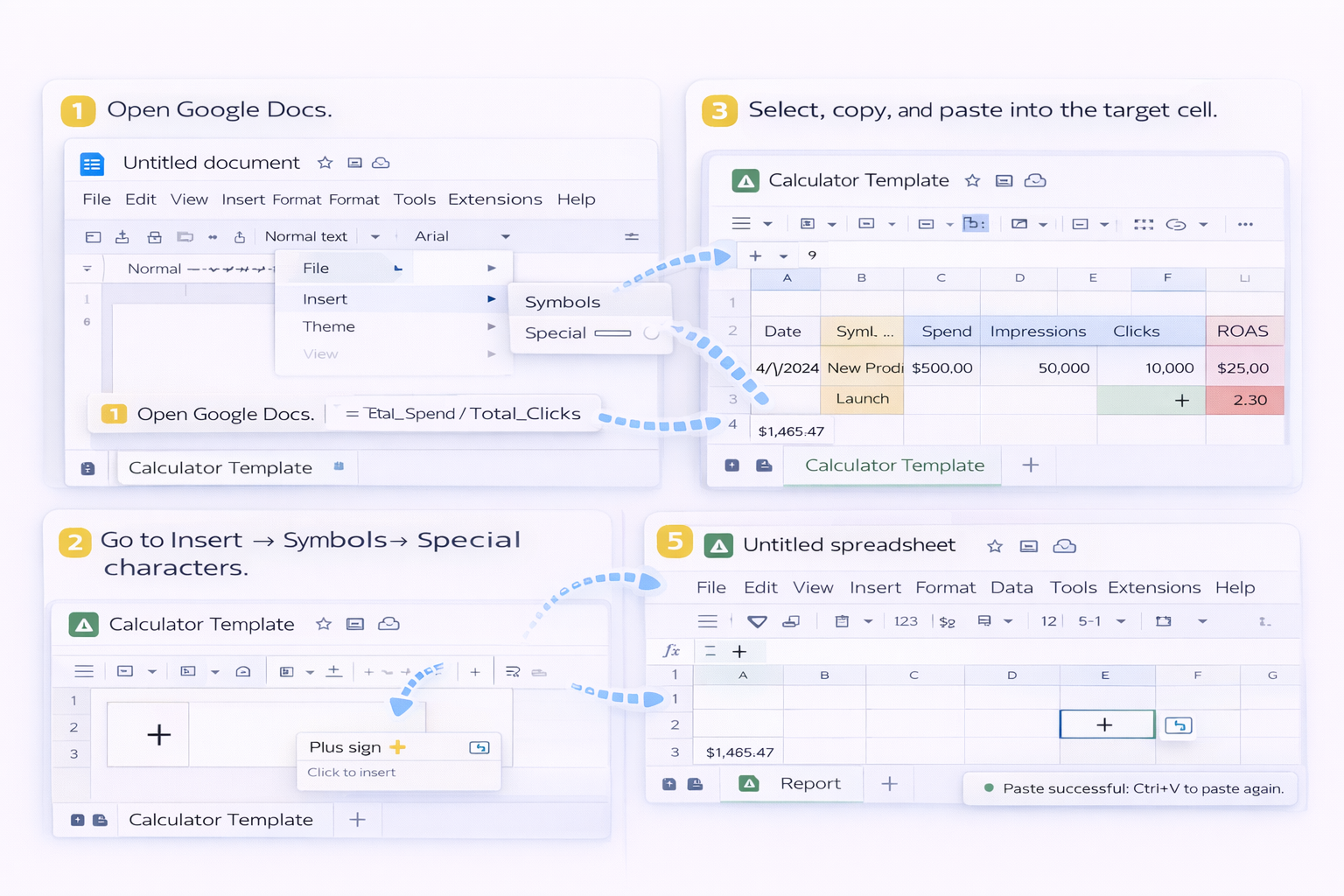
Google Sheets does not support inserting special characters directly. The official workaround is to use Google Docs or Slides.
Step-by-step:
Pros:
Cons:
While full special characters need Docs, emojis are supported directly in Sheets.
Method 1 – Insert menu:
Method 2 – @emoji shortcut:
@emoji and press Enter.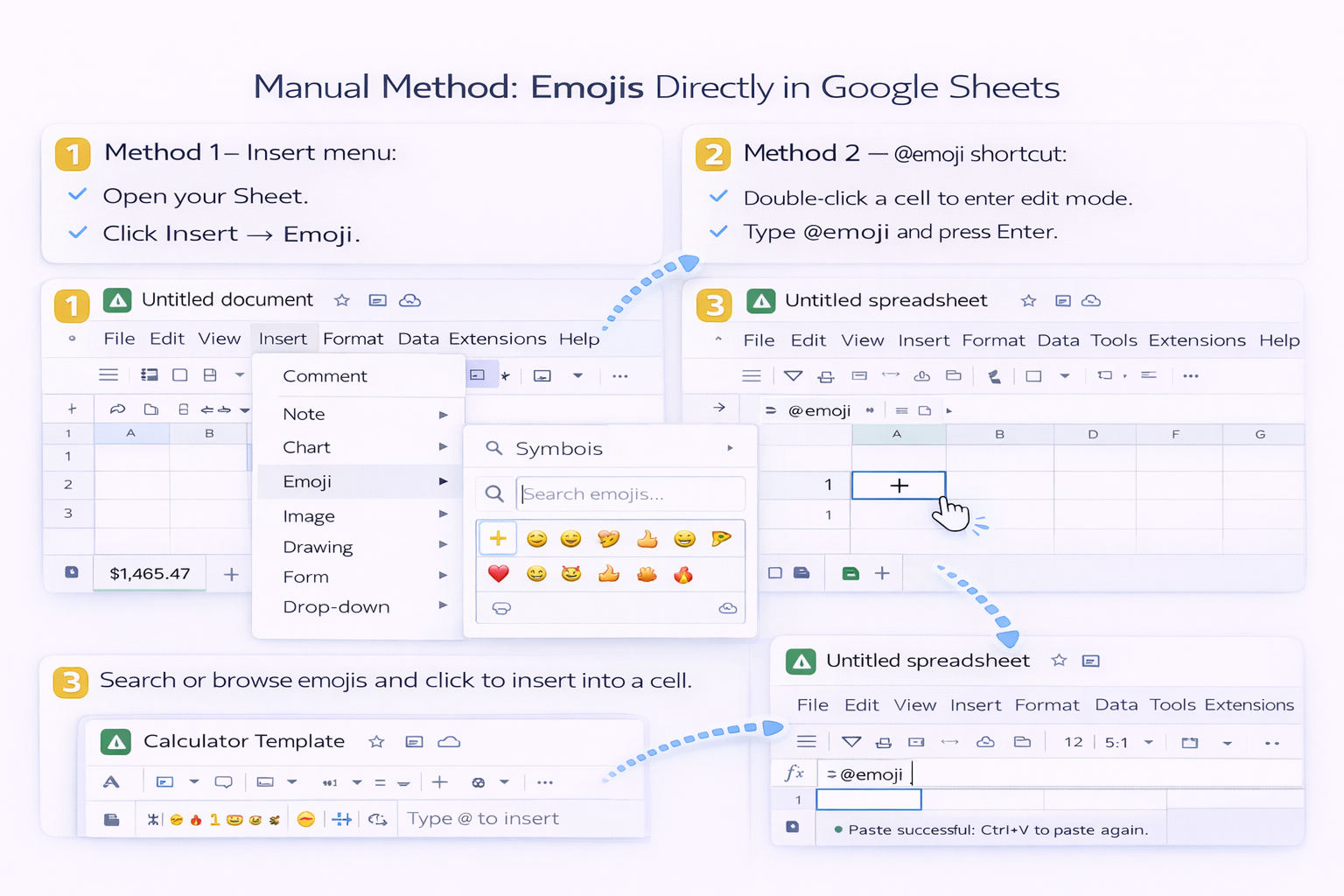
Pros:
Cons:
On many systems you can insert special characters using built-in tools or keyboard codes.
On macOS:
On Windows (Alt codes):
Pros:
Cons:
Marketplace add-ons like "Insert Special Characters" plug directly into Google Sheets.
Typical flow:
Pros:
Cons:
Once you have a symbol in one cell, you can spread it quickly.
Fill handle:
Combine with text or formulas:
= "Status: " & "✅"IF logic, e.g.: =IF(B2="Done","✅","⚪")
Pros:
Cons:
Now imagine this instead: you describe your symbol rules once, and an AI computer agent takes care of everything — across multiple Sheets, tabs, even different browser sessions.
A Simular AI agent can:
Example workflow:
Pros:
Cons:
If you only touch symbols once a month, the manual methods above are enough. But if you are:
then an AI agent is your leverage. You keep creative control over how your data should look. Simular handles the execution — opening tabs, copying characters, updating Sheets — so your time goes back into growing the business instead of decorating cells.