If you run a business, character limits sneak into your day more often than you notice. Tweet drafts, ad headlines, product descriptions, email subject lines – they all live somewhere in Google Sheets before they ever reach your customers. Being able to count characters in a cell is how you keep copy on‑brand, within platform limits, and free from messy spacing issues.Manually dragging LEN formulas down a column works for ten rows, not for ten thousand. That’s where an AI computer agent changes the story. Instead of you policing every cell, the agent watches your rules once – which columns, which limits, what to flag – and then applies them across entire sheets, campaigns, or even multiple files. It never forgets a rule, never skips a row, and leaves you free to focus on message, not mechanics.
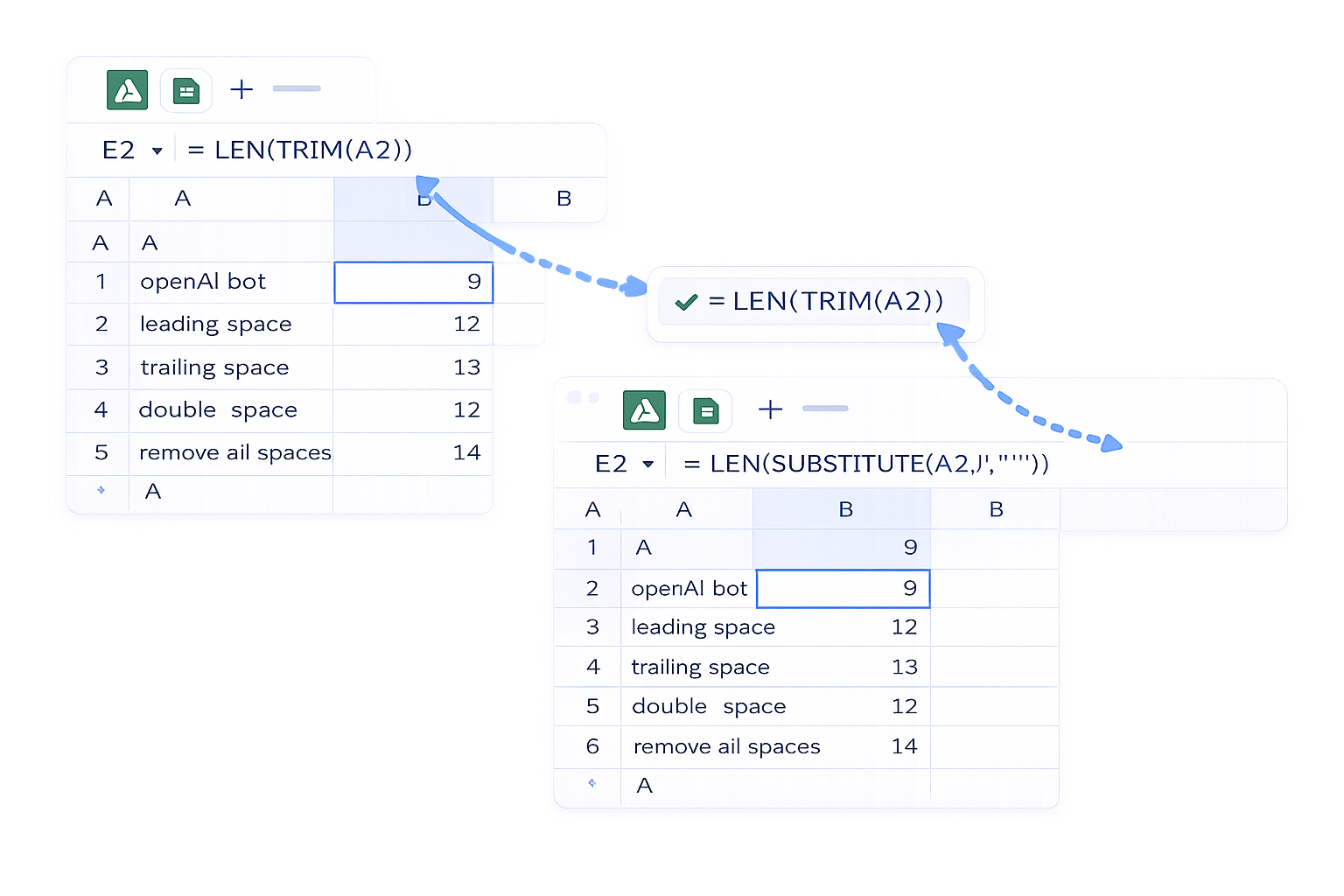
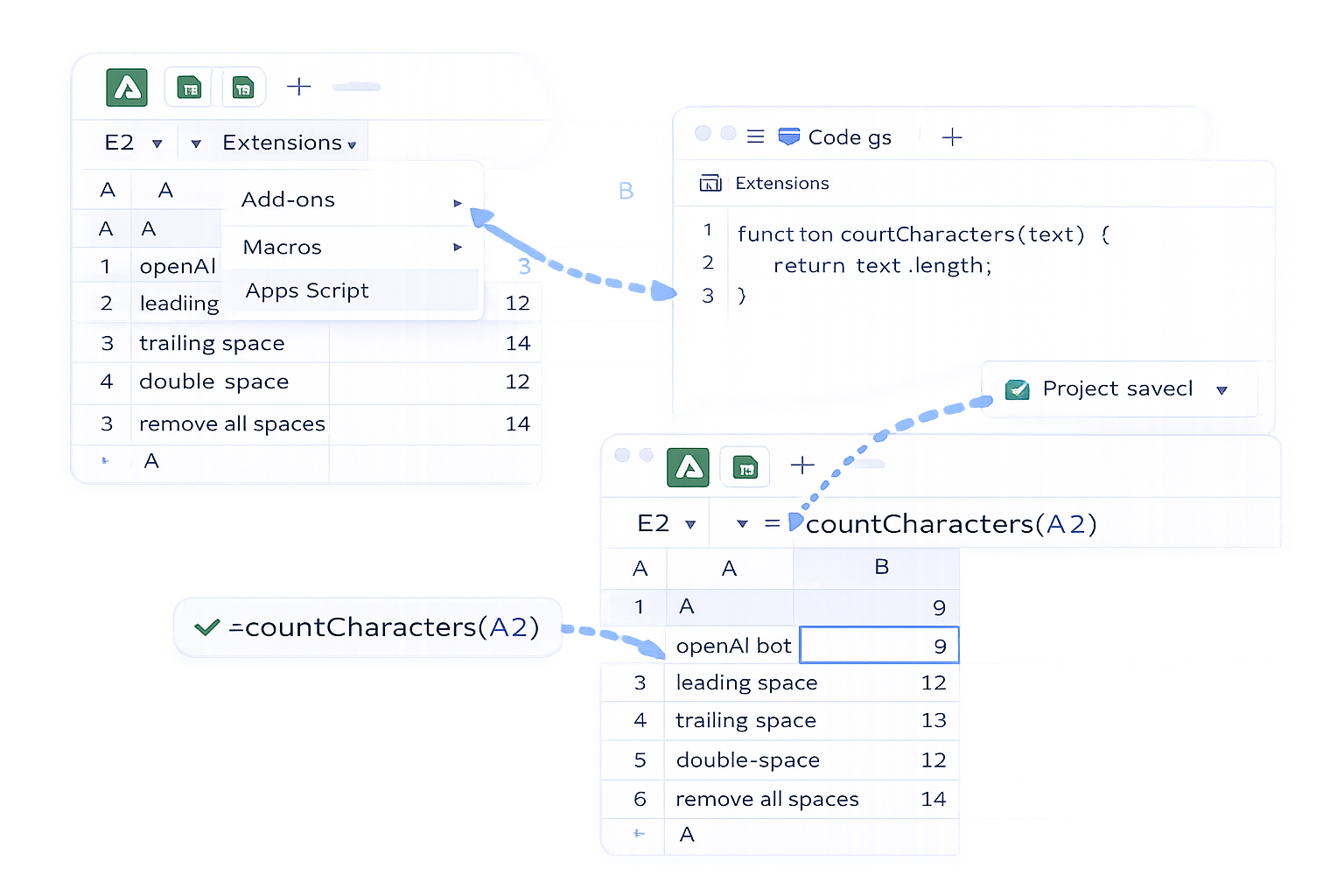
### 1. The Everyday Problem: Text Limits EverywhereYou’ve probably lived this scene: a marketer drafts copy in Google Sheets, ships it to the social team, and only then notices half the headlines blow past Twitter or ad platform limits. Cue the scramble: count characters, trim, re‑approve.Character counting sounds tiny, but it’s exactly the kind of repetitive work that quietly steals hours from owners, agencies, and sales teams. Let’s fix it from the ground up – from simple formulas to full automation with an AI computer agent.### 2. Manual Character Counting Inside Google Sheets#### Method 1: Basic character count with LENUse this when you just need the length of each cell.1. Select the cell where you want the count, e.g. B2.2. Enter: `=LEN(A2)`3. Press Enter.4. Drag the fill handle down to copy the formula.**Pros:**- Fast for small ranges.- No setup beyond a single formula.**Cons:**- Counts everything: spaces, punctuation, hidden extra spaces.- Still manual work for each new column or sheet.#### Method 2: Count characters without extra spacesReal data is messy: leading, trailing, and double spaces creep in from copy‑pastes.To ignore accidental extra spaces but keep single spaces between words:1. In B2, use: `=LEN(TRIM(A2))`2. Copy down as needed.To ignore **all** spaces entirely:1. In B2, use: `=LEN(SUBSTITUTE(A2," ",""))`2. Copy down.**Pros:**- Great for enforcing hard limits (e.g., 60 visible characters).**Cons:**- You must remember which variation you used and where.#### Method 3: Count a specific character in a cellNeed to know how many times a letter or symbol appears (for regex‑like checks, tags, or separators)? Use LEN with SUBSTITUTE:`=LEN(A2) - LEN(SUBSTITUTE(A2,"N",""))`Replace "N" with the character you care about.**How it works:**- `SUBSTITUTE` removes that character.- The difference between original length and new length equals the count.To apply this down a column, just drag the formula.#### Method 4: Count across a rangeSometimes you need the **total** characters in a whole range, not per cell.Use SUMPRODUCT:`=SUMPRODUCT(LEN(A2:A100))`Or with ArrayFormula:`=ArrayFormula(SUM(LEN(A2:A100)))`**Pros of manual methods overall:**- Transparent: every formula is visible.- Perfect for one‑off analysis or small datasets.**Cons:**- Easy to break when someone edits a formula cell.- Not resilient to layout changes.- You still have to remember to run or extend them.### 3. Semi‑Automation With Google Apps ScriptWhen you find yourself repeating the same setup in sheet after sheet, step up to a simple script.#### Method 5: Custom countCharacters() function1. In Google Sheets, click **Extensions → Apps Script**.2. Paste:```javascriptfunction countCharacters(text) { return text.length;}```3. Save the project.4. Back in your sheet, use `=countCharacters(A2)` just like LEN.You can extend this to ignore spaces or count specific characters.**Pros:**- Reusable across the document.- Cleaner formulas for your team.**Cons:**- Still requires you to wire formulas into each new column.- Scripts can be fragile when non‑technical teammates edit.### 4. Full Automation With an AI Computer AgentManual methods are fine until:- You manage dozens of campaign sheets.- Your team keeps forgetting to apply limits.- You want the same rules across CRM exports, CSV uploads, and Google Sheets.This is where an AI computer agent like Simular steps in. Instead of living **inside** Sheets as a formula, it behaves like a smart teammate operating your computer.#### What the agent actually doesYou teach the agent once:1. Open the right Google Sheet.2. Identify columns that need checking (e.g., "Ad Headline", "Email Subject").3. Insert the right formulas: LEN, TRIM+LEN, or LEN+SUBSTITUTE depending on your rule.4. Fill them down for the active range.5. Color‑code or flag rows that exceed limits.6. Optionally, copy summaries to a "QA" tab or a reporting sheet.Because Simular’s agent can control your whole desktop, it can also:- Pull source text from your CRM or content system.- Paste it into Sheets.- Run all the character checks.- Export cleaned data back to another tool.#### Pros of AI‑agent automation- **Production‑grade reliability:** Designed to handle workflows with thousands or even millions of steps.- **Transparent execution:** Every action is readable and inspectable – you can see exactly which formulas it used and how it edited your sheets.- **No new APIs required:** It works through your existing Google Sheets UI, like a power user that never gets tired.#### Cons / trade‑offs- Initial onboarding: you spend a bit of time showing the agent the exact steps once.- You’ll want clear naming conventions in your sheets so the agent reliably finds the right columns.### 5. Choosing the Right Level of Automation- **One‑time analysis or tiny sheet:** Use `LEN()` directly.- **Recurring reports in a handful of tabs:** Wrap up your logic in Apps Script so your team calls one custom function.- **Ongoing campaigns, many sheets, or multiple systems:** Delegate the whole routine to an AI computer agent. Let it open your Google Sheets, apply formulas, audit rows, and keep everything in sync while you focus on copy, strategy, and clients.Once you’ve done the math on how many times you’ve written `=LEN(A2)` this year, giving that job to an agent starts to feel less like a luxury and more like common sense.
Use the LEN function. In an empty cell, type `=LEN(A2)` where A2 is the cell you want to measure, then press Enter. LEN returns the number of characters in that cell, including spaces and punctuation. Drag the formula down the column to count characters for every row in your data.
Combine LEN with SUBSTITUTE. To count how many times "N" appears in A2, use `=LEN(A2)-LEN(SUBSTITUTE(A2,"N",""))`. SUBSTITUTE removes the target character, LEN measures the new length, and the difference is the count. Replace "N" with any character or symbol you need to track.
Wrap LEN with TRIM. In a helper column, enter `=LEN(TRIM(A2))`. TRIM strips leading, trailing, and repeated spaces between words, then LEN counts what remains. This is ideal when text has messy copy‑pastes and you want a clean character count that reflects what users will actually see.
To sum characters in many cells at once, use SUMPRODUCT with LEN: `=SUMPRODUCT(LEN(A2:A100))`. This applies LEN to every cell in the range and adds the results. For dynamic ranges, you can pair LEN with ArrayFormula and SUM: `=ArrayFormula(SUM(LEN(A2:A)))` for an expanding column.
Yes. For light automation, build a custom Apps Script function (e.g., `countCharacters`) and call it like any formula across tabs. For full workflows spanning multiple files, use an AI computer agent such as Simular: it can open each Google Sheet, insert formulas, flag over‑limit text, and export results automatically.