How to Build Deposit Slips in Google Sheets & Excel

Design accurate deposit slip templates in Google Sheets and Excel while an AI computer agent pulls amounts, checks for errors, and keeps records aligned.
Advanced computer use agent
Production-grade reliability
Transparent Execution

Why Sheets, Excel & AI

Most businesses don’t lose money in one dramatic mistake. They lose it drip by drip: a digit mistyped on a deposit slip, a check recorded twice, a cash amount forgotten in the rush to get to the bank or close out the day.A deposit slip template slows that drip. It standardizes how you capture dates, account numbers, cash, checks, and notes so anyone on your team can record deposits the same reliable way. Over time, those clean, consistent records make reconciliations faster, audits less painful, and cash flow more predictable. Whether you’re a solo founder or a growing agency, templates turn banking from “tribal knowledge” in one person’s head into a shared, repeatable system.Now layer in an AI computer agent. Instead of you squinting at receipts and keying figures into Google Sheets or Excel, the agent can read amounts, update rows, check totals, and flag mismatches automatically. You stay in control of approvals and exceptions, while the agent quietly eliminates typos, late-night data entry, and that knot in your stomach when the bank balance doesn’t match your books.

How to Build Deposit Slips in Google Sheets & Excel

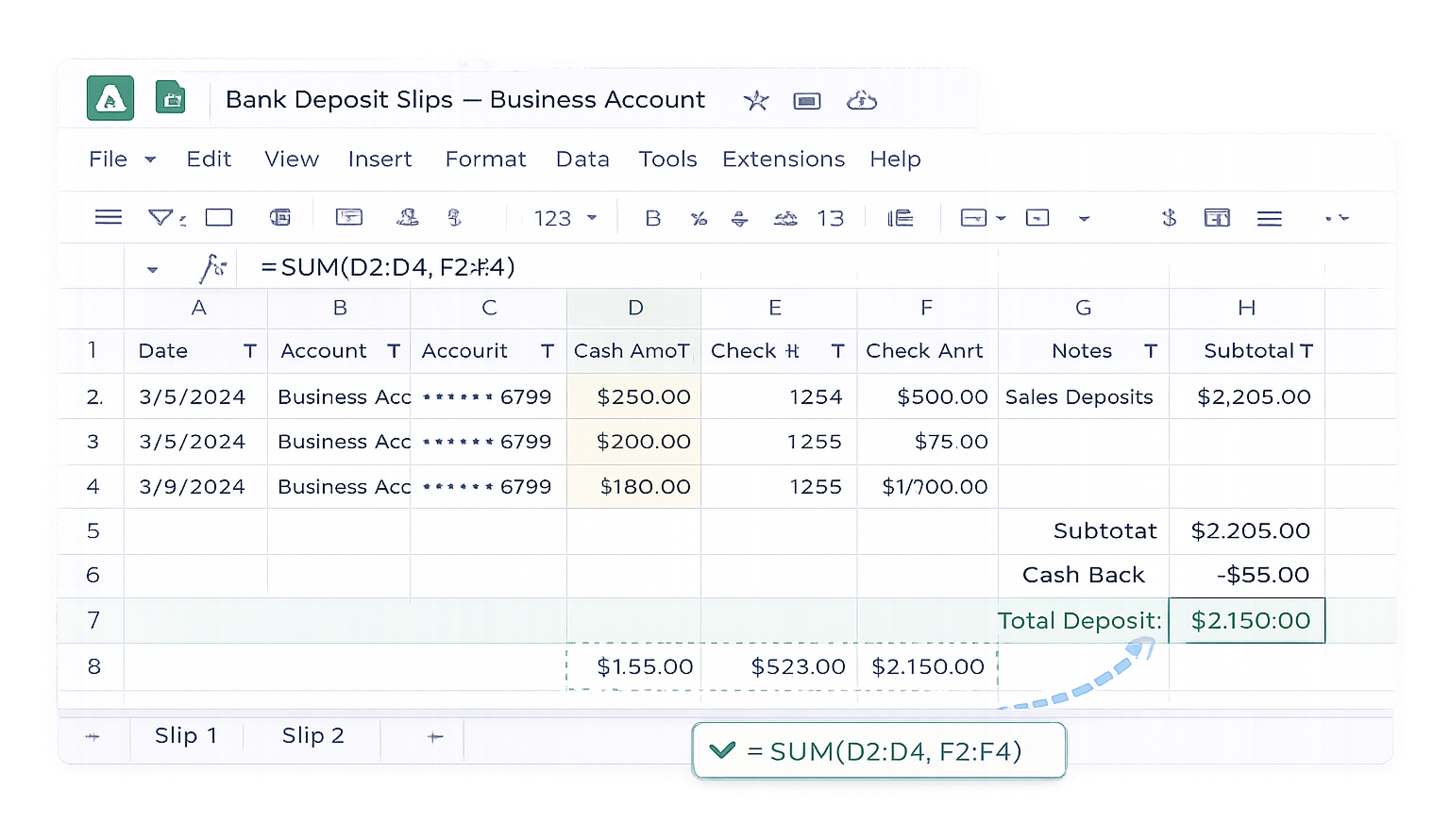
If you’re like most business owners or agency leads, deposit slips are the kind of task that steals time without you noticing. Ten minutes here, twenty minutes there, suddenly an hour is gone just moving numbers from checks and receipts into a spreadsheet.This guide walks through practical ways to build and manage deposit slip templates manually in Google Sheets and Excel—and then shows how to hand the repetitive parts to an AI computer agent so you can get that hour back.## Method 1: Manual Deposit Slip Template in Google Sheets**Step-by-step setup**1. **Create a new Sheet** and name it “Bank Deposit Slips – [Account Name]”.2. In row 1, add headers such as: Date, Account Name, Account Number, Cash Amount, Check #, Check Amount, Notes, Subtotal, Total Deposit.3. Format the Date column as a date and all amount columns as currency.4. Use a separate section or tab for each physical deposit slip if your bank requires a specific structure.5. Add formulas: for example, in `Subtotal`, use `=SUM(range_of_cash_and_checks)` and in `Total Deposit` subtract any cash back you’re taking from the deposit.6. Turn the header row into a filter so you can later sort by date, depositor, or batch.**Pros**- Free and accessible from anywhere.- Easy to share with your bookkeeper or team.- Great for simple, low-volume deposits.**Cons**- Still requires manual typing.- Errors creep in when you’re tired or rushed.- Scaling to multiple locations or accounts gets messy.## Method 2: Manual Deposit Slip Template in Excel**Step-by-step setup**1. Open a new workbook and save it as “Deposit Slips Master.xlsx”.2. On the first sheet, mirror the fields from your bank’s paper slip: branch, date, account number, cash, individual checks, total.3. Use **data validation** to restrict certain fields (e.g., numbers only for amount columns, fixed list of account names).4. Add formulas to automatically total all check rows and combine with cash for the final deposit amount.5. Use **Page Layout > Print Area** to define exactly what prints on one page so your Excel sheet lines up with your bank’s expectations.6. Save a clean template tab, then duplicate it for each new deposit batch.**Pros**- Strong formatting and printing control.- Data validation reduces basic input errors.- Works well for teams comfortable with Office.**Cons**- Still manual data entry.- Files get duplicated and version control can slip.- Harder to collaborate in real time than Google Sheets.## Method 3: Semi-Automated With Online FormsAnother option is to build a simple online form (Typeform, Google Forms, or similar) that captures deposit details. Responses then feed into a Google Sheet or export to Excel.**Workflow**- Staff enter each deposit into the form.- The form enforces structure (required fields, number formats).- The backend Sheet or Excel file becomes your running deposit log.This reduces formatting mistakes but still relies on humans to read receipts and key values.## Method 4: Fully Automated With Simular AI Computer AgentsAt some point, even semi-automation hits a ceiling. When you’re processing multiple deposits a day across clients, locations, or bank accounts, the real bottleneck isn’t the template—it’s the human doing copy-paste.This is where Simular’s AI computer agents step in.**What the agent can do**- Open your email or accounting system to find new payments.- Read attached invoices, receipts, or remittance advice.- Launch Google Sheets or Excel on your desktop.- Locate the correct deposit slip template tab based on date, client, or bank.- Enter cash and check amounts into the right cells, apply formulas, and verify that totals match.- Export or print a PDF of each completed deposit slip.Because Simular Pro operates like a highly reliable digital coworker on your actual computer, you don’t have to restructure your entire finance stack. The agent just follows the same steps your team already uses—only without distraction or fatigue.**Example automated workflow**1. You or your bookkeeper drop all supporting docs (checks scans, cash logs, Stripe payouts) into a folder.2. On schedule, a Simular AI agent wakes up, opens that folder, and reads each item.3. It opens your Google Sheets or Excel deposit slip template.4. For each deposit batch, it fills out the template, checks that the grand total matches the source documents, and flags any mismatch.5. Finally, it saves the updated Sheet/Workbook and emails you a summary: which deposits are ready, and which need review.**Pros of AI automation**- Massive time savings once set up.- Fewer keying errors and misaligned totals.- Works across desktop, browser, email, Sheets, and Excel without new APIs.- Transparent execution: you can review every step and adjust the workflow.**Cons**- Requires upfront design of a clean template and workflow.- Best suited once you have recurring deposit volume.- You’ll want to spend a bit of time testing before going fully hands-off.## Choosing the Right ApproachIf you’re just starting out or handle occasional deposits, a simple Google Sheets or Excel template is enough. As your transaction volume grows—or as you juggle multiple client accounts—the real win is freeing your brain from routine data entry.The sweet spot for many teams is: design a solid template once, then let a Simular AI computer agent drive it day to day. You stay focused on decisions and exceptions; the agent handles the clicks, keystrokes, and checks that nothing falls through the cracks.
Automate Deposit Slip Templates With AI Agents

Onboard Your Simular
Start by creating a clear Google Sheets or Excel deposit slip template, then show Simular Pro how you use it: which tabs to open, which columns map to cash, checks, and totals.
Test & Tune Simular
Run a few sample deposits with Simular watching. Let the agent complete the slips in Sheets or Excel, review every step in its transparent log, and tweak prompts or rules until results are perfect.
Scale With Simular
Once the Simular AI agent is accurate, schedule it to handle daily or weekly deposits, pulling data from email or folders and updating your Google Sheets or Excel templates automatically at scale.

FAQS